> ## Documentation Index
> Fetch the complete documentation index at: https://docs.runmaestro.ai/llms.txt
> Use this file to discover all available pages before exploring further.
# Group Chat
> Coordinate multiple AI agents in a single conversation with a moderator AI.
Group Chat is currently in **Beta**. The feature is functional but under active development.
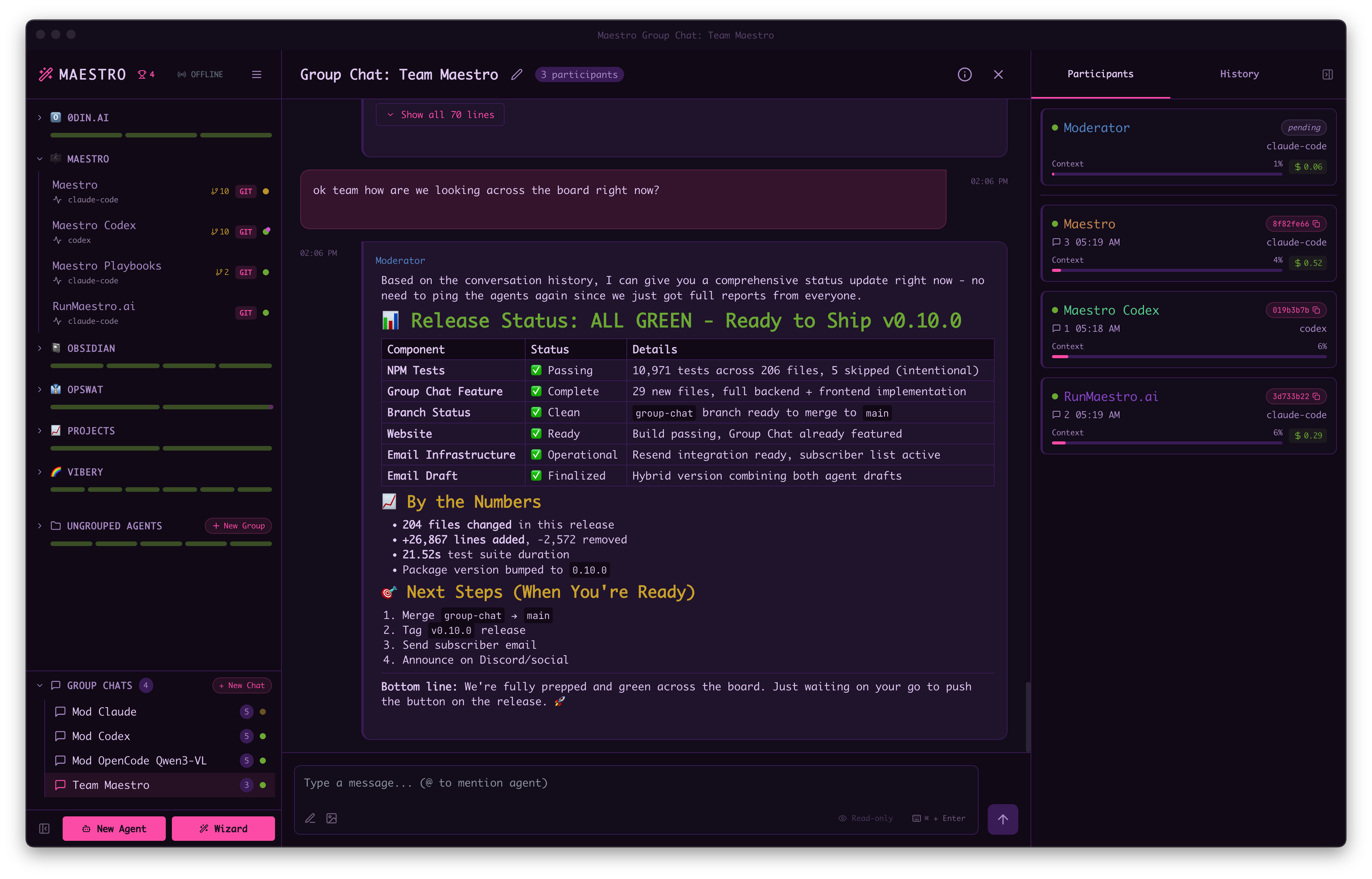
Group Chat lets you coordinate multiple AI agents in a single conversation. A moderator AI orchestrates the discussion, routing questions to the right agents and synthesizing their responses.
 ## When to Use Group Chat
* **Cross-project questions**: "How does the frontend authentication relate to the backend API?"
* **Architecture discussions**: Get perspectives from agents with different codebase contexts
* **Comparative analysis**: "Compare the testing approach in these three repositories"
* **Knowledge synthesis**: Combine expertise from specialized agents
* **Cross-machine collaboration**: Coordinate agents running on different machines via [SSH Remote Execution](./ssh-remote-execution)
## How It Works
1. **Create a Group Chat** - Use keyboard shortcut `Opt+Cmd+C` / `Alt+Ctrl+C`, click "+ New Chat" in the Group Chats section of the sidebar, or use Quick Actions (`Cmd+K` / `Ctrl+K`)
2. **Select a moderator** - Choose which AI agent (Claude Code, OpenCode, or Codex) will coordinate the conversation
3. **@mention agents** - In your message, @mention any Maestro session (e.g., `@Frontend`, `@Backend`). Agents are automatically added as participants when mentioned.
4. **Send your question** - The moderator receives it first and decides how to proceed
5. **Moderator coordinates** - Routes to relevant agents via @mentions, can make multiple rounds
6. **Agents respond** - Each agent works in their own project context
7. **Moderator synthesizes** - Combines responses into a coherent answer
Agents are automatically added as participants when you or the moderator @mention them. You don't need to pre-configure participants - just @mention any active Maestro session by name.
## The Moderator's Role
The moderator is an AI that controls the conversation flow:
* **Direct answers**: For simple questions, the moderator responds directly
* **Delegation**: For complex questions, @mentions the appropriate agents
* **Follow-up**: If agent responses are incomplete, keeps asking until satisfied
* **Synthesis**: Combines multiple agent perspectives into a final answer
The moderator won't return to you until your question is properly answered - it will keep going back to agents as many times as needed.
## Example Conversation
```
You: "How does @Maestro relate to @RunMaestro.ai?"
Moderator: "Let me gather information from both projects.
@Maestro @RunMaestro.ai - please explain your role in the ecosystem."
[Agents work in parallel...]
Maestro: "I'm the core Electron desktop app for AI orchestration..."
RunMaestro.ai: "I'm the marketing website and leaderboard..."
Moderator: "Here's how they relate:
- Maestro is the desktop app (the product)
- RunMaestro.ai is the website (discovery and community)
- They share theme definitions for visual consistency
Next steps: Would you like details on any specific integration?"
```
## Remote Agents in Group Chat
Group Chat works seamlessly with [SSH Remote Execution](./ssh-remote-execution). You can mix local and remote agents in the same conversation:
## When to Use Group Chat
* **Cross-project questions**: "How does the frontend authentication relate to the backend API?"
* **Architecture discussions**: Get perspectives from agents with different codebase contexts
* **Comparative analysis**: "Compare the testing approach in these three repositories"
* **Knowledge synthesis**: Combine expertise from specialized agents
* **Cross-machine collaboration**: Coordinate agents running on different machines via [SSH Remote Execution](./ssh-remote-execution)
## How It Works
1. **Create a Group Chat** - Use keyboard shortcut `Opt+Cmd+C` / `Alt+Ctrl+C`, click "+ New Chat" in the Group Chats section of the sidebar, or use Quick Actions (`Cmd+K` / `Ctrl+K`)
2. **Select a moderator** - Choose which AI agent (Claude Code, OpenCode, or Codex) will coordinate the conversation
3. **@mention agents** - In your message, @mention any Maestro session (e.g., `@Frontend`, `@Backend`). Agents are automatically added as participants when mentioned.
4. **Send your question** - The moderator receives it first and decides how to proceed
5. **Moderator coordinates** - Routes to relevant agents via @mentions, can make multiple rounds
6. **Agents respond** - Each agent works in their own project context
7. **Moderator synthesizes** - Combines responses into a coherent answer
Agents are automatically added as participants when you or the moderator @mention them. You don't need to pre-configure participants - just @mention any active Maestro session by name.
## The Moderator's Role
The moderator is an AI that controls the conversation flow:
* **Direct answers**: For simple questions, the moderator responds directly
* **Delegation**: For complex questions, @mentions the appropriate agents
* **Follow-up**: If agent responses are incomplete, keeps asking until satisfied
* **Synthesis**: Combines multiple agent perspectives into a final answer
The moderator won't return to you until your question is properly answered - it will keep going back to agents as many times as needed.
## Example Conversation
```
You: "How does @Maestro relate to @RunMaestro.ai?"
Moderator: "Let me gather information from both projects.
@Maestro @RunMaestro.ai - please explain your role in the ecosystem."
[Agents work in parallel...]
Maestro: "I'm the core Electron desktop app for AI orchestration..."
RunMaestro.ai: "I'm the marketing website and leaderboard..."
Moderator: "Here's how they relate:
- Maestro is the desktop app (the product)
- RunMaestro.ai is the website (discovery and community)
- They share theme definitions for visual consistency
Next steps: Would you like details on any specific integration?"
```
## Remote Agents in Group Chat
Group Chat works seamlessly with [SSH Remote Execution](./ssh-remote-execution). You can mix local and remote agents in the same conversation:
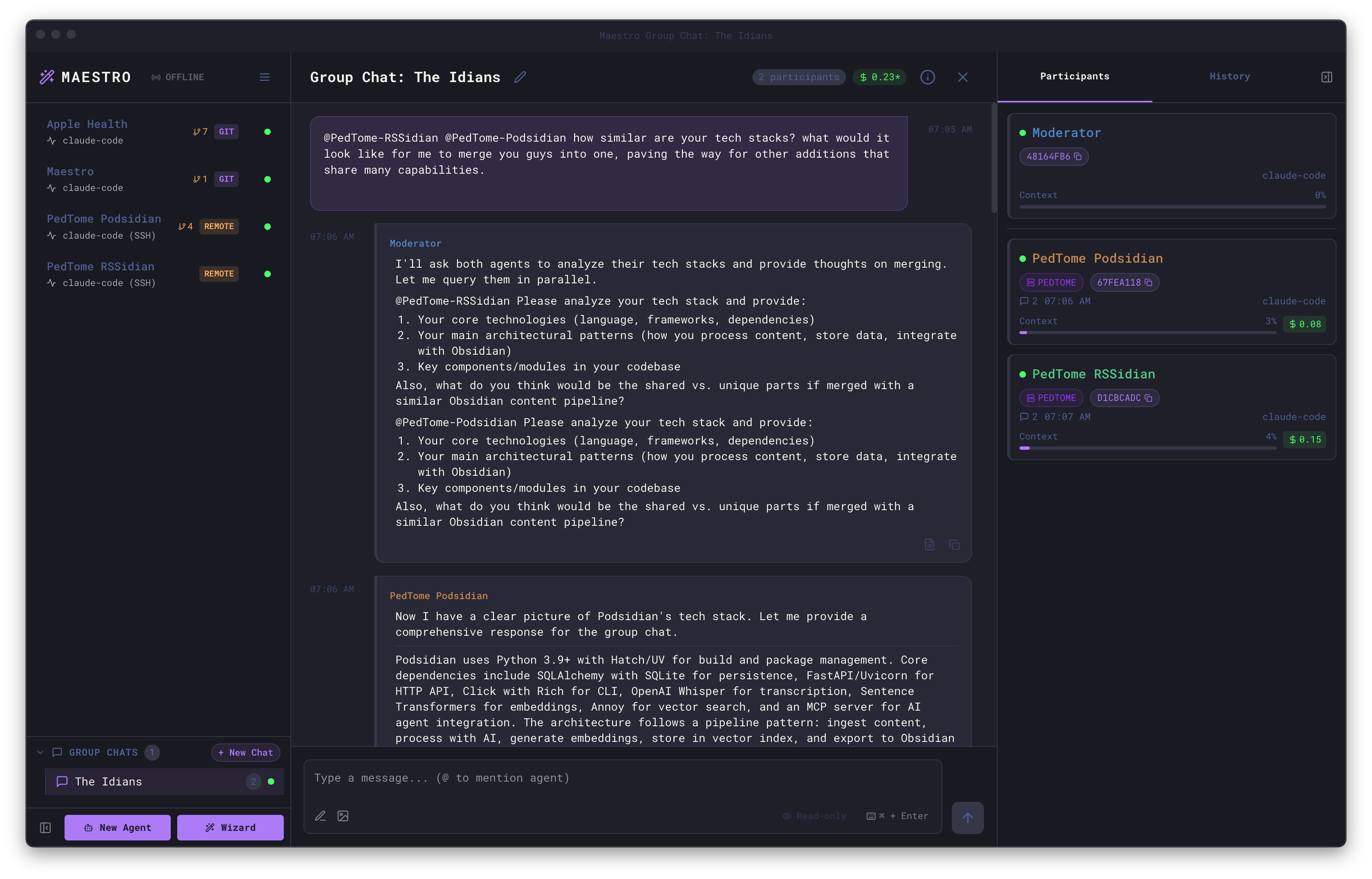 **Supported configurations:**
* Local moderator with remote participants
* Remote moderator with local participants
* Any mix of local and remote agents
* Agents spread across multiple SSH hosts
Remote agents are identified by the **REMOTE** pill in the participant list. Each agent works in their own environment - the moderator coordinates across machines transparently.
**Use cases for remote Group Chat:**
* Compare implementations across development and production environments
* Get perspectives from agents with access to different servers
* Coordinate changes that span multiple machines
* Synthesize information from agents with different tool installations
## Tips for Effective Group Chats
* **Name agents descriptively** - Agent names appear in the chat, so "Frontend-React" is clearer than "Agent1"
* **Be specific in questions** - The more context you provide, the better the moderator can route
* **@mention explicitly** - You can direct questions to specific agents: "What does @Backend think?"
* **Let the moderator work** - It may take multiple rounds for complex questions
* **Mix local and remote** - Combine agents across machines for maximum coverage
* **Hyphenated names for spaces** - If your session name has spaces, use hyphens in @mentions (e.g., `@My-Project` for "My Project")
## Managing Group Chats
Right-click on a group chat in the sidebar to access the context menu:
| Action | Description |
| ---------- | -------------------------------------------------------------------------------------------- |
| **Edit** | Change the moderator agent or customize its settings (CLI args, path, environment variables) |
| **Rename** | Change the group chat name |
| **Delete** | Remove the group chat and its conversation history |
## Input Features
The Group Chat input supports the same features as direct agent conversations:
* **Read-only mode** - Toggle to prevent agents from modifying files (participants receive the mode flag)
* **Image attachments** - Attach images to include in your message
* **Prompt Composer** - Open the full prompt composer with `Cmd+Shift+P` / `Ctrl+Shift+P`
* **Enter/Cmd+Enter toggle** - Switch between send behaviors
* **Message queuing** - Messages are queued if the moderator or agents are busy
**Supported configurations:**
* Local moderator with remote participants
* Remote moderator with local participants
* Any mix of local and remote agents
* Agents spread across multiple SSH hosts
Remote agents are identified by the **REMOTE** pill in the participant list. Each agent works in their own environment - the moderator coordinates across machines transparently.
**Use cases for remote Group Chat:**
* Compare implementations across development and production environments
* Get perspectives from agents with access to different servers
* Coordinate changes that span multiple machines
* Synthesize information from agents with different tool installations
## Tips for Effective Group Chats
* **Name agents descriptively** - Agent names appear in the chat, so "Frontend-React" is clearer than "Agent1"
* **Be specific in questions** - The more context you provide, the better the moderator can route
* **@mention explicitly** - You can direct questions to specific agents: "What does @Backend think?"
* **Let the moderator work** - It may take multiple rounds for complex questions
* **Mix local and remote** - Combine agents across machines for maximum coverage
* **Hyphenated names for spaces** - If your session name has spaces, use hyphens in @mentions (e.g., `@My-Project` for "My Project")
## Managing Group Chats
Right-click on a group chat in the sidebar to access the context menu:
| Action | Description |
| ---------- | -------------------------------------------------------------------------------------------- |
| **Edit** | Change the moderator agent or customize its settings (CLI args, path, environment variables) |
| **Rename** | Change the group chat name |
| **Delete** | Remove the group chat and its conversation history |
## Input Features
The Group Chat input supports the same features as direct agent conversations:
* **Read-only mode** - Toggle to prevent agents from modifying files (participants receive the mode flag)
* **Image attachments** - Attach images to include in your message
* **Prompt Composer** - Open the full prompt composer with `Cmd+Shift+P` / `Ctrl+Shift+P`
* **Enter/Cmd+Enter toggle** - Switch between send behaviors
* **Message queuing** - Messages are queued if the moderator or agents are busy