> ## Documentation Index
> Fetch the complete documentation index at: https://docs.runmaestro.ai/llms.txt
> Use this file to discover all available pages before exploring further.
# Keyboard Shortcuts
> Complete reference for Maestro keyboard shortcuts, tab completion, and mastery tracking.
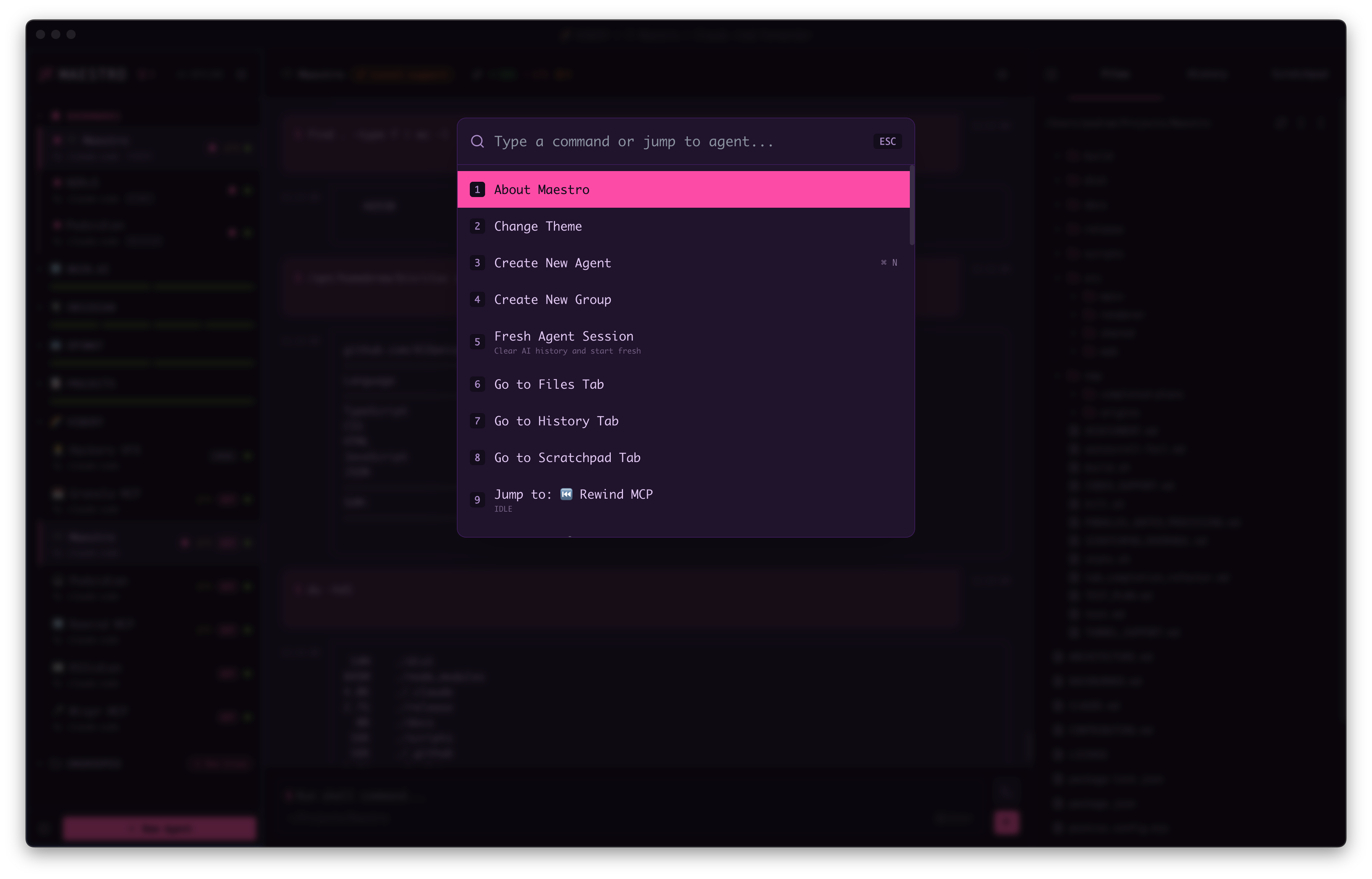
## Quick Actions (Cmd+K)
The command palette is your gateway to nearly every action in Maestro. Press `Cmd+K` (Mac) or `Ctrl+K` (Windows/Linux) to open it.
 ## System-Wide Hotkey (Summon Maestro)
Configure a single OS-level hotkey that summons Maestro - bringing the window to the foreground and focusing it - from any application on macOS, Windows, or Linux. This is the only shortcut in Maestro that fires while the app is in the background; every other shortcut on this page is in-app.
**To configure:**
1. Open **Settings** (`Cmd+,` / `Ctrl+,`) → **General** tab
2. Find **Global Hotkey to Show Maestro**
3. Click the key capture button and press your desired combo
4. Leave it blank to disable the binding
Tips and gotchas:
* Pick a combo with two modifiers (e.g. `Cmd+Shift+M` / `Win+Shift+M`) to avoid clashing with app shortcuts.
* If the OS or another app already owns the combo, Maestro will surface a registration failure - pick a different binding.
* `Meta` maps to **Cmd** on macOS and **Win** (Super) on Windows/Linux automatically.
* The hotkey works even when Maestro is hidden, minimized, or behind other windows.
## Global Shortcuts
| Action | macOS | Windows/Linux |
| --------------------------- | --------------------- | ---------------------- |
| Quick Actions | `Cmd+K` | `Ctrl+K` |
| Agent Switcher | `Cmd+O` | `Ctrl+O` |
| Toggle Left Panel | `Opt+Cmd+Left` | `Alt+Ctrl+Left` |
| Toggle Right Panel | `Opt+Cmd+Right` | `Alt+Ctrl+Right` |
| New Agent | `Cmd+N` | `Ctrl+N` |
| New Agent Wizard | `Cmd+Shift+N` | `Ctrl+Shift+N` |
| New Group Chat | `Opt+Cmd+C` | `Alt+Ctrl+C` |
| Remove Agent | `Cmd+Shift+Backspace` | `Ctrl+Shift+Backspace` |
| Move Agent to Group | `Cmd+Shift+M` | `Ctrl+Shift+M` |
| Previous Agent | `Cmd+[` | `Ctrl+[` |
| Next Agent | `Cmd+]` | `Ctrl+]` |
| Navigate Back | `Cmd+Shift+,` | `Ctrl+Shift+,` |
| Navigate Forward | `Cmd+Shift+.` | `Ctrl+Shift+.` |
| Jump to Agent (1-9, 0=10th) | `Opt+Cmd+NUMBER` | `Alt+Ctrl+NUMBER` |
| Switch AI/Shell Mode | `Cmd+J` | `Ctrl+J` |
| Toggle Input/Output Focus | `Cmd+.` | `Ctrl+.` |
| Focus Left Panel | `Cmd+Shift+A` | `Ctrl+Shift+A` |
| Show Shortcuts Help | `Cmd+/` | `Ctrl+/` |
| Open Settings | `Cmd+,` | `Ctrl+,` |
| Open Agent Settings | `Opt+Cmd+,` | `Alt+Ctrl+,` |
| View Agent Sessions | `Cmd+Shift+L` | `Ctrl+Shift+L` |
| System Log Viewer | `Opt+Cmd+L` | `Alt+Ctrl+L` |
| System Process Monitor | `Opt+Cmd+P` | `Alt+Ctrl+P` |
| Usage Dashboard | `Opt+Cmd+U` | `Alt+Ctrl+U` |
| Jump to Nearest Terminal | `Opt+Cmd+J` | `Alt+Ctrl+J` |
| Jump to Bottom | `Opt+J` | `Alt+J` |
| Toggle Bookmark | `Cmd+Shift+B` | `Ctrl+Shift+B` |
| Maestro Symphony | `Cmd+Shift+Y` | `Ctrl+Shift+Y` |
| Director's Notes | `Cmd+Shift+O` | `Ctrl+Shift+O` |
| Maestro Cue | `Opt+Q` | `Alt+Q` |
| Edit Image from Clipboard | `Opt+Cmd+E` | `Alt+Ctrl+E` |
| Forced Parallel Send | `Cmd+Shift+Enter` | `Ctrl+Shift+Enter` |
| Cycle Focus Areas | `Tab` | `Tab` |
| Cycle Focus Backwards | `Shift+Tab` | `Shift+Tab` |
## Panel Shortcuts
| Action | macOS | Windows/Linux |
| ------------------------------ | ------------- | -------------- |
| Go to Files Tab | `Cmd+Shift+F` | `Ctrl+Shift+F` |
| Go to History Tab | `Cmd+Shift+H` | `Ctrl+Shift+H` |
| Go to Auto Run Tab | `Cmd+Shift+1` | `Ctrl+Shift+1` |
| Toggle Edit/Preview (Markdown) | `Cmd+E` | `Ctrl+E` |
| Run Auto Run | `Cmd+Shift+2` | `Ctrl+Shift+2` |
| Auto Run Expanded Preview | `Cmd+Shift+E` | `Ctrl+Shift+E` |
| Insert Checkbox (Auto Run) | `Cmd+L` | `Ctrl+L` |
| View Git Diff | `Cmd+Shift+D` | `Ctrl+Shift+D` |
| View Git Log | `Cmd+Shift+G` | `Ctrl+Shift+G` |
| Fuzzy File Search | `Cmd+G` | `Ctrl+G` |
## AI Tab Shortcuts
These shortcuts work in AI Terminal mode and affect the current tab:
| Action | macOS | Windows/Linux |
| ---------------------- | -------------- | --------------- |
| Toggle Save to History | `Cmd+S` | `Ctrl+S` |
| Toggle Read-Only Mode | `Cmd+R` | `Ctrl+R` |
| Toggle Show Thinking | `Cmd+Shift+K` | `Ctrl+Shift+K` |
| Toggle Tab Star | `Cmd+Shift+S` | `Ctrl+Shift+S` |
| Toggle Tab Unread | `Cmd+Shift+U` | `Ctrl+Shift+U` |
| Filter Unread Agents | `Opt+U` | `Alt+U` |
| Filter Unread Tabs | `Cmd+U` | `Ctrl+U` |
| Next Unread/Draft Tab | `Opt+Cmd+Down` | `Alt+Ctrl+Down` |
| Open Image Carousel | `Cmd+Y` | `Ctrl+Y` |
| Open Prompt Composer | `Cmd+Shift+P` | `Ctrl+Shift+P` |
Toggle states are saved per-tab. See [Input Toggles](./general-usage#input-toggles) for details on configuring defaults.
## Tab Management Shortcuts
| Action | macOS | Windows/Linux |
| ------------------------- | ----------------------- | ------------------------- |
| New Tab | `Cmd+T` | `Ctrl+T` |
| New Browser Tab | `Cmd+B` | `Ctrl+B` |
| New File Tab | `Opt+N` | `Alt+N` |
| New Terminal Tab | `Ctrl+Shift+` + `` ` `` | `Ctrl+Shift+` + `` ` `` |
| Focus Browser Address Bar | `Cmd+L` | `Ctrl+L` |
| Find in Browser Tab | `Cmd+F` | `Ctrl+F` |
| Focus Active Tab | `Opt+Cmd+F` | `Alt+Ctrl+F` |
| Close Tab | `Cmd+W` | `Ctrl+W` |
| Close All Tabs | `Cmd+Shift+W` | `Ctrl+Shift+W` |
| Close Other Tabs | `Opt+Cmd+W` | `Alt+Ctrl+W` |
| Close Tabs to Left | `Cmd+Shift+Opt+[` | `Ctrl+Shift+Alt+[` |
| Close Tabs to Right | `Cmd+Shift+Opt+]` | `Ctrl+Shift+Alt+]` |
| Reopen Closed Tab | `Cmd+Shift+T` | `Ctrl+Shift+T` |
| Previous Tab | `Cmd+Shift+[` | `Ctrl+Shift+[` |
| Next Tab | `Cmd+Shift+]` | `Ctrl+Shift+]` |
| Tab Switcher | `Opt+Cmd+T` | `Alt+Ctrl+T` |
| Rename Tab | `Cmd+Shift+R` | `Ctrl+Shift+R` |
| Go to Tab 1-9 | `Cmd+1` through `Cmd+9` | `Ctrl+1` through `Ctrl+9` |
| Go to Last Tab | `Cmd+0` | `Ctrl+0` |
### Tab Switcher
The Tab Switcher provides fuzzy search across all open tabs with quick navigation:
## System-Wide Hotkey (Summon Maestro)
Configure a single OS-level hotkey that summons Maestro - bringing the window to the foreground and focusing it - from any application on macOS, Windows, or Linux. This is the only shortcut in Maestro that fires while the app is in the background; every other shortcut on this page is in-app.
**To configure:**
1. Open **Settings** (`Cmd+,` / `Ctrl+,`) → **General** tab
2. Find **Global Hotkey to Show Maestro**
3. Click the key capture button and press your desired combo
4. Leave it blank to disable the binding
Tips and gotchas:
* Pick a combo with two modifiers (e.g. `Cmd+Shift+M` / `Win+Shift+M`) to avoid clashing with app shortcuts.
* If the OS or another app already owns the combo, Maestro will surface a registration failure - pick a different binding.
* `Meta` maps to **Cmd** on macOS and **Win** (Super) on Windows/Linux automatically.
* The hotkey works even when Maestro is hidden, minimized, or behind other windows.
## Global Shortcuts
| Action | macOS | Windows/Linux |
| --------------------------- | --------------------- | ---------------------- |
| Quick Actions | `Cmd+K` | `Ctrl+K` |
| Agent Switcher | `Cmd+O` | `Ctrl+O` |
| Toggle Left Panel | `Opt+Cmd+Left` | `Alt+Ctrl+Left` |
| Toggle Right Panel | `Opt+Cmd+Right` | `Alt+Ctrl+Right` |
| New Agent | `Cmd+N` | `Ctrl+N` |
| New Agent Wizard | `Cmd+Shift+N` | `Ctrl+Shift+N` |
| New Group Chat | `Opt+Cmd+C` | `Alt+Ctrl+C` |
| Remove Agent | `Cmd+Shift+Backspace` | `Ctrl+Shift+Backspace` |
| Move Agent to Group | `Cmd+Shift+M` | `Ctrl+Shift+M` |
| Previous Agent | `Cmd+[` | `Ctrl+[` |
| Next Agent | `Cmd+]` | `Ctrl+]` |
| Navigate Back | `Cmd+Shift+,` | `Ctrl+Shift+,` |
| Navigate Forward | `Cmd+Shift+.` | `Ctrl+Shift+.` |
| Jump to Agent (1-9, 0=10th) | `Opt+Cmd+NUMBER` | `Alt+Ctrl+NUMBER` |
| Switch AI/Shell Mode | `Cmd+J` | `Ctrl+J` |
| Toggle Input/Output Focus | `Cmd+.` | `Ctrl+.` |
| Focus Left Panel | `Cmd+Shift+A` | `Ctrl+Shift+A` |
| Show Shortcuts Help | `Cmd+/` | `Ctrl+/` |
| Open Settings | `Cmd+,` | `Ctrl+,` |
| Open Agent Settings | `Opt+Cmd+,` | `Alt+Ctrl+,` |
| View Agent Sessions | `Cmd+Shift+L` | `Ctrl+Shift+L` |
| System Log Viewer | `Opt+Cmd+L` | `Alt+Ctrl+L` |
| System Process Monitor | `Opt+Cmd+P` | `Alt+Ctrl+P` |
| Usage Dashboard | `Opt+Cmd+U` | `Alt+Ctrl+U` |
| Jump to Nearest Terminal | `Opt+Cmd+J` | `Alt+Ctrl+J` |
| Jump to Bottom | `Opt+J` | `Alt+J` |
| Toggle Bookmark | `Cmd+Shift+B` | `Ctrl+Shift+B` |
| Maestro Symphony | `Cmd+Shift+Y` | `Ctrl+Shift+Y` |
| Director's Notes | `Cmd+Shift+O` | `Ctrl+Shift+O` |
| Maestro Cue | `Opt+Q` | `Alt+Q` |
| Edit Image from Clipboard | `Opt+Cmd+E` | `Alt+Ctrl+E` |
| Forced Parallel Send | `Cmd+Shift+Enter` | `Ctrl+Shift+Enter` |
| Cycle Focus Areas | `Tab` | `Tab` |
| Cycle Focus Backwards | `Shift+Tab` | `Shift+Tab` |
## Panel Shortcuts
| Action | macOS | Windows/Linux |
| ------------------------------ | ------------- | -------------- |
| Go to Files Tab | `Cmd+Shift+F` | `Ctrl+Shift+F` |
| Go to History Tab | `Cmd+Shift+H` | `Ctrl+Shift+H` |
| Go to Auto Run Tab | `Cmd+Shift+1` | `Ctrl+Shift+1` |
| Toggle Edit/Preview (Markdown) | `Cmd+E` | `Ctrl+E` |
| Run Auto Run | `Cmd+Shift+2` | `Ctrl+Shift+2` |
| Auto Run Expanded Preview | `Cmd+Shift+E` | `Ctrl+Shift+E` |
| Insert Checkbox (Auto Run) | `Cmd+L` | `Ctrl+L` |
| View Git Diff | `Cmd+Shift+D` | `Ctrl+Shift+D` |
| View Git Log | `Cmd+Shift+G` | `Ctrl+Shift+G` |
| Fuzzy File Search | `Cmd+G` | `Ctrl+G` |
## AI Tab Shortcuts
These shortcuts work in AI Terminal mode and affect the current tab:
| Action | macOS | Windows/Linux |
| ---------------------- | -------------- | --------------- |
| Toggle Save to History | `Cmd+S` | `Ctrl+S` |
| Toggle Read-Only Mode | `Cmd+R` | `Ctrl+R` |
| Toggle Show Thinking | `Cmd+Shift+K` | `Ctrl+Shift+K` |
| Toggle Tab Star | `Cmd+Shift+S` | `Ctrl+Shift+S` |
| Toggle Tab Unread | `Cmd+Shift+U` | `Ctrl+Shift+U` |
| Filter Unread Agents | `Opt+U` | `Alt+U` |
| Filter Unread Tabs | `Cmd+U` | `Ctrl+U` |
| Next Unread/Draft Tab | `Opt+Cmd+Down` | `Alt+Ctrl+Down` |
| Open Image Carousel | `Cmd+Y` | `Ctrl+Y` |
| Open Prompt Composer | `Cmd+Shift+P` | `Ctrl+Shift+P` |
Toggle states are saved per-tab. See [Input Toggles](./general-usage#input-toggles) for details on configuring defaults.
## Tab Management Shortcuts
| Action | macOS | Windows/Linux |
| ------------------------- | ----------------------- | ------------------------- |
| New Tab | `Cmd+T` | `Ctrl+T` |
| New Browser Tab | `Cmd+B` | `Ctrl+B` |
| New File Tab | `Opt+N` | `Alt+N` |
| New Terminal Tab | `Ctrl+Shift+` + `` ` `` | `Ctrl+Shift+` + `` ` `` |
| Focus Browser Address Bar | `Cmd+L` | `Ctrl+L` |
| Find in Browser Tab | `Cmd+F` | `Ctrl+F` |
| Focus Active Tab | `Opt+Cmd+F` | `Alt+Ctrl+F` |
| Close Tab | `Cmd+W` | `Ctrl+W` |
| Close All Tabs | `Cmd+Shift+W` | `Ctrl+Shift+W` |
| Close Other Tabs | `Opt+Cmd+W` | `Alt+Ctrl+W` |
| Close Tabs to Left | `Cmd+Shift+Opt+[` | `Ctrl+Shift+Alt+[` |
| Close Tabs to Right | `Cmd+Shift+Opt+]` | `Ctrl+Shift+Alt+]` |
| Reopen Closed Tab | `Cmd+Shift+T` | `Ctrl+Shift+T` |
| Previous Tab | `Cmd+Shift+[` | `Ctrl+Shift+[` |
| Next Tab | `Cmd+Shift+]` | `Ctrl+Shift+]` |
| Tab Switcher | `Opt+Cmd+T` | `Alt+Ctrl+T` |
| Rename Tab | `Cmd+Shift+R` | `Ctrl+Shift+R` |
| Go to Tab 1-9 | `Cmd+1` through `Cmd+9` | `Ctrl+1` through `Ctrl+9` |
| Go to Last Tab | `Cmd+0` | `Ctrl+0` |
### Tab Switcher
The Tab Switcher provides fuzzy search across all open tabs with quick navigation:
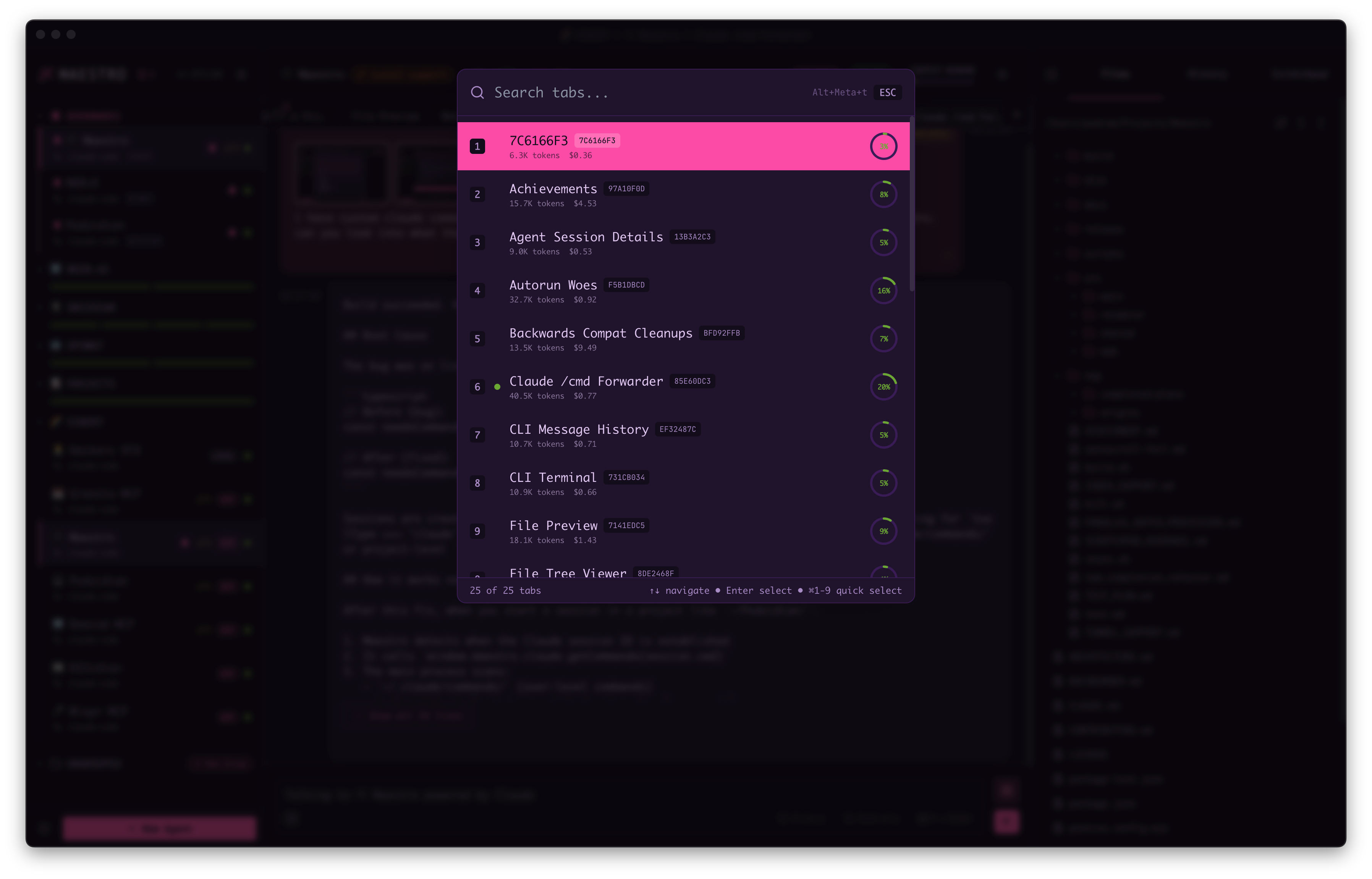 * **Search** - Type to filter tabs by name or session ID
* **Quick select** - Press `1-9` to jump directly to a numbered tab
* **Navigate** - Use `Up/Down Arrow` to move through results
* **Select** - Press `Enter` to switch to the highlighted tab
* **Context info** - Each tab shows token count, cost, and context usage
The bulk close operations (Close All, Close Others, Close Left, Close Right) are also available via the [Tab Menu](./context-management#tab-close-operations) hover overlay and Quick Actions (`Cmd+K`).
## Input & Output
| Action | Key |
| ------------------------ | ------------------------------------------------- |
| Send Message | `Enter` or `Cmd+Enter` (configurable in Settings) |
| Multiline Input | `Shift+Enter` |
| Navigate Command History | `Up Arrow` while in input |
| Slash Commands | Type `/` to open autocomplete |
| Focus Output | `Esc` while in input |
| Focus Input | `Esc` while in output |
| Open Output Search | `Cmd+F` while in output |
| Scroll Output | `Up/Down Arrow` while in output |
| Prev/Next Message | `Shift+Up/Down Arrow` while in output |
| Page Up/Down | `Alt+Up/Down Arrow` while in output |
| Jump to Top/Bottom | `Cmd+Up/Down Arrow` while in output |
## Font Size
| Action | macOS | Windows/Linux |
| ------------------ | ------------- | -------------- |
| Increase Font Size | `Cmd+=` | `Ctrl+=` |
| Decrease Font Size | `Cmd+-` | `Ctrl+-` |
| Reset Font Size | `Cmd+Shift+0` | `Ctrl+Shift+0` |
## Command Terminal
| Action | macOS | Windows/Linux |
| -------------- | ------------- | -------------- |
| Clear Terminal | `Cmd+Shift+K` | `Ctrl+Shift+K` |
### Tab Completion
The Command Terminal provides intelligent tab completion for faster command entry:
| Action | Key |
| ---------------------- | ---------------------------------------------- |
| Open Tab Completion | `Tab` (when there's input text) |
| Navigate Suggestions | `Up/Down Arrow` |
| Select Suggestion | `Enter` |
| Cycle Filter Types | `Tab` (while dropdown is open, git repos only) |
| Cycle Filter Backwards | `Shift+Tab` (while dropdown is open) |
| Close Dropdown | `Esc` |
**Completion Sources:**
* **History** - Previous shell commands from your session
* **Files/Folders** - Files and directories in your current working directory
* **Git Branches** - Local and remote branches (git repos only)
* **Git Tags** - Available tags (git repos only)
In git repositories, filter buttons appear in the dropdown header allowing you to filter by type (All, History, Branches, Tags, Files). Use `Tab`/`Shift+Tab` to cycle through filters or click directly.
## @ File Mentions (AI Terminal)
In AI mode, use `@` to reference files in your prompts:
| Action | Key |
| -------------------- | ---------------------------------- |
| Open File Picker | Type `@` followed by a search term |
| Navigate Suggestions | `Up/Down Arrow` |
| Select File | `Tab` or `Enter` |
| Close Dropdown | `Esc` |
**Example**: Type `@readme` to see matching files, then select to insert the file reference into your prompt. The AI will have context about the referenced file.
## Navigation & Search
| Action | macOS | Windows/Linux |
| ------------------------------- | ---------------------------------- | ---------------------------------- |
| Navigate Agents | `Up/Down Arrow` while in sidebar | `Up/Down Arrow` while in sidebar |
| Select Agent | `Enter` while in sidebar | `Enter` while in sidebar |
| Filter Sessions (in Left Panel) | `Cmd+F` | `Ctrl+F` |
| Navigate Files | `Up/Down Arrow` while in file tree | `Up/Down Arrow` while in file tree |
| Extend File Selection | `Shift+Up/Down Arrow` in file tree | `Shift+Up/Down Arrow` in file tree |
| Multi-select Files | `Cmd+Click` / `Shift+Click` | `Ctrl+Click` / `Shift+Click` |
| Filter Files (in Files tab) | `Cmd+F` | `Ctrl+F` |
| Filter History (in History tab) | `Cmd+F` | `Ctrl+F` |
| Search Output (in Main Window) | `Cmd+F` | `Ctrl+F` |
| Search System Logs | `Cmd+F` | `Ctrl+F` |
| Search Director's Notes | `Cmd+F` | `Ctrl+F` |
| Open File Preview | `Enter` on selected file | `Enter` on selected file |
| Close Preview/Filter/Modal | `Esc` | `Esc` |
## File Preview
| Action | macOS | Windows/Linux |
| ----------------------------------- | --------------- | --------------- |
| Copy File Path | `Cmd+P` | `Ctrl+P` |
| Open Search | `Cmd+F` | `Ctrl+F` |
| Toggle Table of Contents (Markdown) | `Cmd+\` | `Ctrl+\` |
| Go Back | `Cmd+Left` | `Ctrl+Left` |
| Go Forward | `Cmd+Right` | `Ctrl+Right` |
| Scroll | `Up/Down Arrow` | `Up/Down Arrow` |
| Close | `Esc` | `Esc` |
## Document Graph
| Action | Key |
| ----------------------------- | ------------ |
| Navigate to connected nodes | `Arrow Keys` |
| Re-center on node (document) | `Enter` |
| Open URL (external link) | `Enter` |
| Open document in File Preview | `O` |
| Close the graph | `Esc` |
## Customizing Shortcuts
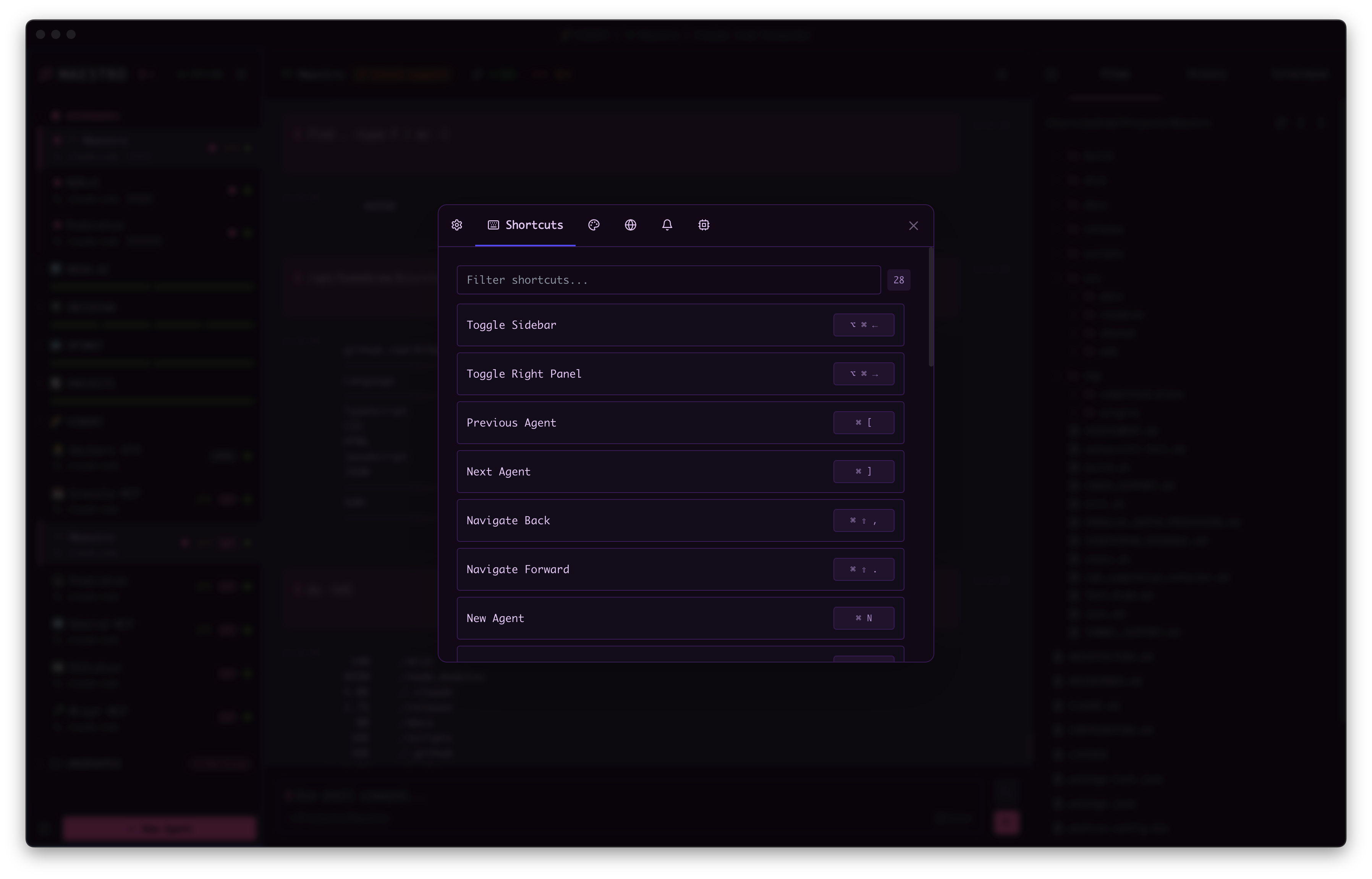
Most shortcuts can be remapped to fit your workflow:
1. Open **Settings** (`Cmd+,` / `Ctrl+,`) → **Shortcuts** tab
2. Find the action you want to remap
3. Click the current key binding (shows the shortcut like `⌘ K` or `Ctrl+K`)
4. Press your desired key combination
5. The new binding is saved immediately
* **Search** - Type to filter tabs by name or session ID
* **Quick select** - Press `1-9` to jump directly to a numbered tab
* **Navigate** - Use `Up/Down Arrow` to move through results
* **Select** - Press `Enter` to switch to the highlighted tab
* **Context info** - Each tab shows token count, cost, and context usage
The bulk close operations (Close All, Close Others, Close Left, Close Right) are also available via the [Tab Menu](./context-management#tab-close-operations) hover overlay and Quick Actions (`Cmd+K`).
## Input & Output
| Action | Key |
| ------------------------ | ------------------------------------------------- |
| Send Message | `Enter` or `Cmd+Enter` (configurable in Settings) |
| Multiline Input | `Shift+Enter` |
| Navigate Command History | `Up Arrow` while in input |
| Slash Commands | Type `/` to open autocomplete |
| Focus Output | `Esc` while in input |
| Focus Input | `Esc` while in output |
| Open Output Search | `Cmd+F` while in output |
| Scroll Output | `Up/Down Arrow` while in output |
| Prev/Next Message | `Shift+Up/Down Arrow` while in output |
| Page Up/Down | `Alt+Up/Down Arrow` while in output |
| Jump to Top/Bottom | `Cmd+Up/Down Arrow` while in output |
## Font Size
| Action | macOS | Windows/Linux |
| ------------------ | ------------- | -------------- |
| Increase Font Size | `Cmd+=` | `Ctrl+=` |
| Decrease Font Size | `Cmd+-` | `Ctrl+-` |
| Reset Font Size | `Cmd+Shift+0` | `Ctrl+Shift+0` |
## Command Terminal
| Action | macOS | Windows/Linux |
| -------------- | ------------- | -------------- |
| Clear Terminal | `Cmd+Shift+K` | `Ctrl+Shift+K` |
### Tab Completion
The Command Terminal provides intelligent tab completion for faster command entry:
| Action | Key |
| ---------------------- | ---------------------------------------------- |
| Open Tab Completion | `Tab` (when there's input text) |
| Navigate Suggestions | `Up/Down Arrow` |
| Select Suggestion | `Enter` |
| Cycle Filter Types | `Tab` (while dropdown is open, git repos only) |
| Cycle Filter Backwards | `Shift+Tab` (while dropdown is open) |
| Close Dropdown | `Esc` |
**Completion Sources:**
* **History** - Previous shell commands from your session
* **Files/Folders** - Files and directories in your current working directory
* **Git Branches** - Local and remote branches (git repos only)
* **Git Tags** - Available tags (git repos only)
In git repositories, filter buttons appear in the dropdown header allowing you to filter by type (All, History, Branches, Tags, Files). Use `Tab`/`Shift+Tab` to cycle through filters or click directly.
## @ File Mentions (AI Terminal)
In AI mode, use `@` to reference files in your prompts:
| Action | Key |
| -------------------- | ---------------------------------- |
| Open File Picker | Type `@` followed by a search term |
| Navigate Suggestions | `Up/Down Arrow` |
| Select File | `Tab` or `Enter` |
| Close Dropdown | `Esc` |
**Example**: Type `@readme` to see matching files, then select to insert the file reference into your prompt. The AI will have context about the referenced file.
## Navigation & Search
| Action | macOS | Windows/Linux |
| ------------------------------- | ---------------------------------- | ---------------------------------- |
| Navigate Agents | `Up/Down Arrow` while in sidebar | `Up/Down Arrow` while in sidebar |
| Select Agent | `Enter` while in sidebar | `Enter` while in sidebar |
| Filter Sessions (in Left Panel) | `Cmd+F` | `Ctrl+F` |
| Navigate Files | `Up/Down Arrow` while in file tree | `Up/Down Arrow` while in file tree |
| Extend File Selection | `Shift+Up/Down Arrow` in file tree | `Shift+Up/Down Arrow` in file tree |
| Multi-select Files | `Cmd+Click` / `Shift+Click` | `Ctrl+Click` / `Shift+Click` |
| Filter Files (in Files tab) | `Cmd+F` | `Ctrl+F` |
| Filter History (in History tab) | `Cmd+F` | `Ctrl+F` |
| Search Output (in Main Window) | `Cmd+F` | `Ctrl+F` |
| Search System Logs | `Cmd+F` | `Ctrl+F` |
| Search Director's Notes | `Cmd+F` | `Ctrl+F` |
| Open File Preview | `Enter` on selected file | `Enter` on selected file |
| Close Preview/Filter/Modal | `Esc` | `Esc` |
## File Preview
| Action | macOS | Windows/Linux |
| ----------------------------------- | --------------- | --------------- |
| Copy File Path | `Cmd+P` | `Ctrl+P` |
| Open Search | `Cmd+F` | `Ctrl+F` |
| Toggle Table of Contents (Markdown) | `Cmd+\` | `Ctrl+\` |
| Go Back | `Cmd+Left` | `Ctrl+Left` |
| Go Forward | `Cmd+Right` | `Ctrl+Right` |
| Scroll | `Up/Down Arrow` | `Up/Down Arrow` |
| Close | `Esc` | `Esc` |
## Document Graph
| Action | Key |
| ----------------------------- | ------------ |
| Navigate to connected nodes | `Arrow Keys` |
| Re-center on node (document) | `Enter` |
| Open URL (external link) | `Enter` |
| Open document in File Preview | `O` |
| Close the graph | `Esc` |
## Customizing Shortcuts
Most shortcuts can be remapped to fit your workflow:
1. Open **Settings** (`Cmd+,` / `Ctrl+,`) → **Shortcuts** tab
2. Find the action you want to remap
3. Click the current key binding (shows the shortcut like `⌘ K` or `Ctrl+K`)
4. Press your desired key combination
5. The new binding is saved immediately
 **Tips:**
* Press `Esc` while recording to cancel without changing the shortcut
* Modifier keys alone (Cmd, Ctrl, Alt, Shift) won't register - you need a final key
* Some shortcuts are fixed and cannot be remapped (like `Esc` to close modals)
* Conflicting shortcuts will override the previous binding
**Resetting shortcuts:** There's currently no "reset to default" button - if you need to restore defaults, you can find the original bindings in this documentation or delete the shortcuts from your settings file.
## Keyboard Mastery
Maestro tracks your keyboard shortcut usage and rewards you for becoming a power user. As you discover and use more shortcuts, you'll level up through 5 mastery levels:
| Level | Title | Threshold |
| :---: | -------------------- | --------- |
| 0 | **Beginner** | 0% |
| 1 | **Student** | 25% |
| 2 | **Performer** | 50% |
| 3 | **Virtuoso** | 75% |
| 4 | **Keyboard Maestro** | 100% |
**Tracking your progress:**
* Open the **Shortcuts Help** panel (`Cmd+/` / `Ctrl+/`) to see your mastery percentage and current level
* Each shortcut displays a checkmark once you've used it
* A progress bar shows how many shortcuts you've mastered out of the total
* When you reach a new level, you'll see a celebration with confetti
**Tips:**
* Press `Esc` while recording to cancel without changing the shortcut
* Modifier keys alone (Cmd, Ctrl, Alt, Shift) won't register - you need a final key
* Some shortcuts are fixed and cannot be remapped (like `Esc` to close modals)
* Conflicting shortcuts will override the previous binding
**Resetting shortcuts:** There's currently no "reset to default" button - if you need to restore defaults, you can find the original bindings in this documentation or delete the shortcuts from your settings file.
## Keyboard Mastery
Maestro tracks your keyboard shortcut usage and rewards you for becoming a power user. As you discover and use more shortcuts, you'll level up through 5 mastery levels:
| Level | Title | Threshold |
| :---: | -------------------- | --------- |
| 0 | **Beginner** | 0% |
| 1 | **Student** | 25% |
| 2 | **Performer** | 50% |
| 3 | **Virtuoso** | 75% |
| 4 | **Keyboard Maestro** | 100% |
**Tracking your progress:**
* Open the **Shortcuts Help** panel (`Cmd+/` / `Ctrl+/`) to see your mastery percentage and current level
* Each shortcut displays a checkmark once you've used it
* A progress bar shows how many shortcuts you've mastered out of the total
* When you reach a new level, you'll see a celebration with confetti
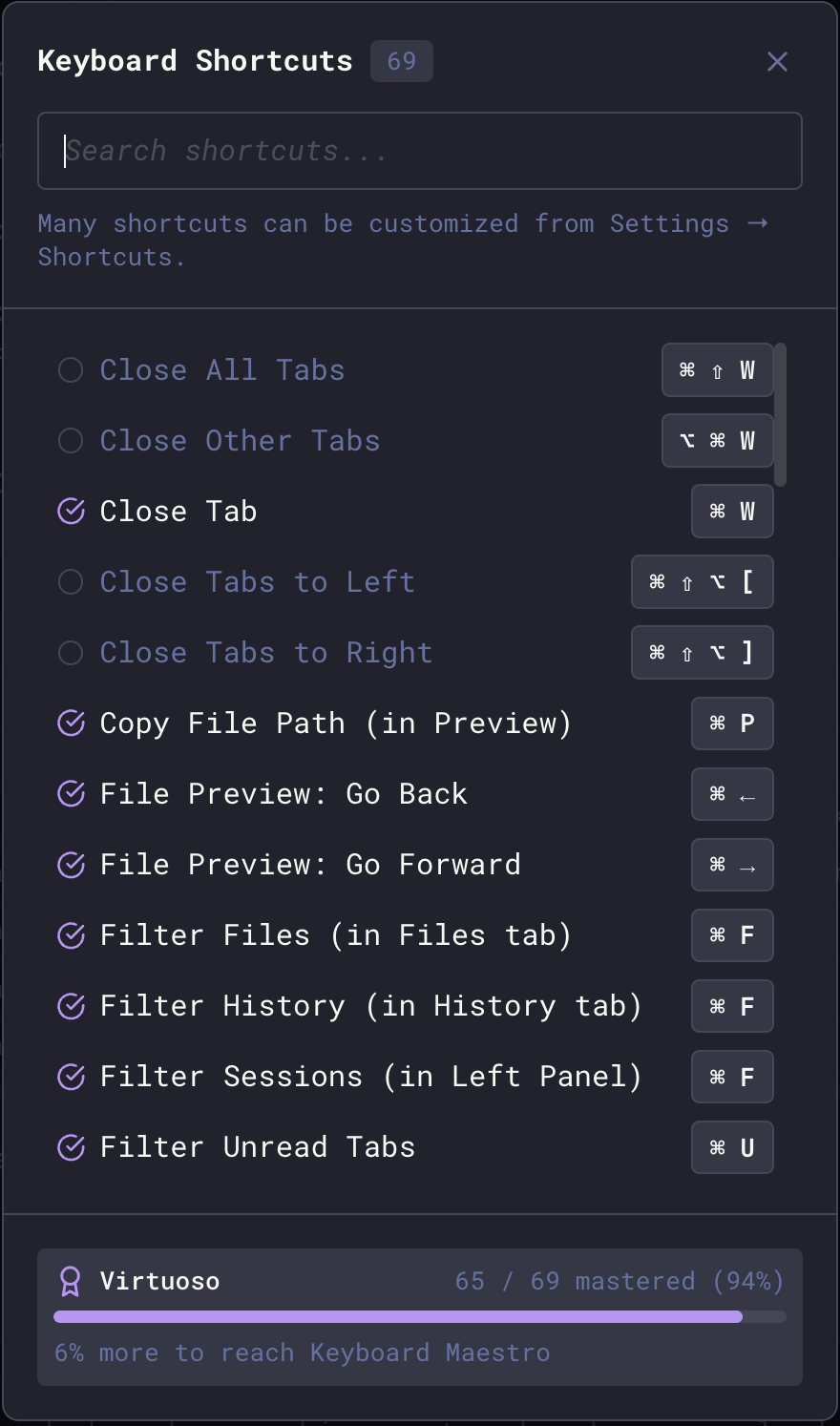 The modal shows all available shortcuts with checkmarks indicating which you've mastered. Use the search bar to find specific shortcuts quickly.
**Why keyboard shortcuts matter:** Using shortcuts keeps you in flow state, reduces context switching, and dramatically speeds up your workflow. Maestro is designed for keyboard-first operation - the less you reach for the mouse, the faster you'll work.
Keyboard Mastery is separate from [Conductor Ranks](./achievements), which track cumulative Auto Run time. Both systems reward you for mastering different aspects of Maestro.
The modal shows all available shortcuts with checkmarks indicating which you've mastered. Use the search bar to find specific shortcuts quickly.
**Why keyboard shortcuts matter:** Using shortcuts keeps you in flow state, reduces context switching, and dramatically speeds up your workflow. Maestro is designed for keyboard-first operation - the less you reach for the mouse, the faster you'll work.
Keyboard Mastery is separate from [Conductor Ranks](./achievements), which track cumulative Auto Run time. Both systems reward you for mastering different aspects of Maestro.