> ## Documentation Index
> Fetch the complete documentation index at: https://docs.runmaestro.ai/llms.txt
> Use this file to discover all available pages before exploring further.
# Media Player
> Play audio and video files in a floating player you can drag anywhere, with a saved play queue, playback speed, and a recently-played history.
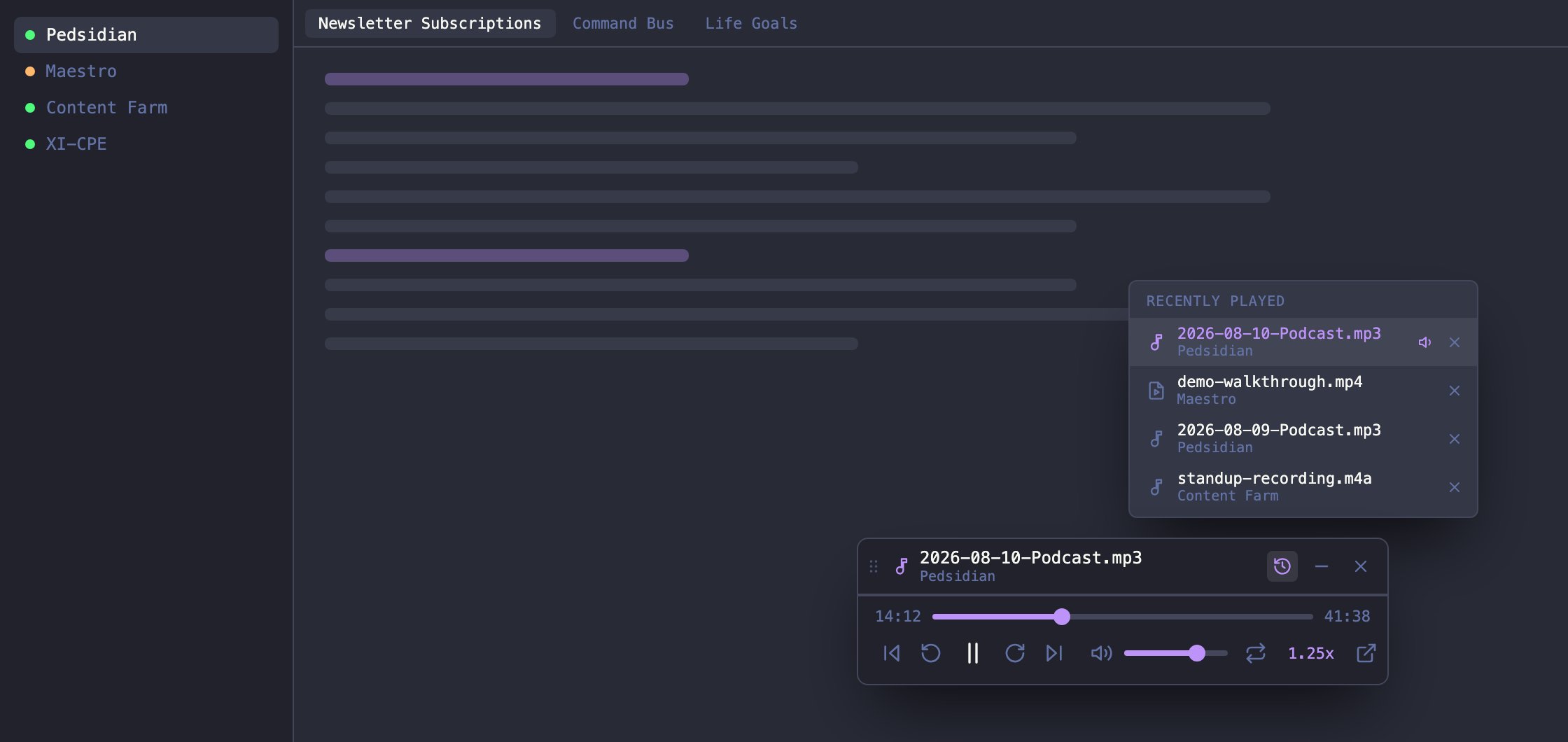
Open an audio or video file and Maestro plays it in a small floating player. It does not open a tab, and it does not take over the main window. The player floats above whatever you are working on and follows you across tabs and agents, so a podcast keeps playing while you keep working.
 ## Opening a file
Double-click any supported audio or video file - in the Files pane, from a link in a chat transcript, or through Fuzzy File Search. The player appears in the bottom-right corner and starts playing.
This holds for a file anywhere on disk, not just inside the project. A media path an agent mentions is a link, and clicking it plays the file in Maestro rather than handing it to your system's default player.
Audio opens as a slim control strip, since there is nothing to look at. Video opens as a proper frame, sized to that file's own aspect ratio - a 4:3 screen recording and a vertical phone clip each get a box that fits them, so nothing ever plays inside black bars.
There is only ever **one** player. Opening a second file switches to it and keeps the first in the queue, so two things can never play over each other.
To line a file up instead of switching to it, right-click it and choose **Add to Play Queue**. Select several files, right-click, and **Preview** plays the first and queues the rest - that is how you start a playlist in one gesture.
Media files never appear in the tab bar. If you want the file itself - to inspect it, move it, or open it in another app - use the Files pane, or the player's own **Open in default app** button.
### Supported formats
The player handles the containers and codecs Chromium can decode in an Electron build, which includes the proprietary ones:
| Kind | Extensions |
| --------- | -------------------------------------------------------- |
| **Audio** | `mp3` `m4a` `aac` `wav` `flac` `ogg` `oga` `opus` `weba` |
| **Video** | `mp4` `m4v` `webm` `ogv` `mov` |
Formats Chromium cannot demux (`mkv`, `avi`, `wmv`) are deliberately left out. They fall through to the normal binary file preview, where you can open them in your default app instead of landing in a player that could only fail.
Files on an [SSH remote](/ssh-remote-execution) also fall through to that preview. The player streams bytes from the local disk, and a remote file has none to stream, so it offers **Download & Open** instead.
## Moving it around
**Drag the title bar** to move the player anywhere on screen. The grip on the left is the affordance, but the whole bar is grabbable, including the filename. It stays inside the window, and if you resize the window it stays on screen.
**Drag the grip in the bottom-right corner** to resize. Double-click that grip to snap back to the default size.
Resizing sets the width; the height follows the file, so a video keeps its shape as it grows. Where you leave the player is remembered across restarts, and the width is remembered **per kind** - size a movie the way you like without your podcast bar becoming half the screen wide.
When the queue steps from an audio file to a video one, the player reshapes itself: it expands into a picture frame for the video and collapses back to a control strip for the next MP3. A queue of mixed files needs no fiddling with the grip.
## Controls
| Control | What it does |
| ----------------------- | ------------------------------------------------------------------ |
| **Play / Pause** | Toggle playback |
| **Back / Forward 10s** | Jump ten seconds |
| **Previous / Next** | Move through the queue in the order you opened files |
| **Volume** | Slider, with a mute toggle |
| **Loop** | Repeat the current file |
| **Speed** | 0.25x through 4x, pitch-corrected so a 2x podcast stays listenable |
| **Play queue** | The list of what plays next (see below) |
| **Recently played** | Jump to anything you played earlier (see below) |
| **Open in default app** | Hand the file to macOS, Windows, or Linux |
| **Fullscreen** | Video only |
Playback speed is global and persists: pick 1.5x once and every file after it starts at 1.5x, including after a restart.
### Keyboard
Click the player to focus it, then:
| Key | Action |
| --------------------- | ------------------------- |
| `Space` or `K` | Play / pause |
| `←` / `→` | Back / forward 10 seconds |
| `Shift+←` / `Shift+→` | Back / forward 5 seconds |
| `↑` / `↓` | Volume up / down |
| `M` | Mute |
| `L` | Loop |
| `,` / `.` | Slower / faster |
| `F` | Fullscreen (video) |
## The play queue and Recently Played
The title bar has two lists, and each button only appears when its list has something in it.
**Play queue** (the list icon) is what plays **next**, in the order you added files - the track currently in the player is not in it, since that is the now-playing line at the top of the widget. When a file finishes, the next one starts on its own. The button appears only when something is actually queued behind the current track.
* **Previous / Next** walk the same order. It never changes, so the buttons are predictable no matter how you got to the current file. They do not wrap, so they grey out at the ends.
* Click any row to jump to it, the `x` on a row to drop it, or **Clear** to empty what is queued. Clear does not stop the music - it drops what is lined up behind it. Use the `x` in the title bar to stop playback.
* Every row shows how long the file runs. If you are part way through one, a second, dimmer time underneath shows how much is left (`-3:26`).
* Each file remembers where you paused it, so jumping away and coming back resumes rather than restarting.
* **The queue is saved across restarts.** Reopen Maestro and a half-listened playlist is still there, paused, with your positions and times intact. Nothing starts playing on its own at launch.
**Recently played** (the clock icon) lists what you have already played, newest first, with the same times on each row. The track in the player is **not** in it - it is named in the title bar, and it joins the list the moment it leaves: the next track starts, or you close the player. Click any entry to jump straight to it - that is how you get back to something that is neither adjacent in the queue nor currently loaded. An entry works even after you drop the file from the queue; picking it puts the file back.
Recently played is per session and is deliberately **not** saved across restarts. A fresh session opens on your queue, not on a log of last week's files.
Closing the file that is currently playing stops playback - closing is stop, not skip.
## Minimizing and closing
The two buttons in the title bar do genuinely different things.
**Minimize** (the `-` button) parks the player in the Left Bar header, next to the Maestro logo. **Playback continues** - minimizing is not stopping. The pill that appears there becomes the player's transport:
* While something is playing it shows a **pause** button. Click it and the audio pauses.
* Paused, it shows a **play** button. Click it and the audio resumes.
* The button next to it brings the full player back.
The pill names the file it is holding, and drops to just the two buttons on a narrow sidebar (the tooltip still names it). It stays put while paused, so a half-listened podcast is never stranded, and it disappears when you close the player.
**Close** (the `x` button) stops playback and puts the player away. The rest of your queue is left intact, so opening any media file brings the player back with the playlist still there.
You can also reopen a minimized player from the Command Palette with **Show Floating Media Player**.
## Tips
* Speed and volume changes take effect instantly and carry to the next file, so you can set up a listening session once and open files freely.
* Minimize for long listening: the player gets out of the way entirely and the header pill still pauses and resumes it.
* The player sits above your workspace but always below modals and the Command Palette, so it can never cover a dialog you are trying to read.
* Playing a video? Resize the player larger by dragging its bottom-right grip, or press `F` for real fullscreen.
* Queue a batch before a long task: select the files in the Files pane, right-click, **Add N to Play Queue**, and they play through one after another while you work.
## Opening a file
Double-click any supported audio or video file - in the Files pane, from a link in a chat transcript, or through Fuzzy File Search. The player appears in the bottom-right corner and starts playing.
This holds for a file anywhere on disk, not just inside the project. A media path an agent mentions is a link, and clicking it plays the file in Maestro rather than handing it to your system's default player.
Audio opens as a slim control strip, since there is nothing to look at. Video opens as a proper frame, sized to that file's own aspect ratio - a 4:3 screen recording and a vertical phone clip each get a box that fits them, so nothing ever plays inside black bars.
There is only ever **one** player. Opening a second file switches to it and keeps the first in the queue, so two things can never play over each other.
To line a file up instead of switching to it, right-click it and choose **Add to Play Queue**. Select several files, right-click, and **Preview** plays the first and queues the rest - that is how you start a playlist in one gesture.
Media files never appear in the tab bar. If you want the file itself - to inspect it, move it, or open it in another app - use the Files pane, or the player's own **Open in default app** button.
### Supported formats
The player handles the containers and codecs Chromium can decode in an Electron build, which includes the proprietary ones:
| Kind | Extensions |
| --------- | -------------------------------------------------------- |
| **Audio** | `mp3` `m4a` `aac` `wav` `flac` `ogg` `oga` `opus` `weba` |
| **Video** | `mp4` `m4v` `webm` `ogv` `mov` |
Formats Chromium cannot demux (`mkv`, `avi`, `wmv`) are deliberately left out. They fall through to the normal binary file preview, where you can open them in your default app instead of landing in a player that could only fail.
Files on an [SSH remote](/ssh-remote-execution) also fall through to that preview. The player streams bytes from the local disk, and a remote file has none to stream, so it offers **Download & Open** instead.
## Moving it around
**Drag the title bar** to move the player anywhere on screen. The grip on the left is the affordance, but the whole bar is grabbable, including the filename. It stays inside the window, and if you resize the window it stays on screen.
**Drag the grip in the bottom-right corner** to resize. Double-click that grip to snap back to the default size.
Resizing sets the width; the height follows the file, so a video keeps its shape as it grows. Where you leave the player is remembered across restarts, and the width is remembered **per kind** - size a movie the way you like without your podcast bar becoming half the screen wide.
When the queue steps from an audio file to a video one, the player reshapes itself: it expands into a picture frame for the video and collapses back to a control strip for the next MP3. A queue of mixed files needs no fiddling with the grip.
## Controls
| Control | What it does |
| ----------------------- | ------------------------------------------------------------------ |
| **Play / Pause** | Toggle playback |
| **Back / Forward 10s** | Jump ten seconds |
| **Previous / Next** | Move through the queue in the order you opened files |
| **Volume** | Slider, with a mute toggle |
| **Loop** | Repeat the current file |
| **Speed** | 0.25x through 4x, pitch-corrected so a 2x podcast stays listenable |
| **Play queue** | The list of what plays next (see below) |
| **Recently played** | Jump to anything you played earlier (see below) |
| **Open in default app** | Hand the file to macOS, Windows, or Linux |
| **Fullscreen** | Video only |
Playback speed is global and persists: pick 1.5x once and every file after it starts at 1.5x, including after a restart.
### Keyboard
Click the player to focus it, then:
| Key | Action |
| --------------------- | ------------------------- |
| `Space` or `K` | Play / pause |
| `←` / `→` | Back / forward 10 seconds |
| `Shift+←` / `Shift+→` | Back / forward 5 seconds |
| `↑` / `↓` | Volume up / down |
| `M` | Mute |
| `L` | Loop |
| `,` / `.` | Slower / faster |
| `F` | Fullscreen (video) |
## The play queue and Recently Played
The title bar has two lists, and each button only appears when its list has something in it.
**Play queue** (the list icon) is what plays **next**, in the order you added files - the track currently in the player is not in it, since that is the now-playing line at the top of the widget. When a file finishes, the next one starts on its own. The button appears only when something is actually queued behind the current track.
* **Previous / Next** walk the same order. It never changes, so the buttons are predictable no matter how you got to the current file. They do not wrap, so they grey out at the ends.
* Click any row to jump to it, the `x` on a row to drop it, or **Clear** to empty what is queued. Clear does not stop the music - it drops what is lined up behind it. Use the `x` in the title bar to stop playback.
* Every row shows how long the file runs. If you are part way through one, a second, dimmer time underneath shows how much is left (`-3:26`).
* Each file remembers where you paused it, so jumping away and coming back resumes rather than restarting.
* **The queue is saved across restarts.** Reopen Maestro and a half-listened playlist is still there, paused, with your positions and times intact. Nothing starts playing on its own at launch.
**Recently played** (the clock icon) lists what you have already played, newest first, with the same times on each row. The track in the player is **not** in it - it is named in the title bar, and it joins the list the moment it leaves: the next track starts, or you close the player. Click any entry to jump straight to it - that is how you get back to something that is neither adjacent in the queue nor currently loaded. An entry works even after you drop the file from the queue; picking it puts the file back.
Recently played is per session and is deliberately **not** saved across restarts. A fresh session opens on your queue, not on a log of last week's files.
Closing the file that is currently playing stops playback - closing is stop, not skip.
## Minimizing and closing
The two buttons in the title bar do genuinely different things.
**Minimize** (the `-` button) parks the player in the Left Bar header, next to the Maestro logo. **Playback continues** - minimizing is not stopping. The pill that appears there becomes the player's transport:
* While something is playing it shows a **pause** button. Click it and the audio pauses.
* Paused, it shows a **play** button. Click it and the audio resumes.
* The button next to it brings the full player back.
The pill names the file it is holding, and drops to just the two buttons on a narrow sidebar (the tooltip still names it). It stays put while paused, so a half-listened podcast is never stranded, and it disappears when you close the player.
**Close** (the `x` button) stops playback and puts the player away. The rest of your queue is left intact, so opening any media file brings the player back with the playlist still there.
You can also reopen a minimized player from the Command Palette with **Show Floating Media Player**.
## Tips
* Speed and volume changes take effect instantly and carry to the next file, so you can set up a listening session once and open files freely.
* Minimize for long listening: the player gets out of the way entirely and the header pill still pauses and resumes it.
* The player sits above your workspace but always below modals and the Command Palette, so it can never cover a dialog you are trying to read.
* Playing a video? Resize the player larger by dragging its bottom-right grip, or press `F` for real fullscreen.
* Queue a batch before a long task: select the files in the Files pane, right-click, **Add N to Play Queue**, and they play through one after another while you work.