> ## Documentation Index
> Fetch the complete documentation index at: https://docs.runmaestro.ai/llms.txt
> Use this file to discover all available pages before exploring further.
# Slash Commands
> Create custom slash commands with template variables for your AI workflows.
Maestro includes an extensible slash command system with autocomplete. Type `/` in the input area to open the autocomplete menu, use arrow keys to navigate, and press `Tab` or `Enter` to select.
## Built-in Maestro Commands
Maestro provides built-in slash commands that are handled internally (not sent to the AI agent):
| Command | Description |
| ---------- | ----------------------------------------------------------------------- |
| `/history` | Generate a synopsis of recent work and add to the History panel |
| `/wizard` | Start the planning wizard for Auto Run documents |
| `/skills` | List available Claude Code skills for this project *(Claude Code only)* |
The `/wizard` command can take optional natural language input: `/wizard add user authentication feature` to provide initial context.
### Skills Enumeration
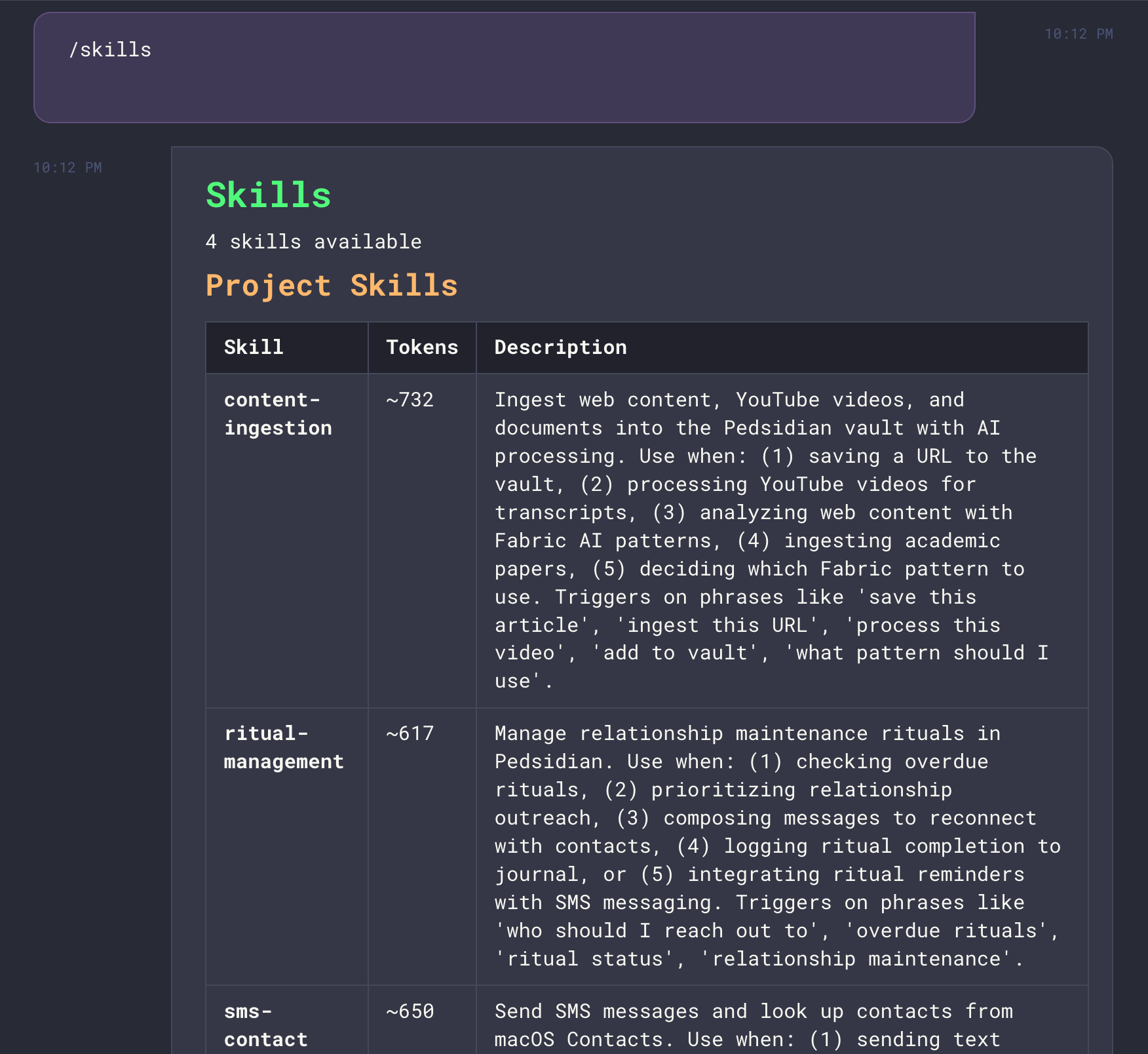
The `/skills` command displays all Claude Code skills available in your project. Skills are extensions that provide domain-specific knowledge and capabilities to Claude Code.
 Skills are loaded from:
* **Project skills**: `.claude/skills//skill.md` in your project directory
* **User skills**: `~/.claude/skills//skill.md` for personal skills
Each skill is displayed with its name, approximate token count, and description. This command is only available when using Claude Code as your AI provider.
The `/skills` command is a Maestro feature that reads skill files directly - it doesn't invoke Claude Code's native `/skills` command (which requires an interactive terminal).
## Custom AI Commands
Create your own slash commands in **Settings → AI Commands**. Each command has a trigger (e.g., `/deploy`) and a prompt that gets sent to the AI agent.
Commands support **template variables** that are automatically substituted at runtime. These same variables also work in [core system prompts](/prompt-customization).
### Conductor Variables
| Variable | Description |
| ----------------------- | -------------------------------------------------------------------------------------------------------------------------- |
| `{{CONDUCTOR_PROFILE}}` | Your "About Me" profile from Settings → General. Tells agents about your background, preferences, and communication style. |
### Agent Variables
| Variable | Description |
| ---------------------- | -------------------------------------------------------- |
| `{{AGENT_NAME}}` | Agent name |
| `{{AGENT_PATH}}` | Agent home directory path (full path to project) |
| `{{AGENT_GROUP}}` | Agent's group name (if grouped) |
| `{{AGENT_SESSION_ID}}` | Agent session ID (for conversation continuity) |
| `{{TAB_NAME}}` | Custom tab name (alias: `SESSION_NAME`) |
| `{{TOOL_TYPE}}` | Agent type (claude-code, codex, opencode, factory-droid) |
### Path Variables
| Variable | Description |
| -------------------- | ------------------------------ |
| `{{CWD}}` | Current working directory |
| `{{AUTORUN_FOLDER}}` | Auto Run documents folder path |
### Auto Run Variables
| Variable | Description |
| ------------------- | ----------------------------------------------------------- |
| `{{DOCUMENT_NAME}}` | Current Auto Run document name (without .md) |
| `{{DOCUMENT_PATH}}` | Full path to current Auto Run document |
| `{{LOOP_NUMBER}}` | Current loop iteration (5-digit padded: 00001, 00002, etc.) |
### Date/Time Variables
| Variable | Description |
| ---------------- | ----------------------------------- |
| `{{DATE}}` | Current date (YYYY-MM-DD) |
| `{{TIME}}` | Current time (HH:MM:SS) |
| `{{DATETIME}}` | Full datetime (YYYY-MM-DD HH:MM:SS) |
| `{{TIMESTAMP}}` | Unix timestamp in milliseconds |
| `{{DATE_SHORT}}` | Short date (MM/DD/YY) |
| `{{TIME_SHORT}}` | Short time (HH:MM) |
| `{{YEAR}}` | Current year (YYYY) |
| `{{MONTH}}` | Current month (01-12) |
| `{{DAY}}` | Current day (01-31) |
| `{{WEEKDAY}}` | Day of week (Monday, Tuesday, etc.) |
### Git & Context Variables
| Variable | Description |
| ------------------- | ------------------------------------------- |
| `{{GIT_BRANCH}}` | Current git branch name (requires git repo) |
| `{{IS_GIT_REPO}}` | "true" or "false" |
| `{{CONTEXT_USAGE}}` | Current context window usage percentage |
**Example**: A custom `/standup` command with prompt:
```
It's {{WEEKDAY}}, {{DATE}}. I'm on branch {{GIT_BRANCH}} at {{AGENT_PATH}}.
Summarize what I worked on yesterday and suggest priorities for today.
```
### Passing Arguments to Commands
Any text typed after a slash command is treated as arguments and included in the prompt sent to the agent.
**Explicit placement with `$ARGUMENTS`**: Use `$ARGUMENTS` in your prompt to control exactly where user input is inserted:
```
# Prompt for /plan command
Create a plan for: $ARGUMENTS
```
Typing `/plan user authentication flow` sends: `Create a plan for: user authentication flow`
**Automatic appending**: If your prompt doesn't contain `$ARGUMENTS`, any trailing text is automatically appended after the prompt:
```
# Prompt for /commit command
Please commit all changes with a descriptive message
```
Typing `/commit fix the login bug` sends:
```
Please commit all changes with a descriptive message
fix the login bug
```
Use `$ARGUMENTS` for precise control over where user input appears within your prompt. Omit it for simple commands where appending is sufficient.
## Spec-Kit Commands
Maestro bundles [GitHub's spec-kit](https://github.com/github/spec-kit) methodology for structured feature development:
| Command | Description |
| ------------------------ | ------------------------------------------------------------- |
| `/speckit.help` | Learn how to use spec-kit with Maestro |
| `/speckit.constitution` | Create or update the project constitution |
| `/speckit.specify` | Create or update feature specification |
| `/speckit.clarify` | Identify underspecified areas and ask clarification questions |
| `/speckit.plan` | Execute implementation planning workflow |
| `/speckit.tasks` | Generate actionable, dependency-ordered tasks |
| `/speckit.analyze` | Cross-artifact consistency and quality analysis |
| `/speckit.checklist` | Generate custom checklist for feature |
| `/speckit.taskstoissues` | Convert tasks to GitHub issues |
| `/speckit.implement` | Execute tasks using Maestro Auto Run with worktree support |
See [Spec-Kit Commands](/speckit-commands) for the complete workflow guide.
## OpenSpec Commands
Maestro bundles [OpenSpec](https://github.com/Fission-AI/OpenSpec) for spec-driven change management. These commands help you propose, implement, and archive changes systematically:
| Command | Description |
| --------------------- | -------------------------------------------------------------------- |
| `/openspec.help` | Learn how to use OpenSpec with Maestro |
| `/openspec.proposal` | Create a change proposal with specs, tasks, and optional design docs |
| `/openspec.apply` | Implement an approved change proposal by executing tasks |
| `/openspec.archive` | Archive a completed change after deployment |
| `/openspec.implement` | Convert OpenSpec tasks to Maestro Auto Run documents |
See [OpenSpec Commands](/openspec-commands) for the complete workflow guide and directory structure.
## Agent Native Commands
When using Claude Code, Maestro automatically discovers and displays the agent's native slash commands in the autocomplete menu. These commands are sent via the `system/init` event when Claude Code starts and appear with a "Claude Code command" label to distinguish them from Maestro's custom commands.
### Supported in Batch Mode
Claude Code runs in batch/print mode within Maestro, which means only certain native commands work. The following commands are **supported**:
| Command | Description |
| ------------------ | ---------------------------------------------------- |
| `/compact` | Compact conversation history to reduce context usage |
| `/cost` | Show token usage and cost for the session |
| `/init` | Initialize a CLAUDE.md file in the project |
| `/pr-comments` | Address PR review comments |
| `/release-notes` | Generate release notes |
| `/review` | Request a code review |
| `/security-review` | Perform a security review |
Additionally, any **custom commands from Claude Code plugins/skills** (e.g., `/commit`, `/pdf`, `/docx`) are fully supported and will appear in the autocomplete menu.
### Not Supported in Batch Mode
The following Claude Code commands are **interactive-only** and don't work through Maestro:
| Command | Reason |
| -------------------- | ---------------------------------------------------------- |
| `/mcp` | MCP server management requires interactive TUI |
| `/help` | Help display is interactive |
| `/clear` | Conversation clearing is handled differently in batch mode |
| `/config` | Configuration requires interactive prompts |
| `/model` | Model switching mid-session requires TUI |
| `/permissions` | Permission management is interactive |
| `/memory` | Memory/CLAUDE.md editing requires TUI |
| `/rewind` | Conversation rewind requires interactive selection |
| `/vim` | Vim mode is a TUI feature |
| `/doctor` | Diagnostics run as a separate CLI command |
| `/login` / `/logout` | Authentication is interactive |
| `/bug` | Bug reporting requires interactive input |
For commands like `/mcp` or `/config`, use the Claude Code CLI directly in a terminal: `claude mcp` or `claude config`.
Skills are loaded from:
* **Project skills**: `.claude/skills//skill.md` in your project directory
* **User skills**: `~/.claude/skills//skill.md` for personal skills
Each skill is displayed with its name, approximate token count, and description. This command is only available when using Claude Code as your AI provider.
The `/skills` command is a Maestro feature that reads skill files directly - it doesn't invoke Claude Code's native `/skills` command (which requires an interactive terminal).
## Custom AI Commands
Create your own slash commands in **Settings → AI Commands**. Each command has a trigger (e.g., `/deploy`) and a prompt that gets sent to the AI agent.
Commands support **template variables** that are automatically substituted at runtime. These same variables also work in [core system prompts](/prompt-customization).
### Conductor Variables
| Variable | Description |
| ----------------------- | -------------------------------------------------------------------------------------------------------------------------- |
| `{{CONDUCTOR_PROFILE}}` | Your "About Me" profile from Settings → General. Tells agents about your background, preferences, and communication style. |
### Agent Variables
| Variable | Description |
| ---------------------- | -------------------------------------------------------- |
| `{{AGENT_NAME}}` | Agent name |
| `{{AGENT_PATH}}` | Agent home directory path (full path to project) |
| `{{AGENT_GROUP}}` | Agent's group name (if grouped) |
| `{{AGENT_SESSION_ID}}` | Agent session ID (for conversation continuity) |
| `{{TAB_NAME}}` | Custom tab name (alias: `SESSION_NAME`) |
| `{{TOOL_TYPE}}` | Agent type (claude-code, codex, opencode, factory-droid) |
### Path Variables
| Variable | Description |
| -------------------- | ------------------------------ |
| `{{CWD}}` | Current working directory |
| `{{AUTORUN_FOLDER}}` | Auto Run documents folder path |
### Auto Run Variables
| Variable | Description |
| ------------------- | ----------------------------------------------------------- |
| `{{DOCUMENT_NAME}}` | Current Auto Run document name (without .md) |
| `{{DOCUMENT_PATH}}` | Full path to current Auto Run document |
| `{{LOOP_NUMBER}}` | Current loop iteration (5-digit padded: 00001, 00002, etc.) |
### Date/Time Variables
| Variable | Description |
| ---------------- | ----------------------------------- |
| `{{DATE}}` | Current date (YYYY-MM-DD) |
| `{{TIME}}` | Current time (HH:MM:SS) |
| `{{DATETIME}}` | Full datetime (YYYY-MM-DD HH:MM:SS) |
| `{{TIMESTAMP}}` | Unix timestamp in milliseconds |
| `{{DATE_SHORT}}` | Short date (MM/DD/YY) |
| `{{TIME_SHORT}}` | Short time (HH:MM) |
| `{{YEAR}}` | Current year (YYYY) |
| `{{MONTH}}` | Current month (01-12) |
| `{{DAY}}` | Current day (01-31) |
| `{{WEEKDAY}}` | Day of week (Monday, Tuesday, etc.) |
### Git & Context Variables
| Variable | Description |
| ------------------- | ------------------------------------------- |
| `{{GIT_BRANCH}}` | Current git branch name (requires git repo) |
| `{{IS_GIT_REPO}}` | "true" or "false" |
| `{{CONTEXT_USAGE}}` | Current context window usage percentage |
**Example**: A custom `/standup` command with prompt:
```
It's {{WEEKDAY}}, {{DATE}}. I'm on branch {{GIT_BRANCH}} at {{AGENT_PATH}}.
Summarize what I worked on yesterday and suggest priorities for today.
```
### Passing Arguments to Commands
Any text typed after a slash command is treated as arguments and included in the prompt sent to the agent.
**Explicit placement with `$ARGUMENTS`**: Use `$ARGUMENTS` in your prompt to control exactly where user input is inserted:
```
# Prompt for /plan command
Create a plan for: $ARGUMENTS
```
Typing `/plan user authentication flow` sends: `Create a plan for: user authentication flow`
**Automatic appending**: If your prompt doesn't contain `$ARGUMENTS`, any trailing text is automatically appended after the prompt:
```
# Prompt for /commit command
Please commit all changes with a descriptive message
```
Typing `/commit fix the login bug` sends:
```
Please commit all changes with a descriptive message
fix the login bug
```
Use `$ARGUMENTS` for precise control over where user input appears within your prompt. Omit it for simple commands where appending is sufficient.
## Spec-Kit Commands
Maestro bundles [GitHub's spec-kit](https://github.com/github/spec-kit) methodology for structured feature development:
| Command | Description |
| ------------------------ | ------------------------------------------------------------- |
| `/speckit.help` | Learn how to use spec-kit with Maestro |
| `/speckit.constitution` | Create or update the project constitution |
| `/speckit.specify` | Create or update feature specification |
| `/speckit.clarify` | Identify underspecified areas and ask clarification questions |
| `/speckit.plan` | Execute implementation planning workflow |
| `/speckit.tasks` | Generate actionable, dependency-ordered tasks |
| `/speckit.analyze` | Cross-artifact consistency and quality analysis |
| `/speckit.checklist` | Generate custom checklist for feature |
| `/speckit.taskstoissues` | Convert tasks to GitHub issues |
| `/speckit.implement` | Execute tasks using Maestro Auto Run with worktree support |
See [Spec-Kit Commands](/speckit-commands) for the complete workflow guide.
## OpenSpec Commands
Maestro bundles [OpenSpec](https://github.com/Fission-AI/OpenSpec) for spec-driven change management. These commands help you propose, implement, and archive changes systematically:
| Command | Description |
| --------------------- | -------------------------------------------------------------------- |
| `/openspec.help` | Learn how to use OpenSpec with Maestro |
| `/openspec.proposal` | Create a change proposal with specs, tasks, and optional design docs |
| `/openspec.apply` | Implement an approved change proposal by executing tasks |
| `/openspec.archive` | Archive a completed change after deployment |
| `/openspec.implement` | Convert OpenSpec tasks to Maestro Auto Run documents |
See [OpenSpec Commands](/openspec-commands) for the complete workflow guide and directory structure.
## Agent Native Commands
When using Claude Code, Maestro automatically discovers and displays the agent's native slash commands in the autocomplete menu. These commands are sent via the `system/init` event when Claude Code starts and appear with a "Claude Code command" label to distinguish them from Maestro's custom commands.
### Supported in Batch Mode
Claude Code runs in batch/print mode within Maestro, which means only certain native commands work. The following commands are **supported**:
| Command | Description |
| ------------------ | ---------------------------------------------------- |
| `/compact` | Compact conversation history to reduce context usage |
| `/cost` | Show token usage and cost for the session |
| `/init` | Initialize a CLAUDE.md file in the project |
| `/pr-comments` | Address PR review comments |
| `/release-notes` | Generate release notes |
| `/review` | Request a code review |
| `/security-review` | Perform a security review |
Additionally, any **custom commands from Claude Code plugins/skills** (e.g., `/commit`, `/pdf`, `/docx`) are fully supported and will appear in the autocomplete menu.
### Not Supported in Batch Mode
The following Claude Code commands are **interactive-only** and don't work through Maestro:
| Command | Reason |
| -------------------- | ---------------------------------------------------------- |
| `/mcp` | MCP server management requires interactive TUI |
| `/help` | Help display is interactive |
| `/clear` | Conversation clearing is handled differently in batch mode |
| `/config` | Configuration requires interactive prompts |
| `/model` | Model switching mid-session requires TUI |
| `/permissions` | Permission management is interactive |
| `/memory` | Memory/CLAUDE.md editing requires TUI |
| `/rewind` | Conversation rewind requires interactive selection |
| `/vim` | Vim mode is a TUI feature |
| `/doctor` | Diagnostics run as a separate CLI command |
| `/login` / `/logout` | Authentication is interactive |
| `/bug` | Bug reporting requires interactive input |
For commands like `/mcp` or `/config`, use the Claude Code CLI directly in a terminal: `claude mcp` or `claude config`.