
- Spec-Driven runs markdown checklist documents to completion. You write the work as checkbox tasks in a folder of
.mdfiles, and Maestro works through them one by one, spawning a fresh AI session for each task (or each document). A reusable collection of these documents is a Playbook. Reach for this when you already know the steps. - Goal-Driven pursues a single free-text objective with no checklist. Each iteration spawns a fresh agent that makes one increment of progress, reports how far along it is, and exits, repeating until the goal is reached or the run stops. Reach for this for open-ended work where you can’t list the steps up front.
Setting Up Auto Run
- Navigate to the Auto Run tab in the right panel (
Cmd+Shift+1) - Select a folder containing your markdown task documents
- Each
.mdfile becomes a selectable document
Creating Tasks
Use markdown checkboxes in your documents:Cmd+L (Mac) or Ctrl+L (Windows/Linux) to quickly insert a new checkbox at your cursor position.
Ticking a box by hand: in the Auto Run panel’s rendered preview, click a checkbox to toggle it and the document is rewritten on disk - useful for marking something you finished yourself, or for re-arming a task by unticking it. The boxes are read-only while an Auto Run is actively driving that document, matching its disabled editor. A paused run is the exception: when the engine parks on an agent error or a human-in-the-loop gate it is waiting on you rather than working, so the checkboxes and the editor both open back up until you click Resume.
Task Granularity: Two Approaches
There are two viable ways to structure work across Auto Run documents. Pick the one that fits your project - they can also coexist. 1. Many tasks per document (classic approach) One document holds a long list of checkboxes; the runner walks through them serially, each in a fresh session.- Good when tasks are small, independent, and share a common framing that’s cheap to restate in the document body.
- Each task gets a clean context, so the agent doesn’t drift across them.
- Tradeoff: the agent has to re-derive shared context for every task from whatever lives in the document.
- [ ] “execute the plan” task at the bottom.
- Good when each unit of work needs substantial setup, references, constraints, or prior decisions to do well.
- Modern agents have large context windows, so loading a richer document per task is cheap and usually produces better results than splintering it into many small checkboxes that each lose the shared framing.
- Compose multi-step workflows by chaining several of these focused documents inside a Playbook instead of stuffing them into one file.
- Tradeoff: more files to manage; the dropdown list grows.
Running Single Documents
- Select a document from the dropdown
- Click the Run button (or the ▶ icon)
- Customize the agent prompt if needed, then click Go
Running Multiple Auto Run Documents
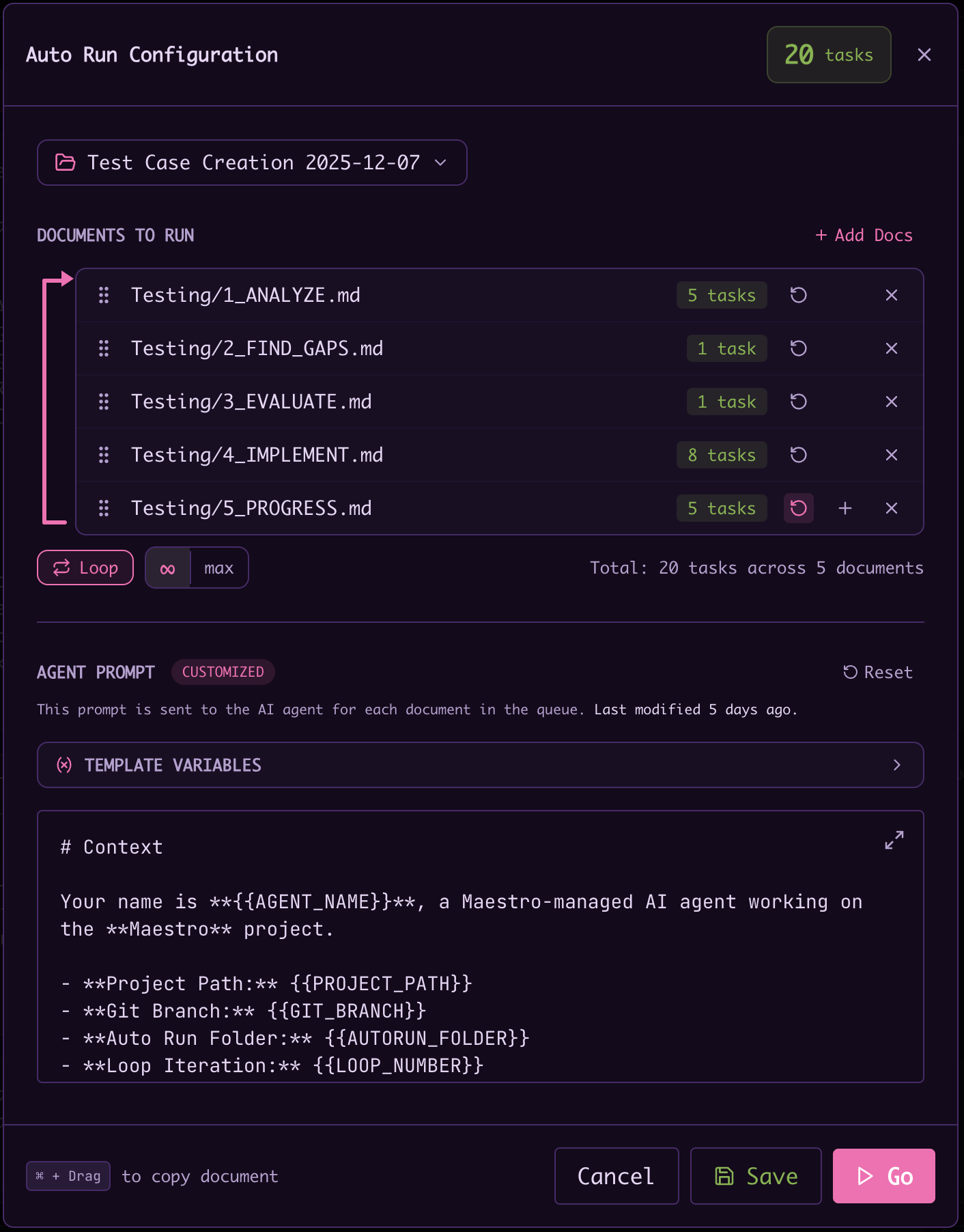
Auto Run supports running multiple documents in sequence:- Click Run to open the Auto Run configuration modal
- Click + Add Docs to add more documents to the queue
- Drag to reorder documents as needed
- Configure options per document:
- Reset on Completion - Creates a working copy in
runs/subfolder instead of modifying the original. The original document is never touched, and working copies (e.g.,TASK-1735192800000-loop-1.md) serve as audit logs. - Duplicate - Add the same document multiple times
- Reset on Completion - Creates a working copy in
- Enable Loop Mode to cycle back to the first document after completing the last
- Click Go to start running documents
Model Override
The run configuration modal has Model and Effort pickers, both defaulting to Use agent default. Picking a value runs this Auto Run only on that model: every task spawn in the run uses it, the agent’s own configured model is left alone (its interactive tabs keep using the default), and the override is forgotten when the run ends. The pickers reset to the default each time the modal opens, and are hidden for providers that expose no model or effort options. Worktree runs honor the override too, without changing the child worktree agent’s own configured model. Below the pickers, Ignore model hints in documents (off by default) runs every task at the picked model and effort and skips the documents’MAESTRO:MODEL markers entirely, both the document-wide ones and the ones on single tasks. With the pickers left on Use agent default, that means the agent’s own settings. Reach for it when one model should run the whole playbook regardless of what its author chose: rerunning an expensive playbook cheaply, or forcing the top model onto a playbook that marked its phases low. Like the pickers, it resets each time the modal opens. Goal-Driven runs do not show it, because they have no documents.
The same override is available from the CLI as --model / --effort on auto-run, playbook, run-doc, and goal-run, and the switch as --ignore-model-hints on auto-run, playbook, and run-doc. See CLI.
Staging Documents from the Files Tab
The Auto Run folder shows up in the Files tab like any other directory, so a run list is one right-click away. Right-click anything inside the agent’s Auto Run folder and choose Stage Documents for Auto Run:- A folder stages every document beneath it, nested subfolders included.
- A single markdown file stages just that document.
- A multi-selection stages every document in it. Select the files
(
Cmd/Ctrl-click orShift-click), then right-click one of them. Right-clicking a row outside the selection stages only that row instead.
Fresh Context: Task vs Document
The run configuration modal has a Fresh context per toggle that controls how context is scoped as the runner works through a document. This is distinct from task granularity above - granularity is how you structure a document, while this is how Maestro executes it. Task - A new agent is spawned for each unchecked task, with a clean context every time.- Maximum isolation; the agent never drifts across tasks.
- Each task must be fully self-contained, since the agent sees nothing from previous tasks except what’s written in the document.
- The right choice for most agents.
- Best for agents with very large context windows, and for work where later tasks build on earlier ones.
- Requires enough context window to hold a whole document’s worth of work in one session.
Tip: Author tasks to be self-contained regardless of mode. Document mode is an optimization, not a license to write tasks that depend on chat memory.
Playbooks
Save your Auto Run configurations as Playbooks for reuse:- Configure your documents, order, and options
- Click Save as Playbook and enter a name
- Load saved playbooks from the Load Playbook dropdown
- Update or discard changes to loaded playbooks
Inline Wizard
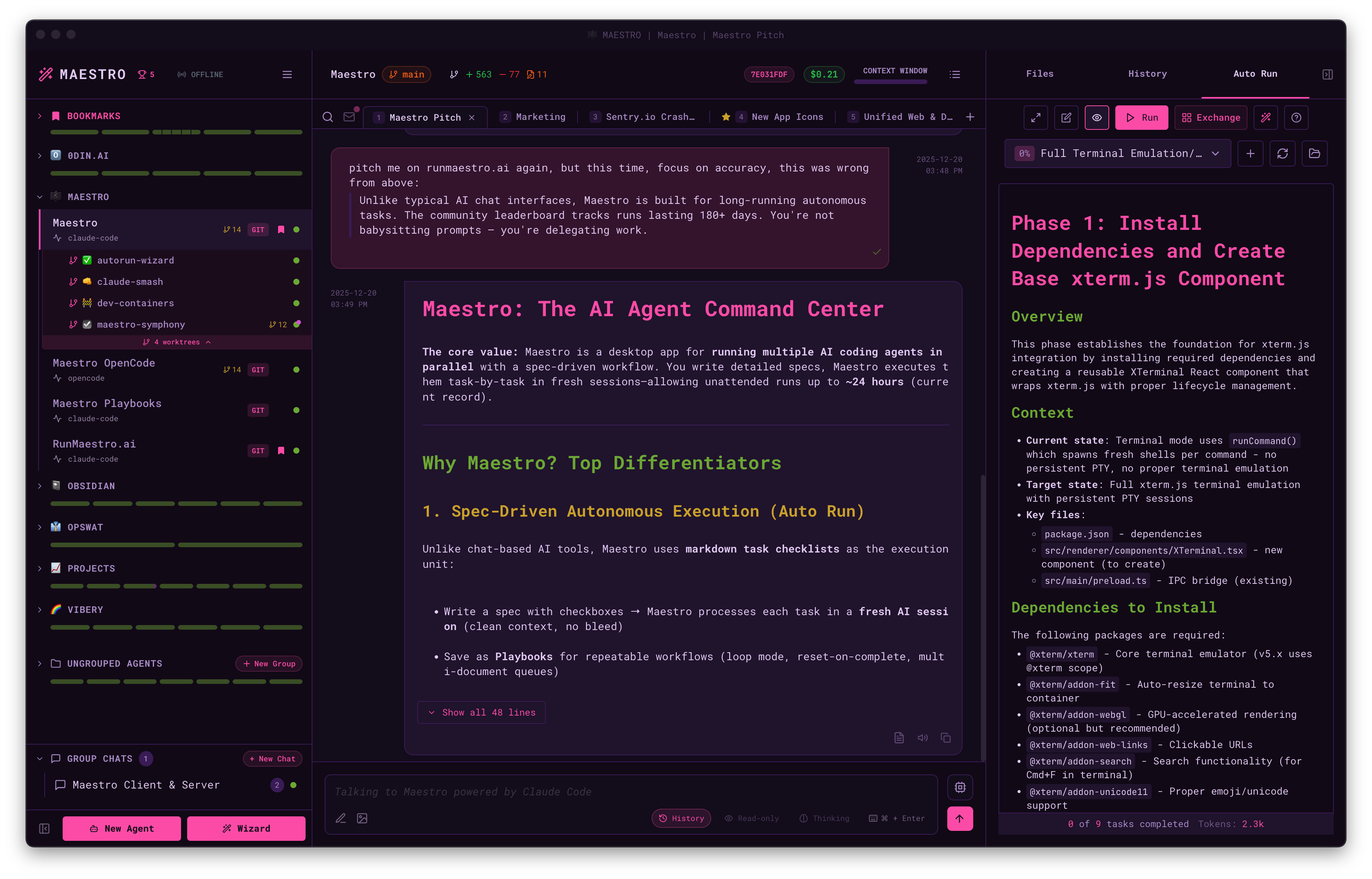
Generate new playbooks from within an existing session using the Inline Wizard:- Type
/wizardin any AI tab (or click the Wizard button in the Auto Run panel) - Have a conversation with the AI about your project goals
- Watch the confidence gauge build as the AI understands your requirements
- At 80%+ confidence, the AI generates detailed Auto Run documents
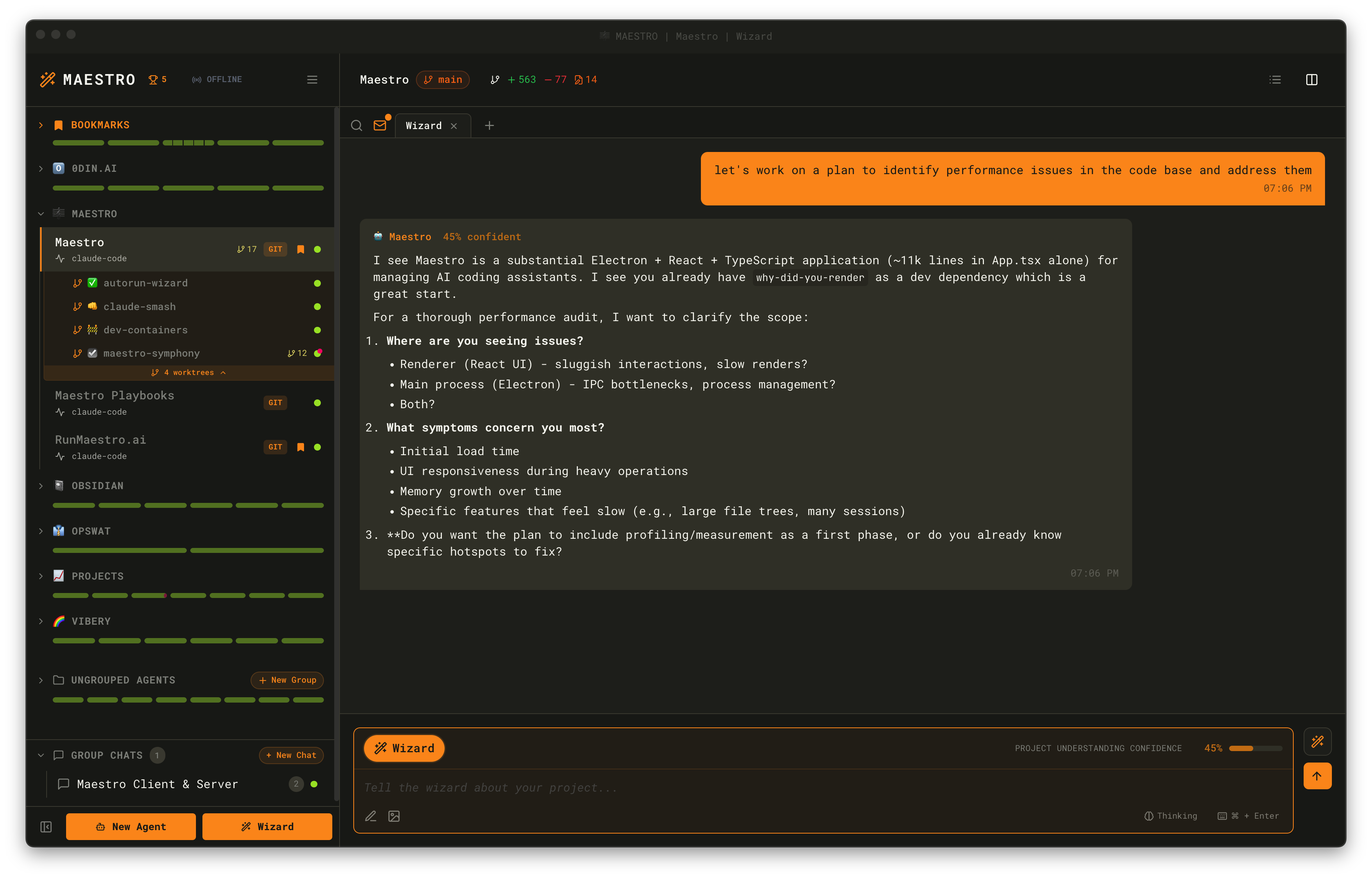
Wizard and becomes wizard: <topic> once you say what you want, so several wizards running side by side stay tellable apart. Rename it yourself at any point and the wizard leaves your name alone.
The Inline Wizard creates documents in a unique subfolder under your Auto Run folder, keeping generated playbooks organized. When complete, your tab is renamed to reflect the project and you can immediately start running the generated tasks.
Playbook Exchange
Looking for pre-built playbooks? The Playbook Exchange offers community-contributed playbooks for common workflows like security audits, code reviews, and documentation generation. Open it via Quick Actions (Cmd+K) or click the Exchange button in the Auto Run panel.
Goal-Driven Mode
Everything above describes Spec-Driven runs - documents of checkboxes worked to completion. Goal-Driven mode is the alternative: switch to the Goal-Driven tab in the Run dialog to chase a free-text objective instead of a document of checkboxes. Each iteration spawns a fresh agent that makes one increment of real progress toward the goal, reports how far along it is, and exits. The next iteration picks up where it left off, until the goal is reached or the run stops. Because there are no checklist documents, the playbook controls and the “Follow active task” option don’t appear in this mode.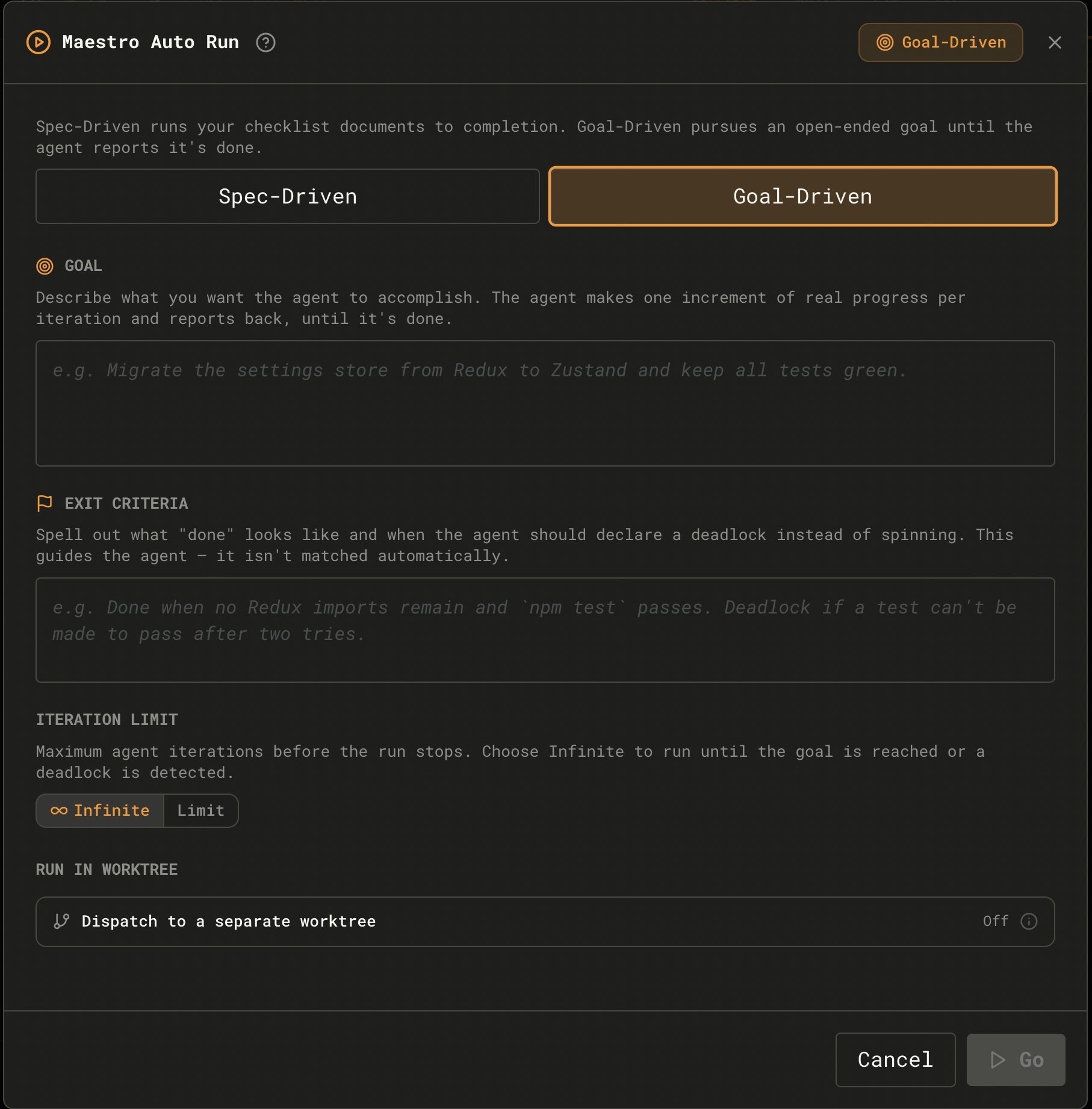
Configuring a Goal Run
Three inputs configure a run:- Goal - what you want accomplished, in plain language (e.g., “Migrate the settings store from Redux to Zustand and keep all tests green”).
- Exit Criteria - what “done” looks like and when the agent should declare a deadlock instead of spinning. This guides the agent; it is not matched automatically.
- Iteration Limit - a cap on how many iterations may run, or Infinite to run until the goal is reached or a deadlock is detected.
Progress Markers
At the end of every iteration the agent reports an honest 0-100 self-assessment on its own line. The engine reads this to drive the progress bar and decide whether to run again:| rationale note after the number is optional but shows up in the progress UI. A response with no progress marker is treated as zero progress and counts toward a stall.
How a Goal Run Stops
A goal run ends on any of four conditions:- Completed - the agent reports
progress 100, or emits the explicit marker<!-- maestro:goal-complete -->. - Deadlock - the agent hits a true blocker it cannot work around and declares it with
<!-- maestro:deadlock: brief reason you cannot proceed -->. - Max iterations - a finite iteration limit is reached before the goal completes.
- Stalled - progress doesn’t move upward for three iterations in a row, so the run stops instead of spinning.
Progress Tracking
The runner will:- Process tasks serially from top to bottom
- Skip documents with no unchecked tasks
- Show progress: “Document X of Y” and “Task X of Y”
- Mark tasks as complete (
- [x]) when done - Log each completion to the History panel
Thought Stream
While a run is active, you can watch what the agent is doing without changing any settings. In the Auto Run card, click View Thoughts (the brain icon) to open the Thought Stream - a floating, searchable panel that streams the agent’s reasoning and its tool calls as it works. Every tool call is reduced to one short line in plain language, interleaved with the reasoning that produced it:14 actions hidden), and turning them back on shows everything that happened in the meantime. Turn them off when you only want to follow the agent’s reasoning; leave them on when you are watching for a loop.
Thoughts and tool calls are buffered from the moment the agent starts working, whether or not the panel is open. That is deliberate: you usually go looking at the thought stream because a run has been sitting still for a while, and a stream that only started recording when you opened it would hand you an empty log at exactly the wrong moment. Open it after twenty quiet minutes and you get those twenty minutes.
It works the same for Spec-Driven and Goal-Driven runs, because both flow through the same agent. The panel captures the raw streams directly, so it shows thinking and tool calls even when an AI tab’s “show thinking” and tool-call display are turned off. For an Auto Run this is the only place the tool calls appear at all: a run has no chat tab of its own for a transcript to live in.
- Newest on top - the live thought sits at the top and grows; scroll down to read the history of the run.
- Timestamped blocks - a continuous burst of thinking is grouped into one block with a time stamp; a pause (or a switch between parallel tabs) starts a new block.
- Formatted - thoughts render as formatted markdown (headings, lists, bold, inline code, code fences), so structured reasoning stays readable.
- In order - a tool call renders between the reasoning that led to it and the reasoning that followed, so the feed reads as the sequence the agent actually performed.
- Search - filter the feed with the search box; matches are highlighted. Searching a tool name (“Bash”) finds calls the feed renders under a plain-language verb (“Ran …”).
- Counts - the header tracks thoughts and actions separately. A climbing action count against flat reasoning is what a loop looks like.
- Open shows the panel, already backfilled with everything the agent has thought so far.
- Close (the X, or Escape) hides the panel and keeps recording, so reopening it later still has the run’s history.
- Clear (the trash icon) is the only thing that discards a buffer.
Steering a Run in Flight
You do not have to stop a run to change its direction. Open the Thought Stream for the running agent, click the compass button in its header, type what you want changed, and press Enter: the message becomes a steering note and is delivered at the start of the next task. Steering lives in the Thought Stream and nowhere else. The agent’s chat composer keeps its ordinary meaning during a run: a message you type there is a message to the agent, queued for when the run finishes. A steering note is not a conversation turn. It spawns no agent of its own and costs no extra run time - it rides in front of a task prompt that was going to be sent anyway, in a block the agent is told to treat as newer than the document and newer than its instructions. The agent is asked to begin its synopsis with[steered] when it acts on one.
Use it for the things you notice while watching:
Important notice: Maestro error - stop touching the Cue engine and fix the build first.The API changed. Use the v3 endpoint for the rest of these tasks.Do not commit anything else until I say so.
x on a waiting note takes it back. The Auto Run pill above the composer also shows how many notes are still waiting, so you can see one is pending without opening the panel.
What it applies to. The note goes to the next task and stays in force for the rest of the run wherever it still makes sense. It is delivered once - a later task does not get a repeat - so if the change is permanent, also edit the document.
When the compass is not there. The button only appears while a run this copy of Maestro started is in flight. Nothing is running, the run already finished, or the run belongs to another Maestro client watching the same agent: there is no next task to hand a note to, so no button.
Notes belong to the run they were typed during. Anything still waiting when the run ends is discarded rather than ambushing a later run, and the delivered list is cleared with it.
Session Isolation
Each task executes in a completely fresh AI session with its own unique session ID. This provides:- Clean context - No conversation history bleeding between tasks
- Predictable behavior - Tasks in looping playbooks execute identically each iteration
- Independent execution - The agent approaches each task without memory of previous work
Reset on Completion documents that loop indefinitely. Each loop creates a fresh working copy from the original document, and the AI approaches it without memory of previous iterations.
Note: Nudge messages configured on an agent do not apply to Auto Run tasks. Nudge messages are only appended to interactive AI messages typed by the user. If you need persistent instructions for Auto Run tasks, include them directly in your task document or use environment variables.
Environment Variables
Where a Run’s Environment Comes From
An Auto Run inherits the environment of the agent it executes against. There is no run-scoped environment: a run does not get its own variables, and the document being run cannot set any. That matters because of where the variables actually live:
Both are documented in Configuration → Per-Agent Environment Variables, including the precedence between them and how to inspect the merged result.
Two things Auto Run specifically does not give you:
- A playbook or task document cannot set environment variables. Frontmatter in an Auto Run document is rendered as a table for you to read, never interpreted. The only in-document directives Maestro acts on are the HITL gate, the halt marker, and the model and effort markers - there is no
MAESTRO:ENVequivalent. - The CLI has no per-run environment flag.
maestro-cli playbook,run-doc,auto-run, andgoal-runtake--modeland--effortas run-scoped overrides, but no--env. The--envflag exists only oncreate-agentandupdate-agent, where it edits the agent record itself and therefore affects every later run on that agent.
Which Agent a Run Executes Against
By default an Auto Run executes against the currently active agent, so it picks up that agent’s variables. The run configuration modal can redirect it. Under Dispatch to a separate worktree, the dropdown chooses a worktree target, and each option has different consequences for your environment:
The distinction is easy to miss: creating a worktree does not give you a blank agent to configure. Maestro copies the parent agent’s variables (along with its provider, model, and custom arguments) onto the new one, and the worktree dialog has no environment field. If you need a worktree run under a different environment, create the worktree agent first, edit its variables in Edit Agent, then dispatch to it with Open in Maestro.
Variables Maestro Sets For You
Maestro sets environment variables that your agent hooks can use to customize behavior:
Example: Conditional Hook Execution
Since Maestro spawns a new agent process for each message (batch mode), agent “session start” hooks will run on every turn. Use
MAESTRO_SESSION_RESUMED to skip hooks on resumed sessions:
History & Tracking
Each completed task is logged to the History panel with:- AUTO label indicating automated execution
- Session ID pill (clickable to jump to that AI conversation)
- Summary of what the agent accomplished
- Full response viewable by clicking the entry
Up/Down Arrow- Navigate entriesEnter- View full responseEsc- Close detail view and return to list
Expanded Editor View
For editing complex Auto Run documents, use the Expanded Editor - a fullscreen modal that provides more screen real-estate. To open the Expanded Editor:- Click the expand icon (↗️) in the top-right corner of the Auto Run panel
- Or press
Cmd+Shift+3(Mac) /Ctrl+Shift+3(Windows/Linux) to toggle - works from anywhere in the interface, even when the Auto Run panel is closed - Or open the Command Palette (
Cmd+K) and pick Auto Run Expanded Preview
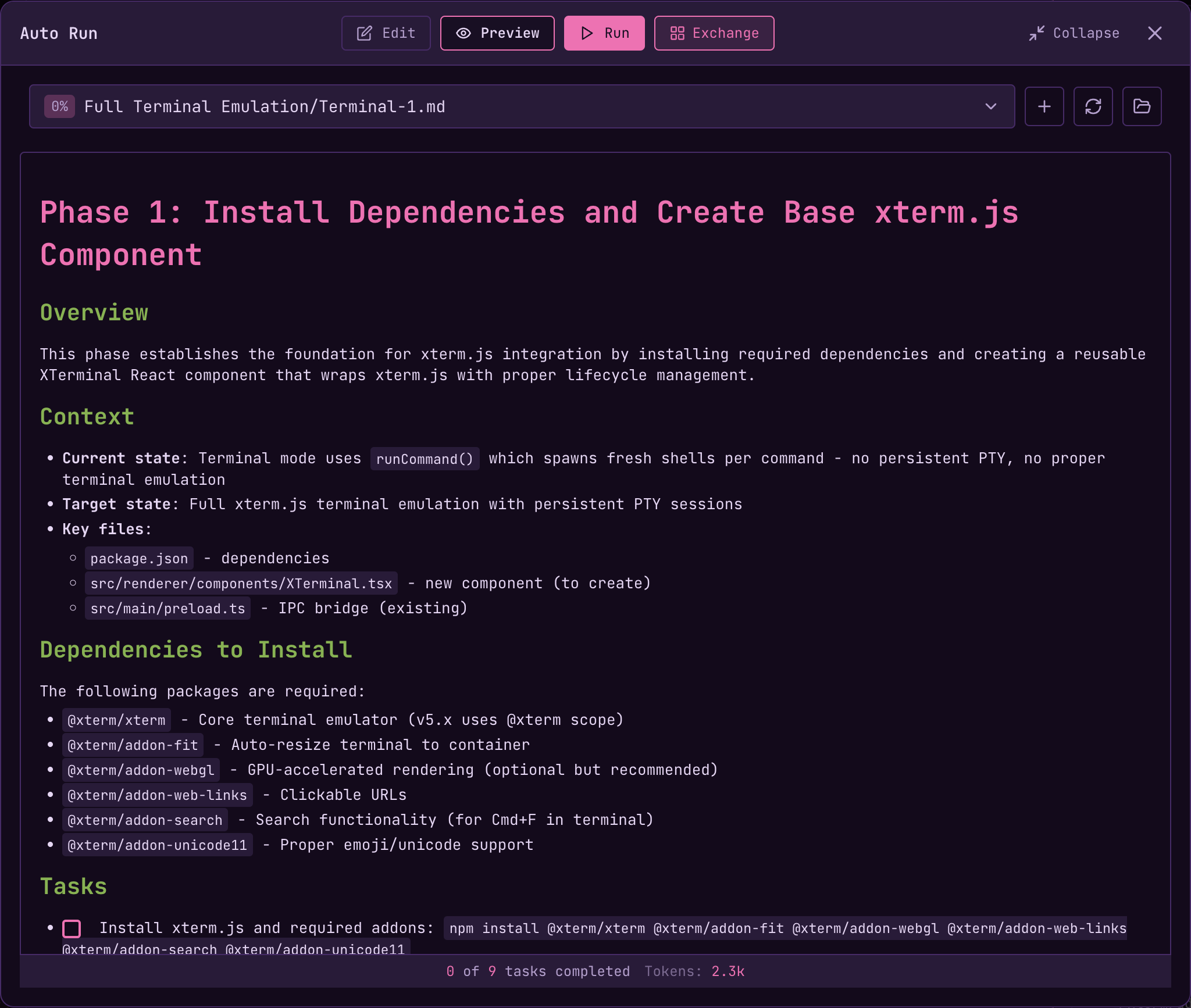
- Edit/Preview toggle - Switch between editing markdown and previewing rendered output
- Document selector - Switch between documents without closing the modal
- Run controls - Start, stop, and monitor Auto Run progress from the expanded view
- Task progress - See “X of Y tasks completed” and token count at the bottom
- Full toolbar - Create new documents, refresh, and open folder
Esc to return to the sidebar panel view.
Maestro Pro Tip - a scratch pad from anywhere: Because Cmd+Shift+3 and the Command Palette open the Expanded Editor from anywhere (the Auto Run panel doesn’t need to be open), it doubles as an always-available scratch pad. Keep a throwaway document in your Auto Run folder and, as ideas surface mid-session, pop open the editor and jot down tasks you want to kick off later. When you wrap up your interactive work, run that document to dispatch the whole batch at once.
Saving Documents
Save your changes withCmd+S (Mac) or Ctrl+S (Windows/Linux), or click the Save button in the editor footer. The editor shows “Unsaved changes” and a Revert button when you have pending edits. Revert discards everything since the last save, including pasted text, inserted images, and checkboxes ticked in preview. Full undo/redo support with Cmd+Z / Cmd+Shift+Z.
If the file changes on disk while you have unsaved edits (an agent, a sync tool, or another editor wrote to it), your edits are kept and a toast tells you. Save overwrites the file with your version; Revert loads the version now on disk. With no unsaved edits, the editor simply shows the new version. The one exception is a document an Auto Run is actively driving: the editor is read-only then and always follows the disk.
Note: Switching documents discards unsaved changes. Save before switching if you want to preserve your edits.
Image Support
Paste images directly into your documents. Images are saved to animages/ subfolder with relative paths for portability.
Model Tier and Effort
Most playbooks change gears partway through. Surveying an existing codebase is cheap, mechanical work; designing the migration that follows is not. Rather than running everything at one setting, a marker sets the model tier and effort level:low, medium, or high, and both are optional:
Placement is the scope
So there are three useful scopes from two placements:
- Whole document - one standalone marker above the first task.
- A phase - a standalone marker under each section heading. Each one takes over where the previous left off.
- A single task - an inline marker on that task’s line. When the task finishes, whatever was in effect before takes back over.
The two layer per axis
An inline marker only overrides the axes it names. Given a document-widetier="low" effort="high", a task marked <!-- MAESTRO:MODEL tier="high" --> runs at high tier and high effort - it inherits the effort rather than resetting it. Use default to push one axis explicitly back to the agent’s own configuration:
Markers in per-document mode
In per-task mode each dispatch is one task, so a marker is honored on the task it names and nothing special happens. Per-document mode hands the agent the whole file in one run, and a run has one model. When the document changes settings partway down, Auto Run stops the dispatch at that boundary instead: the agent is told to complete only the tasks that share the current settings, and the runner comes straight back around with the next set resolved fresh. A document with alow header and one inline high task therefore runs as two dispatches, at two different models, without you splitting the file.
A document that names no markers - which is every playbook written before this feature - is unaffected. It is still a single whole-document dispatch, with the same prompt text it has always had.
The boundary is measured on the resolved model and effort, not on the words. On a provider with no tier table (Codex, Copilot-CLI, OpenCode), tier="low" and tier="high" both fall back to the agent’s own model, so they resolve to the same settings and the run is not split. Ending one dispatch to start another at an identical configuration would cost a turn and buy nothing.
low, medium, and high are positions, not literal values
The three levels mean the floor, the middle, and the ceiling of whatever that provider offers. They are deliberately not passed through as-is, because providers do not agree on the words. Claude Code’s effort ladder runs low, medium, high, xhigh, max, so:
Write the Maestro level, not the provider’s word. A playbook that says
effort="high" asks for the most that provider offers, whatever it happens to be called, and keeps working when a provider adds a rung.
Provider support
Model tiers ship only where the model identifiers are stable enough that a playbook written today still resolves correctly later. Codex and Copilot-CLI discover their catalogues at runtime and their IDs change per release; OpenCode runs whatever models you configured, which may be local. For those, a
tier hint falls back to the agent’s configured model and says so - a warning in the History entry, and a model_resolution event on the JSONL stream when run through maestro-cli. It never silently substitutes a different model.
Recording why
A marker can carry areason explaining the choice:
- The value cannot contain a double quote, because
"delimits it. An inner quote truncates the reason. Levels are matched separately, so the task still runs on the model it asked for. - A reason with no
tieroreffortbeside it does nothing. The marker draws a spent pill, because it sets nothing.
--ignore-model-hints to the CLI. See Model Override.
When to reach for it
Use a hint when a task’s cost and its difficulty are genuinely mismatched. The common useful shape is a document-widelow with one or two inline high tasks, which usually costs less than running the whole playbook at the default.
Do not decorate every task. A document with a marker on all ten says nothing about which two actually matter, and omitting markers entirely is the right default - every task then uses the agent’s own configured model and effort.
Hints are re-read before every task, so editing a marker while a playbook is running takes effect on the next task. There is no cached state to reset. Markers inside fenced code blocks are ignored, so a playbook can document this syntax without changing its own behavior.
Synopses always run cheap
The per-task synopsis is pinned to the cheapest model and lowest effort regardless of what the task itself ran at, and the same applies to the synopsis after a regular AI chat turn. A synopsis summarizes work that already happened, so paying premium rates for a few sentences of prose is waste - on a long playbook that is one expensive turn per task. There is nothing to configure.Provider Outages During a Run
A run does not die because the provider had a bad minute. If a task fails on529 Overloaded or a spent plan quota, Agent Resilience parks the loop, waits out the backoff (for a quota failure, until the real reset time), and resumes the run from where it stopped. You get a Auto Run: retrying toast and a History entry recording the outage, rather than a run that quietly stalled overnight.
Cancel the auto-retry from the status card in the transcript and the usual resume, skip, and abort controls come back. Resilience is on by default per agent; batches launched from maestro-cli do not auto-retry.
Stopping the Runner
Click the Stop button at any time. The runner will:- Complete the current task before stopping
- Preserve all completed work
- Allow you to resume later by clicking Run again
Auto-Resume on Limit
If an agent pauses mid-run because it hit a provider limit (a rate, token, or credit limit), Maestro can pick the run back up on its own once the window reopens - so you can queue a batch of work, walk away, and come back to it finished. Enable it in Settings → General → Auto-Resume on Limit. Three settings drive it:- Auto-Resume on Limit (on by default) - the master toggle.
- Check interval (default 2 hours) - how often Maestro re-checks each paused agent.
- Give up after (default 7 days) - if an agent is still stuck this long after the first pause, Maestro stops retrying it, leaves it paused, and posts a one-time notice so you can resume manually.
Auto-Resume After an Error
A provider limit is not the only thing that stops a run. An ordinary mid-run failure also parks the run and waits for someone to click Resume, which on an unattended overnight run means the run is dead until you notice. Auto-resume is the fallback for that case, and it is configured per run in the launch modal, under If this run hits an error:- Auto-resume after (on by default) - whether Maestro clicks Resume for you.
- Wait (default 5 minutes) - how long it waits before each attempt.
- Max auto-resumes (default 5) - how many automatic attempts the run gets before it stops trying.
The ERR badge
While a run is stopped on an error, the agent carries an ERR badge in the Left Bar:- Amber - another automatic resume is still scheduled. The tooltip says when, and which attempt it is. Leave it alone.
- Red, pulsing - the run is waiting on you, either because the attempts are spent or because this run turned auto-resume off.
Marker Pills
Every Maestro marker is an HTML comment, which means it renders as nothing. That is right for the file - other markdown tools ignore it, and an agent editing the document leaves it alone - but it is wrong for you. Two of the three markers do not merely change how a run behaves, they stop it:- A leftover HITL gate pauses every re-run until someone passes it.
- A leftover halt marker makes Auto Run refuse to start at all.
A pill carries the marker’s reason text alongside it, so a gate reads as “Pauses here - Add STRIPE_SECRET_KEY to .env” rather than making you go find out why. A model hint carrying a
reason gets an ⓘ instead; hover it to read the justification without it taking up a line in the document.
Pills reflect state, not just presence. A gate above an unchecked task and a gate above a checked one are nearly identical in the source, but only the first will stop your run, so only the first is drawn as live. The same applies to model hints, in three states rather than two:
So a document-wide
low with a high phase halfway down shows the low at full strength and the high muted, and they swap as the run moves past the boundary. Markers inside fenced code blocks draw no pill at all, which is why the examples throughout this page render as plain text.
Marker pills appear only on document surfaces. An agent that mentions the marker syntax in a chat message is describing a marker, not configuring one, so that text keeps rendering as ordinary prose.
Human-in-the-Loop Gates
When a task needs a person - manual testing, visual judgment, sign-off, or a credential only a human can obtain - the agent writes a gate marker on its own line above that task:artifact to look at) in the Auto Run panel and a toast, and waits. When you have done the step, click Done, Resume: Maestro writes a ticked Human step done box under the marker, so the gate shows as Approved and a re-run does not stop there again. That is a deliberate, visible pause, the opposite of a stall.
A headless CLI run has no human to wait for, so maestro run-playbook reports the gate as a document_gated event naming the reason and the line, then moves to the next document. The marker means the same thing on both surfaces; only the response differs.
A gate is the right answer whenever the blocker is a person. Reaching for the halt marker instead throws away every remaining task in every remaining document because one task needed a signature.
Stalled Documents
A task the agent cannot finish stays unchecked, and an unchecked task is a task the engine will dispatch again. Left unbounded that is an infinite loop, so both engines count consecutive runs that moved no checkbox and give up on the document after three of them. Progress is measured by checkbox, never by document bytes. An agent that cannot do the work usually writes an explanation into the file instead, and a byte comparison would read that as progress and let the loop run forever. Ticking a box counts; adding or removing tasks counts; a thousand words of apology does not. When a document stalls, the playbook continues to the next document - only that document is abandoned. The desktop app records a History entry and raises a warning toast; the CLI emits adocument_stalled event naming the reason and how many tasks were left. On the desktop a watchdog failure (the agent hung or blew its time budget) trips the threshold immediately rather than spending two more dispatches to reach the same conclusion.
This is why an agent almost never needs the halt marker. A stuck task resolves itself.
Halt Marker (Agent Early Exit)
Sometimes the agent itself discovers that the rest of the playbook cannot meaningfully proceed - a missing dependency, a broken precondition, an ambiguous spec it cannot resolve, or a destructive change it refuses to make. In that case the agent can abort the entire run by writing a halt marker into the current document:- No further tasks in the current document
- No further documents in the playbook
- The reason text is recorded in the History panel
- A
haltevent is emitted to the JSONL stream, followed by acompleteevent withsuccess: falseand the same reason
<!-- maestro:halt --> works without a reason, but agents are instructed to always include one. The agent should leave the unfinishable task unchecked so you can see exactly where execution stopped.
This is distinct from clicking Stop (a manual user action) or a single task simply failing (which by default does not halt the playbook - Auto Run is designed to run independent tasks, so one failure doesn’t invalidate the rest).
Halting should be rare. Agents are told to reserve it for the case where continuing would actively waste work or cause harm, and to reach for other mechanisms first:
A stale halt marker left in a document will block re-runs with an error naming the file and line - Auto Run refuses to start so previously-halted work isn’t silently replayed. Remove the marker before launching the playbook again.
The marker has to stand alone
A halt marker is a statement that the run has stopped, not a conditional that says when it should. To keep a playbook from halting itself just by describing the feature, three positions are read as quotation and ignored:
That is why the code blocks on this page do not brick this document, and why a playbook can safely contain a task like “Run the test suite. If it fails in a way that invalidates later tasks, halt the run.” Write halt conditions in words; leave the literal marker to the agent that actually hits one.
Parallel Auto Runs
Auto Run can execute in parallel across different agents without conflicts - each agent works in its own project directory, so there’s no risk of clobbering each other’s work. Same project, parallel work: To run multiple Auto Runs in the same repository simultaneously, create worktree sub-agents from the git branch menu (see Git Worktrees). Each worktree operates in an isolated directory with its own branch, enabling true parallel task execution on the same codebase.Run in Worktree
You can dispatch an Auto Run directly into a new git worktree from the run configuration modal. This spins up an isolated branch and directory for the entire run, keeping your main working tree clean.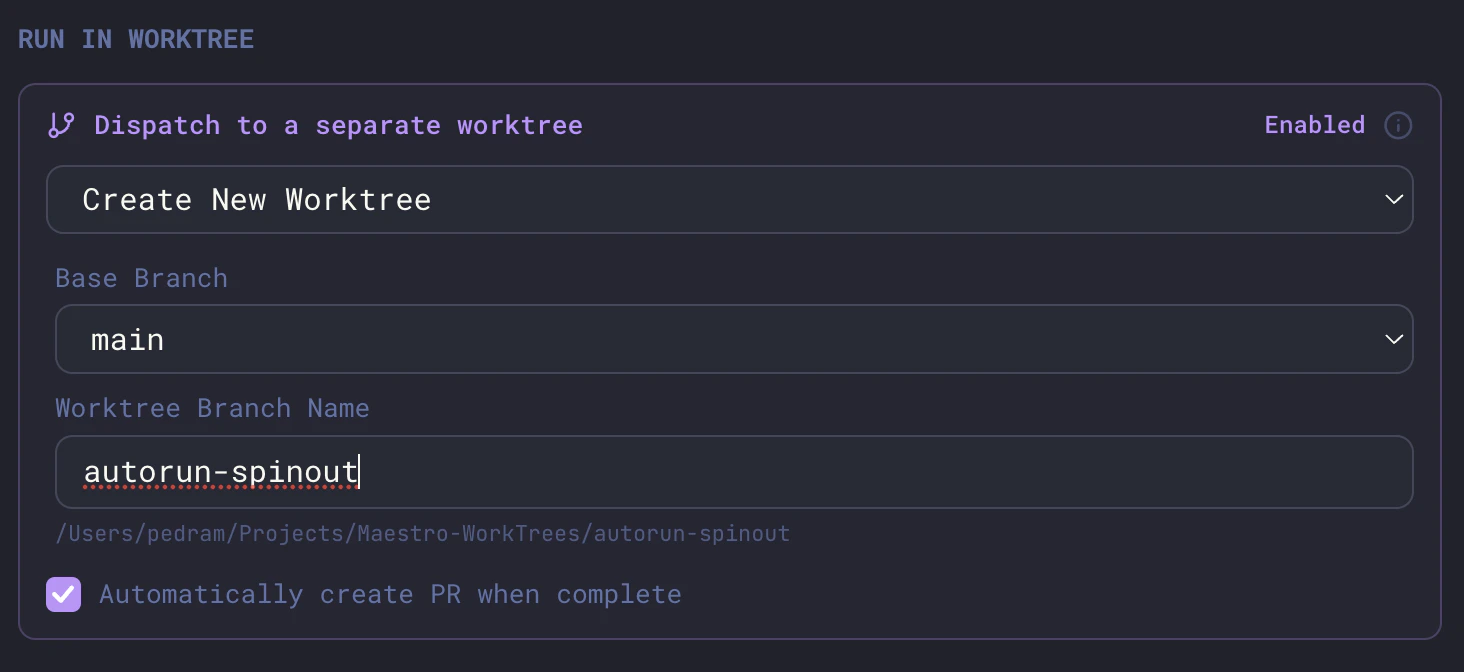
This is the recommended workflow for longer Auto Runs - your main branch stays untouched, all changes land on a dedicated branch, and you get a PR at the end ready for review.