UI Overview
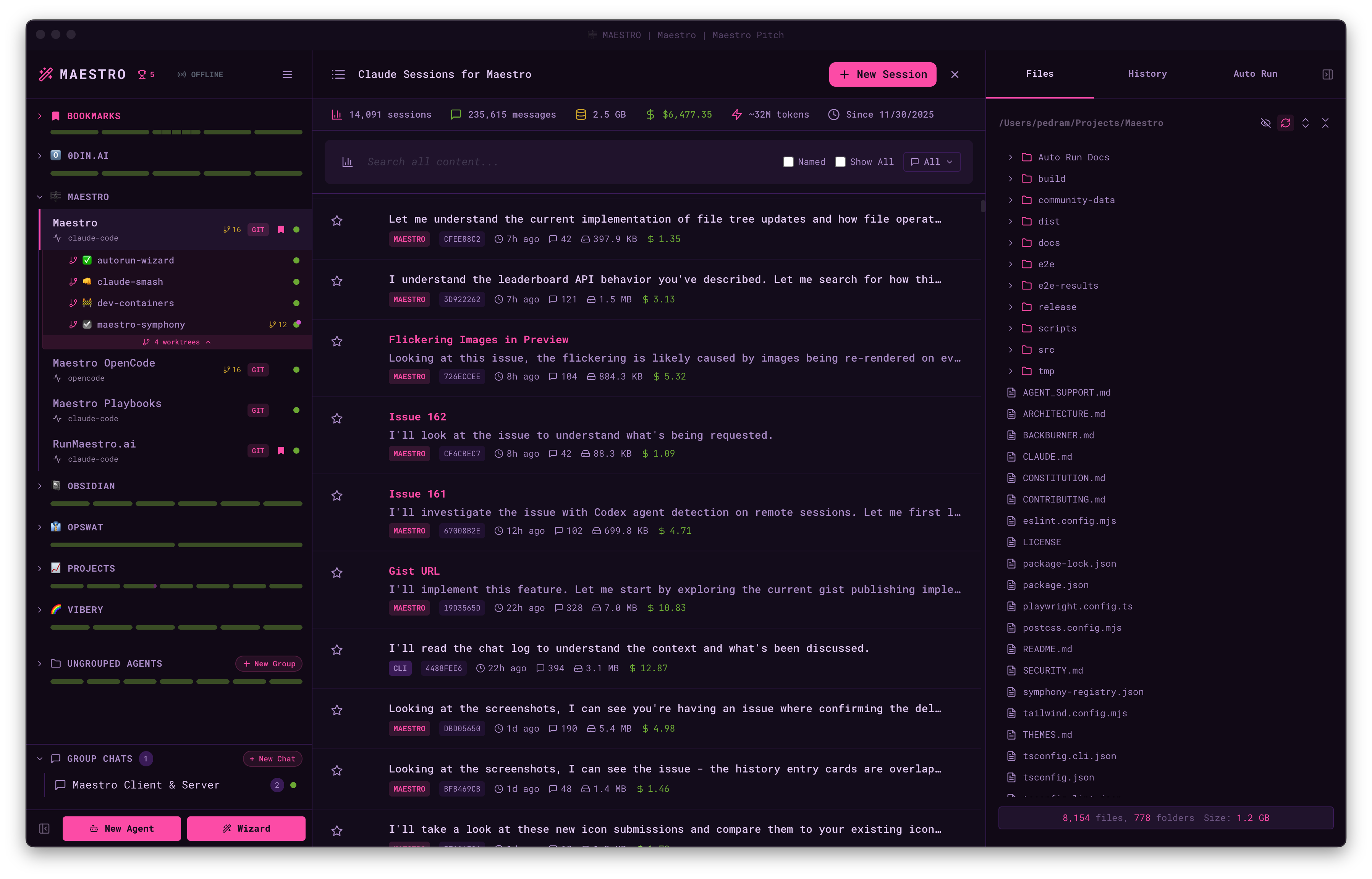
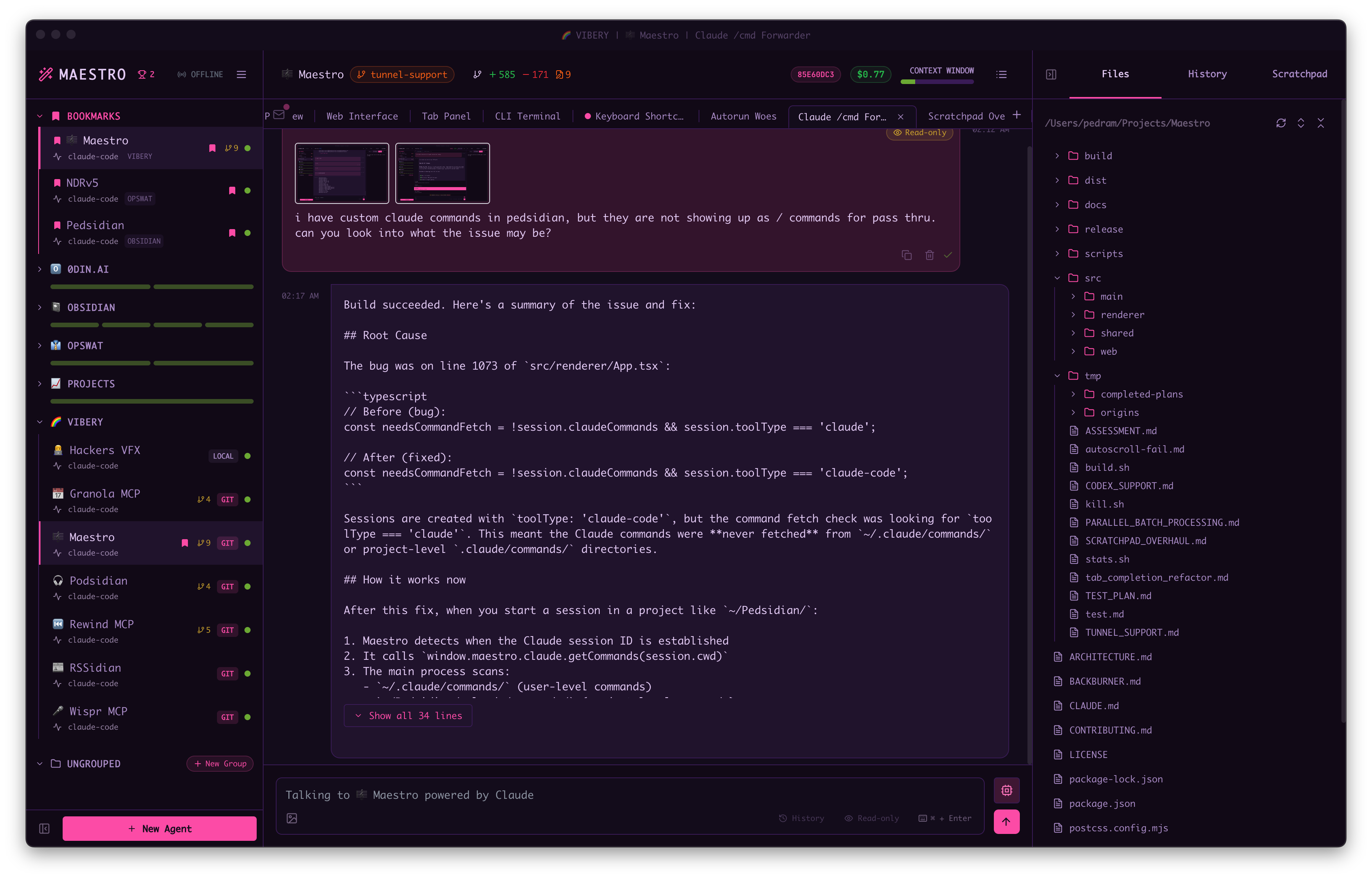
Maestro features a three-panel layout:- Left Panel - Agent list with grouping, filtering, search, bookmarks, and drag-and-drop organization
- Main Panel - Center workspace with two modes per agent:
- AI Terminal - Converse with your AI provider (Claude Code, Codex, or OpenCode). Supports multiple tabs (each tab is a session),
@file mentions, image attachments, slash commands, and draft auto-save. - Command Terminal - PTY shell with tab completion for files, branches, tags, and command history.
- Views: Session Explorer, File Preview, Git Diffs, Git Logs
- AI Terminal - Converse with your AI provider (Claude Code, Codex, or OpenCode). Supports multiple tabs (each tab is a session),
- Right Panel - Three tabs: File Explorer, History Viewer, and Auto Run
Agent Status Indicators
Each agent shows a color-coded status indicator:- 🟢 Green - Ready and waiting
- 🟡 Yellow - Agent is thinking or waiting for user input
- 🔴 Red - No connection with agent
- 🟠 Pulsing Orange - Attempting to establish connection
- 🔴 Red Badge - Unread messages (small red dot overlapping top-right of status indicator, iPhone-style)
Git Actions
For agents whose working directory is a git repository, the same set of git actions is reachable three ways:- Header branch pill - hover the pill showing the current branch name (clicking works too).
- Left Bar right-click - right-click the agent in the agent list.
- Command palette (
Cmd+K/Ctrl+K) - search for the action by name, no mouse required.
The header menu also shows the current branch and origin at the top. Each has a copy button, and clicking the origin opens the repository in your browser. Below the actions it offers Configure Worktrees.
The header pill and the command palette act on the agent you’re looking at. The right-click menu acts on the agent you right-clicked, so you can pull or check the log of a background agent without switching to it first.
Pull and push stream their output as it happens, so you can watch the transfer and read git’s error message if it fails. Dismissing the modal leaves the command running; Cancel stops it. When a push fails because the branch has no upstream, the modal offers a one-click Push and Set Upstream retry.
Working-tree changes are shown by the git status widget beside the pill (
+ additions, − deletions, ~ modified). Hover it for a list of changed files with diff bars, plus shortcuts to the full diff and the log.
File Explorer and Preview
The File Explorer (Right Panel → Files tab) lets you browse project files. Click any file to open it in the File Preview view.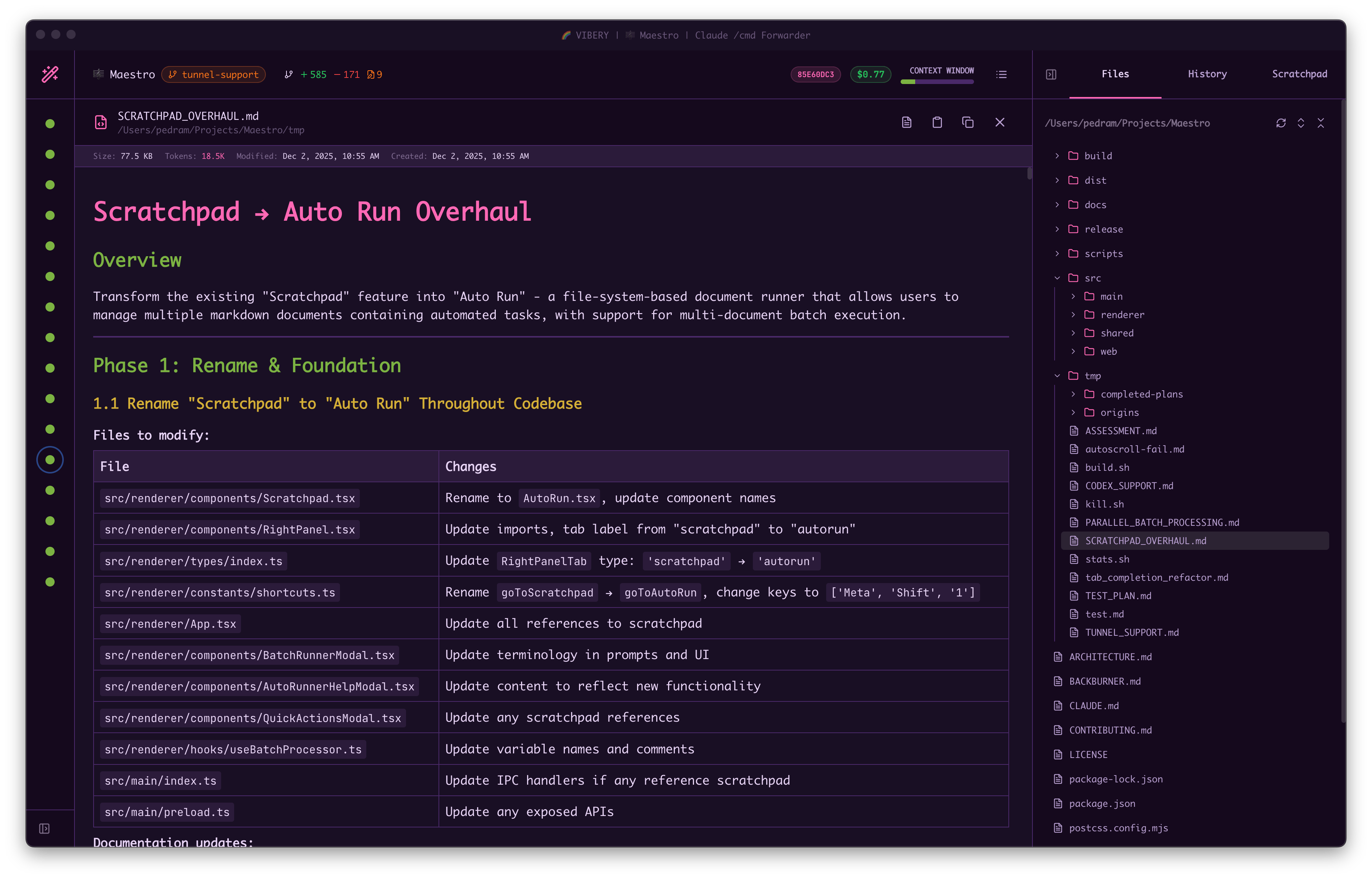
- Syntax highlighting for code files
- Markdown rendering with toggle between raw/preview (
Cmd+E/Ctrl+E) - Heading navigation in markdown: a Table of Contents overlay (
Cmd+\/Ctrl+\) and a searchable jump list (#) - see below - Clickable task checkboxes in rendered markdown - tick a
- [ ]in the preview and the file is rewritten on disk - Image viewing for common image formats
- Audio and video playback with a speed control that sticks (see below)
- CSV and TSV tables with sortable columns and a per-row detail view (see below)
- JSON and JSONL records with jq filtering
- Parquet tables with a typed query language, on files far larger than memory
- Line numbers for easy reference
- Search within file (
Cmd+F/Ctrl+F)
Jumping Between Sections in Markdown
A long markdown file is faster to move around by section than by scrolling. There are two doors onto the same list of headings, and which one you want depends on whether you are browsing or aiming:- Table of Contents (
Cmd+\/Ctrl+\, or the list button in the bottom-right of the preview) opens an outline of the document, indented by heading level. Click any heading to jump there; the overlay stays open so you can keep moving.TopandBottomsit at either end for the whole document. The section you are currently reading is highlighted, and the highlight follows the document as you scroll, so an open outline always shows where you are standing. Use it to see the shape of a file you do not know yet. - Jump to Heading (
#) opens a search box over the same list. Type a few characters of a section name, move withUp/Down(PgUp/PgDnto skip further), and pressEnterto land there. The matched characters are highlighted as you type, and matching is fuzzy -oecfinds “OPSWAT Equity Case”. Use it when you already know the section you want and do not want to hunt for it.
# is a bare keypress, so it works while you are reading and stays out of your
way while you are typing: it does nothing in the find bar, in the markdown
editor, or on a file with no headings. The same command is in the command
palette (Cmd+K / Ctrl+K) as Jump to Heading, which appears only while a
markdown file is open in preview.
CSV and TSV Tables
.csv and .tsv files render as a real table instead of raw text. Click any
column header to sort by it (click again to reverse, a third time to clear), and
Cmd+F / Ctrl+F filters the table down to matching rows with the hits
highlighted.
Wide rows get cut off at the edge of the screen, which is the wrong shape for
reading one record closely. Double-click a row to flip it into a vertical
view: a modal listing every column as a field/value pair, one per line. Long and
multi-line values wrap and keep their line breaks instead of being truncated,
and each value has a copy button on hover.
Inside that view:
- Left and Right arrows, or the chevrons in the header, step through rows without closing the modal. Navigation follows whatever the table is currently showing, so it respects your active sort and search.
- Up and Down arrows scroll the field list, with
PageUp/PageDownfor whole screens andHome/Endto jump to the top or bottom. Handy when a row has more fields than fit at once. /jumps to the filter box, which narrows to fields whose name or value matches what you type.Enterhands focus back to the field list so the arrows resume stepping through rows.- Drag any edge or corner to resize. The size is remembered for next time.
Esccloses the row view and leaves the file open.
Audio and Video Playback
Click an audio or video file and it opens in a player right inside the File Preview. Supported formats are the ones Chromium can decode:mp3, wav,
m4a, aac, flac, ogg, oga, opus, weba for audio, and mp4, m4v,
webm, mov, ogv for video. Anything else (mkv, avi) still gets the
“Open in Default App” fallback.
Playback starts as soon as you open the file, and keeps going when you switch
tabs or agents. Start a podcast, go work somewhere else, and it follows you.
The Floating Player
When you browse away from the tab, the player detaches into a small floating widget that stays on top of whatever you are doing:- Drag the title bar to move it anywhere, and drag the bottom-right corner to resize it. It remembers where you left it, across restarts. Double-click the corner to reset the size.
- Minimize it to a slim pill with just the title and a play/pause button.
- Double-click the title bar (or click the filename) to jump back to the file’s tab, which re-docks the player into it.
- Close it to get it out of the way. This hides the controls only - the audio
keeps playing. Bring it back by opening a media file again, or with
Open Media Player in the command palette (
Cmd+K/Ctrl+K).
One Player at a Time
Only one file plays at a time, so you never end up with two podcasts talking over each other. You can still have several media files open: the prev/next buttons in the transport step between them, and each one remembers its position, so you can jump back and forth without losing your place. Files stream from disk with range requests, so scrubbing a multi-gigabyte screen recording is instant and does not load the file into memory. Playback speed persists. Whatever rate you pick (anywhere from 0.25x to 4x) carries over to the next file you open and survives a restart. Pitch is preserved, so a 2x podcast still sounds like a person.
You can also set the speed outside the app with
maestro-cli settings set mediaPlaybackRate 1.5.
Compressing a Folder
Right-click any folder in the Files tab and choose Compress. Maestro zips the folder into a.zip that lands beside it in the parent directory, named after
the folder itself. Unzipping gives you back the folder, not its loose contents
sprayed into the current directory.
If name.zip already exists, the next free name is used - name-1.zip, then
name-2.zip, and so on. Compressing the same folder twice never overwrites the
archive you made the first time. A toast tells you the name of the file that was
actually written, and the file tree refreshes so you can see it right away.
This works on remote agents too. The remote host needs the zip command
installed; without it, Maestro says so rather than failing quietly.
File Icon Themes
The Files pane draws each file and folder with one of two icon sets, chosen in Settings > Display > Files Pane Icon Theme:- Rich (the default) uses Material Icon Theme style SVGs: colorful, language-specific icons for 70+ file types plus folder categories such as tests, docs, assets, and config.
- Flat uses Maestro’s simpler monochrome icons, which read as less busy on a large tree.
File Explorer Keyboard Shortcuts
With the Files tab focused, navigate the file list without touching the mouse:
Use
Shift+Up / Shift+Down when you want to glance further down the tree without losing your place - the focused file stays put while the viewport slides.
Breadcrumb Navigation
When you open a file, a breadcrumb trail appears showing your navigation history. Click any breadcrumb to jump back to a previously viewed file. This makes it easy to compare files or return to where you were.File Editing
Files can be edited directly in the preview. PressCmd+S / Ctrl+S to save changes. If you navigate away or close the preview with unsaved changes, a confirmation dialog will ask whether to discard them.
Drag and Drop Files Into the Tree
Drag files or folders from your OS file manager (Finder on macOS, Explorer on Windows, your file manager on Linux) straight into the Files tab to copy them into the project:- Drop onto a folder row to copy the items inside that folder. The folder highlights as you hover it.
- Drop on empty space or a file row to copy into the project root. The panel border highlights to show the root is the target.
- Folders are copied recursively, with all of their contents.
- If a name already exists at the destination, a prompt lets you Overwrite, Auto-rename (adds a numeric suffix), or Skip the conflicting items.
Importing into the tree copies from your local machine, so it is not available for agents running on an SSH remote. Attaching files to the chat still works on remotes.
Drag Files Out of Maestro
Hold Option (Alt on Windows and Linux) while dragging a row out of the Files tab to hand the real file to anything that accepts a file drop: your Desktop, Finder or Explorer, a Mail or iMessage message, a browser upload field.- Select several rows first to drag the whole group out at once.
- Folders drag out too, with all of their contents.
- The original stays in the project. Dragging out copies, it never moves or removes anything.
For agents running on an SSH remote, drag-out covers files but not folders, and the first Option-drag of a file downloads it before it can leave the app. Maestro flashes “drag again” when the file is ready, and the second drag carries it. This is deliberate, so a half-downloaded file is never handed to another app.
Publish as GitHub Gist
Share files directly as GitHub Gists from the File Preview: Prerequisites:- GitHub CLI (
gh) must be installed - You must be authenticated (
gh auth login)
- Open a file in File Preview
- Click the Share icon (↗) in the header toolbar, or
- Use
Cmd+K/Ctrl+K→ “Publish Document as GitHub Gist”
The confirmation modal focuses “Publish Secret” by default, so you can press
Enter to quickly publish. Press Esc to cancel.
After publishing:
- The gist URL is automatically copied to your clipboard
- A toast notification appears with a link to open the gist in your browser
The share button only appears when viewing files (not in edit mode) and when GitHub CLI is available and authenticated.
@ Mentions
Reference files in your AI prompts using@ mentions:
- Type
@followed by a filename - Select from the autocomplete dropdown
- The file path is inserted, giving the AI context about that file
@ picker can also reference other agents. Alongside files, it has an Agents section - pick one to consult it inline and stream its reply back into your chat. Maestro tells files and agents apart by shape: a path-like @src/app.ts is a file, while a bare @codex is an agent.
Command Mode (!)
Press ! in an empty chat composer and it turns into a command line: what you type next runs as a shell command in the agent’s working directory instead of being sent to the agent. It is a way to check something without leaving the chat.
The ! is a gesture, not part of the command - it disappears the moment it switches modes, and you just type the command:
$ appears at the left of the input, the text switches to the fixed-width font your terminals use, and a COMMAND MODE strip above it names the directory the command will run in. The font follows the command all the way through - what you type, what the AI proposes, and the output on the card are all set the way a terminal sets them, so paths and columns line up.
Getting back to the agent: press Esc on an empty command line (or Backspace, same thing). The composer keeps focus, so you can carry straight on typing your message. Command mode sticks around between commands, so you can run several in a row without retyping !, and you leave deliberately when you are done.
! is a rung, not a toggle. Press it again on an empty command line and you climb to AI Command Mode, where you describe what you want instead of typing the command yourself. Esc steps back down one rung at a time, so AI Command Mode returns you to command mode and command mode returns you to the agent.
How it behaves:
- The agent is bypassed entirely. It is never spawned, never written to, and never sees the command or its output. Nothing you run this way enters the agent’s context - if you want the agent to see the result, copy it into a message.
- It runs immediately, even while the agent is working. Command mode does not queue and does not interrupt the turn in progress, so you can check
git logwhile the agent is mid-edit. - It runs in the agent’s working directory (on the agent’s SSH remote, if it has one). Each command is independent - there is no persistent shell, so
cd srcon its own does nothing. Chain instead:cd src && ls. - Every command gets its own card, never merged into the surrounding conversation. The card shows the command, where it ran, and a live spinner while it works; when it finishes, the exit code and how long it took.
- The transcript jumps to the card, even if you had scrolled up to read history. You pressed Enter to see this output, so it is not left offscreen behind the unread badge. Scroll up while it is still running and it stops following, the same as anywhere else.
- A finished card can be deleted. Its header has a trash icon with the same inline Delete? confirmation your own messages use. Only the card goes; the agent never saw the command, so there is nothing on its side to remove. The icon is hidden while the command is still running - press Stop first, otherwise the output would keep streaming into a card that no longer exists.
- Colour is preserved. Output keeps the colours the command produced (
git status,eza,rg), rendered properly rather than shown as raw escape codes. The copy button gives you clean, uncoloured text. - The draft survives a tab switch, mode and all. Leave a half-typed command, go read another tab, come back, and it is still a command.
Tab Completion in Command Mode
Command mode gets the sameTab completion the Command Terminal has, so you are not typing paths from memory:
One match completes in place. Several open a picker:
↑ / ↓ to move, Enter to accept, Esc to dismiss. In a git repo, Tab inside the picker cycles the category filter (All, History, Branches, Tags, Files) and Shift+Tab cycles back.
Completion resolves from the agent’s working directory, which is where the command will actually run. This is deliberately not the Command Terminal’s directory - cd-ing in a terminal tab does not move where your commands run, so it must not move where completion looks either.
Chat affordances stand down in command mode, because a shell line means different things by the same characters:
@file mentions - an@here is anscptarget or an email in a commit message, not a file reference for the agent.- Slash commands - a leading
/here is an absolute path (/usr/bin/env), not/history. - Image attachments - pasting or dropping an image is ignored, and the attach button is hidden. A shell command has nothing to do with an image, and the agent (which is the thing that reads them) never sees this input.
Command mode has no keyboard - nothing is connected to the command’s stdin. Programs that prompt for input (
sudo, an editor opened by git commit, an interactive installer) will hang until you press Stop. Run those in a Command Terminal tab instead.!: typing ! first only enters command mode when the composer is empty, so a bang inside a sentence is safe. To start a message with one, prefix it with a backslash: \!important reaches the agent as !important.
Command mode is AI-chat only. In a terminal tab or the legacy terminal mode you are already at a shell, so ! is an ordinary character.
AI Command Mode
Press! a second time, on an empty command line, and the composer climbs one more rung. The strip above it now reads AI Command, the $ and the fixed-width font go away (you are writing a sentence again, not a command line), and what you type is a plain-English description of what you want done:
Enter and Maestro asks this tab’s own model, at the model and effort the tab is set to, for a single command line. Nothing runs yet. The answer appears as a card above the composer showing the command it proposes, with Run and Cancel:
Declining hands your original request back to the composer so you can reword it and ask again, which is nearly always what you want - a wrong answer usually means a vague question. The card owns the keyboard until you answer it, so
Enter can never run something you have not looked at.
A command you accept runs through exactly the same path as one you typed yourself: same working directory, same SSH remote, same card in the transcript, and it joins your ↑ recall history the same way. The one thing it keeps is what you asked for, shown above the command on its card - so a transcript you read back weeks later says why those flags were there, not just what ran.
That request travels with the command. When you ask for a follow-up, the model sees both the earlier ask and the command it produced, so “actually just give me a count” is refined against what you originally wanted rather than reverse-engineered from the flags.
How the suggestion is made:
- The model only names the command; it never runs anything. The request is answered with tools disabled and in read-only mode, so a task-shaped request (“clean up the build output”) comes back as a command to look at rather than as work already done.
- It is the tab’s own provider, billed and configured like any other turn on that tab. The mode strip shows the model and effort it will use.
- The agent’s conversation is untouched. The request and the suggestion never enter the agent’s context, the same as any other command-mode activity.
- The prompt is yours to change. It is a core prompt (
ai-command), editable under Settings → Maestro Prompts → Commands, like every other Maestro prompt. See Prompt Customization.
! typed here is an ordinary character - your request is prose, and prose contains bangs.
Prompt Composer
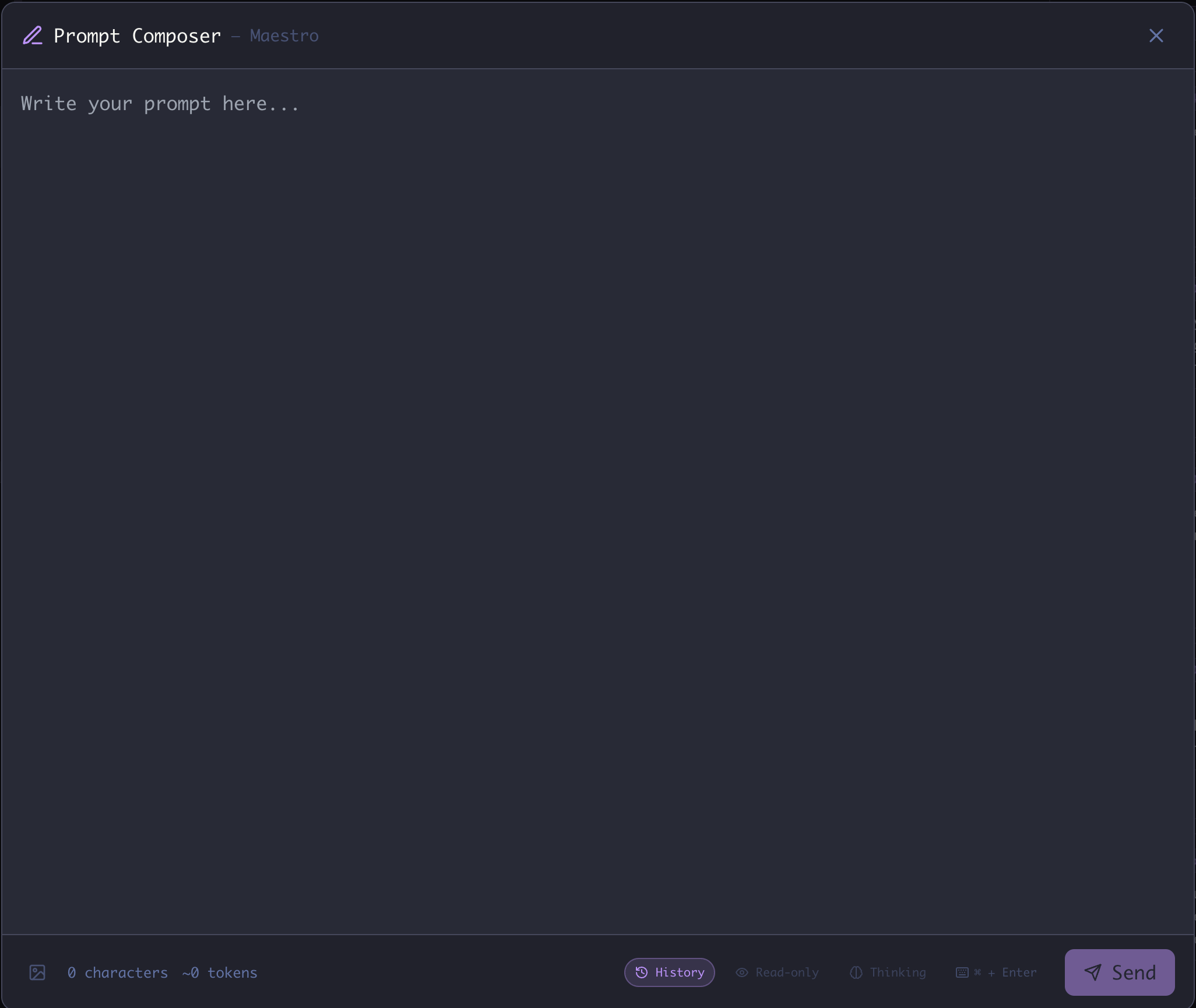
For complex prompts that need more editing space, use the Prompt Composer - a fullscreen editing modal. To open the Prompt Composer:- Press
Cmd+Shift+P/Ctrl+Shift+P, or - Click the pencil icon (✏️) in the bottom-left corner of the AI input box

- Full-screen editing space for complex, multi-paragraph prompts
- Character and token count displayed in the footer
- All input controls - History toggle, Read-only mode, Thinking toggle, and send shortcut indicator
- Image attachment support via the image icon in the footer
Message Queue
You never have to wait for an agent to finish before lining up your next thought. Any message (or slash command) you send while an agent is busy is added to that tab’s queue instead of being dropped, and dispatched automatically, in order, the moment the agent becomes ready. A QUEUED (n) separator appears in the transcript listing everything waiting to go. Each queued item has a row of controls (hover reveals them, and they stay visible while you work):
Editing is only offered for messages, not slash commands. Only genuinely long messages are truncated behind a Show all toggle (short ones render in full, since collapsing them would save nothing), and attached images collapse behind a click-to-expand thumbnail strip (click a thumbnail to open it full-size in the carousel).
Force Send
A queued item carries a Force Send button that dispatches that message immediately instead of waiting its turn in the cross-tab queue. On a quiet agent it just sends. When another tab in the same agent is already working, it runs the message in parallel and a confirmation lists which other tabs are busy first - which needs Forced Parallel Execution enabled, so with that setting off the button is visible but dimmed and says so. The button is hidden when there is nothing to force: the item’s own tab is mid-turn, so the item is next in line regardless, or the tab it was queued for is gone. This is the same rule the Send Now button in the Execution Queue view follows.Cmd+Shift+Enter / Ctrl+Shift+Enter does the same thing from the keyboard, and it works wherever you are in the app - you do not have to click into the input box first. With text in the input, it sends what you typed in parallel; with the input empty, it force-sends the newest eligible queued item.
Execution Queue view
PressCmd+Shift+X / Ctrl+Shift+X (or click the queue indicator) to open the Execution Queue - a single view of everything queued across all of your agents. It offers the same per-item controls (edit, copy, hold/resume, reorder, remove) plus a jump-to-agent shortcut, so you can manage a busy fleet from one place. Items are processed sequentially per agent to keep concurrent file edits from colliding.
The view is fully keyboard-driven. Up / Down move a highlight through the queued messages, walking across agent boundaries in the All Agents view, and Enter opens an action menu for the highlighted message with everything that card offers - Send Now, Edit, Delete, Hold/Resume, Copy. Up / Down pick an action in that menu, Enter runs it, and Esc closes it. Clicking a card also moves the highlight to it. The menu only lists actions the message actually supports, so a queued slash command has no Edit entry.
Every card here also carries a Send Now button, which runs that one item immediately instead of waiting for its turn. Use it to jump an item ahead of the rest of the queue or to release a held message on the spot. The button dims with an explanation when the item cannot run yet because another tab in that agent is working and Forced Parallel Execution is off - a state you can fix from Settings. It is hidden entirely when there is nothing to force: the item’s own tab is already mid-turn, so the item is next in line anyway, or the tab it was queued for is gone. When another tab is working, Send Now confirms first and lists which tabs are busy.
Input Toggles
The AI input box includes three toggle buttons that control session behavior:
Per-tab persistence: Each toggle state is saved per tab. If you enable Thinking on one tab, it stays enabled for that tab even when you switch away and back.
Permission mode and ask-back questions: Claude Code agents also offer a permission mode you cycle by clicking the permission pill in the input toolbar (Full Access -> Standard -> Read-Only). In Standard mode, tool calls that need approval and any
AskUserQuestion ask-backs appear as in-app prompts you answer inline. In Full Access mode there are no prompts at all: permission checks are bypassed, and an AskUserQuestion call cannot be answered, so the turn stalls until you stop the agent. Sending a follow-up message won’t unstick it: the message only queues behind the stalled turn, which never completes to dispatch it. Avoid instructing agents to ask questions through tools unless the tab is in Standard mode. See provider notes for the full explanation.
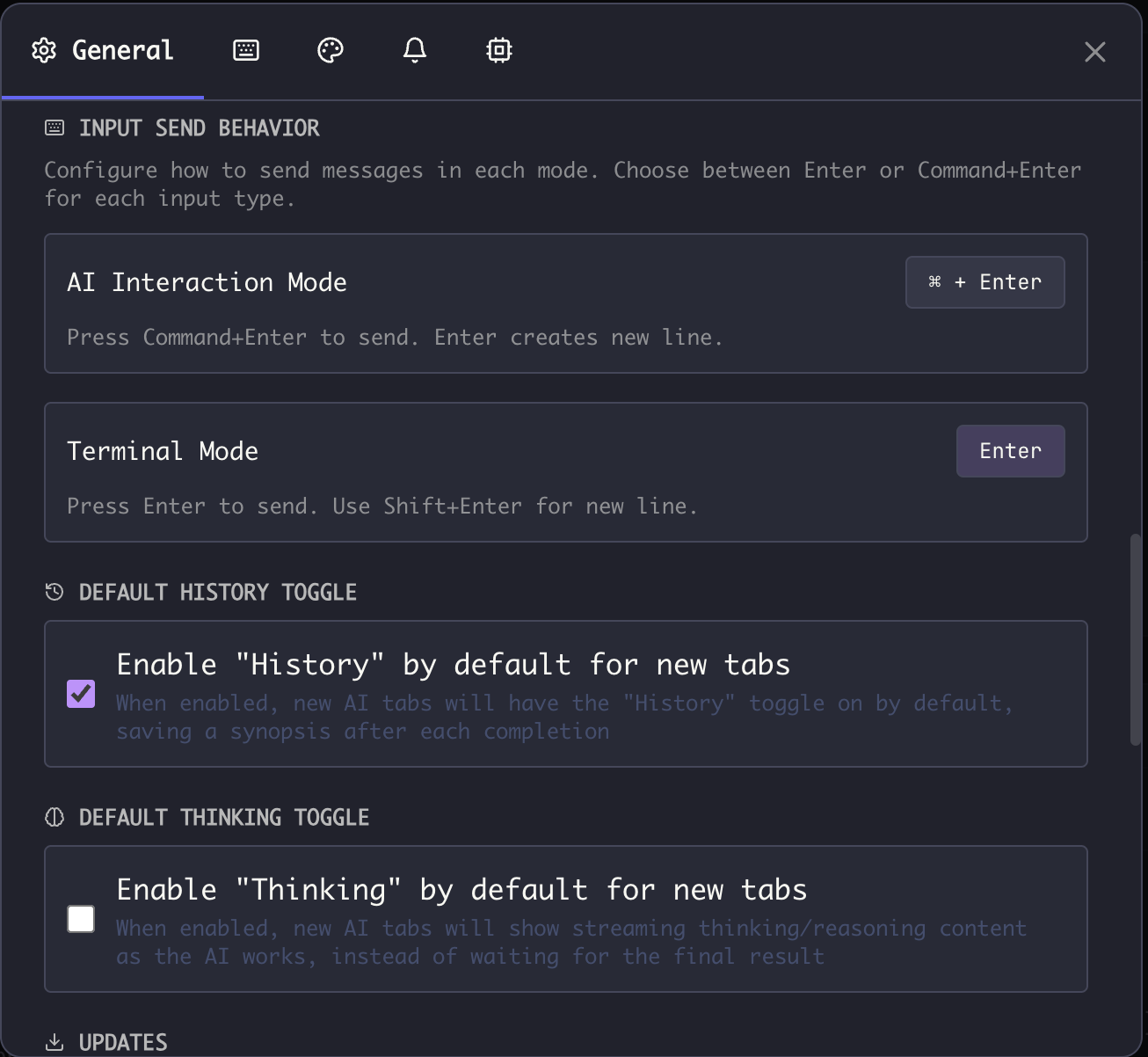
Configuring Defaults
Set the default state for new tabs in Settings (Cmd+, / Ctrl+,) → General:
Send Key Configuration
Configure how messages are sent in each mode:- When set to
Cmd+Enter/Ctrl+Enter, pressingEnteralone creates a new line (for multi-line input) - When set to
Enter, useShift+Enterfor new lines - The current send key is displayed in the input box (e.g., ”⌘ + Enter”)
- Per-tab override: Click the send key indicator in the input box to toggle between modes for that tab
Image Carousel
When working with image attachments, use the Image Carousel to view, manage, and remove images. To open the Image Carousel:- Press
Cmd+Y/Ctrl+Y, or - Click the image icon in the input box when images are attached
- Arrow keys - Navigate between images
- Delete or Backspace - Remove the currently selected image
- Click the X - Remove an image by clicking its remove button
- Esc - Close the carousel
Staged Images
Attached images wait in a thumbnail strip directly above the input box until you send. Their order in that strip is the order the agent receives them, so the first thumbnail is Screenshot 1, the second is Screenshot 2, and so on. That is what lets you write “compare Screenshot 1 and Screenshot 3” and have the agent look at the right pictures. With more than one image staged, each thumbnail carries its number so you can read it off the strip instead of counting. A single image needs no label and does not get one.Reordering
Drag a thumbnail sideways to move it. The slot numbers follow the drag, so with six or seven screenshots staged you can aim at a number instead of counting positions. A lone thumbnail picks up a number for the length of the drag too.The Staged Images organizer
With two or more images staged, an expand button (⤢) appears to the left of the strip, or pressCmd+Shift+Y / Ctrl+Shift+Y. Either opens the Staged Images organizer: the same set of images at a size you can actually tell apart, always numbered, with the same drag-to-reorder.
- Zoom with the magnifier buttons in the header, or with the bare
+and-keys (=and_work too, so you never have to think about Shift).0snaps back to 100%, as does clicking the percentage. The size you pick is remembered across sessions. - Annotate or remove any image from its thumbnail, exactly as in the strip.
- Esc or the ESC pill closes it.
Referring to an image by number
Drag a thumbnail from the strip into the conversation and Maestro types its reference into your message for you, asScreenshot 1, Screenshot 2, and so on. Drop it anywhere in the chat area, not just on the input box itself.
References follow the pictures. If you write Screenshot 1 and then reorder the strip so that image becomes the third one, Maestro rewrites the reference in your draft to Screenshot 3. Swapping two images swaps both references rather than collapsing them onto one number, and numbers you typed for images that did not move are left alone.
Reordering rewrites references in the message you are currently composing. Messages you have already sent are unchanged, since the agent has already seen those images in the order they were sent.
Output Filtering
Filter and search through AI output to find specific content or hide noise.Global Filter
The global filter applies to all AI output in the current session. To open the global filter:- Click the filter icon in the output toolbar
- The filter bar appears at the top of the output area
Per-Response Filters
Each AI response has its own local filter. Hover over a response to reveal the filter icon, then click to open the filter bar for that specific response.Filter Modes
Click the mode icon to toggle between Include and Exclude.
Text vs Regex Matching
Click the indicator to toggle between plain text and regex mode.
Filter Controls
- Query input - Type your search term or regex pattern
- Esc - Clear the filter and close the filter bar
- Click outside - If the query is empty, the filter bar closes
Placeholders
The placeholder text updates to reflect the current mode:- “Include by keyword” / “Exclude by keyword” for plain text
- “Include by RegEx” / “Exclude by RegEx” for regex mode
Use Cases
Finding specific content:- Set to Include mode with plain text
- Type a keyword like “error” or “function”
- Only matching lines are shown
- Set to Exclude mode with plain text
- Type patterns like “debug” or “verbose”
- Matching lines are hidden from view
- Enable Regex mode
- Use patterns like
\berror\bfor word boundaries - Or
^\s*#to match comment lines
Searching Message History
Two searches share the magnifying-glass menu in the tab bar, and both accept plain text or a regular expression (toggle theAa / .* chip).
In the current tab
Cmd+F / Ctrl+F opens the Find bar over the conversation you’re looking at.
Every match is highlighted inline; Enter and Shift+Enter step forward and
backward through them.
Across every open tab
Opt+Cmd+F / Alt+Ctrl+F opens a modal that searches the message history of
all open tabs in the current agent at once. It’s also in the command palette
as “Search: Messages (All Agent Tabs)”.
Results are grouped by tab, each row showing who said it, when, a preview of the
hit with the match highlighted, and a pill when that message contains several
matches. The tab you’re currently on is labeled “current”.
Pick a result with Enter or a click and Maestro:
- Switches to that tab
- Scrolls to the message and flashes it so you can see where you landed
- Seeds that tab’s Find bar with the same query, positioned on the match you
picked, so
Enter/Shift+Entercontinues from there
PageUp / PageDown, and Home / End.
Very broad queries are capped so a single character can’t stall the UI: 100 matches
per tab and 500 overall. When a search hits either limit the modal says so, and
narrowing the query brings the rest into view.
This search covers the AI tabs of the agent you’re currently on, not your whole
fleet. Group chats have no AI tabs to search, so the menu entry is hidden there.
Command Interpreter
The command interpreter can be focused for a clean, terminal-only experience when you collapse the left panel.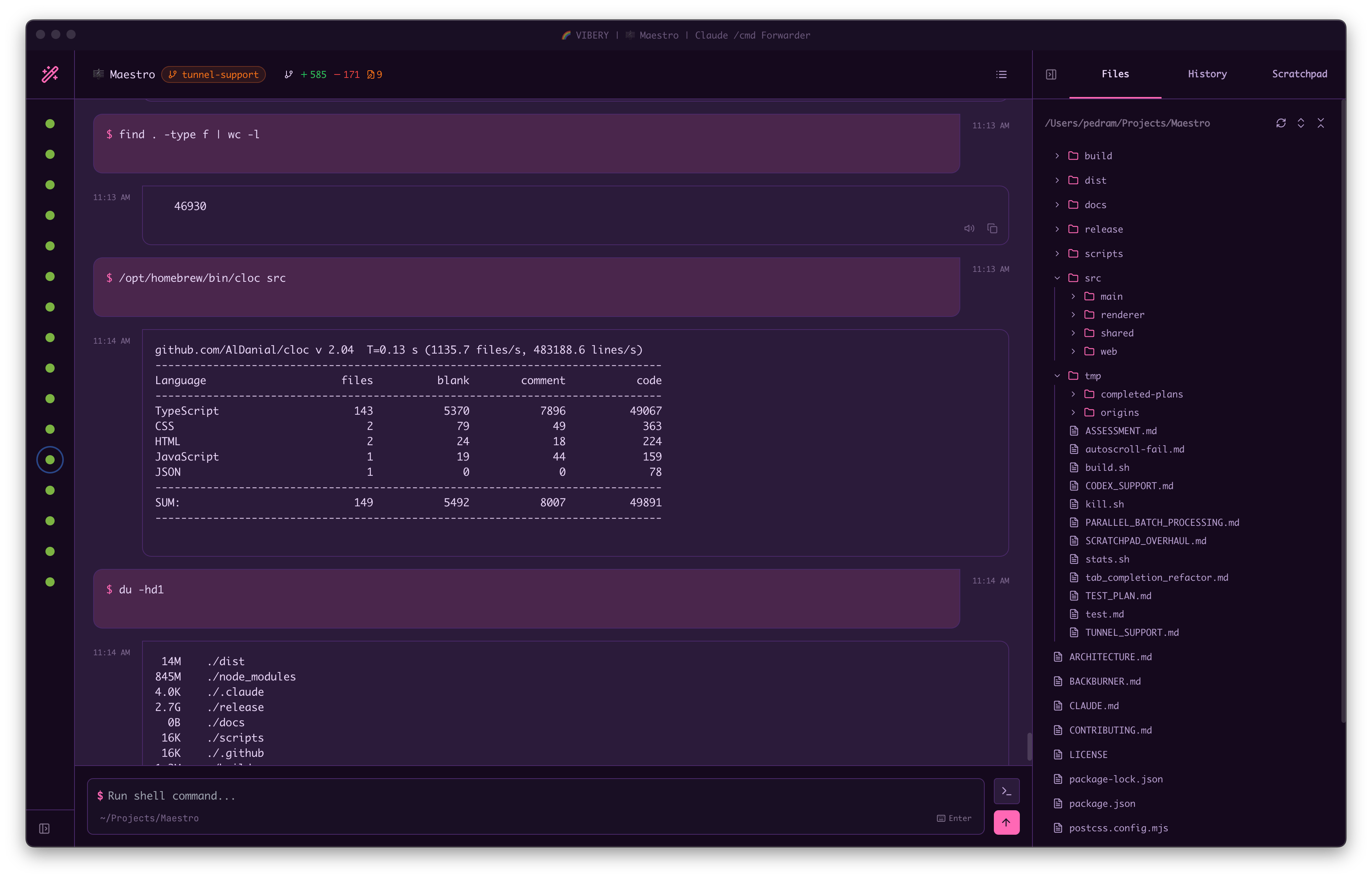
Command Terminal
Each agent has a Command Terminal alongside its AI Terminal - a real PTY shell scoped to the agent’s working directory. Switch between them withCmd+J / Ctrl+J. Open a new terminal tab with Ctrl+Shift+ + `; close, rename, and reorder it just like an AI tab. Right-click (or hover) a terminal tab to open its action menu.
Startup Command
Configure a command to run automatically every time a terminal tab’s shell is started - including after you quit and reopen Maestro. This is the simplest way to keep something likenpm run dev, a watcher, or a long-running log tail attached to a specific tab.
To configure:
- Hover the terminal tab and open its action menu.
- Click Startup Command… (right under Rename).
- Enter the command and, optionally, a working directory. The working directory defaults to the agent’s working directory if left blank.
- Click Save.
- The command runs each time the PTY for that tab is spawned. The most common trigger is launching Maestro after a quit - any open terminal tab is restored, its shell respawned, and the configured command executes.
- Configuring a command on an already-running shell does not retroactively run it. The next spawn (app restart, or close-and-reopen the tab) picks it up.
- The configured working directory becomes the shell’s spawn directory, so the command starts in the right place even if the tab’s last
cdwas somewhere else. - Leave the command field empty and save to disable the feature for that tab.
- Each terminal tab has its own startup command - one tab can run a dev server while another runs a log tail.
SSH agents: when the agent is configured to run on a remote host, the terminal tab also runs on that host, and the startup command executes remotely (the working directory must be a path on the remote machine).
Agent Management
Agents are the core of Maestro - each agent represents an AI coding assistant running in its own workspace.Creating Agents
To create a new agent:- Press
Cmd+N/Ctrl+N, or click the New Agent button in the bottom-left sidebar - Choose Manual Setup or Guided Setup (Wizard) - see Getting Started for details on each path
- For Manual Setup: select an available AI provider (Claude Code, Codex, OpenCode, or Factory Droid), choose a working directory, and optionally name the agent
- New Session Message - A hidden message prefixed to the first message whenever a new session (tab) is created. Use this for initial context, setup instructions, or persona definitions that should apply at the start of every conversation. Not visible in chat.
- Nudge Message - A hidden message appended to every interactive user message sent to the agent. This is useful for persistent instructions or reminders that guide the agent’s behavior across all conversations. Note: Nudge messages only apply to interactive AI messages - they are not included in Auto Run tasks.
- Custom Path - Override the default executable path
- Custom Arguments - Additional command-line arguments
- Environment Variables - Custom environment variables for the agent process
- Model Selection - Choose a specific model and (where supported) reasoning/effort level. This sets the default for new tabs in this agent. You can override the model or effort on any individual tab using the model/effort pill in the input bar - per-tab overrides only affect that tab and don’t change the agent default or any other tab.
-
Additional Directories - Grant the agent access to directories beyond its working directory. Add a row per directory, then toggle R (read) and W (write) independently: a directory can be read-only reference material, a write-only drop box the agent should never read back, or both. A row with neither toggle lit is inert and is not sent to the agent. Each row also takes an optional description - a short hint about what the directory is for or how the agent should use it, which is passed to the agent alongside the access rule. Providers that support directory flags (for example Claude Code’s
--add-dir) also receive these grants natively; the read/write split and the descriptions are always carried in the agent’s system prompt. Each response in the transcript is stamped underneath with the model and effort it was actually sent with (alongside the Claude token source pill, where that applies). The stamp is taken when you press Enter, so changing the model while a turn is streaming labels your next message, never the one already running. A pill is omitted when no override was set and the agent’s own default applied.
Editing Agents
Right-click any agent in the left panel and select Edit Agent… to modify its configuration. You can change the name, new session message, nudge message, custom paths, arguments, environment variables, additional directories, model, and effort. Model and effort set here apply as the default to new tabs; existing tabs that haven’t been overridden also follow this default. To override on a single tab without changing the agent-wide default, use the model/effort pill in that tab’s input bar.Deleting Agents
Right-click an agent and select Remove Agent to delete it. This removes the agent from Maestro but does not delete any files or AI session data.Agent Configuration via Quick Actions
UseCmd+K / Ctrl+K → “Edit Agent” to quickly access agent configuration for the current session.
Left Panel Operations
The left panel (sidebar) contains your agent list, groups, and navigation controls.Filtering and Search
PressCmd+F / Ctrl+F while the sidebar is focused to open the session filter. The filter:
- Searches agent names and AI tab names
- Automatically expands groups containing matches
- Shows matching bookmarked agents
- Searches worktree branch names
Bookmarks
Pin important agents to the top of the list:- Right-click an agent → Add Bookmark
- Or use the context menu to toggle bookmark status
Groups
Organize agents into groups for better project management: Creating groups:Cmd+K/Ctrl+K→ “Create Group”- Groups have a name and emoji for visual identification
- Right-click an agent → Move to Group → Select target group
- Or drag-and-drop agents between groups
- Click the group header to collapse or expand
- Groups remember their collapsed state
Drag and Drop
Rearrange agents by dragging them:- Drag agents between groups
- Drag to reorder within a group
- Drag to the “Ungrouped” section to remove from a group
Context Menu
Right-click any agent for quick actions. The menu is headed by the name of the agent you right-clicked, so you can tell at a glance which agent an action will hit - the menu often pops away from the row it was opened on.- Rename - Change the agent’s display name
- Edit Agent… - Open configuration modal
- Add/Remove Bookmark - Toggle bookmark status
- Move to Group - Organize into groups
- Move to Window - Send the agent to another Maestro window
- View Git Log / View Git Diff / Git Pull / Git Push / Change Branch / Create Pull Request - the full git menu, for git repositories only
- Create Worktree - Create a git worktree sub-agent (if configured)
- Configure Worktrees - Set up worktree configuration
- Configure Maestro Cue - Set up event-driven automation for this agent
- Copy Agent GUID to Clipboard - Copy the agent’s unique identifier
- Remove Agent - Delete the agent from Maestro
Sidebar Width
Drag the right edge of the sidebar to resize it. The width is persisted across sessions.Collapsed Mode
Click the sidebar toggle (Opt+Cmd+Left / Alt+Ctrl+Left) to collapse the sidebar to icon-only mode. In collapsed mode:
- Agents show as icons with status indicators
- Hover for agent name tooltip
- Click to select an agent
Tab Management
Each agent session can have multiple tabs, allowing you to work on different tasks within the same project workspace.Automatic Tab Naming
When you send your first message to a new tab, Maestro automatically generates a descriptive name based on your request. This helps you identify tabs at a glance without manual renaming. How it works:- When you start a new conversation in a tab, your first message is analyzed
- An AI generates a concise, relevant name (2-5 words)
- The tab name updates automatically once the name is generated
- If you’ve already renamed the tab, automatic naming is skipped
Configuring automatic tab naming:
- Go to Settings (
Cmd+,/Ctrl+,) → General - Toggle Automatic Tab Naming on or off
- Default: Enabled
/wizard opens as Wizard, because it exists before anyone knows what you are planning. It renames itself to wizard: <topic> as soon as you say what you want (from the /wizard <topic> argument, or from your first message), and to the generated playbook folder once the wizard finishes. Rename it yourself at any point and Maestro leaves your name alone.
Automatic tab naming uses the same AI agent as your session, including SSH remote configurations. The naming request runs in parallel with your main prompt, so there’s no delay to your workflow.
Manual Tab Renaming
You can always rename tabs manually:- Right-click a tab → Rename Tab
- Or double-click the tab name to edit it directly
- Manual names take precedence over automatic naming
Changing a Tab’s Model and Effort
Every AI tab can run a different model and a different reasoning effort from the rest of the agent. The pills under the composer set both with the mouse;Opt+Cmd+. / Alt+Ctrl+. opens a console that sets both without one.
The console puts the two knobs on two axes, so the direction you press matches the axis you see:
Nothing is written until you press Enter, so browsing costs nothing.
Typing to find a model. On an agent with a long catalog, press the first letter or two instead of arrowing:
f jumps to fable, so to sonnet. Pressing the same letter again walks to the next model that starts with it, so o, o steps from opus to opus[1m]. Type d to reach (default).
Without a keyboard. Click a model row or an effort stop to select it, and double-click to apply and close. Clicking outside the console cancels, the same as Escape.
- Which models and effort levels appear depends on the agent. The caption under the wheel names the vendor of whichever model you are on, which is what tells Claude, OpenAI and Gemini entries apart on a multi-provider CLI like Copilot-CLI.
(default)clears the tab’s override and falls back to the agent’s own setting.- Not every model honors effort. Agents that expose the knob pass it through, and a model that has no reasoning budget ignores it.
- The effort bars under the stops rise with the level, so you can read where you are on the scale without reading the labels.
(default)sits apart from the scale and has no bar - it means “let the agent decide” rather than naming a level.
Cmd+K / Ctrl+K) as Change Tabs Model and Effort. It applies to AI tabs only.
Tiling Tabs
Tiling splits the Main Panel so several tabs are on screen at once: an agent conversation above a terminal, a file next to the browser, two chats side by side. Any tab type can be tiled with any other, and a tiled set behaves like one tab in the tab bar. Creating a tile from the keyboard The fastest route is Quick Actions (Cmd+K / Ctrl+K). Type tile to see the whole family:
Each of the four also has a key of its own, on
Ctrl+Cmd beside the rest of the pane commands: Ctrl+Cmd+T AI chat, Ctrl+Cmd+B browser, Ctrl+Cmd+F file, Ctrl+Cmd+J terminal. The letter matches the plain “new tab” chord, so the tiled twin is that letter with one more modifier. On Windows and Linux the second modifier is the Windows / Super key.
Any of the four can be rebound: open Settings → Shortcuts (Cmd+, / Ctrl+,), find the one you want, and click it to record whatever combination you like. Quick Actions shows your binding next to the command.
Each one creates the tab and places it in a single step, so you never have to open a tab and then drag it into position. The tab you were looking at keeps the top half.
The new pane takes the keyboard, so you can start typing immediately without reaching for the mouse. Where the caret lands depends on what you tiled:
If a pane needs a moment to appear (a browser starting up, a file editor loading for the first time), Maestro waits for it and puts the caret in as soon as it is ready.
The same rule holds for a plain new tab, not just a tiled one. A new file tab (
Opt+N / Alt+N) opens a blank Untitled file with the caret already in the editor, and a new browser tab (Cmd+B / Ctrl+B) opens blank with the caret in the address bar, so you can type where you are going straight away. If you would rather a new browser tab land on a page, set one under Settings -> General -> Browser Home URL.
If a tile is already on screen, the split happens inside the pane you are working in rather than under the whole grid. That is what lets you build a layout one command at a time: tile a terminal under your chat, click into the terminal, then tile a browser under that.
Creating a tile by dragging
Drag a tab from the tab bar onto the content area of the tab that is showing. The pane lights up in four regions - drag toward the edge you want the tab to land on, and release. A left or right drop puts the panes side by side, a top or bottom drop stacks them.
Working inside a tile
- Drag the divider between two panes to resize them.
- Click any pane to focus it. The focused pane shows a highlight ring, and it is the pane your typing goes to.
- Drag one pane onto the middle of another to swap their positions, or onto an edge to re-slice the layout.
Cmd+1, Next/Previous Tab, and dragging it along the bar all treat the whole layout as one item.
New groups are named after the tab you tiled against, as Group: Some Tab. The chip carries a grid glyph until you give it an icon.
Hover the chip to reveal its menu:
Double-click the chip to rename it without opening the menu.
Renaming and breaking apart are also in Quick Actions (
Cmd+K / Ctrl+K) as Rename Tab Group and Break Apart Tab Group, which act on the group currently showing. Break apart asks for confirmation first. Nothing is closed either way - the panes become ordinary tabs again and you can tile them whenever you like.
Change icon lives on the chip menu only, and the picker has no “no icon” entry - once a group has an emoji, the way back to the plain grid glyph is to break the group apart and tile it again.
Cmd+Shift+T / Ctrl+Shift+T, Maestro puts it back in the tile it came from - on the same side of the same neighbor - and rebuilds the group with its original name and icon if the group had since dissolved.
See Pane Shortcuts for moving focus between panes, splitting, maximizing, and rebalancing from the keyboard.
Snoozing Tabs
Snooze hides a tab until a moment you choose, then brings it back with a notification you have to dismiss. It’s the email-snooze idea applied to your workspace: park work you can’t act on yet without closing it or letting it clutter the tab bar. Hover a tab and choose Snooze Tab, pressOpt+Cmd+S / Alt+Ctrl+S, or run Snooze Tab from Quick Actions (Cmd+K / Ctrl+K). The shortcut and Quick Actions act on the active AI tab; the hover menu works on every kind of tab, and a tiled group’s chip menu offers Snooze group to park the whole layout at once.
What comes back differs by what you parked, and the difference is the point:
Choosing when it comes back
The snooze dialog gives you three ways to pick a time, and always previews the exact moment it resolved to before you commit:
- Presets - Later today, This evening, Tomorrow, This weekend, Next week, Next month. Presets that have already passed for the day drop off the list.
- Free-form text - type it the way you’d say it:
- Calendar - pick a date from the month grid and set a time of day.
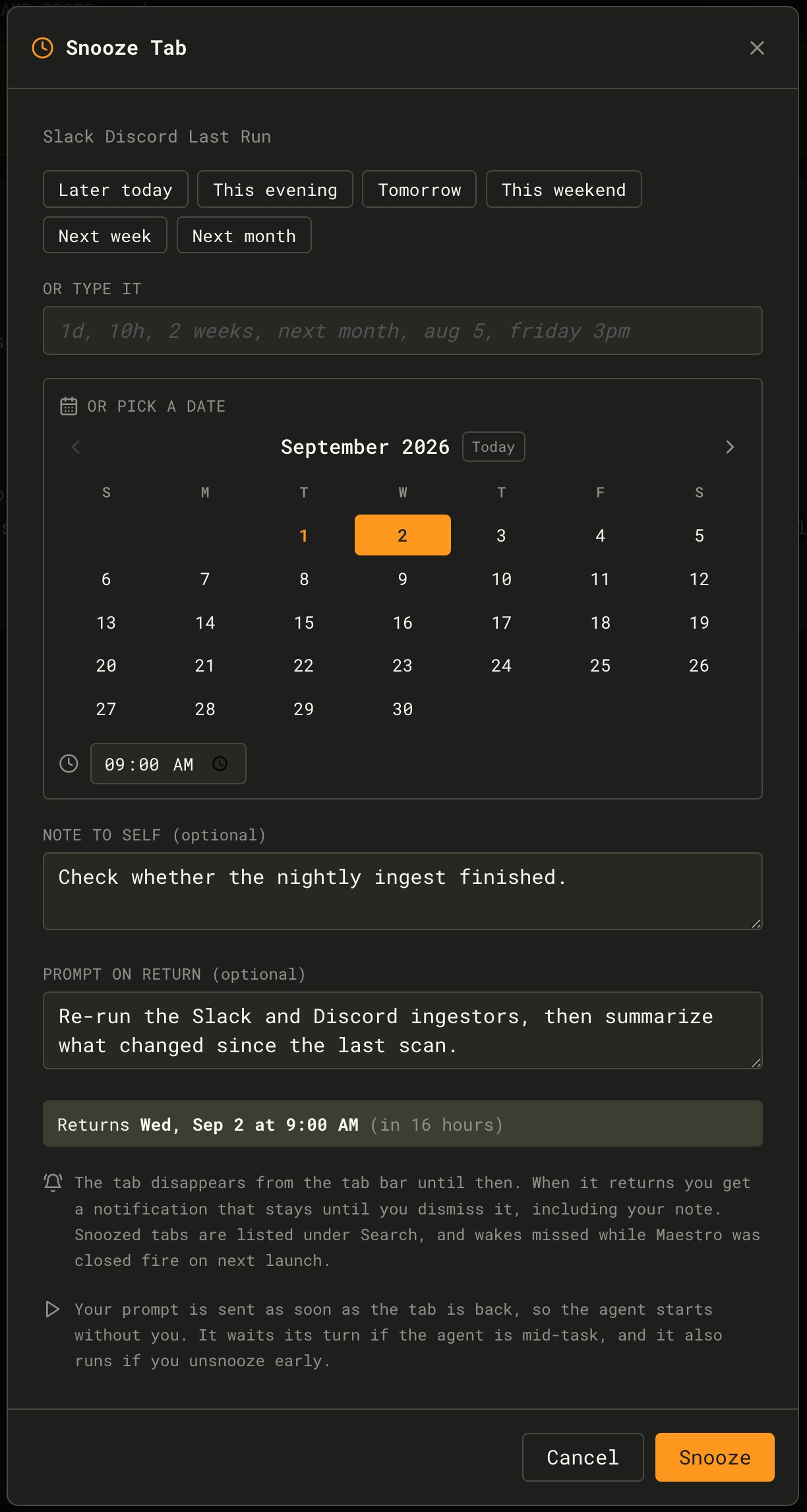
The prompt joins the agent’s execution queue rather than interrupting whatever it is doing. On an idle agent it runs immediately; on a busy one it waits its turn. It also runs if you Unsnooze early, because it is written against the tab coming back rather than against the clock.
Wakes are delivered by the running app. If Maestro is closed when a snooze comes due, the tab returns the next time you launch - overdue reminders are never silently dropped.
- Unsnooze - bring the tab back right now, which also runs its prompt on return if it has one
- Reschedule - pick a new time, or edit the note and the prompt (clearing a box removes it)
- Dismiss - drop the snooze and the tab, for when you no longer care. Nothing is restored, so a prompt on return never runs.
Dismissing only discards Maestro’s tab. The underlying conversation is still on disk and can be reopened from the Session Explorer.
maestro-cli snooze, which drives the running app - so a snooze made from a terminal shows up in the Snoozed Tabs list, and one made by clicking can be woken from a script. <when> takes the same expressions the dialog does, resolved against your own clock, so a typo is reported before anything is parked.
maestro-cli session list, or pass active for the tab on screen. A file, terminal, browser, or group tab is not in that list, so name its owner with --agent <id>. Add --json to any verb for a machine-readable answer, and --background to park or dismiss without the on-screen confirmation.
Session Management
Browse, star, rename, and resume past sessions. The Session Explorer (Cmd+Shift+L / Ctrl+Shift+L) shows all conversations for an agent with search, filtering, and quick actions.