
Settings Overview
Open Settings withCmd+, / Ctrl+, or via Quick Actions (Cmd+K / Ctrl+K) → “Open Settings”.
Settings are organized into tabs:
Typography
Settings → Display → Fonts. Maestro does not have one font: it has a font per surface, so the places you read and the places you work can use different faces.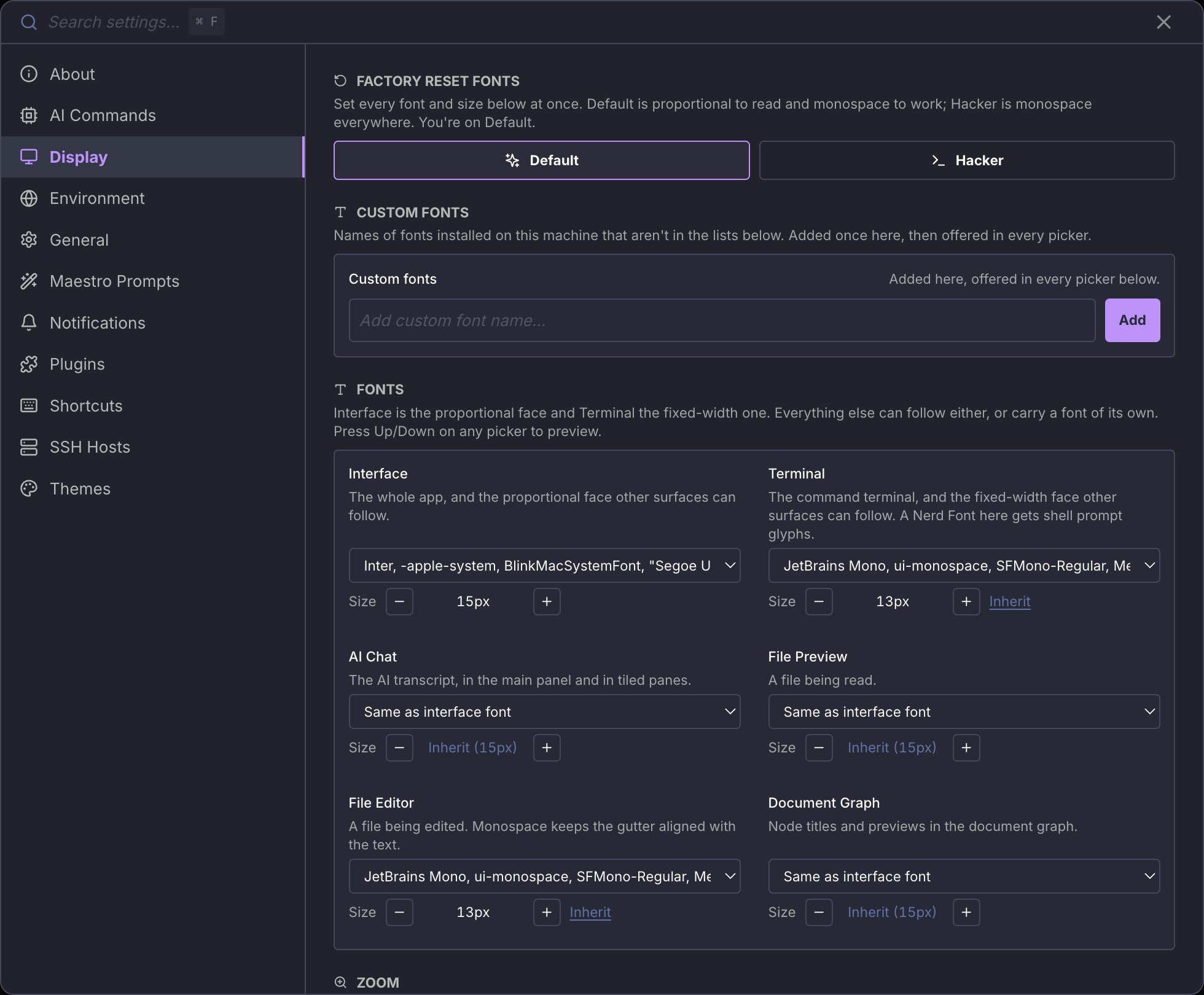
- Interface - the whole app, and the proportional face other surfaces inherit.
- Terminal - the command terminal, and the fixed-width face other surfaces inherit. A Nerd Font here gets you shell prompt glyphs.
Each surface has its own size, which can also inherit. Press Up / Down on any picker to step through the installed faces and preview them live.
Presets
Factory Reset Fonts sets every font and size at once:- Default - proportional to read, monospace to work. The interface, AI chat, and file preview are proportional; the terminal and file editor are monospace.
- Hacker - monospace everywhere. The original Maestro look.
Save and restore your own setup
A preset overwrites every font and size, so Save & Restore Customizations keeps yours. Click Save Customizations once you like what you have, then try a preset or keep tinkering, and Restore Customizations puts your fonts back in one click. There is one slot, and saving again replaces it (Maestro asks first). Zoom is not part of a saved setup, so restoring one never changes how big everything is.Custom fonts
The pickers list fonts Maestro knows about. If you have a font installed that is not in the list, add its name once under Manage Custom Fonts and it becomes available in every picker.Zoom
Zoom scales every surface by the same amount, so the sizes you set relative to each other are preserved.Cmd+= / Cmd+- adjusts it and Cmd+Shift+0 resets it.
Typography
Settings → Display → Fonts. Maestro does not have one font: it has a font per surface, so the places you read and the places you work can use different faces.- Interface - the whole app, and the proportional face other surfaces inherit.
- Terminal - the command terminal, and the fixed-width face other surfaces inherit. A Nerd Font here gets you shell prompt glyphs.
Each surface has its own size, which can also inherit. Press Up / Down on any picker to step through the installed faces and preview them live.
Presets
Factory Reset Fonts sets every font and size at once:- Default - proportional to read, monospace to work. The interface, AI chat, and file preview are proportional; the terminal and file editor are monospace.
- Hacker - monospace everywhere. The original Maestro look.
Save and restore your own setup
A preset overwrites every font and size, so Save & Restore Customizations keeps yours. Click Save Customizations once you like what you have, then try a preset or keep tinkering, and Restore Customizations puts your fonts back in one click. There is one slot, and saving again replaces it (Maestro asks first). Zoom is not part of a saved setup, so restoring one never changes how big everything is.Custom fonts
The pickers list fonts Maestro knows about. If you have a font installed that is not in the list, add its name once under Manage Custom Fonts and it becomes available in every picker.Zoom
Zoom scales every surface by the same amount, so the sizes you set relative to each other are preserved.Cmd+= / Cmd+- adjusts it and Cmd+Shift+0 resets it.
Maestro Prompts
Maestro ships with 23 core system prompts that control wizard conversations, Auto Run behavior, group chat moderation, context management, and more. You can customize any of them via the Maestro Prompts tab in Settings. To edit a prompt:- Open Settings (
Cmd+,/Ctrl+,) → Maestro Prompts tab - Select a prompt from the category list on the left
- Edit the content in the editor
- Click Save - changes take effect immediately (no restart needed)
Cmd+K / Ctrl+K): Maestro System Prompt, Auto Run Default, Commit Command, and Group Chat Moderator.
For template variables, the {{INCLUDE:name}} and {{REF:name}} directives, creating reusable prompt fragments, and more, see the full Prompt Customization guide.
Accessibility
The Display tab includes an Accessibility section that groups visual aids for color vision deficiencies and long-form reading. Open it via Settings (Cmd+, / Ctrl+,) → Display → scroll to Accessibility.
Color Blind Mode
Toggle Color Blind Mode to swap Maestro’s default red / green / yellow semantics for Wong’s colorblind-safe palette (Nature Methods, 2011). The palette uses distinct hue and luminance steps so the signal survives protanopia, deuteranopia, tritanopia, and grayscale displays. The toggle applies across the desktop app:
Surfaces that aren’t recolored: theme accent itself, file extension labels in plain text, terminal ANSI output (controlled by your terminal theme), the “Waiting for input” pulsing dot (uses theme accent), and the Cue activity bar (already uses a colorblind-safe cyan).
Bionify Emphasis (Reading Mode)
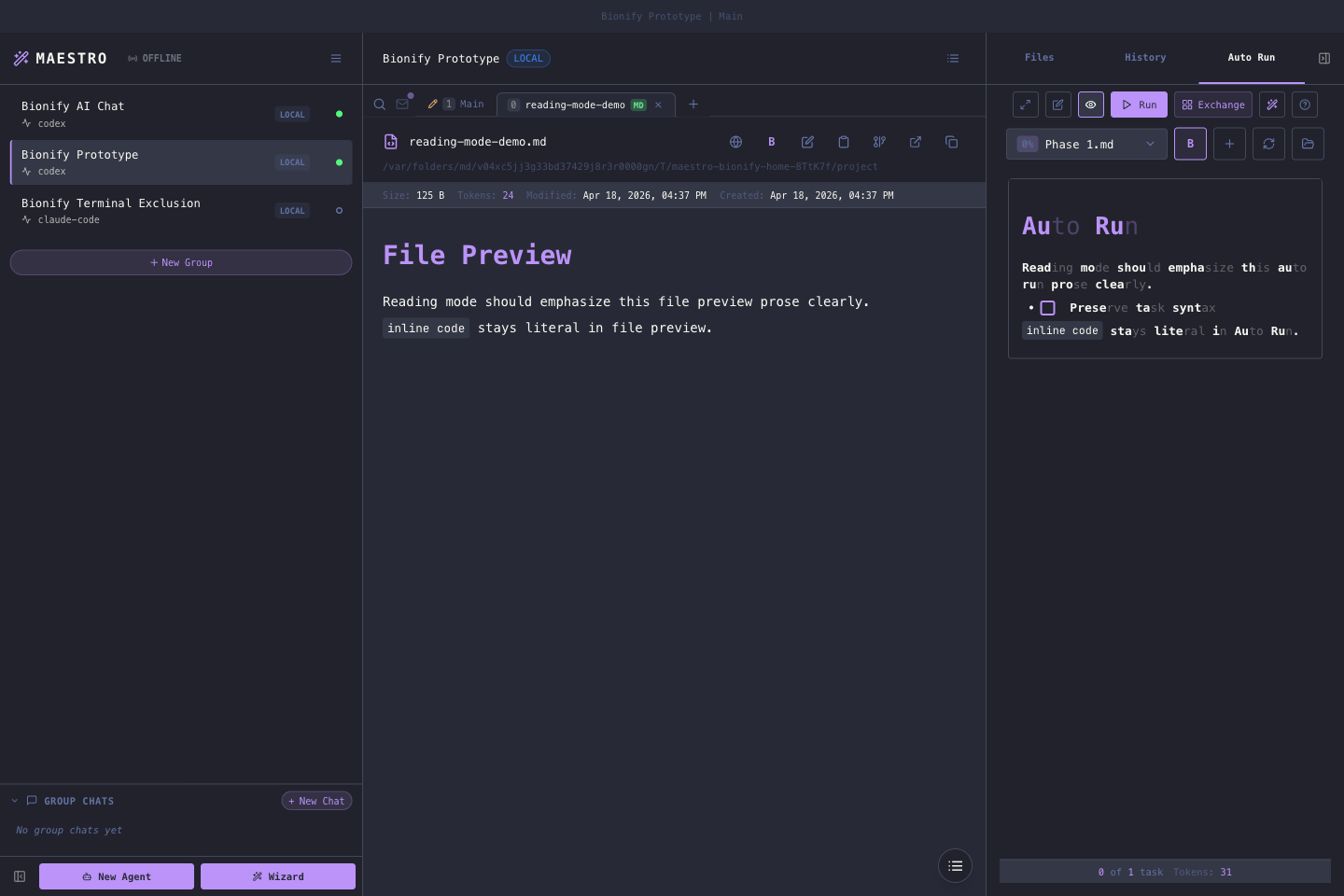
Bionify-style emphasis bolds the leading fixation portion of each word to make long-form reading easier. It is opt-in and applies only to dedicated readers - File Preview and Auto Run document panes. Terminals, logs, chat input, and AI output stay unchanged so they remain easy to copy/paste. Off, and on, on the same document: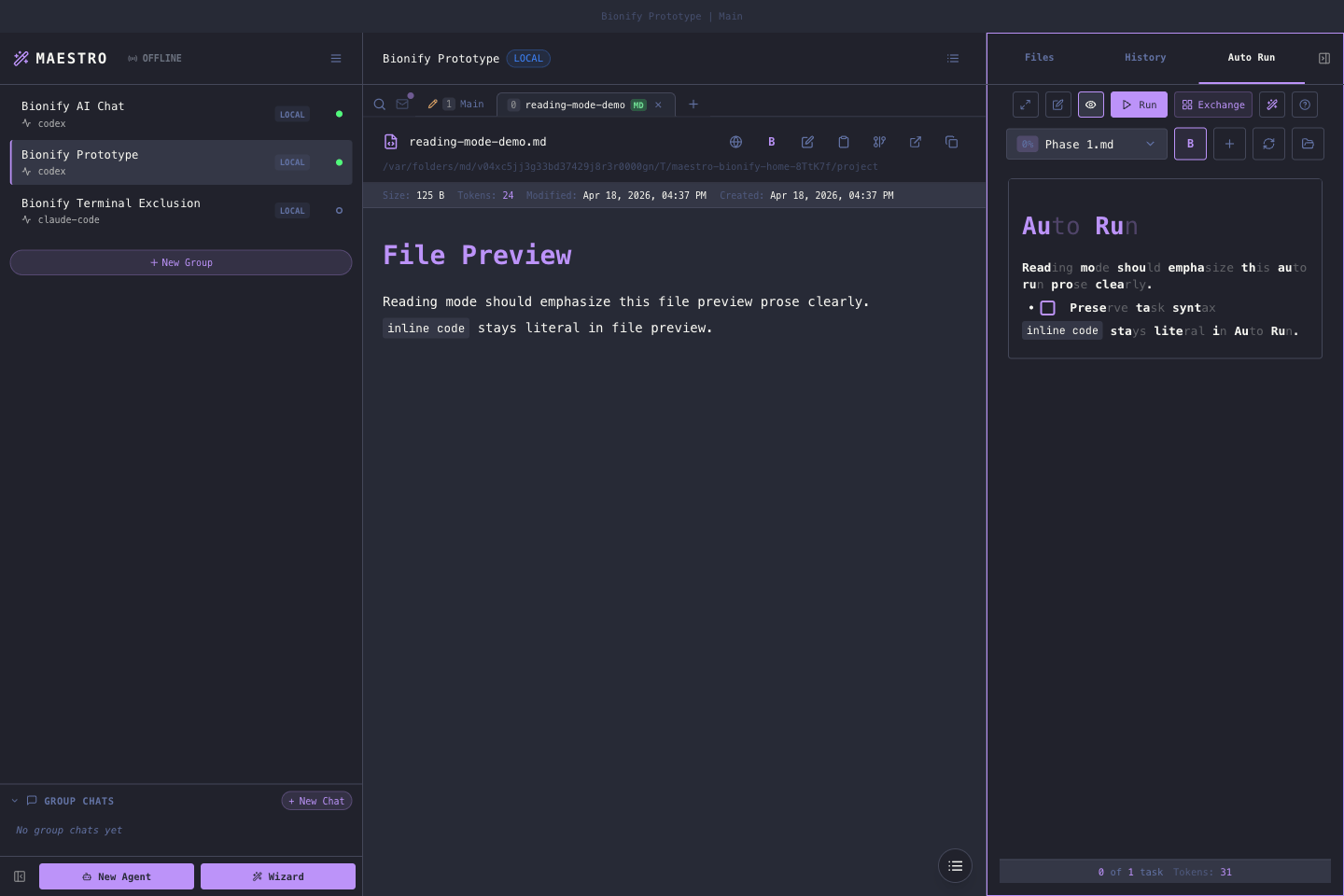
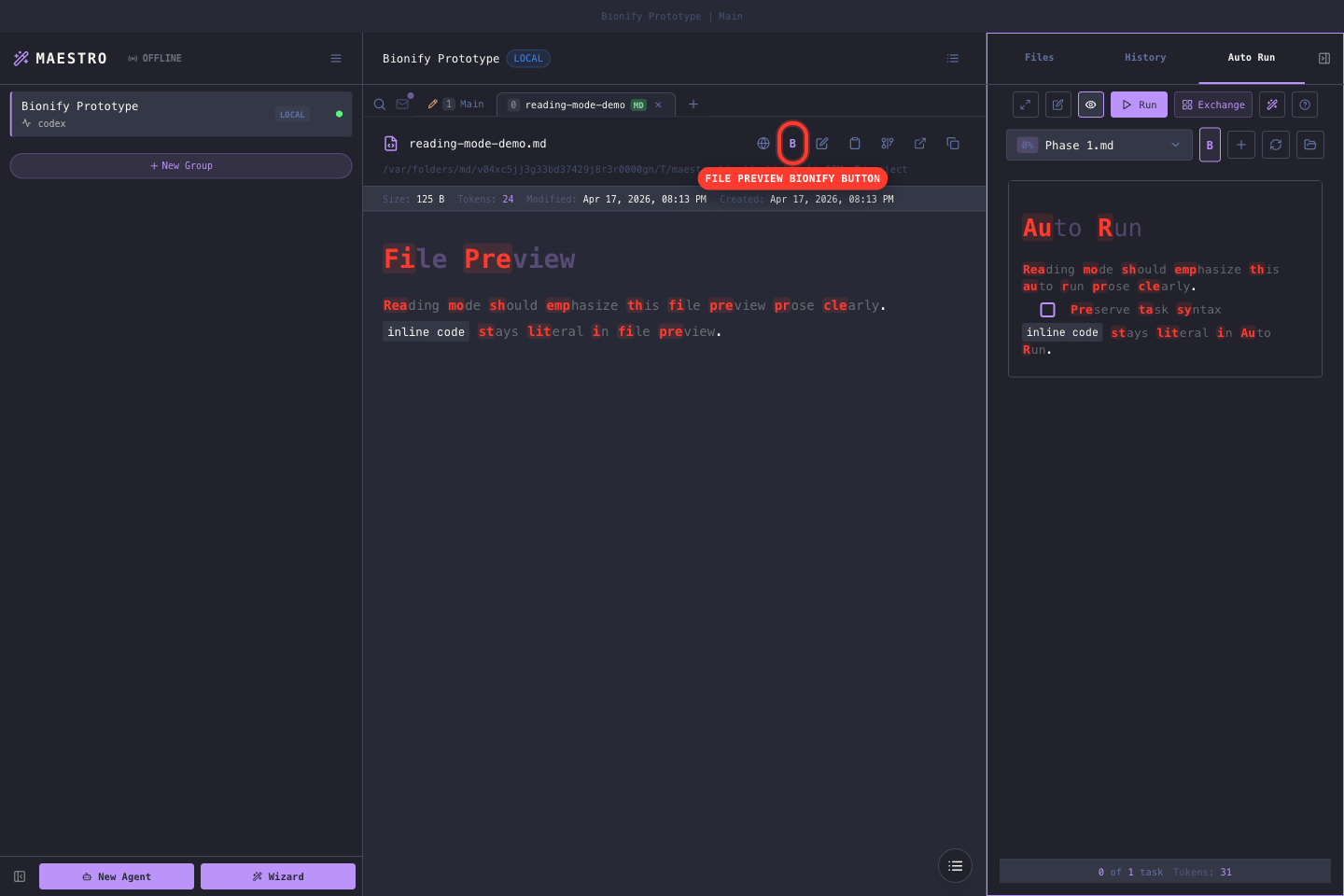
- Intensity - Soft / Default / Strong. Controls how aggressive the fixation emphasis is.
- Algorithm - Advanced override of the fixation formula. Format:
[+|-] N1 N2 N3 N4 fracwhere-skips common English words (a,and,the) and+highlights every word. The four integers set how many characters are emphasized for words of length 1-4, andfracis the fraction of characters emphasized for longer words (e.g.0.4= first 40%). Default:- 0 1 1 2 0.4. Click the info icon next to the toggle for the in-app reference.
Conductor Profile
The Conductor Profile (Settings → General → About Me) is a short description of yourself that gets injected into every AI agent’s system prompt. This helps agents understand your background, preferences, and communication style so they can tailor responses accordingly. To configure:- Open Settings (
Cmd+,/Ctrl+,) → General tab - Find the About Me text area at the top
- Write a brief profile describing yourself
What to Include
A good conductor profile is concise (a few sentences to a short paragraph) and covers:- Your role/background: Developer, researcher, team lead, etc.
- Technical context: Languages you work with, tools you prefer, platforms you use
- Communication preferences: Direct vs. detailed, level of explanation needed
- Work style: Preferences for how agents should approach tasks
Example Profile
How Agents Use It
When you start a session, Maestro includes your conductor profile in the system prompt sent to the AI agent. This means:- Agents adapt their response style to match your preferences
- Technical context helps agents make appropriate assumptions
- Communication preferences reduce back-and-forth clarification
Using in Custom Commands
You can reference your conductor profile in slash commands using the{{CONDUCTOR_PROFILE}} template variable. This is useful for commands that need to remind agents of your preferences mid-conversation.
Global Environment Variables
Configure environment variables once in Settings and they automatically apply to all AI agent processes and terminal sessions. This is perfect for managing API keys, proxy settings, custom tool paths, and other shared configuration.How to Configure
- Open Settings (
Cmd+,/Ctrl+,) → Environment tab - Add your variables in
KEY=VALUEformat using the Add Variable button - Variables apply immediately to new agent sessions and terminals
- Click the eye button on a row to switch that variable off without deleting it
CLAUDE_CONFIG_DIR, CODEX_HOME, COPILOT_HOME, and so on) plus every name you have already set elsewhere in Maestro, so a variable you configured once on one agent is one keystroke away on the next. Type to narrow the list, pick with the arrow keys and Enter, or ignore it and type any name you like.
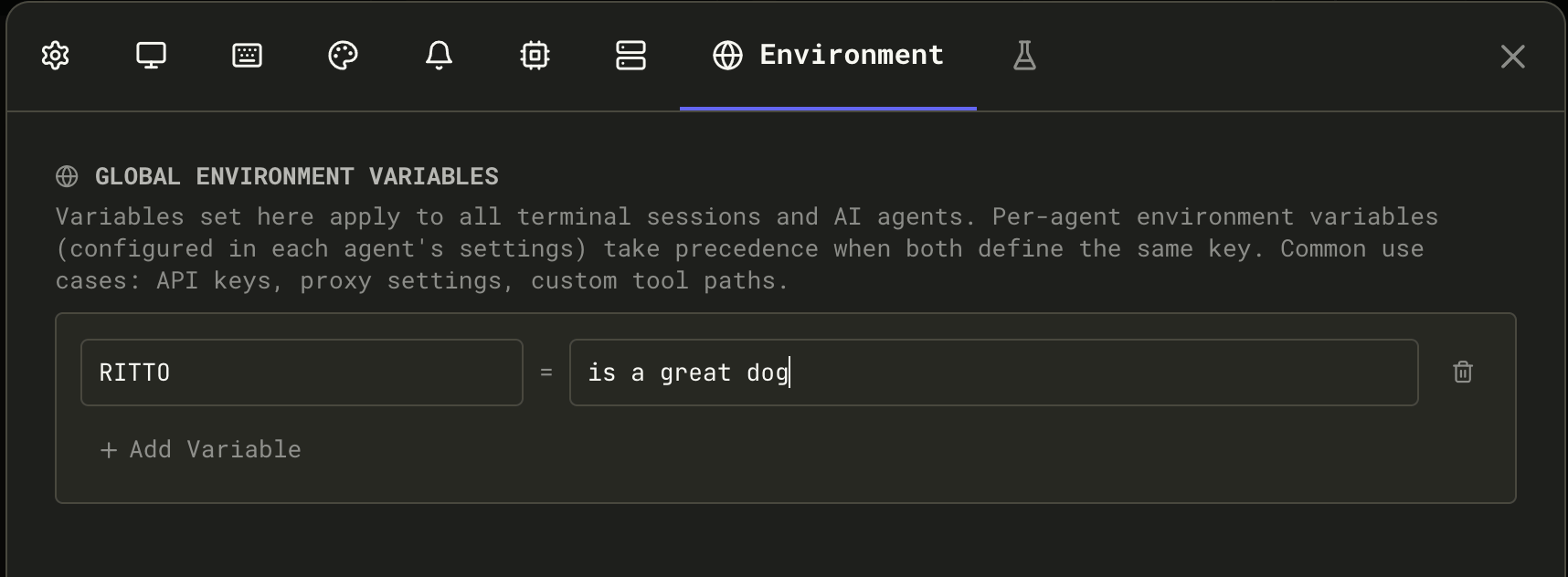
Example Configuration
Important Features
- Switch a variable off: The eye button parks a variable - the row stays in the list with its key and value intact and still editable, but the variable is no longer passed to anything Maestro runs. Use it to test without a proxy or an API key instead of deleting the value and retyping it later. Parked variables are stored separately and are never merged into an agent or terminal environment.
- Path expansion: Use
~/for home directory (e.g.,~/workspaceexpands to/Users/username/workspace) - Quotes for special characters: Variables with spaces or special characters should be quoted
- Applied to both agents and terminals: Global vars are available to all agent processes (Claude, OpenCode, etc.) and all terminal sessions
- Agent-specific overrides: You can override global variables with agent-specific settings (in agent configuration)
- Persist across sync: Global environment variables are included when you export or sync settings to another device
Environment Variable Precedence
When an agent or terminal is spawned, its environment is built in this order (lowest to highest priority). Each layer overrides the one before it:- System environment - System and parent process variables Maestro inherits
- Global environment variables (Settings → Environment) - Applied to all agents and terminals
- The agent’s own variables, or else the provider-level variables - One set, never both
ANTHROPIC_API_KEY does not receive a provider-level CLAUDE_CONFIG_DIR. If it needs both, set both on the agent.
Provider-level variables have no editor in the current UI, so unless you have older settings carrying them, the effective order is simply: per-agent beats global beats system.
Use Cases
- API keys: Set
ANTHROPIC_API_KEYonce → all Claude sessions can access it - Proxy settings: Set
HTTP_PROXYandHTTPS_PROXY→ all network requests respect the proxy - Custom tool paths: Set
MY_TOOLS=/opt/mytools→ agents can find custom utilities - Debugging: Set
DEBUG=maestro:*→ enable consistent logging across all sessions - Language settings: Set
LANG=en_US.UTF-8→ consistent text encoding
Per-Agent Environment Variables
Any one agent can carry its own variables, which override the global ones for that agent only. Use this when a single agent needs a different API key, a different base URL, or a tool path the rest of your agents should not see. The panel is labeled Environment Variables (optional) and it appears in two places:- When creating the agent - in the Create New Agent dialog, below Working Directory.
- At any time afterwards - open Edit Agent and scroll to the same panel. You do not have to recreate an agent to change its variables.
You can also set them from the CLI without opening the app:
CLAUDE_CONFIG_DIR and the ANTHROPIC_* variables, a Codex agent with CODEX_HOME. Names you have set before are offered too, which matters most for the ones no catalog can know about, like a company proxy or an internal token.
Seeing What an Agent Actually Runs With
Because the layers are edited in different places, no single screen shows the result. To see the merged environment for one agent, open Quick Actions (Cmd+K / Ctrl+K) and run Re-authenticate Provider for that agent, then expand the Environment for <agent> section. It lists one row per variable, badged with the layer whose value won.
This is the quickest way to catch the case where an agent behaves oddly because an ANTHROPIC_BASE_URL or API key from a layer you forgot about is overriding the one you just set. Values that look like credentials are masked until you click the eye on that row.
Using a Different Token Backend
Maestro spawns each provider’s own CLI, so it does not have a “model gateway” setting of its own. What an agent bills to, and which endpoint it talks to, is whatever its CLI reads from the environment. That makes per-agent variables the way to point one agent at a proxy, a gateway, or a company account while every other agent keeps its normal login. Set these in Edit Agent → Environment Variables (optional) (Alt+Cmd+, / Alt+Ctrl+,) so they apply to that agent alone, or in Settings → Environment to apply them everywhere.
Claude Code also honors
CLAUDE_CODE_USE_BEDROCK=1 and CLAUDE_CODE_USE_VERTEX=1, which route it to AWS Bedrock or Google Vertex AI. Those take credentials from the cloud SDK chain rather than from an Anthropic key, and they override the variables above.
To set one from the CLI instead:
What Will Not Work
Two more things that surprise people:- A per-agent variable replaces the provider-level set, it does not merge with it. An agent that sets only
ANTHROPIC_BASE_URLstops receiving a provider-levelCLAUDE_CONFIG_DIR. Set both on the agent if it needs both. - Re-authenticating cannot fix a gateway. When an agent runs against a base URL or an API key, a failure belongs to that operator or that key, so running the provider’s login command produces a successful-looking flow that changes nothing. Maestro detects this and tells you which credential is actually in play instead of offering a login that would not help.
Checking for Updates
Maestro checks for updates automatically on startup (configurable in Settings → General → Check for updates on startup). To manually check for updates:- Quick Actions:
Cmd+K/Ctrl+K→ “Check for Updates” - Menu: Click the hamburger menu (☰) → “Check for Updates”
- Current version and new version number
- Release notes summary
- Download button to get the latest release from GitHub
- Option to enable/disable automatic update checks
Anonymous Check-in
Alongside each update check, Maestro sends a small anonymous ping so we can count how many installs are active and which platforms and themes people actually use. It is the only usage data the app reports about itself. What it sends:
What it does not send: your name, email, IP-derived location, file paths, project names, prompts, agent output, or anything you type. The install ID is a random UUID generated on first run and kept in your local app data - it is not derived from your hardware, and it cannot be traced back to you.
Frequency: once when Maestro launches, then once per day if you leave it running.
To turn it off: Settings → General → Check for updates on startup. The check-in rides along with the update check, so disabling that disables both. Development and test builds never check in.
Pre-release Channel (Beta Opt-in)
By default, Maestro only notifies you about stable releases. If you want to try new features before they’re officially released, you can opt into the pre-release channel. To enable beta updates:- Open Settings (
Cmd+,/Ctrl+,) → General tab - Toggle Include beta and release candidate updates on
- Update checks will include pre-release versions (e.g.,
v0.11.1-rc,v0.12.0-beta) - You’ll receive notifications for beta, release candidate (rc), and alpha releases
- The Update dialog will show all available pre-release versions
Reverting to stable: Toggle the setting off and download the latest stable release from GitHub. Pre-releases won’t auto-downgrade to stable versions.
Notifications & Sound
Configure audio and visual notifications in Settings (Cmd+, / Ctrl+,) → Notifications tab.
OS Notifications
Enable desktop notifications to be alerted when:- An AI task completes
- A long-running command finishes
- The agent requires attention
- Toggle Enable OS Notifications on
- Click Test Notification to verify it works
Custom Notification
Execute a custom command when AI tasks complete. Use any notification method that fits your workflow. To configure:- Toggle Enable Custom Notification on
- Set the Command Chain - the command(s) that accept text via stdin:
- macOS:
say(text-to-speech),afplay /path/to/sound.wav(audio file) - Linux:
notify-send "Maestro",espeak,paplay /path/to/sound.wav - Windows: PowerShell scripts or third-party tools
- Custom: Any command or script that accepts stdin
- macOS:
- Click Test to verify your command works
- Click Stop to interrupt a running test
say- speak aloud using macOS text-to-speechtee ~/log.txt | say- log to a file AND speak aloudnotify-send "Maestro" && espeak- show desktop notification and speak (Linux)afplay ~/sounds/done.wav- play a sound file (macOS)
Toast Notifications
In-app toast notifications appear in the corner when events occur. Configure how long they stay visible:
You can also set how wide toasts render:
Clicking a Toast
Most toasts are clickable, and where the click takes you depends on what the toast is about:
If the target tab was closed since the toast appeared, the click still switches to the agent and tells you what was missing, so a click never silently does nothing. Scripts and agents choose the target with the
--open-* flags on maestro-cli notify toast. A toast can also carry a separate inline link button beneath its message (--action-url); that link is independent of the body click.
When Notifications Trigger
Notifications are sent when:- An AI task completes (OS notification + optional custom notification)
- A long-running command finishes (OS notification)
Sleep Prevention
Maestro can prevent your computer from sleeping while AI agents are actively working, ensuring long-running tasks complete without interruption. To enable:- Open Settings (
Cmd+,/Ctrl+,) → General tab - Scroll to the Power section
- Toggle Prevent sleep while working on
When Sleep Prevention Activates
Sleep prevention automatically activates when:- Any session is busy (agent processing a request)
- Auto Run is active (processing tasks)
- Group Chat is in progress (moderator or agents responding)
Keep the Display Awake
By default Maestro keeps the machine running but lets the screen go dark, so the screen saver, the screen lock, and your normal power settings all behave as usual. Turn on Keep the display awake (in the same Power section, off by default) when you want to watch a long run instead: the display stays lit, the screen saver and lock screen never arrive, and you are not logged out for being idle. It only takes effect while sleep prevention is holding the machine awake, so an idle Maestro still lets everything sleep.Platform Support
Linux Desktop Environment Notes
Sleep prevention on Linux uses standard freedesktop.org interfaces:- GNOME, KDE, XFCE: Full support via D-Bus screen saver inhibition
- Minimal window managers (i3, sway, dwm, bspwm): May not work. These environments typically don’t run a screen saver daemon.
- Ensure
xdg-screensaveris installed - Verify a D-Bus screen saver service is running
- Some systems may need
gnome-screensaver,xscreensaver, or equivalent
On unsupported Linux configurations, the feature silently does nothing - your system will sleep normally according to its power settings.
WakaTime Integration
Maestro integrates with WakaTime to track coding activity across your AI sessions. The WakaTime CLI is auto-installed when you enable the integration. To enable:- Open Settings (
Cmd+,/Ctrl+,) → General tab - Toggle Enable WakaTime tracking on
- Enter your API key (get it from wakatime.com/settings/api-key)
What Gets Tracked
By default, Maestro sends app-level heartbeats - WakaTime sees time spent in Maestro as a single project entry with language detected from your project’s manifest files (e.g.,tsconfig.json → TypeScript).
Detailed File Tracking
Enable Detailed file tracking to send per-file heartbeats for write operations. When an agent writes or edits a file, Maestro sends that file path to WakaTime with:- The file’s language (detected from extension)
- A write flag indicating the file was modified
- Project name and branch
Supported Tools
File heartbeats are generated for write operations across all supported agents:
Read operations and shell commands are excluded to avoid inflating tracked time.
Activity Categories
Maestro assigns WakaTime categories based on how the session was initiated:- Interactive sessions (user-driven) are tracked as
building - Auto Run / batch sessions are tracked as
ai coding
Storage Location
Settings are stored in:- macOS:
~/Library/Application Support/maestro/ - Windows:
%APPDATA%/maestro/ - Linux:
~/.config/maestro/
Cross-Device Sync (Beta)
Maestro can sync settings, sessions, and groups across multiple devices by storing them in a cloud-synced folder like iCloud Drive, Dropbox, or OneDrive. Setup:- Open Settings (
Cmd+,/Ctrl+,) → General tab - Scroll to Storage Location
- Click Choose Folder… and select a synced folder:
- iCloud Drive:
~/Library/Mobile Documents/com~apple~CloudDocs/Maestro - Dropbox:
~/Dropbox/Maestro - OneDrive:
~/OneDrive/Maestro
- iCloud Drive:
- Maestro will migrate your existing settings to the new location
- Restart Maestro for changes to take effect
- Repeat on your other devices, selecting the same synced folder
- Settings and preferences
- Session configurations
- Groups and organization
- Agent configurations
- Session origins and metadata
- Window size and position (device-specific)
- The bootstrap file that points to your sync location
- Single-device usage: Only run Maestro on one device at a time. Running simultaneously on multiple devices can cause sync conflicts where the last write wins.
- No conflict resolution: If settings are modified on two devices before syncing completes, one set of changes will be lost.
- Restart required: Changes to storage location require an app restart to take effect.