
Entry Types
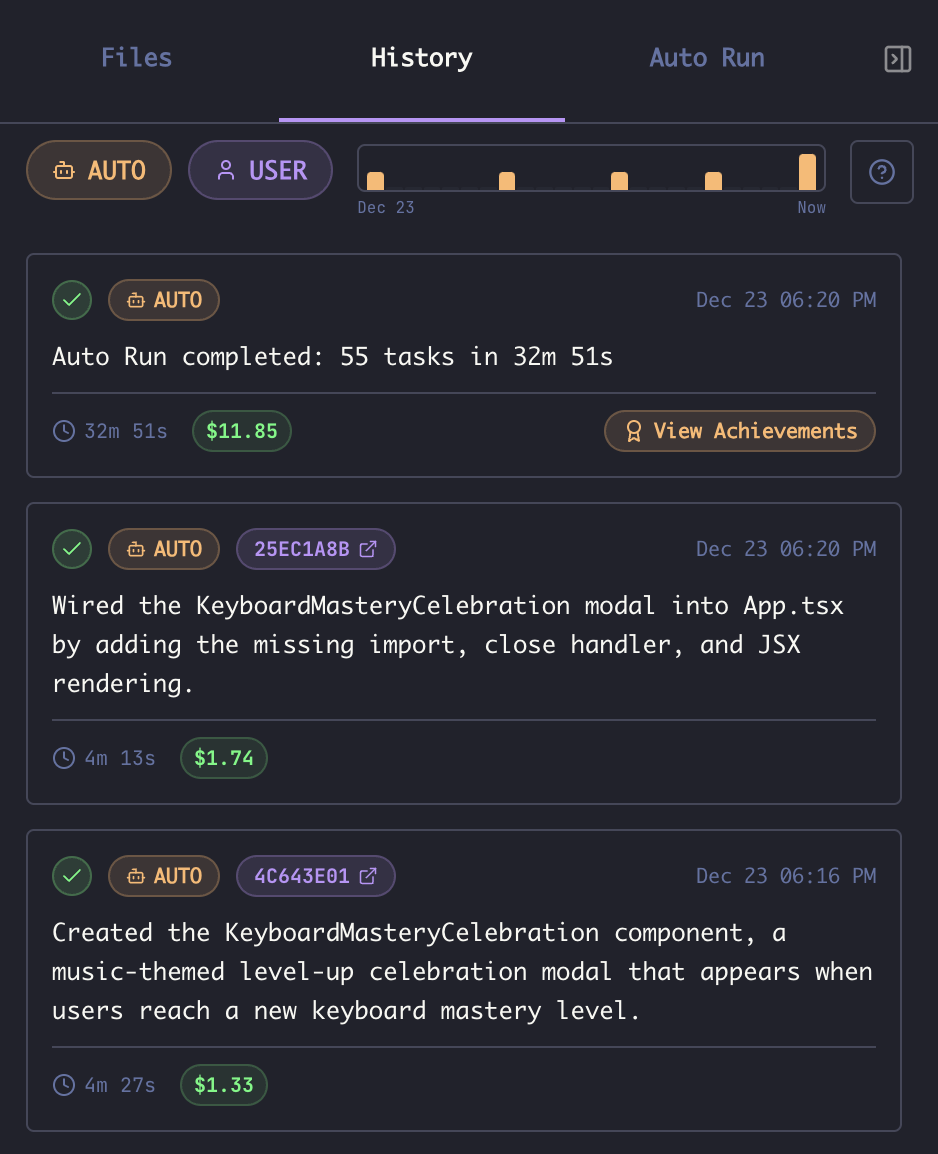
History entries are categorized by source:Auto Entries
Auto entries are created automatically when Auto Run completes a task. Each entry includes:- Summary of what the agent accomplished
- Session ID (clickable to jump to that conversation)
- Duration and cost of the task
- Timestamp of completion
User Entries
User entries are created in three ways:- History Toggle - Enable the History pill in the AI input box. Each completed prompt-response cycle that did real work creates a user history entry. Turns that only exchanged text (a plain question answered with prose, no tool use) are skipped, so asking a quick question never clutters your history.
-
/historyCommand - Run/historyto create a synopsis entry covering all activity since the last time you ran the command. This is useful for periodic summaries without logging every single interaction. -
/clearCommand - Running/clearautomatically creates a history entry before clearing the conversation, preserving a synopsis of your work.
Agent Entries
Agent entries are created when another agent consults this one by@mentioning it. They are ordinary turns, not automation - the only difference from a user entry is who asked. Each entry names the calling agent and the subject of the question, carries a pass/fail indicator, and links to the conversation the answer was written in.
Synopsis Debounce
Each history entry is generated by a short follow-up run that asks the agent to summarize its work, so a burst of quick completions can produce a burst of synopses. Synopsis Debounce (Settings → General, shown beneath the History toggle when it is on) waits for the agent to be idle for a chosen interval before generating the synopsis. Rapid back-to-back completions within the window are coalesced into a single entry covering everything since the last synopsis, so a fast-moving conversation settles into one clean summary instead of many fragments. Set it to Off to generate a synopsis immediately after every completion (the default), or pick 15s, 30s, 1 min, or 2 min to coalesce. Regardless of this setting, turns that did no real work are never synopsized.Filtering History
By Type
Use the filter buttons at the top of the History panel to show or hide each entry type:- Click AUTO to toggle Auto Run entries
- Click USER to toggle user-created entries
- Click AGENT to toggle questions proxied in from other agents
- Click CUE to toggle Cue-triggered entries (shown only when Maestro Cue is enabled)
- Any combination can be active simultaneously
By Keyword
PressCmd+F / Ctrl+F to open the search box, or click in the filter area to type. The search matches against:
- Entry summaries
- Session names and IDs
- Full response content
By Time Range
The Graph View at the top shows activity distribution over time. Right-click the graph to change the time range:- 24 hours
- 72 hours
- 1 week
- 2 weeks
- 1 month
- 6 months
- 1 year
- All time
Entry Details
Click any history entry to open the Detail View: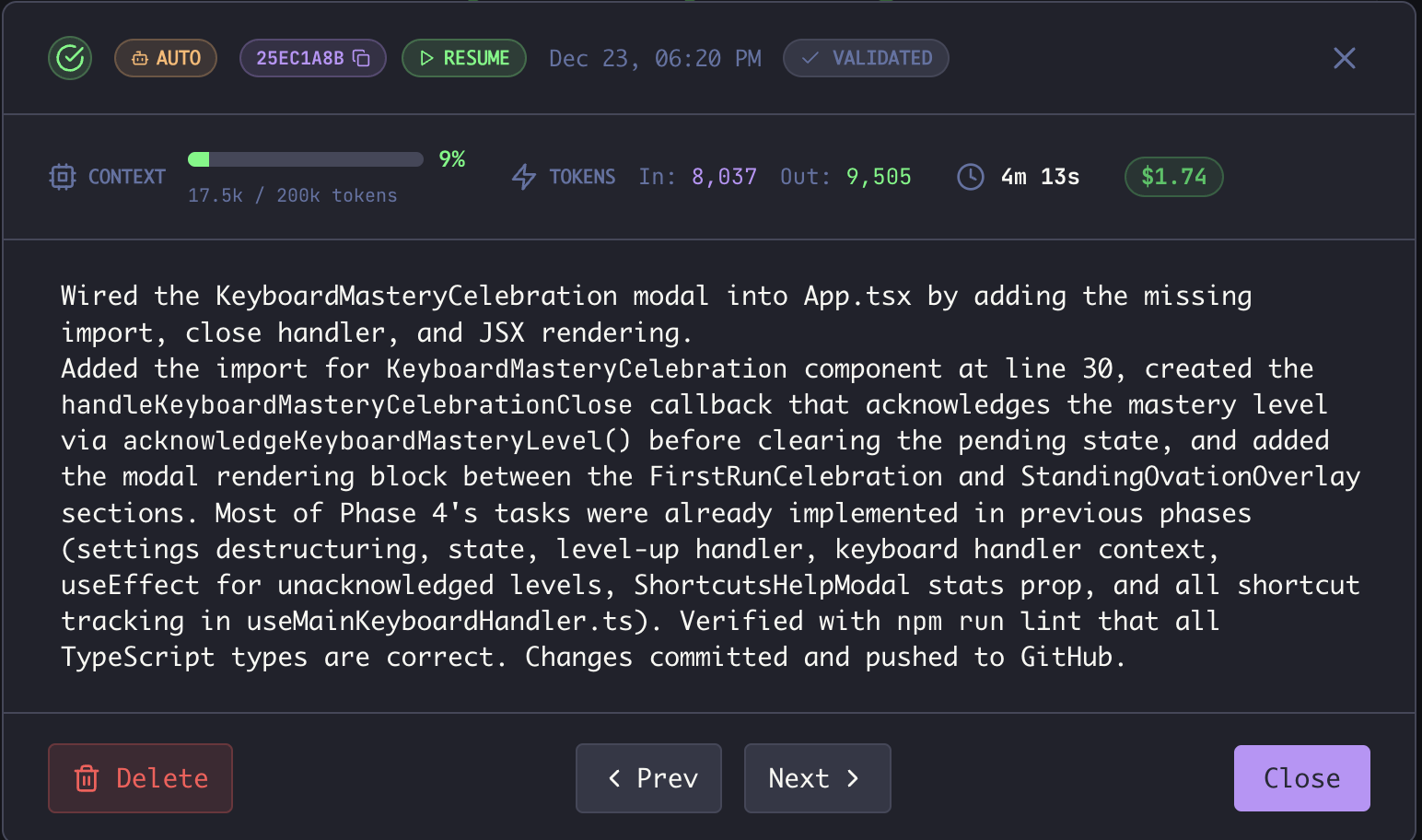
- Full entry header with type badge, session ID, timestamp, and validation status
- Context usage - tokens consumed and context window percentage
- Token breakdown - input tokens, output tokens
- Duration and cost
- Full summary text of what was accomplished
- RESUME button - Jump directly to the AI session to continue from where Maestro left off
Navigation
- Prev / Next buttons to navigate between entries (or use
←/→arrow keys) - Close button to return to the list view
- Delete button to remove the entry (with confirmation dialog)
Validating Entries
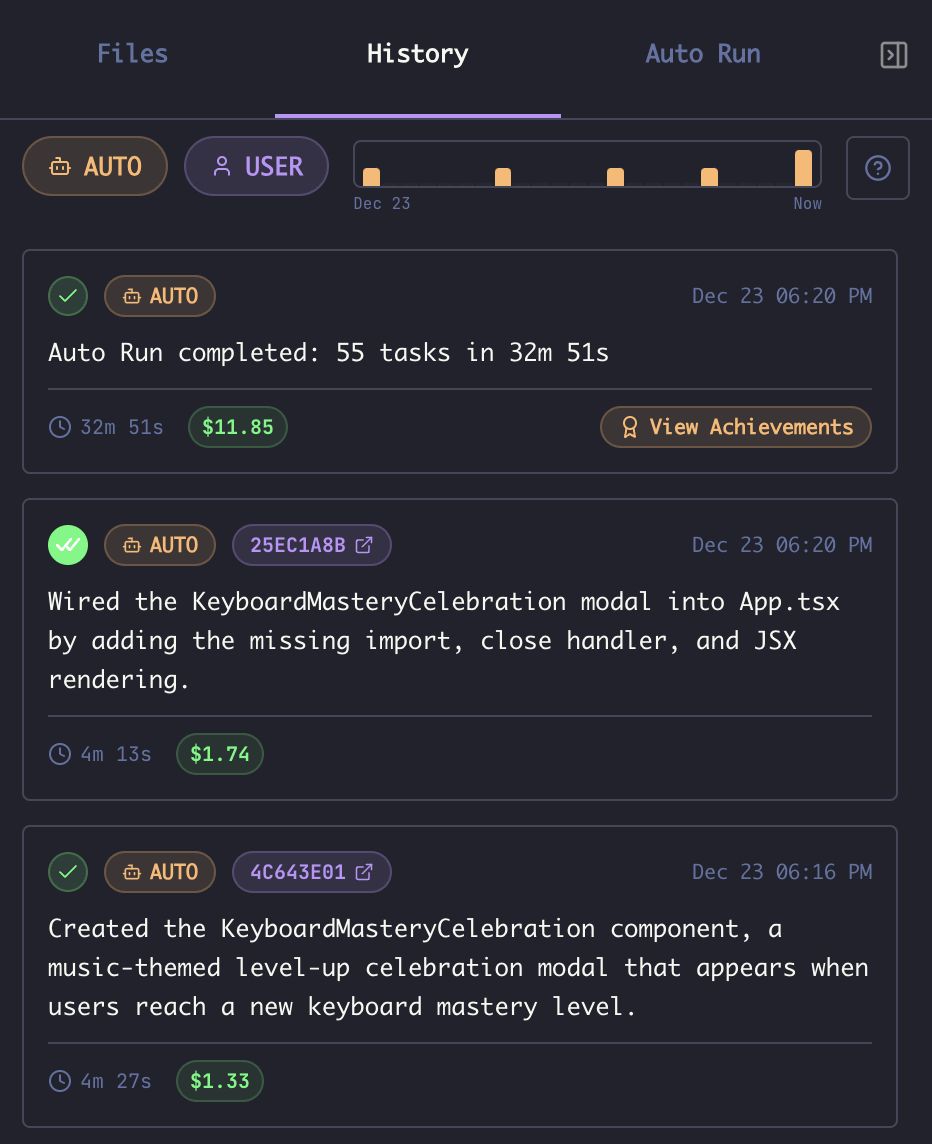
The Validated flag is a bookmark for your own review pass: it records which Auto Run and Cue entries you have gone through and double-checked yourself. It is entirely optional, and it does nothing beyond marking. Toggling it does not re-run the task, change the entry, gate anything downstream, or tell the agent anything. If you never want to review your history entry by entry, you can ignore the flag completely. It exists for the case where you do: an overnight Auto Run leaves a stack of entries, and this is how you keep your place while working through them.
- Open the entry detail view
- Click the VALIDATED toggle in the header
- Open the first AUTO entry
- Click RESUME to jump to the session and verify the work
- If satisfied, toggle VALIDATED
- Click Next to review the next entry
- Repeat until all entries are validated
Resuming Sessions
Every history entry with a Session ID has a RESUME button. Clicking it:- Opens the AI Terminal for that agent
- Loads the exact session where the work was done
- Restores the tab under the name shown on the entry’s session pill
- Positions you to continue the conversation
Keyboard Navigation
List View
Cmd+Enter is the keyboard equivalent of clicking an entry’s session pill: it
switches to that agent and opens the session where the work happened, instead of
opening the detail view to read about it. Entries with no recorded session say so
rather than doing nothing.
Detail View
The jump shortcut keeps working after
Enter opened the detail view, so the flow
does not stop halfway.
Cross-Host Shared History
When working with SSH Remote Execution, history entries can be synchronized across machines. Remote entries appear with a ☁ Remote pill and a hostname badge showing their origin. This enables:- Same user, multiple machines - see your work from any machine you use
- Team collaboration - see what teammates have done on a shared project
Storage
History is stored per-session in JSON files within thehistory/ subdirectory of your Maestro data folder:
- macOS:
~/Library/Application Support/maestro/history/<sessionId>.json - Windows:
%APPDATA%/maestro/history/<sessionId>.json - Linux:
~/.config/maestro/history/<sessionId>.json