
1. Install and launch
Follow the Installation instructions for your platform, then launch Maestro.First run
The first time Maestro opens, it asks four short questions before getting out of the way. Every answer is an ordinary setting you can change later, and Back steps you through the series in either direction. Choose your typography. Two presets, previewed side by side on real sample text: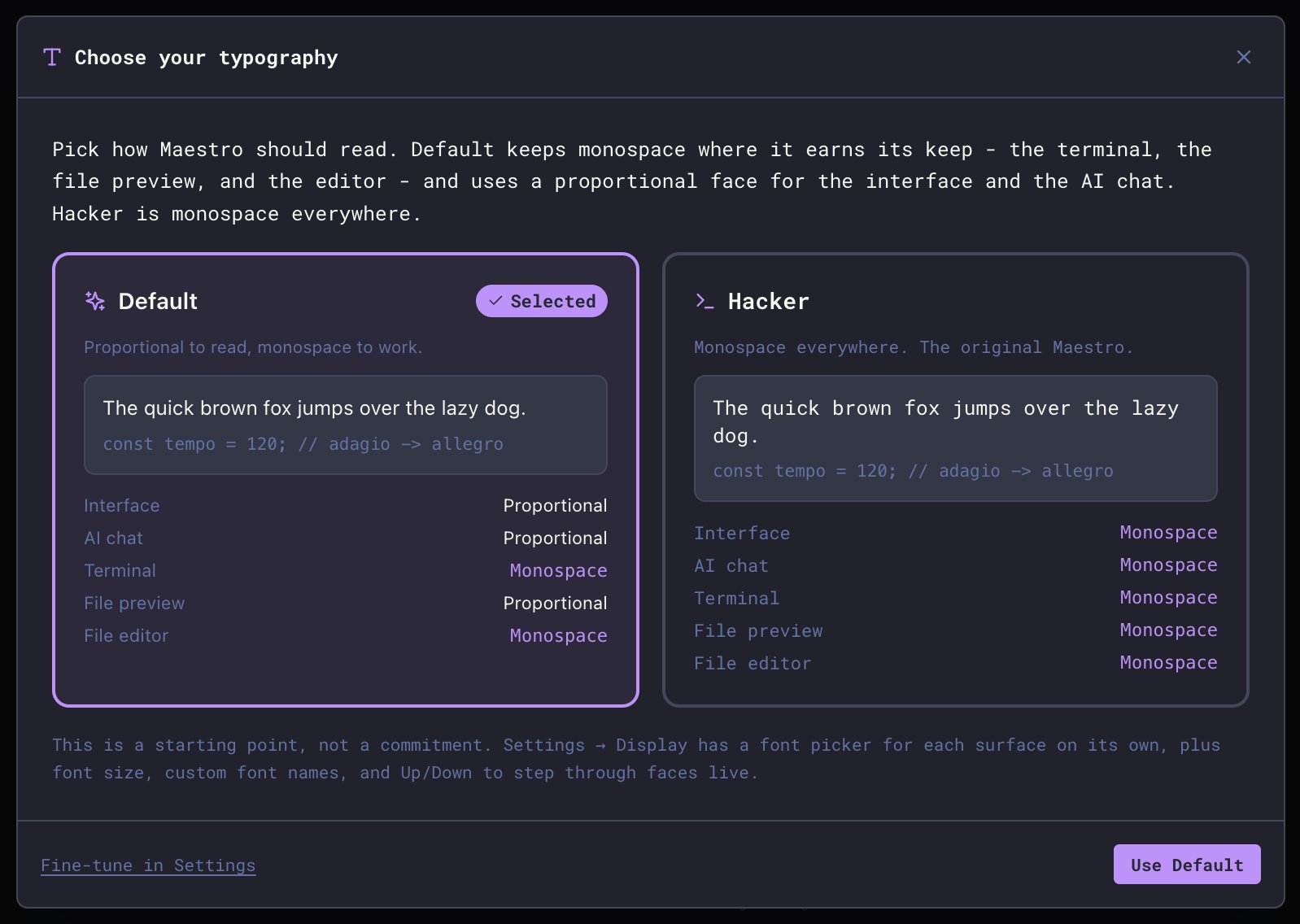
- Default - proportional to read, monospace to work. The interface, AI chat, and file preview use a proportional face; the terminal and file editor stay monospace.
- Hacker - monospace everywhere.
- Check for updates automatically - on by default.
- Include beta and release candidate updates - off by default. If you want new features as soon as they ship, turn this on.
- Send anonymous crash reports - on by default. Leave it on: crash reports let problems get fixed as soon as they are discovered.
- Install the Maestro CLI - one click. Humans can use
maestro-cli, but it is built for your agents, so they can automate everything Maestro can do.
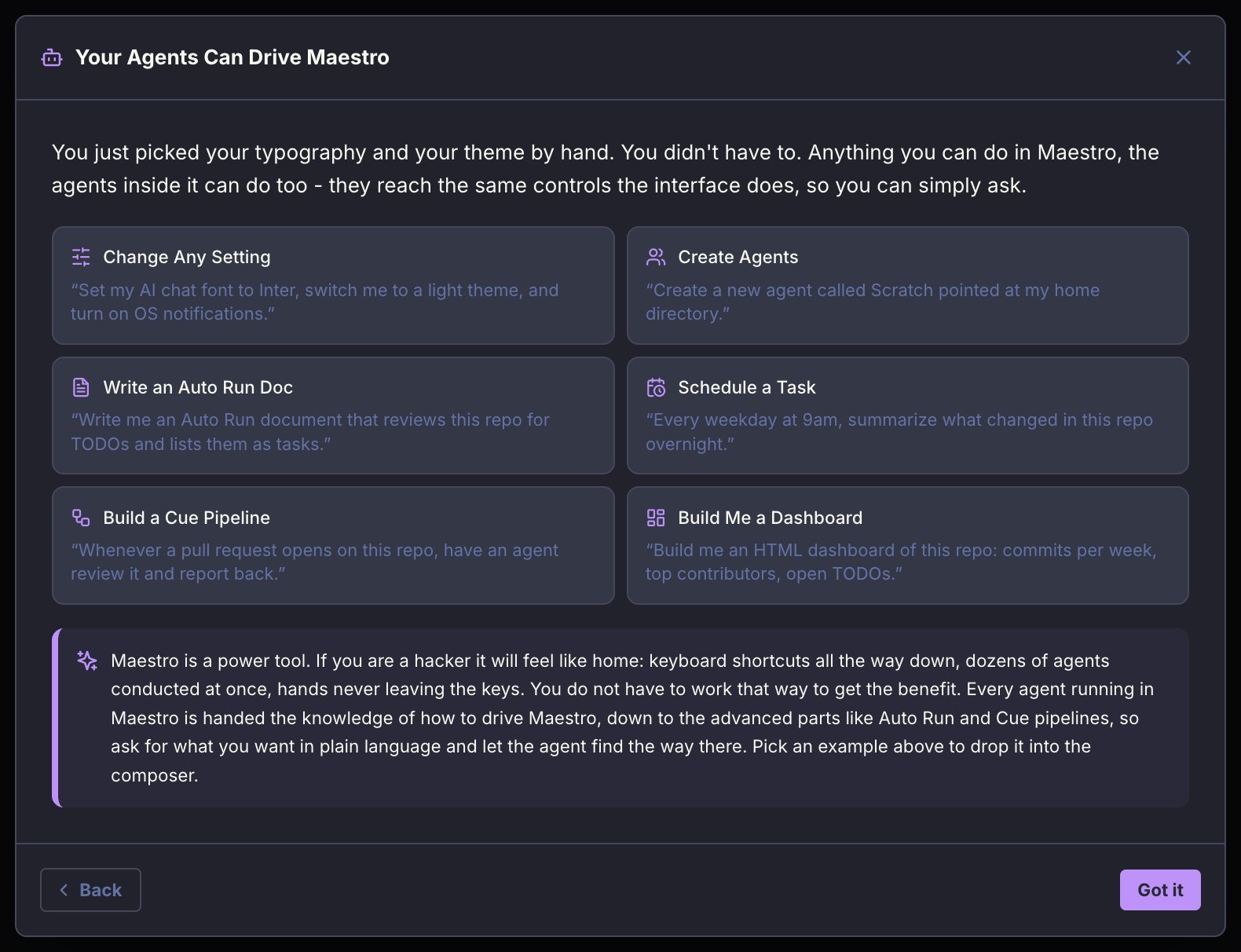
- “Set my AI chat font to Inter, switch me to a light theme, and turn on OS notifications.”
- “Create a new agent called Scratch pointed at my home directory.”
- “Every weekday at 9am, summarize what changed in this repo overnight.”
- “Whenever a pull request opens on this repo, have an agent review it and report back.”
2. Create an agent
Maestro supports Claude Code, Codex (OpenAI), and OpenCode, plus Factory Droid, Copilot-CLI, Hermes, Pi, Qwen3 Coder, and Oh My Pi in beta. Make sure at least one is installed and authenticated.Maestro is a pass-through to your provider. Your MCP tools, custom skills, permissions, and authentication all work in Maestro exactly as they do when running the provider directly. The only difference is batch mode execution - Maestro sends a prompt and receives a response rather than running an interactive session.
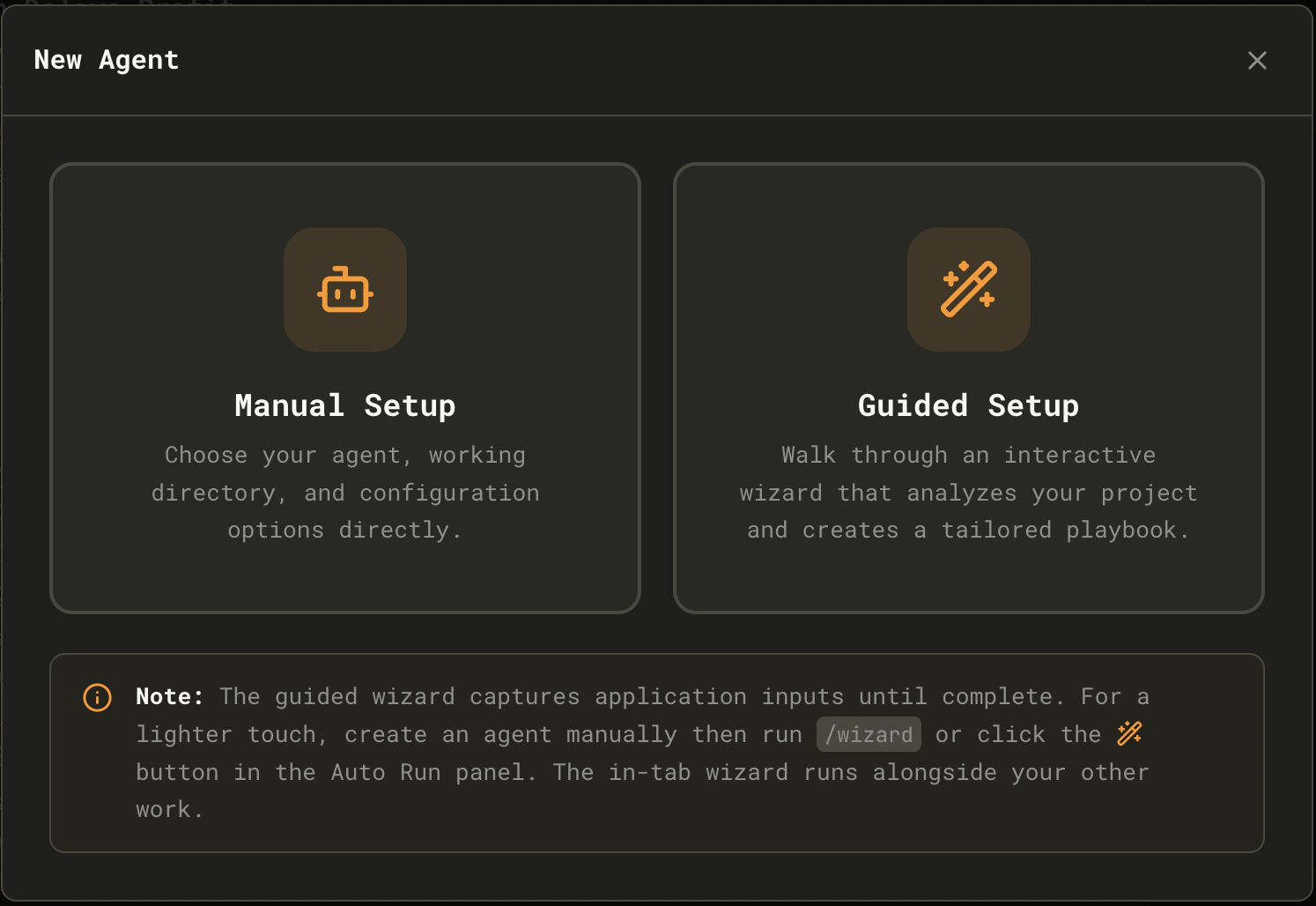
Cmd+N / Ctrl+N). You’ll see the New Agent selector:
- Selecting an AI provider. Naming the agent is optional: leave it blank and the wizard uses your project’s folder name, which you can change later
- Choosing your project directory
- Having a discovery conversation where the AI learns about your project. If the folder already holds a project, the agent opens the conversation by reading it and telling you what it found, so you never have to describe code it can read for itself. Only an empty folder asks you to describe what you want to build
- Generating an initial Auto Run Playbook with tasks
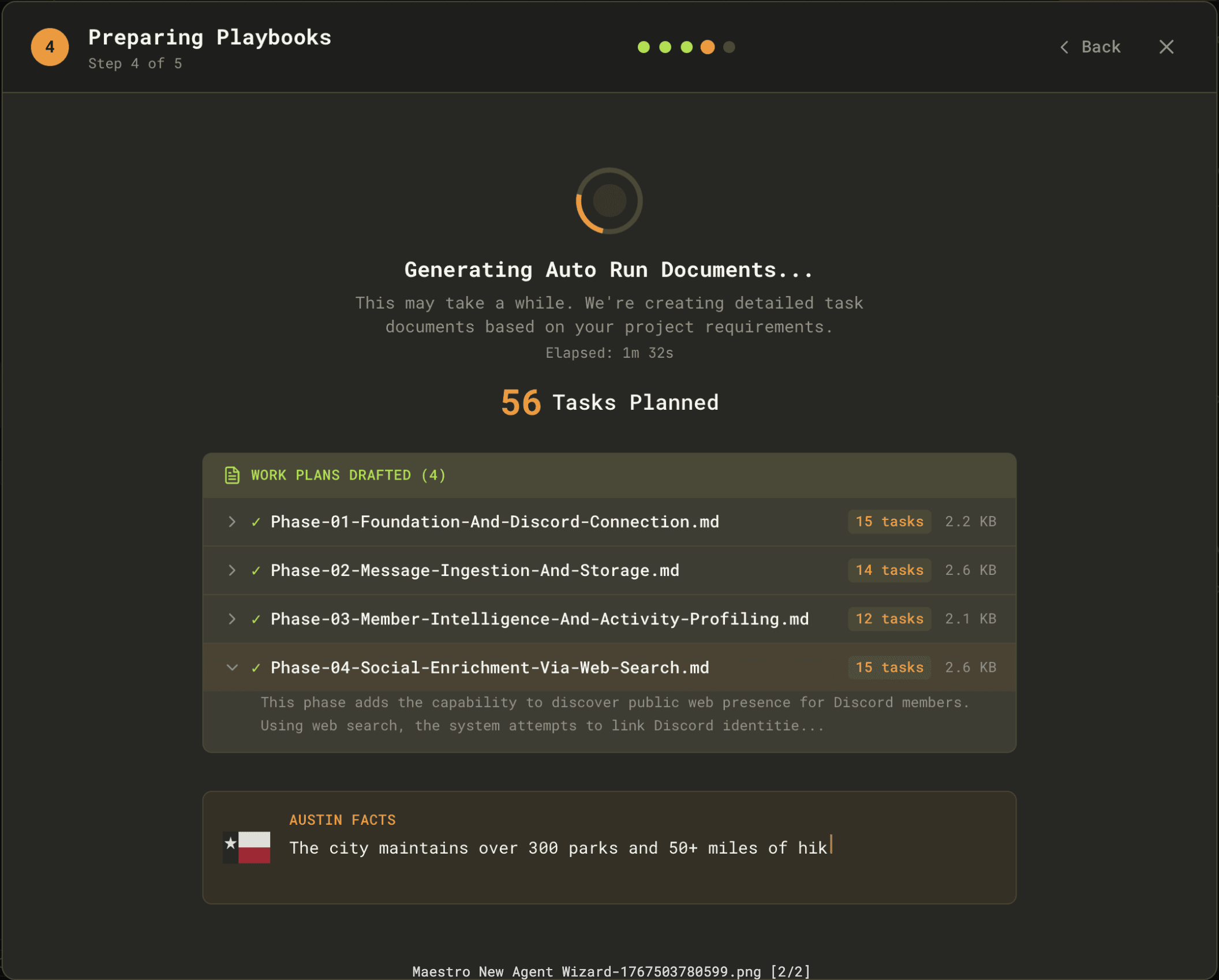
Initiation/ subfolder within .maestro/playbooks/ to keep them organized separately from documents you create later.
The guided wizard captures application input until it completes. For a lighter touch, create an agent manually, then run the
/wizard slash command or click the wand button in the Auto Run panel. The in-tab wizard runs alongside your other work.Introductory Tour
After completing the Wizard, you’ll be offered an Introductory Tour that highlights key UI elements:- The AI Terminal and how to interact with it
- The Auto Run panel and how document processing works
- File Explorer and preview features
- Keyboard shortcuts for power users
Cmd+K / Ctrl+K) → “Start Tour”.
3. Open a project
Point your new agent at a project directory. Maestro will detect git repos automatically and enable git-aware features like diffs, logs, and worktrees.4. Start a conversation
Use the AI Terminal to talk with your AI provider, and the Command Terminal for shell commands. Toggle between them withCmd+J / Ctrl+J. Each tab in the AI Terminal is a separate session.