
What Works Today
“Maestro attributes it” means the Usage Dashboard account
filter, the per-card account badge, and the Context Window tooltip name the
account. For providers outside that column, Maestro sees one profile no matter
how many logins you juggle.
Copilot CLI is the odd one out. It has no account selector - the login is
machine-wide - but
COPILOT_HOME does move the transcripts, so Maestro reads
every home it finds and files each as its own profile. Those profiles are
separate transcript trees, not separate logins: they all bill the same GitHub
account, and the split is a workspace split rather than a quota split.
Stay on one provider, different accounts. Mixing providers on the same work
is a roadmap item, not a supported workflow - see Switching Providers
at the bottom of this page.
Setting the Variable in Maestro
The steps are the same whichever variable your provider uses. Only the variable name and its value change.When Creating a New Agent
- Click + in the sidebar to create a new agent
- Select the provider
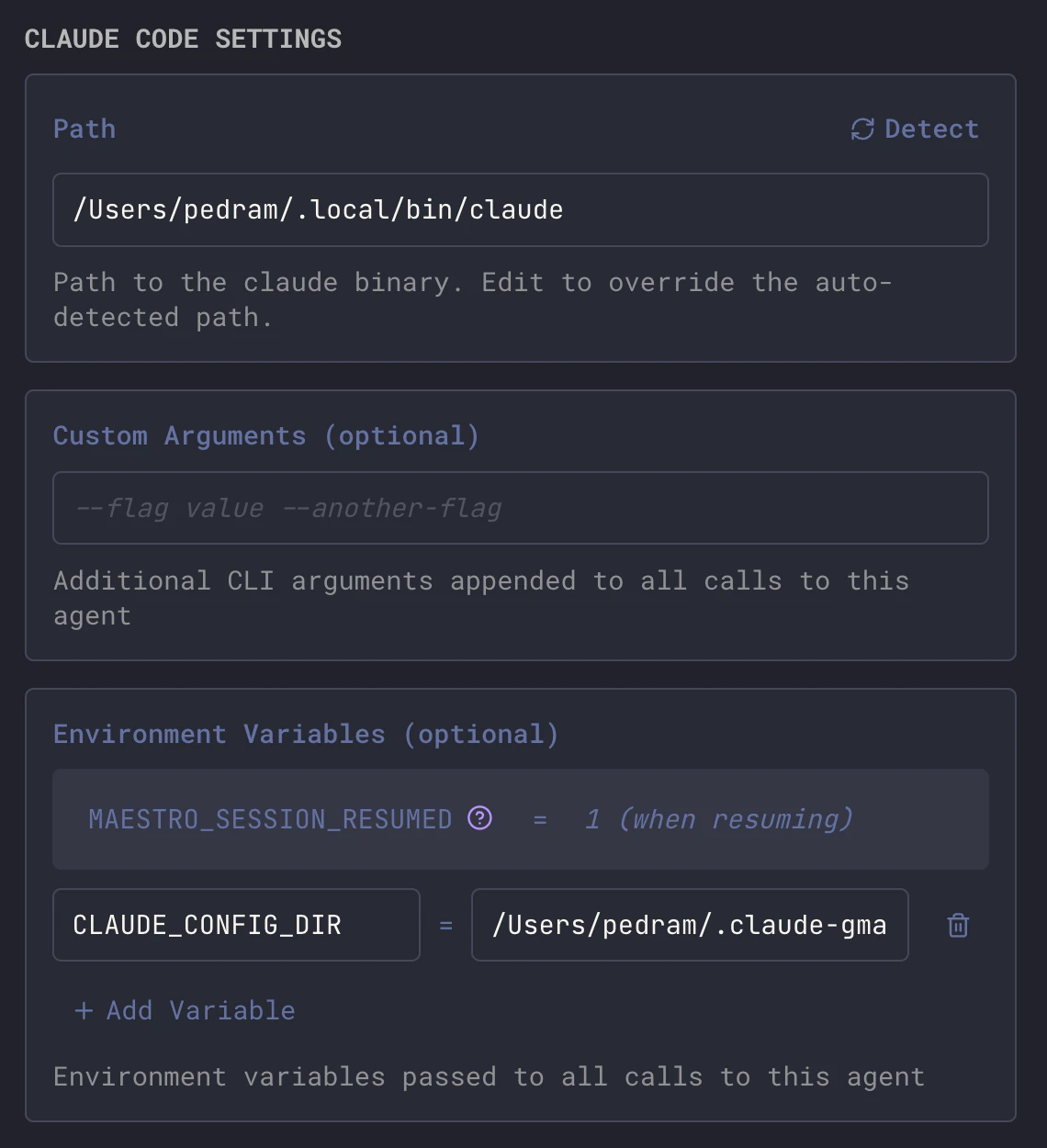
- Expand the Environment Variables section
- Click + Add Variable
- Set the provider’s account variable to that account’s path
When Editing an Existing Agent
- Right-click an agent in the sidebar → Edit Agent, or use
Alt+Cmd+,/Alt+Ctrl+, - Scroll to the Environment Variables (optional) section
- Add the variable
Confirming Which Account a Tab Runs As
Agent names are a convention, not a guarantee - a renamed agent, or a variable edited after the fact, leaves the two out of step. To read the account off the tab itself, hover the Context Window gauge in the Main Window header:
The profile resolves the same way the Usage Dashboard
attributes an agent, so the account named here and the quota bars beneath it are
the same account. Hover the profile name for the full path. Providers with no
per-account config directory show only the Provider row.
Claude Code
Claude Code reads its configuration and OAuth credentials from~/.claude.
CLAUDE_CONFIG_DIR moves that directory. Because Claude stores sessions as
plain JSONL files, you can give each account its own credentials while
symlinking the shared parts back to one canonical source - which means sessions
resume across accounts.
1. Authenticate Each Account
Start Claude Code normally and complete OAuth for your first account:The main
~/.claude/ directory does not need its own .claude.json. It serves
as the canonical source for shared resources.2. Symlink Shared Resources
For each account directory, replace local copies with symlinks back to~/.claude so settings, plugins, and sessions stay in sync:
What Is Shared vs. Account-Specific
Recommended Setup
One agent per account, named so you can read the split at a glance:Notes
- Session resume works cross-account because
projects/is symlinked. - Do not run both on the same project at once. Two Claude instances writing the same session files contend with each other. One at a time per project.
- Symlinks may break after a Claude Code update. If an update recreates a directory, re-run the symlink commands.
- Maestro samples each account’s remaining quota separately, so the Usage Dashboard’s quota panels show one set of bars per account.
Codex
Codex reads its configuration,auth.json, and session state from ~/.codex.
CODEX_HOME moves the whole directory.
CODEX_HOME=/Users/you/.codex-work on the agent.
What Does Not Carry Over
Codex keeps sessions, memories, and queue state in SQLite databases (thread_history_*.sqlite, memories_*.sqlite, state_*.sqlite), each with a
write-ahead log. Do not symlink those between accounts - two Codex processes
sharing one database file will corrupt it. That means an account switch is a
clean break: conversations, memories, and history stay with the home they were
created in.
What is safe to share is the static configuration. Symlink only these:
OpenCode
OpenCode stores credentials and sessions under its data directory, not its config directory.XDG_DATA_HOME is what moves the login:
XDG_DATA_HOME=/Users/you/.opencode-work on the agent. Confirm with:
OPENCODE_CONFIG_DIR exists too, but it moves only the config file - it does
not separate logins, so it is not the variable you want here.
Copilot CLI
Copilot CLI has no per-agent account switch. Its login lives in~/.config/github-copilot/hosts.json, which is shared with every other Copilot
client on the machine and is not relocatable.
COPILOT_HOMEmoves sessions and configuration, but not the login.COPILOT_GITHUB_TOKEN,GH_TOKEN, andGITHUB_TOKENare consulted only when there is no stored login. Once you have signed in interactively, the stored credential wins and those variables are ignored.
COPILOT_HOME when it reads transcripts, from
<home>/session-state rather than ~/.copilot/session-state only. That matters
for the Usage Dashboard: an agent given its own home would
otherwise have all of its spend go uncounted. Each home shows as its own profile
there, which reads like two accounts and is not - see the note under the table
at the top of this page.