
The Git Menu
Every agent whose working directory is a git repository has a git menu, reachable three ways:- Header branch pill - hover the pill showing the current branch name (clicking works too).
- Left Bar right-click - right-click the agent in the agent list.
- Command palette (
Cmd+K/Ctrl+K) - every action is searchable by name.
Git Log Viewer
Browse your commit history directly in Maestro: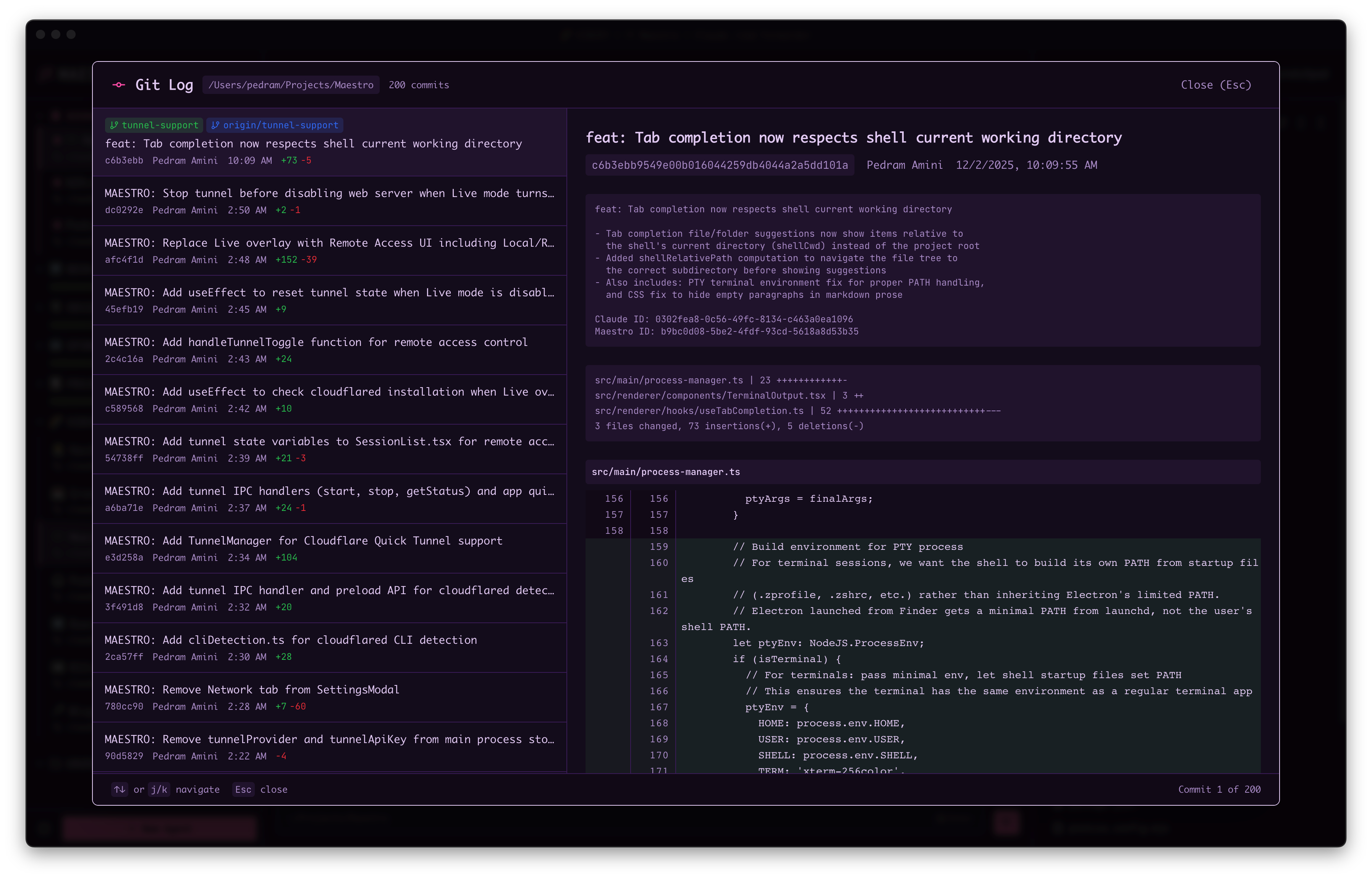
- Commit history with messages, authors, and timestamps
- Branch visualization with merge points
- Quick navigation to any commit
- Search (
Cmd+F/Ctrl+F, or/) over hash, message, author, branch and date, narrowing the List and the Graph together
Cmd+K / Ctrl+K) → “Git Log”, or Cmd+Shift+G / Ctrl+Shift+G.
Diff Viewer
Review file changes with syntax-highlighted diffs: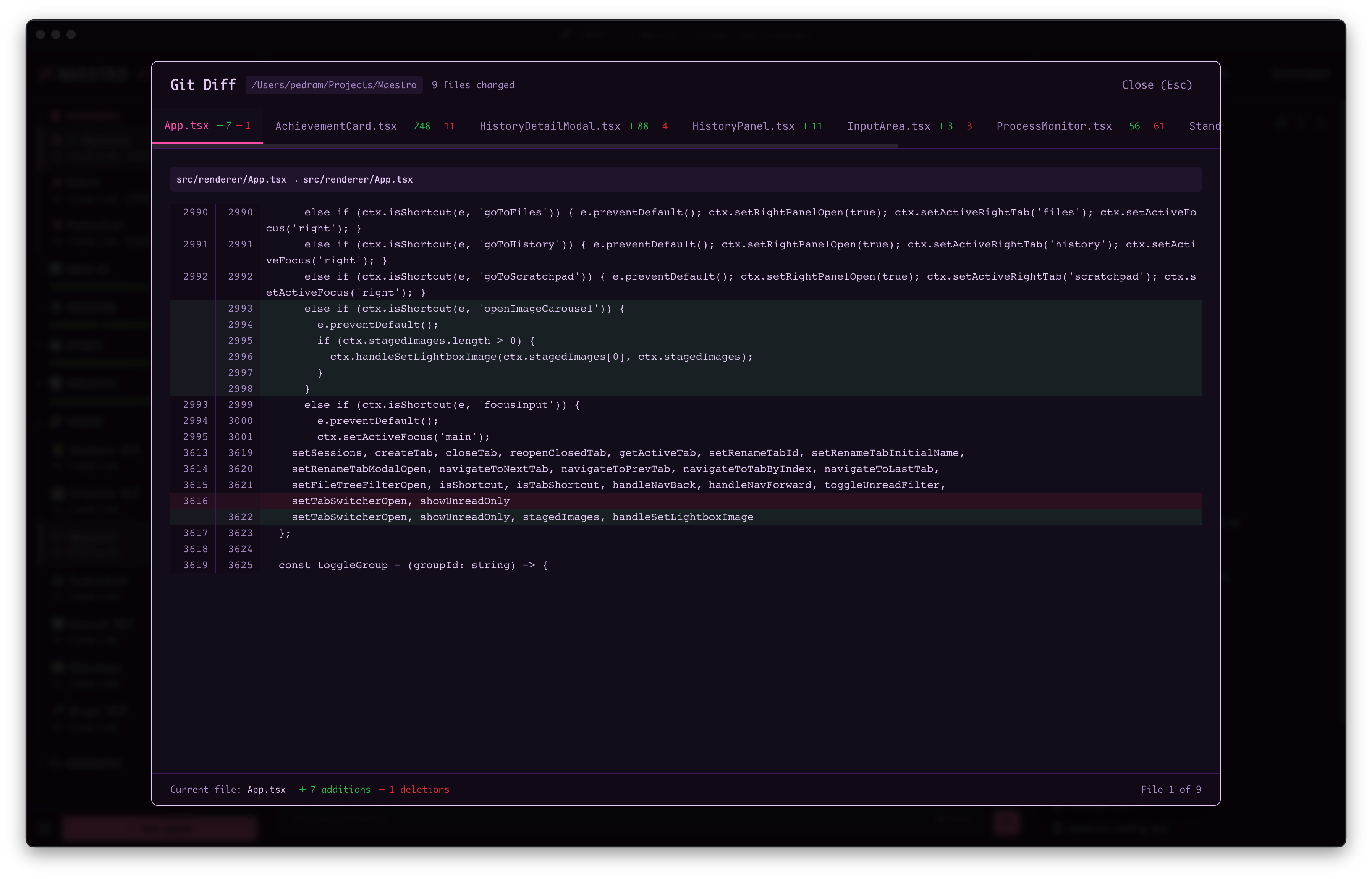
- Side-by-side comparison of file versions
- Syntax highlighting matched to file type
- Line-by-line changes with additions and deletions clearly marked
Cmd+K / Ctrl+K) → “Git Diff”, or Cmd+Shift+D / Ctrl+Shift+D. Clicking any commit in the git log viewer opens that commit’s diff instead.
Git Worktrees
Git worktrees enable true parallel development by letting you run multiple AI agents on separate branches simultaneously. Each worktree operates in its own isolated directory, so there’s no risk of conflicts between parallel work streams.Managing Worktrees
Worktree sub-agents appear nested under their parent agent in the Left Bar: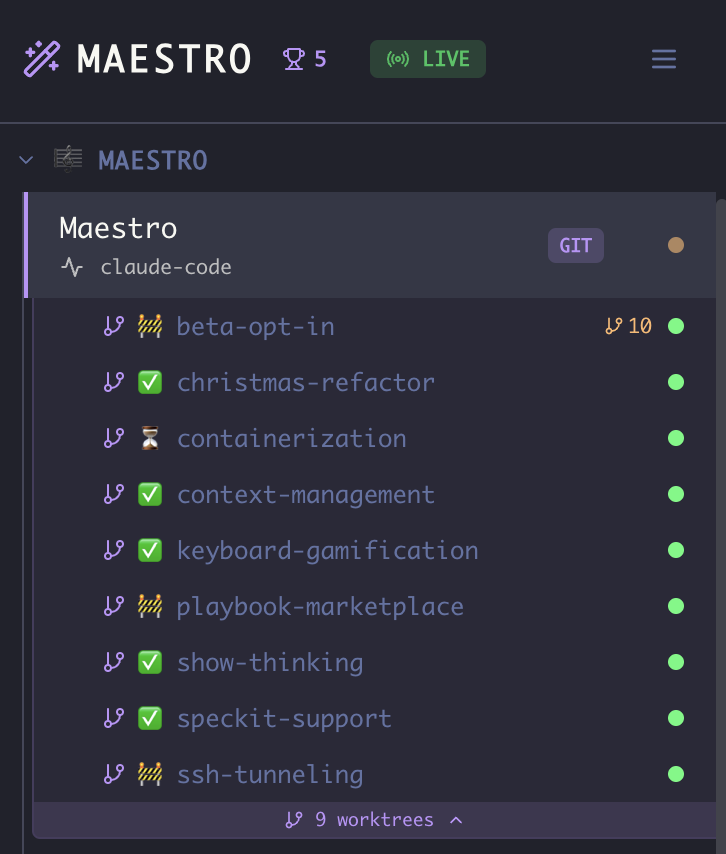
- Nested Display - Worktree sub-agents appear in a drawer below their parent agent, styled with a subtle accent background
- Branch Icon - Worktree children show a
GitBranchicon next to their name - Collapse/Expand - Click the worktree count band below the parent session to show/hide worktree children (e.g., “2 worktrees ▾”)
- Independent Operation - Each worktree agent has its own working directory, conversation history, and state
Creating a Worktree Sub-Agent
There are three ways to access worktree configuration: From the Header (Main Panel):- Select an agent that’s in a git repository
- Hover the branch pill in the header (shows the current branch name, e.g., “main”)
- In the menu, click “Configure Worktrees”
- Right-click an agent in the session list
- Select “Configure Worktrees” (only shown for git repositories)
- Press
Cmd+K/Ctrl+K - Search for “Configure Worktrees”
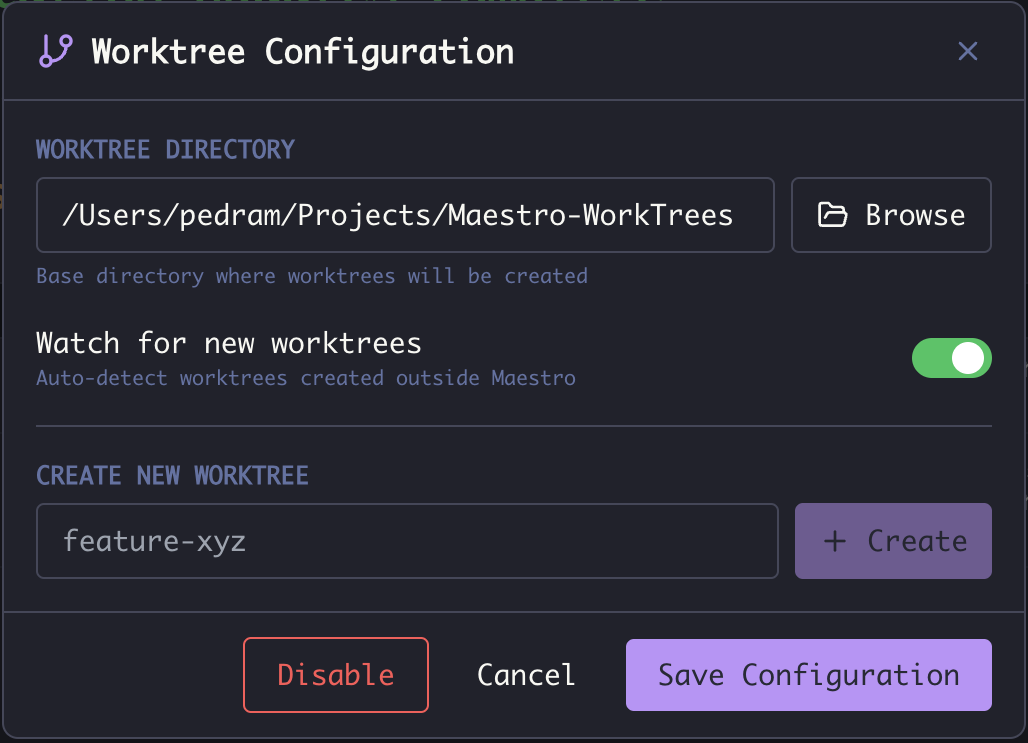
Tip: Configure the worktree directory to be outside your main repository (e.g.,
~/Projects/Maestro-WorkTrees/). This keeps worktrees organized and prevents them from appearing in your main repo’s file tree.
Note: Once configured, you can quickly create additional worktrees by right-clicking the parent session and selecting “Create Worktree” (bypasses the full configuration modal).
Agents honor it too. The directory is printed in every agent’s system prompt as its Worktree Directory, and maestro-cli show agent <id> --json reports it as worktreeBasePath. Agents are told to create worktrees only through maestro-cli create-worktree, which uses this directory and registers the result as a worktree agent, so nothing an agent branches off ends up somewhere you cannot see.
Setup Scripts
A fresh worktree only contains what git tracks, so anything gitignored (a.env.local, generated config, node_modules) is missing until you put it there. The Setup Script field runs a shell command inside each newly created worktree so that bootstrap happens automatically.
The script runs:
- With the new worktree as its working directory
- Only when Maestro actually creates the worktree (not when it reuses or re-attaches an existing one)
- Before the worktree’s agent starts working, so generated files exist for the first prompt
- On the remote host when the parent agent is configured for SSH remote execution
Examples:
cmd.exe, so reference the variables as %MAESTRO_MAIN_REPO_PATH%:
./scripts/setup.sh on macOS and Linux, scripts\setup.cmd on Windows, since cmd.exe cannot execute a .sh file directly. To keep one script for every platform, invoke the interpreter explicitly:
- The script is capped at 10 minutes. A script that waits for input will hit that cap and be killed.
- A failing script raises a toast with the error but does not block the worktree or its agent; the worktree is already usable.
- The setup script is stored per parent agent, so different repos can have different bootstrap steps.
Worktree Actions
Right-click any worktree sub-agent to access management options: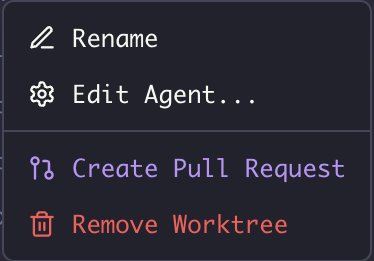
Creating Pull Requests
When you’re done with work in a worktree:- Right-click the worktree agent → Create Pull Request, or
- Hover the header branch pill → Create Pull Request, or
- Press
Cmd+K/Ctrl+Kwith the worktree active → search “Create Pull Request”
- Source branch (your worktree branch)
- Target branch (configurable)
- Auto-generated title and description based on your work
gh) must be installed and authenticated. Maestro will detect if it’s missing and show installation instructions.
Opening a PR can take a while, and you don’t have to sit and watch it. Once you
press Create PR, the Cancel button becomes Run in Background: close
the form (or press Escape) and the request keeps going. While it does, the
Create Pull Request entry in the right-click menu, the branch pill menu and
Cmd+K shows a Creating spinner - click it to bring the form back and see
where the request got to. When it lands you get a toast with a link to the new
PR, and if it fails, the error waits for you both in a toast and in the form.
Removing Worktrees
When removing a worktree, you have two options: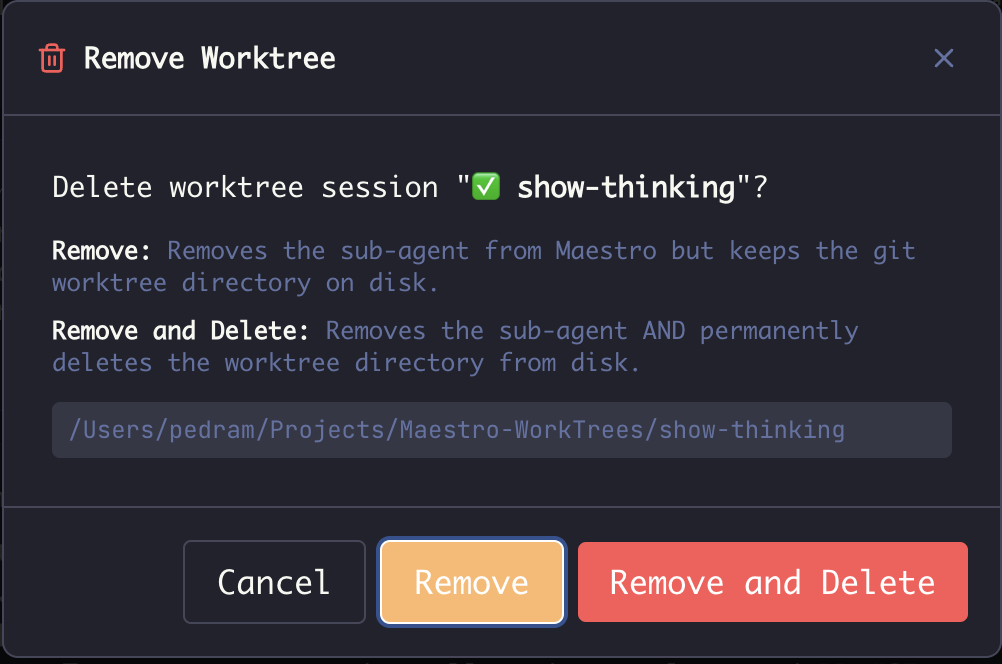
The confirmation dialog shows the full path to the worktree directory so you know exactly what will be affected.
Use Cases
Auto Run integration: You can dispatch an Auto Run directly into a new worktree from the run configuration modal - no need to create the worktree first. See Run in Worktree for details.
CLI integration: The same worktree-backed Auto Run is also reachable from the command line via
maestro-cli auto-run --worktree --branch <name> --worktree-path <path> --launch (add --create-pr to open a PR on completion). See CLI - Configuring Auto-Run.
Tips
- Name branches descriptively - The branch name becomes the worktree directory name
- Use a dedicated worktree folder - Keep all worktrees in one place outside the main repo
- Clean up when done - Remove worktree agents after merging PRs to avoid clutter
- Watch for Changes - Enable file watching to keep the file tree in sync with worktree activity
-
Run multiple dev instances - Use
VITE_PORTenvironment variable to run Maestro in multiple worktrees simultaneously: