
Spec-Kit vs. Wizard
Maestro offers two paths to structured development:
Use Spec-Kit when:
- You want fine-grained control over specification phases
- You’re working on complex features requiring detailed planning
- You prefer explicit command-driven workflows
- You want to create reusable constitutions and specifications
- You’re starting a new project from scratch
- You want to get up and running quickly
- You prefer conversational, guided experiences
Viewing & Managing Commands
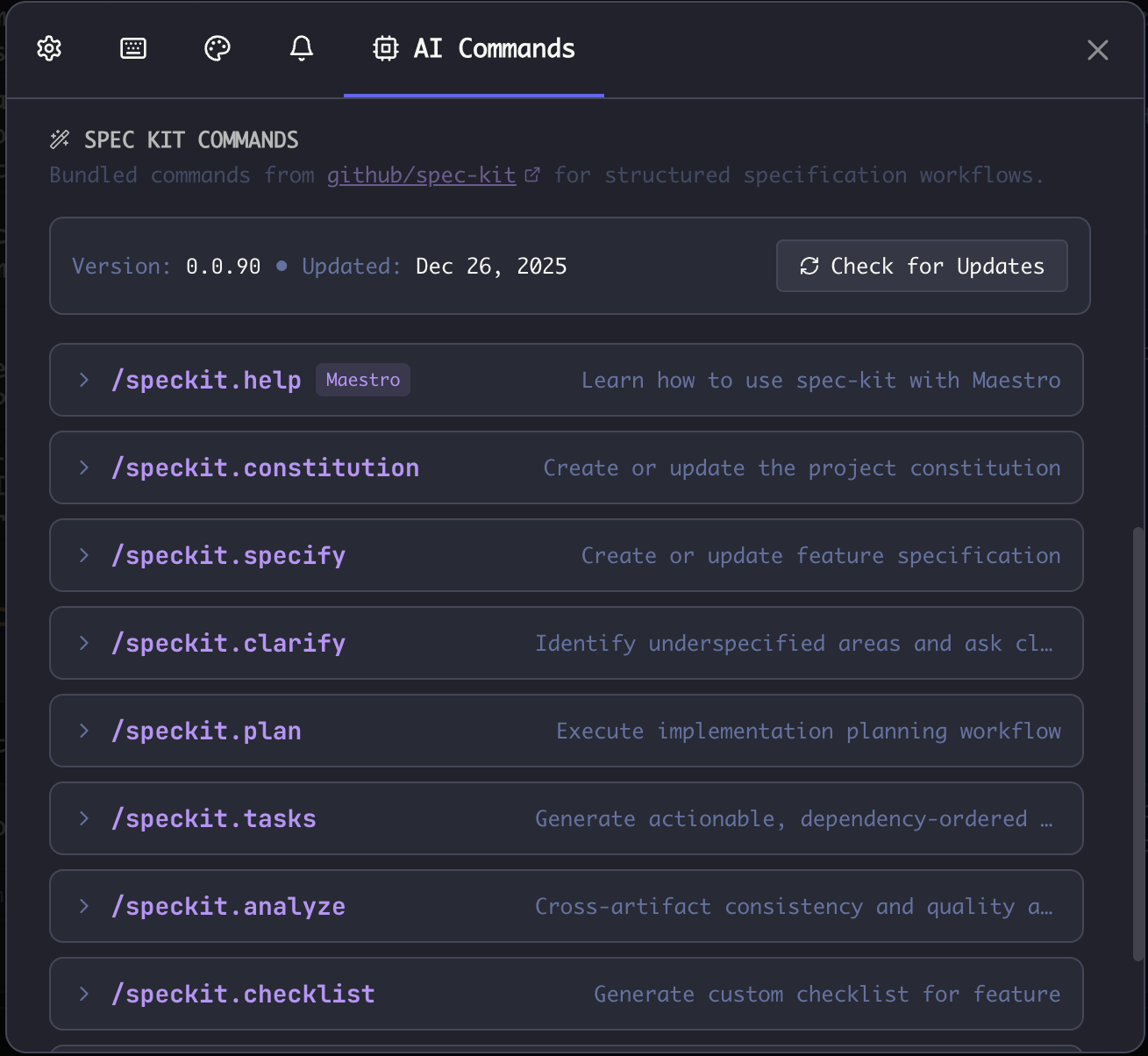
Access Spec-Kit commands via Settings → AI Commands tab. Here you can:- View all commands - See descriptions and expand to view full prompts
- Check for Updates - Manually pull the latest prompts from GitHub releases
- Edit prompts - Customize any command (modifications are preserved across updates)
- Reset to Default - Restore a modified prompt to the bundled version
/speckit.help, /speckit.implement) are Maestro-specific and not updated from upstream.
Prerequisites
Maestro does not automatically create the folder structure or scripts required to run Spec-Kit. You’ll need to set these up manually. Get started: Follow the instructions in the “Get Started” section of the GitHub Spec-Kit repository:Core Workflow (Recommended Order)
1. /speckit.constitution - Define Project Principles
Start here to establish your project’s foundational values, constraints, and guidelines. The constitution guides all subsequent specifications and ensures consistency across features.
Creates: .specify/memory/constitution.md - A versioned constitution document with core principles, technical constraints, team conventions, and governance rules.
2. /speckit.specify - Create Feature Specification
Define the feature you want to build with clear requirements, acceptance criteria, and boundaries. Creates a new numbered Git branch and initializes the spec directory structure.
Creates: specs/<N>-<feature-name>/spec.md - A detailed feature specification with scope, functional requirements, user scenarios, and success criteria. Also creates a checklists/requirements.md validation checklist.
3. /speckit.clarify - Identify Gaps
Review your specification for ambiguities, missing details, and edge cases. The AI asks up to 5 targeted clarification questions sequentially, encoding answers directly into the spec.
Updates: specs/<N>-<feature-name>/spec.md - Adds a ## Clarifications section with session-dated answers, and propagates clarifications to relevant spec sections.
Tip: Run /speckit.clarify multiple times - each pass catches different gaps. Use early termination signals (“done”, “good”, “no more”) to stop questioning.
4. /speckit.plan - Implementation Planning
Convert your specification into a high-level implementation plan. Includes technical context, constitution compliance checks, and multi-phase design workflow.
Creates: Multiple artifacts in the feature directory:
plan.md- Implementation plan with phases and milestonesresearch.md- Resolved unknowns and technology decisions (Phase 0)data-model.md- Entities, fields, and relationships (Phase 1)contracts/- API contracts in OpenAPI/GraphQL format (Phase 1)quickstart.md- Getting started guide (Phase 1)
5. /speckit.tasks - Generate Tasks
Break your plan into specific, actionable tasks with dependencies clearly mapped. Tasks are organized by user story and structured in phases.
Creates: specs/<N>-<feature-name>/tasks.md - A dependency-ordered task list with:
- Phase 1: Setup (project initialization)
- Phase 2: Foundational (blocking prerequisites)
- Phase 3+: User stories in priority order (P1, P2, P3…)
- Final Phase: Polish & cross-cutting concerns
[P] marker for parallelizable tasks, and [US#] labels linking to user stories.
6. /speckit.implement - Execute with Auto Run
Maestro-specific command. Converts your tasks into Auto Run documents that Maestro can execute autonomously. This bridges spec-kit’s structured approach with Maestro’s multi-agent capabilities.
Creates: Markdown documents in .maestro/playbooks/ with naming pattern:
Analysis & Quality Commands
/speckit.analyze - Cross-Artifact Analysis
Verify consistency across your constitution, specifications, and tasks. Performs a read-only analysis that catches:
- Duplications - Near-duplicate requirements
- Ambiguities - Vague adjectives lacking measurable criteria
- Underspecification - Missing acceptance criteria or undefined components
- Constitution violations - Conflicts with project principles (always CRITICAL severity)
- Coverage gaps - Requirements without tasks, or orphaned tasks
/speckit.checklist - Requirements Quality Validation
Generate “unit tests for requirements” - checklists that validate the quality of your requirements, not the implementation. Each checklist item tests whether requirements are complete, clear, consistent, and measurable.
Creates: specs/<N>-<feature-name>/checklists/<domain>.md (e.g., ux.md, api.md, security.md)
Example items:
- “Are visual hierarchy requirements defined with measurable criteria?” [Completeness]
- “Is ‘fast loading’ quantified with specific timing thresholds?” [Clarity]
- “Are error handling requirements defined for all API failure modes?” [Gap]
/speckit.taskstoissues - Export to GitHub Issues
Convert your tasks directly into GitHub Issues.
Requirements:
ghCLI installed and authenticated- GitHub MCP server tool (
github/github-mcp-server/issue_write) - Remote must be a GitHub URL
Getting Help
Run/speckit.help to get an overview of the workflow and tips for best results. This Maestro-specific command provides:
- Command overview with recommended workflow order
- Integration tips for Auto Run
- Links to upstream documentation
Updating Commands
Spec-Kit prompts can be updated from the GitHub spec-kit repository releases:- Open Settings → AI Commands
- Click Check for Updates button
- Latest prompts are downloaded from the most recent GitHub release
- Your custom modifications are preserved - edited prompts are not overwritten
v0.0.90) and last refresh date are shown at the top of the Spec Kit Commands section.
Note: Custom Maestro commands (/speckit.help, /speckit.implement) are bundled with Maestro and not updated from upstream.
Tips for Best Results
- Start with constitution - Even for small projects, defining principles helps maintain consistency and catch violations early
- Iterate on specifications - Use
/speckit.clarifymultiple times to refine your spec; accept recommended answers for faster iteration - Keep specs focused - One feature per specification cycle works best; use numbered branches (
1-feature-name,2-other-feature) - Review before implementing - Use
/speckit.analyzeafter/speckit.tasksto catch issues before coding - Validate requirements first - Use
/speckit.checklistto verify requirements are clear and complete before implementation - Leverage parallelism - With Maestro, run multiple spec-kit workflows simultaneously across different agents using worktrees