
Tab Menu
Hover over any tab with an established session to access the tab menu overlay: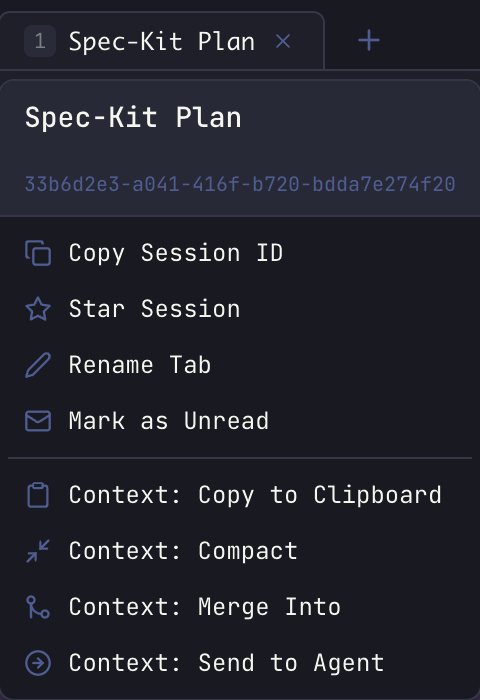
Tab Close Operations
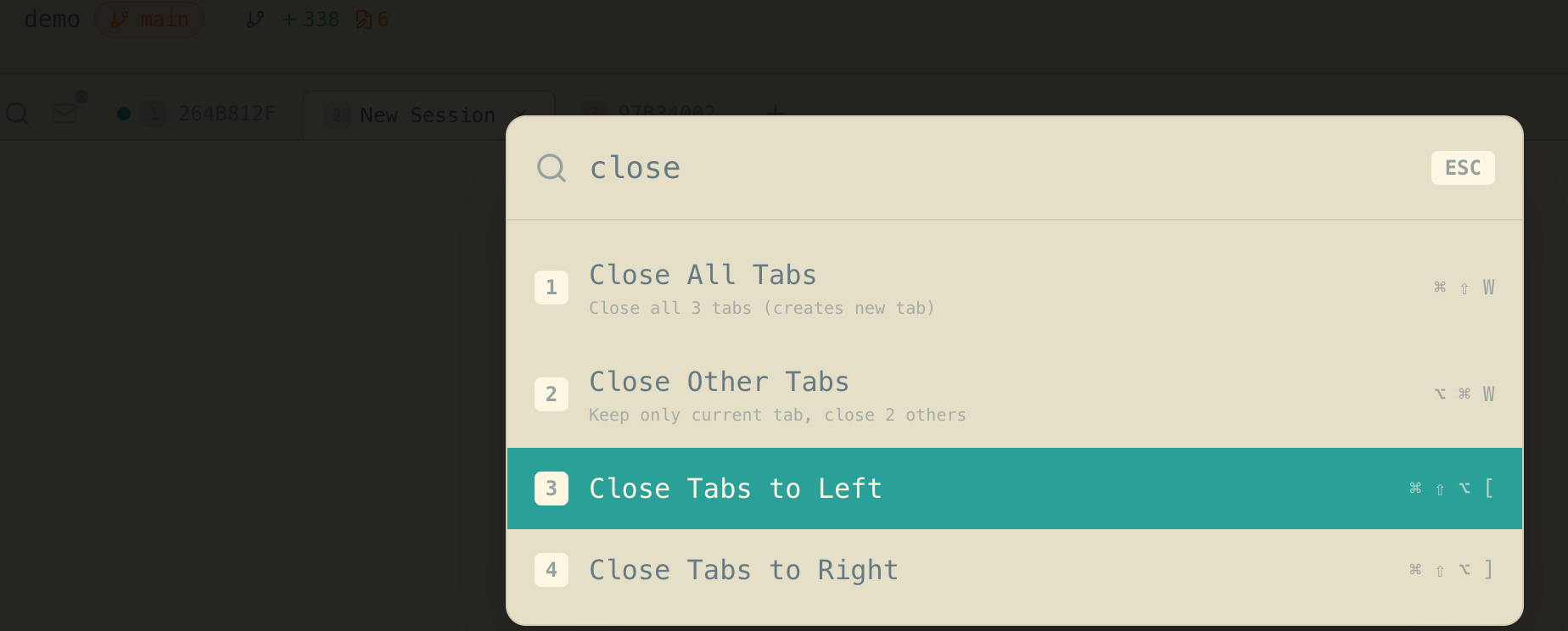
The tab menu also provides bulk close operations for managing multiple tabs: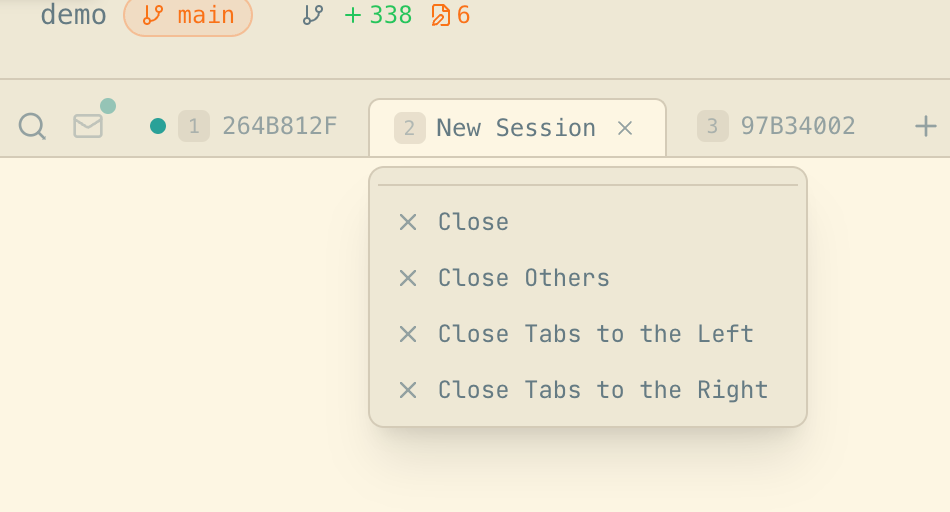
These operations respect the Unread Filter: when the filter is active, only visible tabs are affected - hidden “read” tabs are preserved.
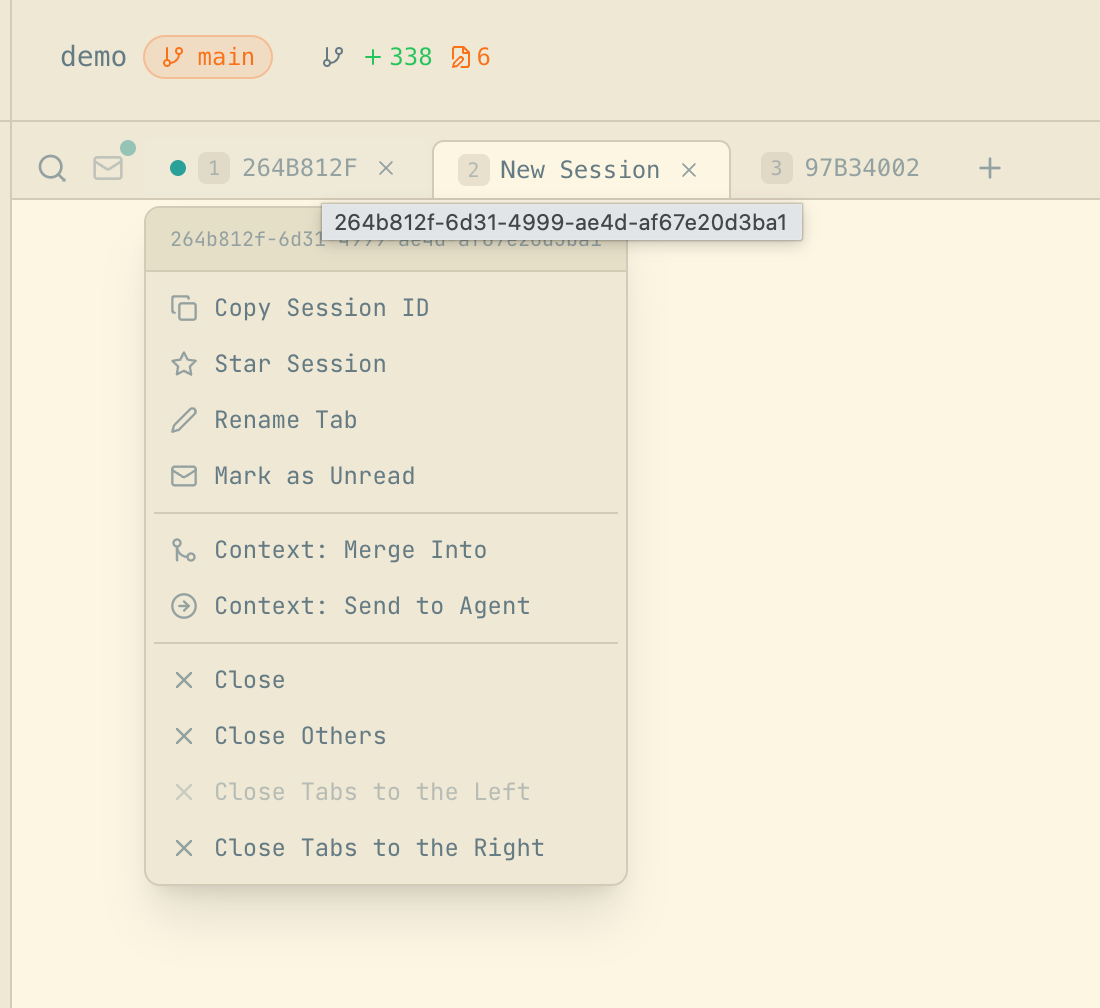
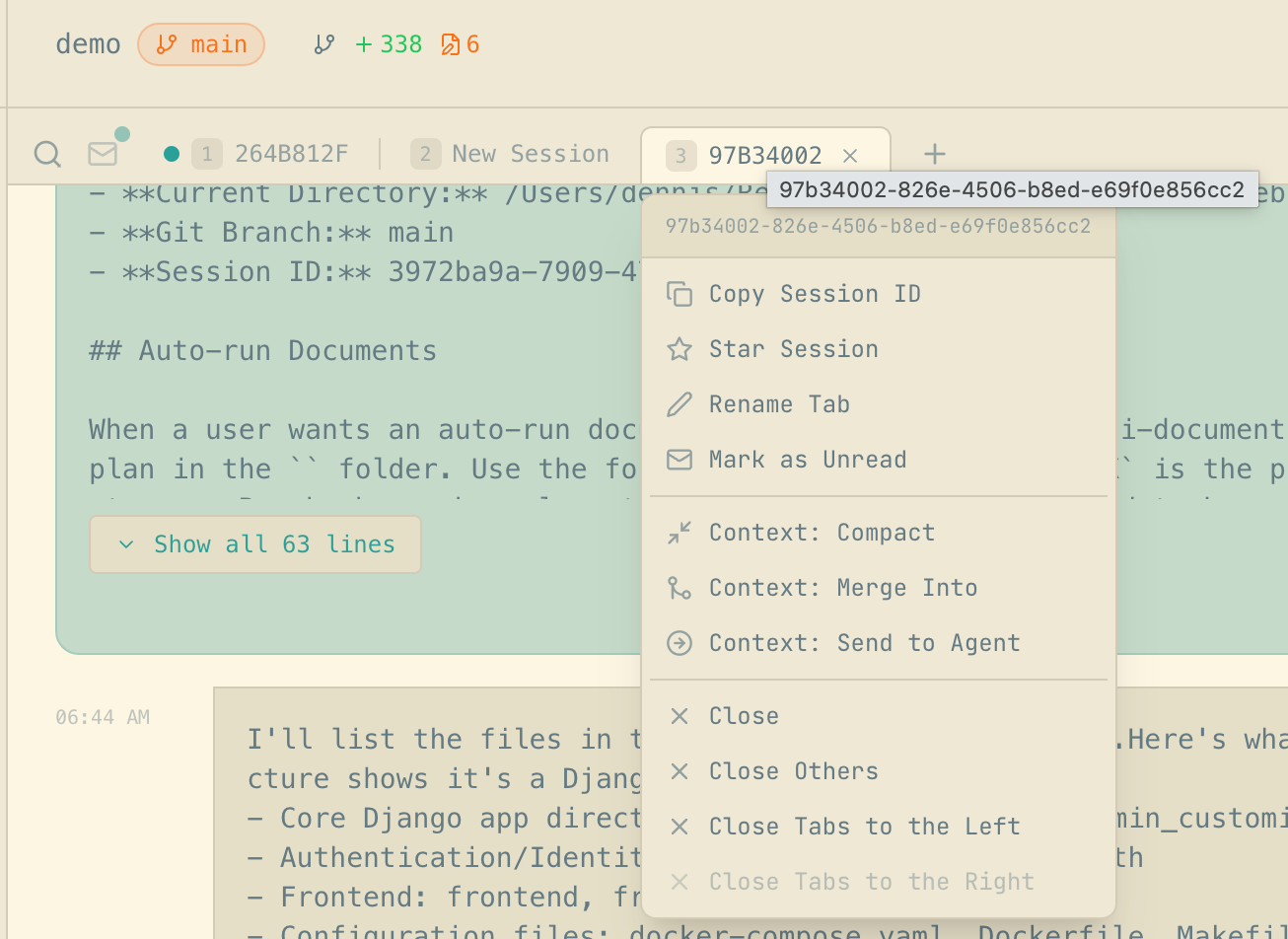
Position-aware options: The menu intelligently hides inapplicable options:
- First tab: “Close Tabs to the Left” is disabled
- Last tab: “Close Tabs to the Right” is disabled
- Single tab: “Close” and “Close Others” are disabled
Cmd+Shift+T / Ctrl+Shift+T to reopen recently closed tabs (up to 25 tabs are remembered).
These actions are also available via Quick Actions (Cmd+K / Ctrl+K) with keyboard shortcuts displayed:
Tab Export
Export any tab conversation as a self-contained HTML file:- Hover over the tab → Export as HTML
- Choose a save location when prompted
- Full conversation history with all messages
- Your current theme colors - the export adopts your active Maestro theme
- Maestro branding with links to the website and GitHub
- Session metadata - agent type, working directory, timestamps, token usage
- Rendered markdown - code blocks, tables, and formatting preserved
- Context: Copy to Clipboard - Copy the raw conversation text to clipboard (for pasting into documents or chat)
- Context: Publish as GitHub Gist - Share as a public or secret GitHub Gist (requires
ghCLI to be installed)
Context management lets you combine or transfer conversation history between sessions and agents, enabling powerful workflows where you can:
- Compact & continue - Compress your context to stay within token limits while preserving key information
- Merge sessions - Combine context from multiple conversations into one
- Transfer to other agents - Send your context to a different AI agent (e.g., Claude Code → Codex)
Context Window Warnings
As your conversation grows, Maestro monitors context window usage and displays warnings when you’re approaching limits.
- Current context usage percentage
- Compact & Continue button for one-click context compression
Why Context Usage Matters
Operating near context limits degrades AI performance. When context reaches ~80% capacity or higher:- The AI loses access to earlier parts of your conversation
- Important decisions, code changes, and context get pushed out
- Response quality drops as the model struggles to maintain coherence
- You may experience more hallucinations and forgotten instructions
Configuring Warnings
Customize warning thresholds in Settings (Cmd+, / Ctrl+,) → Display → Context Window Warnings:
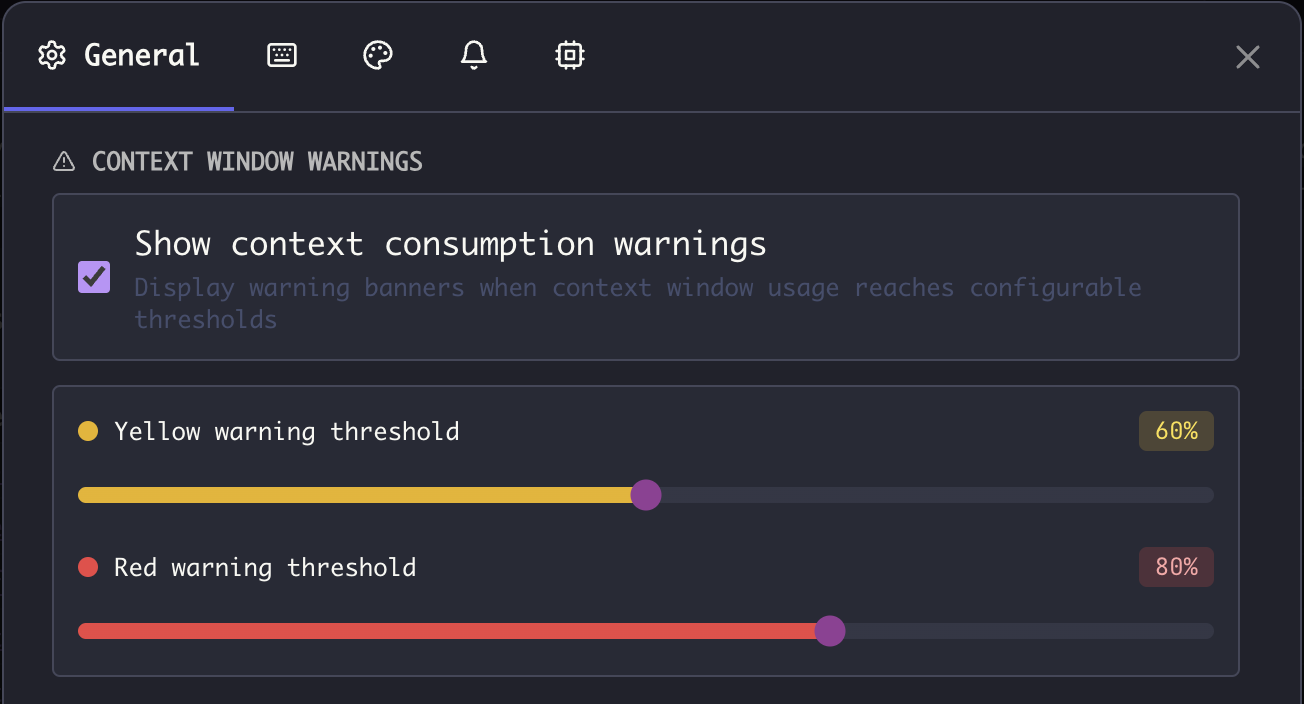
Recommended thresholds:
- Set yellow to 50-60% if you prefer earlier warnings
- Set red to 70-80% - going higher risks quality degradation
- Lower both thresholds if you frequently work on complex tasks that require the AI to remember many details
Context Details
Hover the context gauge in the main window header to open Context Details, a breakdown of the tab you are looking at:
Messages and Duration are the same figures the HTML export prints at the top of the document, so you can read them without exporting first. Duration is wall clock between the first and last entry, not time the agent spent working: a tab left open overnight counts the night.
The same two figures appear in
maestro-cli sessions <agent-id> for every session Maestro has a tab for.
Click the gauge to swap Context Details for the Context Timeline, a turn-by-turn record of how the context window filled. The Timeline opens in the space the popover held and closes as soon as you move the pointer off it, or when you click the gauge again or press Esc. The two never show at the same time. Drag an edge to resize the Timeline: the size is remembered for every agent and across restarts, and double-clicking an edge resets it. Context Details has no edges of its own, since it closes when the pointer leaves it, so it takes the Timeline’s width. Resize the Timeline to resize both.
Compact & Continue
When your conversation approaches context limits, you can compress it while preserving essential information:- Hover over a tab → “Context: Compact”, or use Command Palette (
Cmd+K/Ctrl+K) → “Context: Compact” - The AI compacts the conversation, extracting key decisions, code changes, and context
- A new tab opens with the compressed context, ready to continue working
- The context warning sash appears (yellow at 60%, red at 80% usage)
- You want to continue a long conversation without losing important context
- You need to free up context space for new tasks
- Key decisions and their rationale
- Code changes and file modifications
- Important technical details and constraints
- Current task state and next steps
How Compaction Works
Compaction uses a multi-pass approach to handle conversations of any size: Eligibility Check: Compaction requires any one of these conditions:- Context usage ≥ 25% (as reported by the agent), OR
- Estimated conversation size ≥ 2,000 tokens (~8k characters), OR
- At least 8 meaningful messages (user and AI exchanges)
- Chunking - The conversation is split into chunks of ~50k tokens each
- Parallel summarization - Each chunk is sent to a separate batch-mode agent process
- Combination - Chunk summaries are combined together
- Consolidation - If the combined result exceeds 40k tokens, additional passes reduce it further
- Each pass asks the AI to aggressively reduce the summary while preserving key information
- A pass is only accepted if it reduces size by at least 10%
- Consolidation stops early if no meaningful reduction is achieved
- “Extracting context…” - Preparing the conversation
- “Summarizing chunk 1/4…” - Processing large conversations in parts
- “Consolidation pass 1/3…” - Additional reduction passes if needed
- “Finalizing compacted context…” - Creating the new tab
Merging Sessions
Combine context from multiple sessions or tabs into one:- Hover over a tab → “Context: Merge Into”, or use Command Palette (
Cmd+K/Ctrl+K) → “Context: Merge Into” - Search for or select the target session/tab from the modal
- Review the merge preview showing estimated token count
- Optionally enable Clean context to remove duplicates and reduce size
- Click “Merge Into”
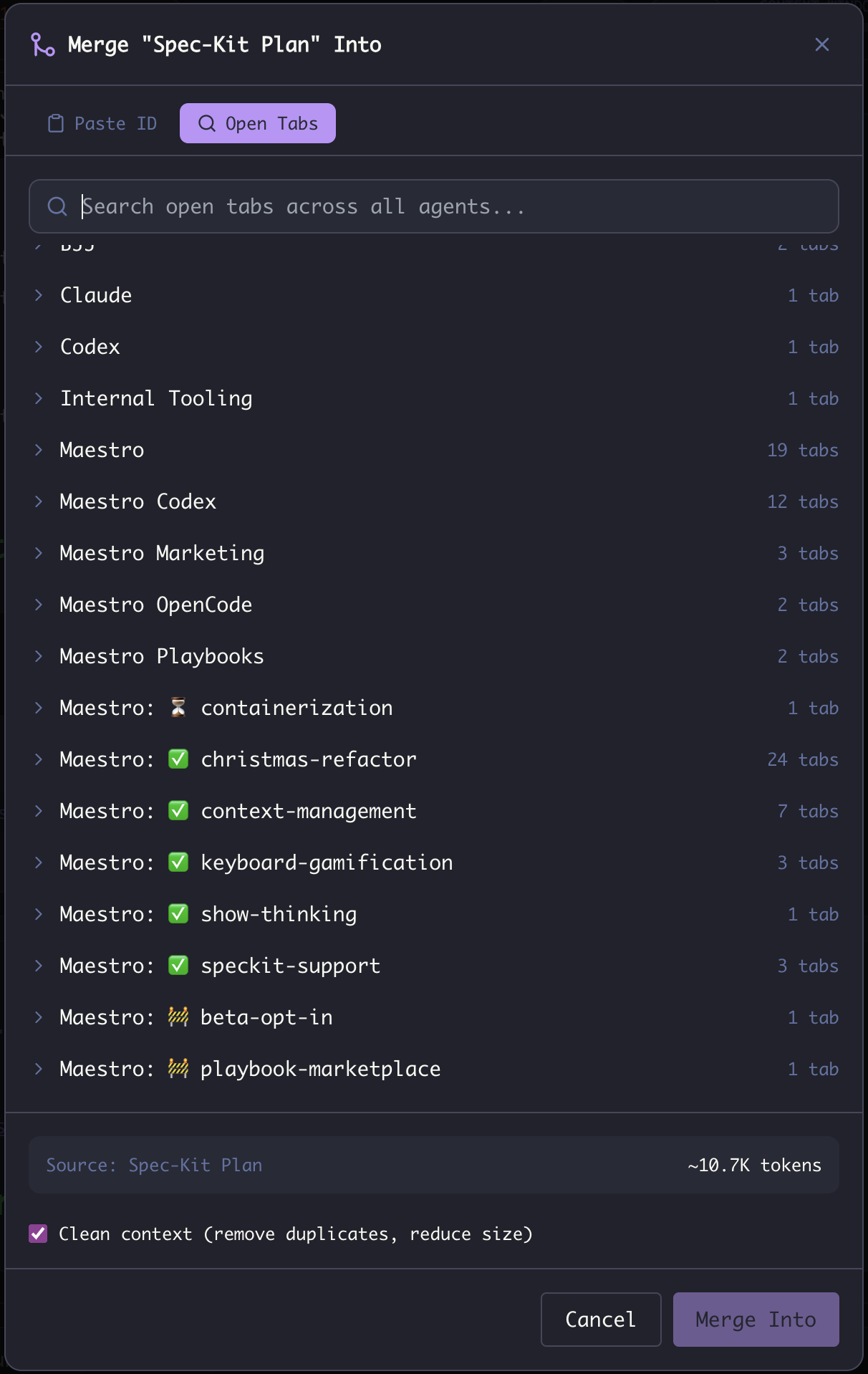
- Paste ID tab - Enter a specific session ID directly
- Open Tabs tab - Browse all open tabs across all agents
- Token estimate - Shows source size and estimated size after cleaning
- Agent grouping - Tabs organized by agent with tab counts
- Full conversation history (user messages and AI responses)
- Token estimates are shown before merge to help you stay within context limits
- You can merge tabs within the same session or across different sessions
- Large merges (100k+ tokens) will show a warning but still proceed
- Self-merge (same tab to itself) is prevented
- Enable “Clean context” for large merges to reduce token count
Sending to Another Agent
Transfer your context to a different AI agent:- Hover over a tab → “Context: Send to Agent”, or use Command Palette (
Cmd+K/Ctrl+K) → “Context: Send to Agent” - Search for or select the target agent from the list
- Review the token estimate and cleaning options
- Click “Send to Session”
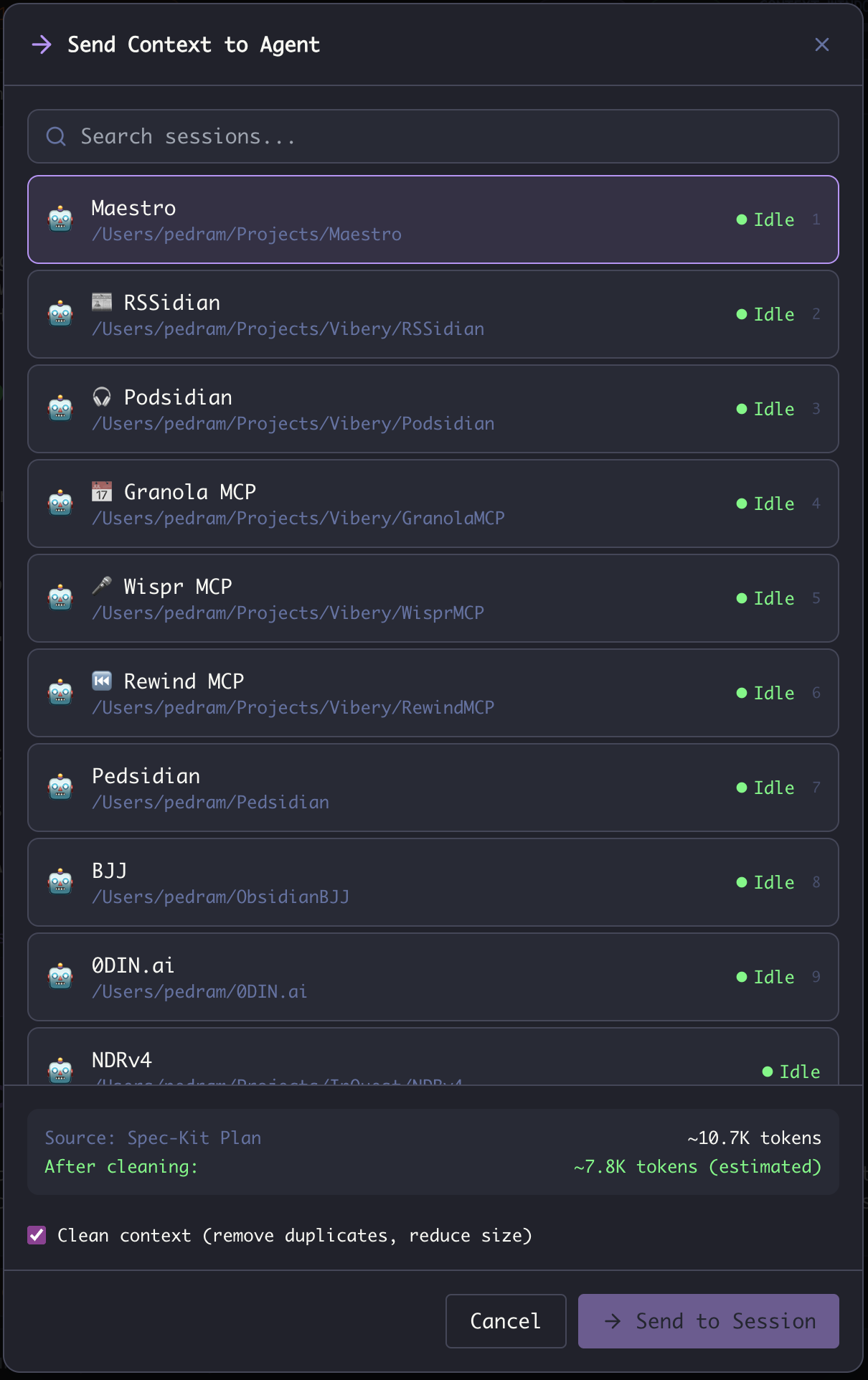
- Searchable agent list with status indicators (Idle, Busy, etc.)
- Agent paths to distinguish between agents with similar names
- Token estimate - Shows source size and estimated size after cleaning
- Clean context option - Remove duplicates and reduce size before transfer
- Remove duplicate messages and verbose output
- Condense while preserving key information
- Optimize token usage for the target session
- Start a task in Claude Code, then hand off to Codex for a different perspective
- Transfer a debugging session to an agent with different tool access
- Move context to an agent pointing at a different project directory
- Share context with a worktree sub-agent working on the same codebase