
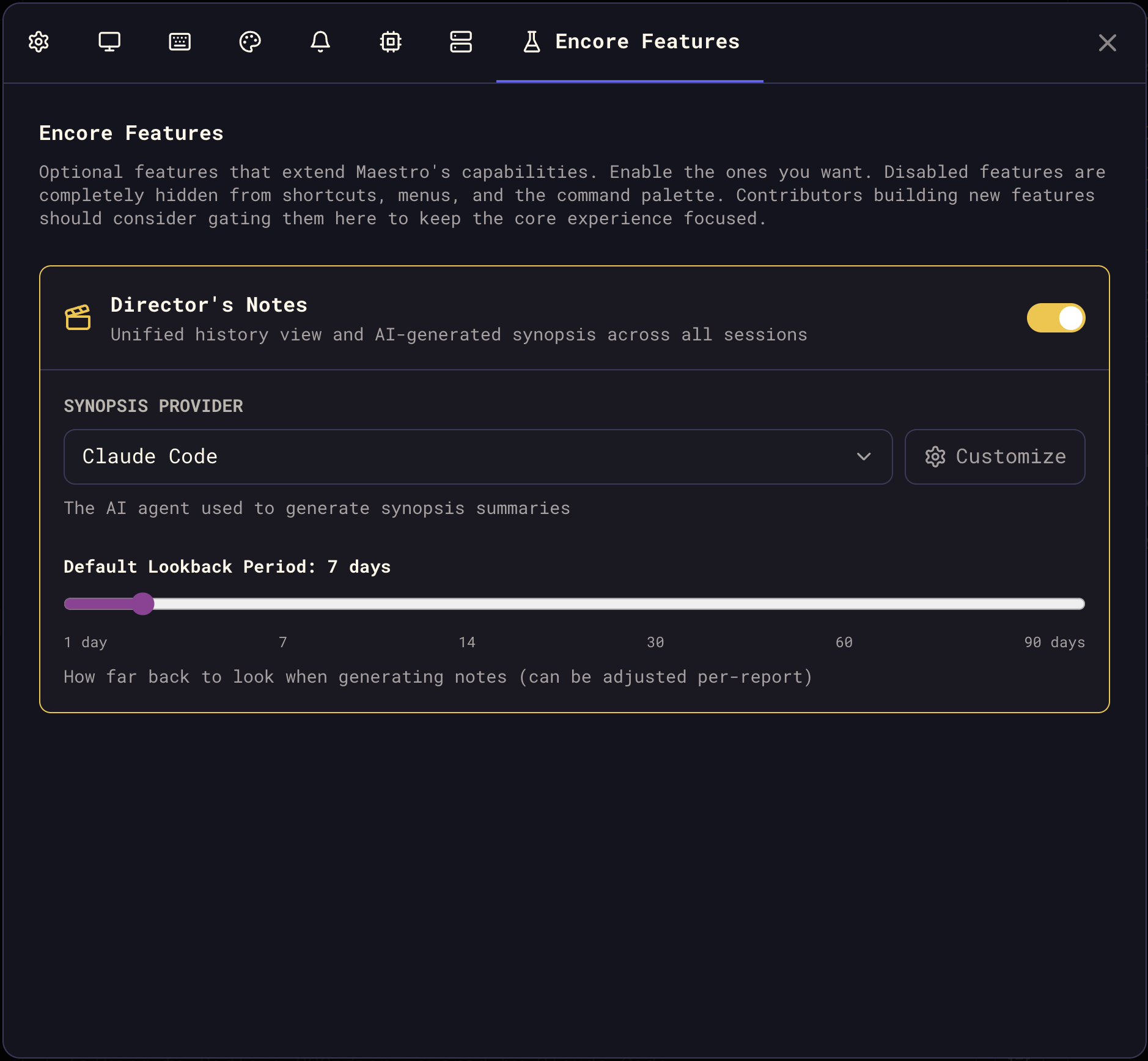
Director’s Notes is an Encore Feature and is on by default. Turn it off in Settings > Plugins to remove the shortcut, menu entry, and command palette action.
The Settings tab is called Plugins in v0.18.x and later. On v0.17.4 and earlier it is called Encore Features.
Opening Director’s Notes
Keyboard shortcut:- macOS:
Cmd+Shift+O - Windows/Linux:
Ctrl+Shift+O
- Press
Cmd+K/Ctrl+Kand search for “Director’s Notes”
Tabs
Director’s Notes has three tabs:Unified History
The primary view - a chronological list of all history entries from every agent, newest first.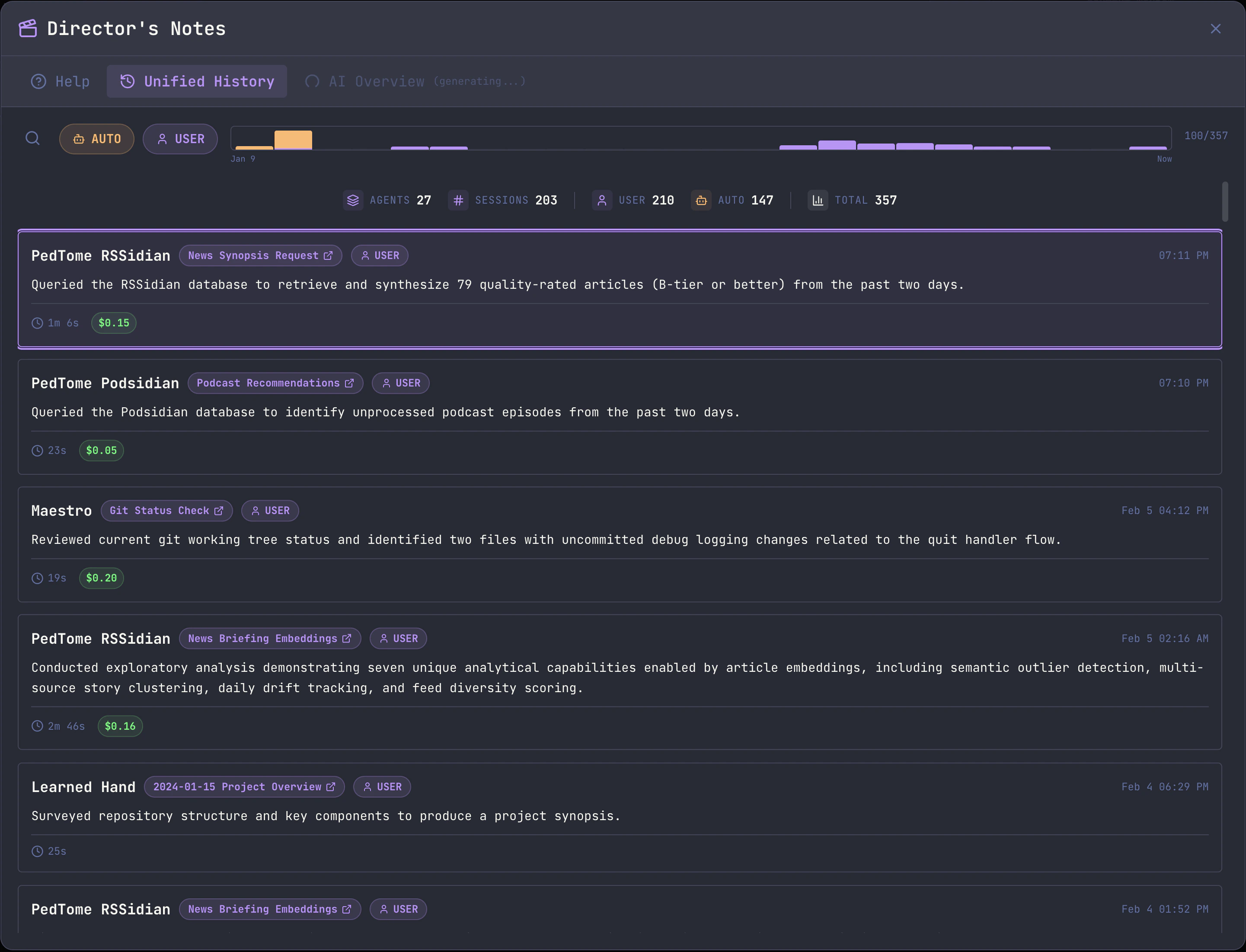
- AUTO / USER toggle buttons filter by entry type
- Search (
Cmd+F/Ctrl+F) filters by summary text or agent name - Activity Graph shows entry distribution over time; right-click to change the lookback window (24 hours through all time)
- Total queries, sessions, AUTO entries, USER entries, and total cost
- Agent name - which Maestro agent produced the entry
- Task name pill - clickable link to the originating session
- Type badge (AUTO or USER)
- Summary of what was accomplished
- Duration and cost (when available)
- Timestamp
- This machine’s agents, including any whose process runs over SSH. A remote agent you drive from here is recorded here, so its runs are always covered.
- Peer Maestro instances that worked on the same project from a different machine, via Cross-Host Shared History. Their entries carry the originating hostname, and their agents appear in the list named
Agent (hostname).
AI Overview
An AI-generated synopsis of recent activity across all agents. This tab uses a configurable AI provider to read history files and produce a structured report.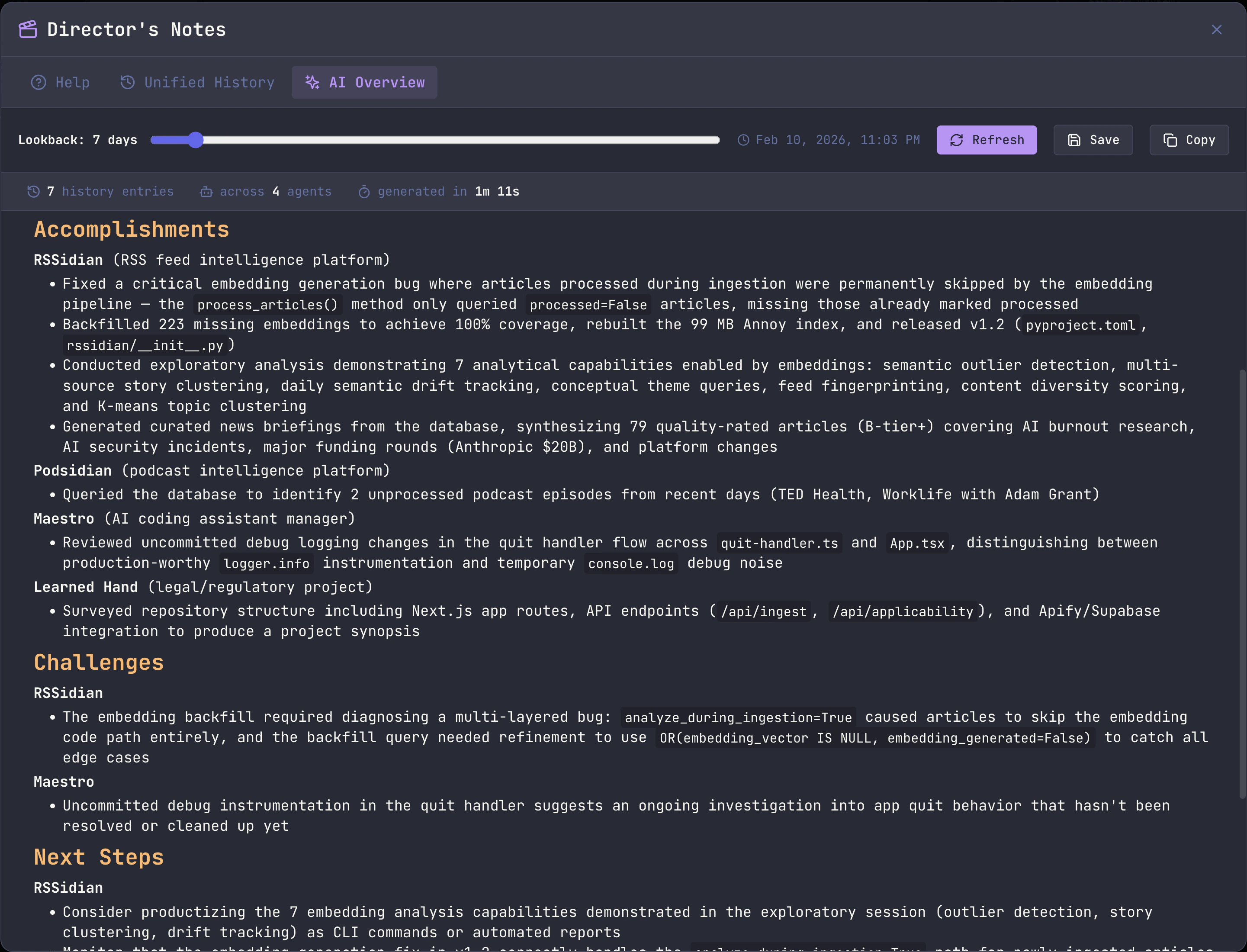
- Lookback slider - Adjust from 1 to 90 days to control the analysis window
- Rich / Plain toggle - Switch between the Rich dashboard and the Plain markdown view (see Reading modes below)
- Refresh - Regenerate the synopsis with current settings
- Save - Export the synopsis as a markdown file
- Copy - Copy the synopsis to the clipboard as readable markdown
- Font zoom - A circle in the top-right corner of the notes that expands to an A- / A+ pill on hover or keyboard focus. It scales the reading text in both Rich Mode and Plain Mode, and Maestro remembers the size you picked. The stat cards and charts around the notes keep their own sizing: they are chrome, not reading text.
- Number of history entries analyzed
- Number of agents with activity
- Generation time
- Accomplishments - What was completed
- Challenges - Issues encountered or unresolved
- Next Steps - Recommended follow-up actions
Reading modes: Rich and Plain
The AI Overview renders the same synopsis two ways, switchable with the Rich / Plain toggle:- Rich (default) is a dashboard. Deterministic widgets - stat cards, an activity timeline, success/failure and source breakdowns, and per-agent activity - are computed directly from your history (never inferred by the AI), and the Accomplishments / Challenges / Next Steps narrative renders as styled section cards beneath them.
- Plain is the classic reading view: the narrative as a clean markdown document, with no widgets.
Jumping between sections
Both reading modes carry the same table of contents as the Markdown file preview, in the same place (the round button at the bottom right) with the same behavior:- Toggle it with the Table of Contents shortcut (Cmd/Ctrl + \) or by clicking the button.
- The first entry is focused when it opens, so ↑ / ↓ (plus Home / End) move through sections and scroll as you go.
- Clicking an entry scrolls to that section and leaves the panel open, so you can jump a few times in a row.
- Top and Bottom jump to the ends of the report.
- Esc or a click outside dismisses it, leaving Director’s Notes open.
When the AI’s output cannot be parsed
The synopsis agent returns a structured narrative, and both reading modes render from it. If a run comes back malformed (cut off mid-response, or with formatting the parser rejects), Maestro salvages the readable portion and shows it with a banner saying what had to be recovered - a partial report is never presented as a complete one. When nothing usable survives, both modes show a parse-failure banner with the raw output preserved behind View raw output. Neither mode ever renders the raw structured output as if it were the report. Grouping: Inside each section the bullets are bucketed under a subheading so you are not re-deriving who did what on every line. An agent that belongs to a Left Bar group is filed under the group (emoji and all), and each bullet keeps a small pill naming which member did it. An agent with no group gets its own subheading, and the pill is dropped because it would only repeat the heading. A section whose bullets all share one owner stays a flat list. The grouping comes from Maestro’s own session and group state, not from the AI, so it always matches what the Left Bar shows. It applies to Rich Mode, Plain Mode, Copy, and Save alike. Provider Configuration: Configure which AI provider generates the synopsis in Settings > Plugins. Any installed agent (Claude Code, Codex, OpenCode) can be used. The default lookback window is also configurable there.Ideal End State
An optional free-form description of where you are trying to get the fleet to: the projects in flight, which agents belong to each, and what finished looks like. Set it in Settings > Plugins under Director’s Notes. Leave it empty and the synopsis is generated exactly as described above. Fill it in and three things change:- Reading priority - Sessions named in the end state are read first and in the most depth. Every session in the window is still covered; the detail budget just shifts toward what you said matters.
- Framing - Accomplishments, Challenges, and Next Steps favor items that bear on the end state, so Next Steps reads as “what moves us toward the target” rather than a generic backlog.
- A fourth section - Progress Toward Ideal End State is added after Next Steps, measuring how far the window moved you. It calls out what got closer, what saw no activity at all (flagged as a warning), what looks finished, and where current work appears to diverge from the target.
maestro-cli notes --ai) as well as the desktop AI Overview.
The AI Overview tab becomes available once the synopsis has finished generating. A spinning indicator on the tab shows generation is in progress. Results are cached for the session - switching tabs won’t trigger a regeneration.
Help
A built-in reference guide explaining all Director’s Notes features, entry types, keyboard shortcuts, and workflows.Keyboard Shortcuts
Modal
Unified History
Detail View
Settings
Access Director’s Notes settings via Settings > Plugins:
Auto-selection resolves at generation time against the providers actually installed, in this order: Claude Code, Codex, OpenCode, Factory Droid, Copilot-CLI. Turn it off to pin the synopsis to one agent - the picker, Custom Path, and Custom Args only apply to a pinned provider.
Tips
- Use AI Overview after an Auto Run session to get a quick summary of everything that was accomplished across all agents
- Search by agent name in Unified History to isolate work from a specific project
- Right-click the activity graph to quickly change the time window without scrolling
- Save or copy the synopsis to include in standup notes, PRs, or project documentation
- Session navigation lets you jump directly from a history entry to the agent that produced it - great for resuming or reviewing work
Pulling Notes from the CLI
The same unified history and AI synopsis are available frommaestro-cli, so you can pipe Director’s Notes into shell scripts, cron jobs, or your own reporting tools without opening the app.
Generating a weekly report
Combinesynopsis with a redirect (or your favorite scheduler) to produce a self-serve weekly report:
cron, launchd, or Maestro Cue on a weekly interval to wake up to a fresh status report every Monday. Pair it with maestro-cli notify toast --open-file <path> if you want a clickable in-app reminder when the report lands.
history reads directly from disk and works offline. synopsis needs the Maestro desktop app running because it dispatches the prompt through your configured AI provider.