
Prerequisites
- GitHub CLI (
gh) must be installed - gh must be signed in to GitHub. If it is not, the Feedback modal offers Log in to GitHub, which runs
gh auth login(one-time code plus browser) in a terminal inside Maestro and continues into the chat as soon as it finishes. Check Again re-checks if you signed in somewhere else.
Sending Feedback
1. Open the Feedback Modal
Click the Feedback button in the bottom-left corner of the sidebar, next to New Agent.
Cmd+K / Ctrl+K) → “Send Feedback”.
2. Which Account Runs the Chat
Maestro picks the account for you. It looks at the accounts your own agents run as (Claude Code, Codex, or OpenCode, including any per-agentCLAUDE_CONFIG_DIR or CODEX_HOME) and uses the first one that is installed and signed in. The provider’s default login and accounts on SSH remotes are tried last.
If the first account cannot answer (for example, its login expired), the chat sends your message to the next account instead of failing. The account that answered is remembered for next time.
The Running as menu at the very bottom of the window, under the message box, shows the account in use. Pick another one there to override it.
3. Describe Your Issue
Tell the AI what’s on your mind - a bug you hit, a feature you want, or general feedback. The AI classifies your input and asks targeted follow-up questions:- Bug reports - What happened? What was expected? Steps to reproduce?
- Feature requests - Use case? Desired outcome? Why it matters?
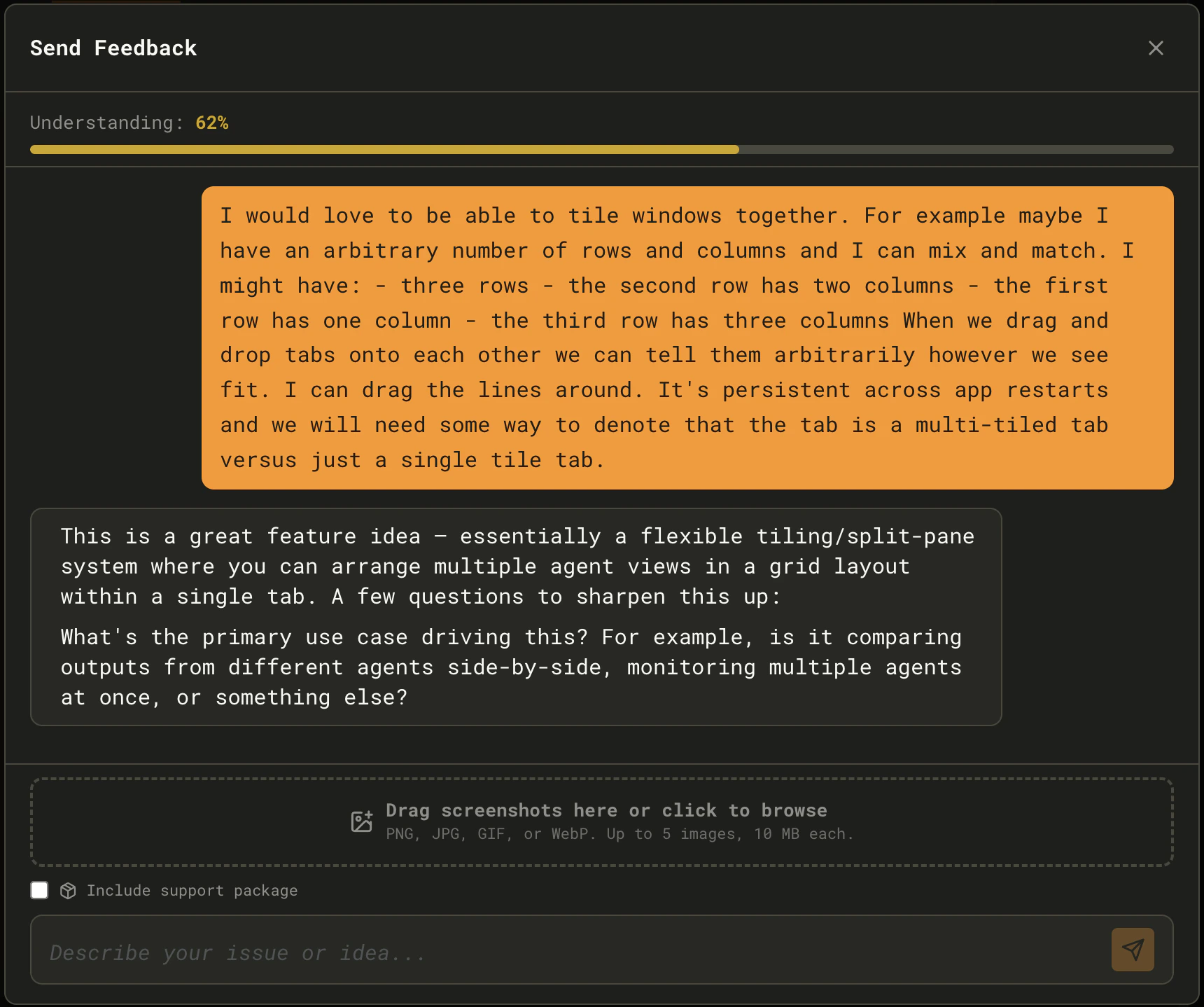
- Drag and drop up to 5 screenshots (PNG, JPG, GIF, or WebP - 10 MB each)
- Check Include support package to attach debug information
Live Diagnostics
The feedback agent runs on your own machine, so it can look at the problem instead of asking you to describe it. When the chat opens, Maestro reads its own live state and hands it to the agent: every agent that is busy, errored, paused on a usage limit, retrying, holding queued messages, or running Auto Run, the auto-resume settings, and the recent warnings and errors from the log (renderer console errors included). If that already shows what you are about to describe, such as an Auto Run still parked after its limit reset, the agent says so in its first reply instead of asking. Paths and secrets are redacted the same way the support package redacts them. While it thinks, it may check your Maestro version, read the tail of the debug log, or query the running app withmaestro-cli (status, doctor, list agents, and other read-only verbs). What it finds is folded into the issue as context you would otherwise have to gather by hand.
Two guarantees:
- It is read-only. The agent is launched in the provider’s CLI-enforced read-only sandbox (
--permission-mode planfor Claude Code,--sandbox read-onlyfor Codex,--agent planfor OpenCode). It cannot write files, install anything, or change a setting. Commands that mutate Maestro are off limits. - Nothing is hidden. Every command it runs is listed under the thinking indicator while the turn is in flight, so you can see exactly what was inspected.
4. Review and Submit
You never have to finish the interview. As soon as you have said anything, a Submit now button sits beside the progress bar. It files the issue with whatever has been gathered so far, even while the agent is still thinking: your own words fill any field the agent has not, and the issue notes it was submitted early. Your screenshots, performance trace, and support package (if checked) go with it. Once understanding reaches 80%, the button turns into a green Submit Feedback. The AI presents a structured summary of what it will submit. Review the summary, tweak anything by continuing the conversation, then click Submit. Every filed issue carries a Live Diagnosis section when something in the app looked wrong at the time: each affected agent’s provider, state, error type, Auto Run progress, and pause or retry status, plus the auto-resume settings. It never includes agent names, error text, or paths.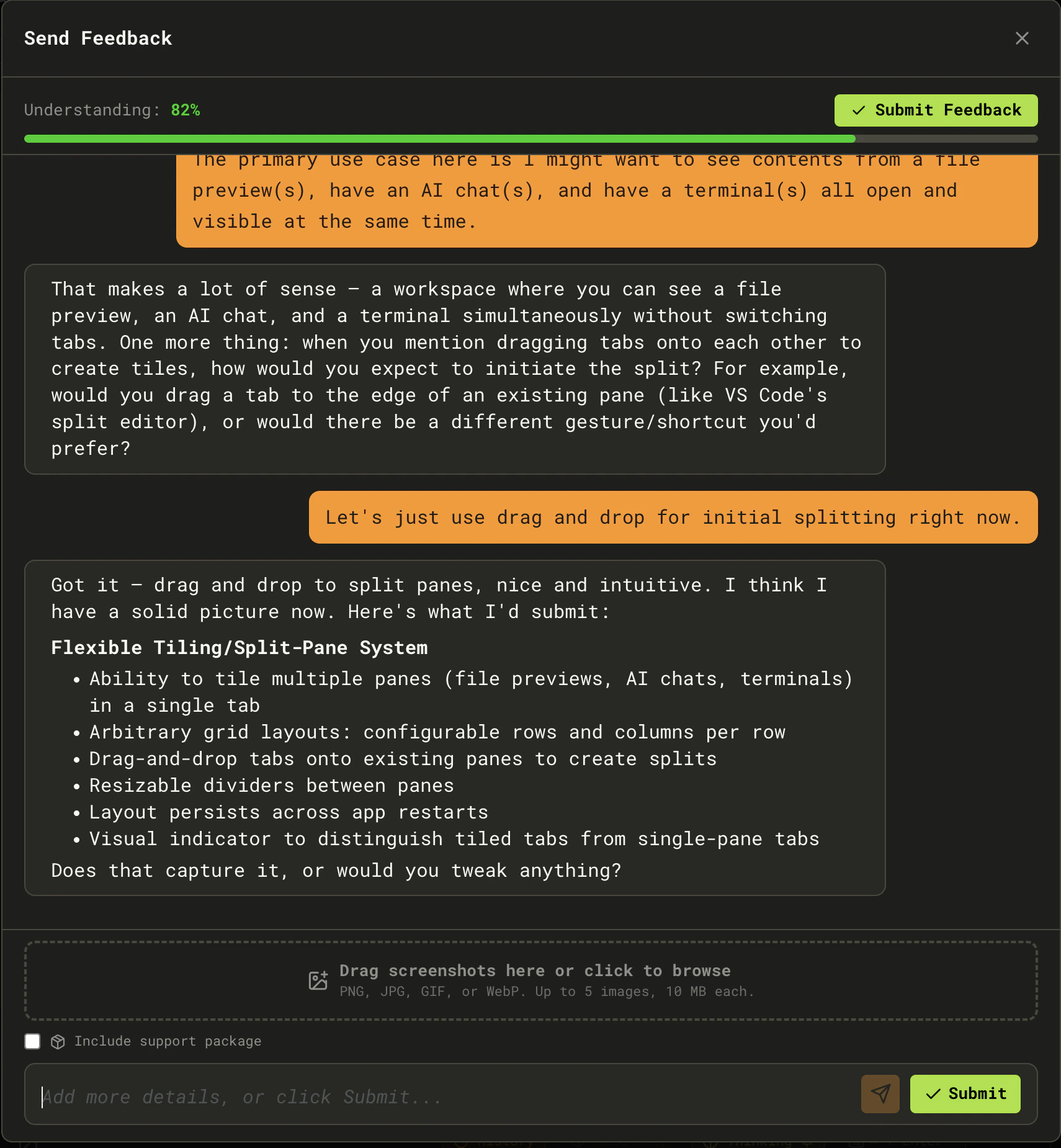
Closing Without Losing Anything
Closing the feedback window never throws away a conversation. If you have work in progress, the X button,Escape, and clicking the backdrop all park it: the agent keeps working in the background and the sidebar Feedback button carries a draft indicator. Click it again to pick up where you left off. Minimize does exactly the same thing.
To actually throw the conversation away, use the trash button in the window’s header. It asks for confirmation first, then stops the agent and clears the draft.
Duplicate Detection
As you describe your issue, Maestro searches existing GitHub issues in the background. If similar issues are found, an inline card appears listing them. You can:- Subscribe to an existing issue - Your context is added as a comment with a +1 reaction
- Create a new issue anyway - Bypasses the match and files a fresh issue
After Submission
Once submitted, you’ll see a confirmation with:- A direct link to the new GitHub issue
- A copy-to-clipboard button for the issue URL
- An option to open the issue in your browser
From the Command Line
Agents and scripts can file the same issue throughmaestro-cli, with no modal:
submit stops when it finds likely duplicates; pass --force to file anyway. maestro-cli open feedback opens the modal. Full flags are in the CLI reference.