
Local Manifest for Custom Playbooks
The local manifest feature allows you to extend the Playbook Exchange with custom or work-in-progress playbooks that are stored locally instead of in the public GitHub repository.Overview
- File Location:
<userData>/local-manifest.json(same directory asmarketplace-cache.json) - Format: Same structure as the official
manifest.jsonfrom GitHub - Optional: If the file doesn’t exist, Maestro works normally with official playbooks only
- Hot Reload: Changes to
local-manifest.jsonautomatically refresh the Playbook Exchange
Use Cases
1. Bespoke Playbooks
Create organization-specific playbooks that aren’t suitable for public sharing:- Internal tools and workflows
- Proprietary processes
- Environment-specific automation
- Company-specific security policies
2. Playbook Development
Iterate on new playbooks locally before submitting them to the Maestro-Playbooks repository:- Test playbook structure and documents
- Refine prompts and loop behavior
- Validate asset bundling
- Preview in the UI before publishing
How It Works
Merge Semantics
When both official and local manifests exist, they are merged byid:
- Override: Local playbooks with the same
idas official ones override the official version - Append: Local playbooks with unique
ids are added to the catalog - Source Tagging: All playbooks are tagged with
source: 'official' | 'local'for UI distinction
Path Resolution
Local playbooks support local filesystem paths:- Absolute paths:
/Users/me/.maestro/custom-playbooks/security - Tilde paths:
~/maestro-playbooks/security - Import behavior: Files are copied from the local path instead of fetched from GitHub
Schema
The local manifest uses the exact same structure as the official manifest. See examples/local-manifest.json for a complete example.Required Fields
Each playbook entry must include:id- Unique identifier (use same ID as official to override)title- Display namedescription- Short description for search and tilescategory- Top-level categoryauthor- Creator namelastUpdated- Date in YYYY-MM-DD formatpath- Local filesystem path or GitHub pathdocuments- Array of document entries withfilenameandresetOnCompletionloopEnabled- Whether to loop through documentsprompt- Custom prompt ornullfor Maestro default
Optional Fields
subcategory- Nested categoryauthorLink- URL to author’s websitetags- Searchable keyword arraymaxLoops- Maximum loop iterations (null for unlimited)assets- Asset files fromassets/subfolder
Creating a Local Playbook
Step 1: Create Playbook Files
Organize your playbook in a local directory:Step 2: Create local-manifest.json
Location:<userData>/local-manifest.json
On macOS: ~/Library/Application Support/Maestro/local-manifest.json
Step 3: Open Playbook Exchange
Your local playbook will appear with a “Local” badge, distinguishing it from official playbooks.Step 4: Import and Use
Import works the same as official playbooks - files are copied from your local path to the Auto Run folder.Hot Reload
Changes tolocal-manifest.json trigger an automatic refresh:
- Edit your local manifest
- Save the file
- The Playbook Exchange automatically reloads (500ms debounce)
- No need to restart Maestro
Error Handling
Invalid JSON
Behavior: Warning logged, empty array used, Maestro continues with official playbooks only Fix: Validate JSON syntax using a JSON validatorMissing Required Fields
Behavior: Invalid entries are skipped with warnings, valid entries are loaded Fix: Ensure all playbooks haveid, title, path, and documents
Local Path Doesn’t Exist
Behavior: Clear error message during import, playbook listing works normally Fix: Verify thepath field points to an existing directory
File Watch Errors
Behavior: Warning logged, hot reload disabled, normal operation continues Effect: You’ll need to restart Maestro to see manifest changesUI Indicators
Local playbooks are visually distinguished in the Playbook Exchange with a blue “Local” badge: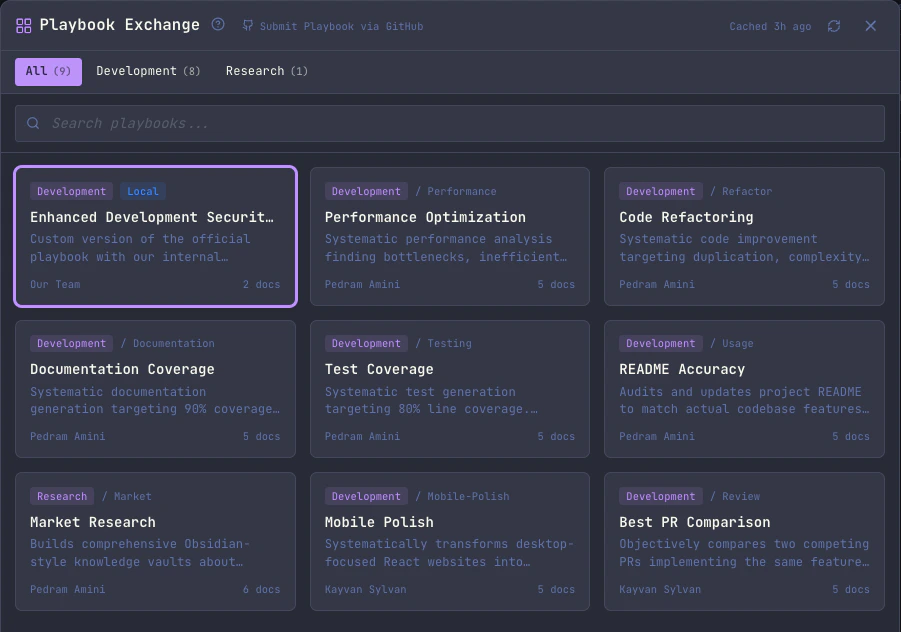
- Badge: Blue “Local” badge next to category
- Tooltip: “Custom local playbook” on hover
- Search: Works across both official and local playbooks
- Categories: New categories from local playbooks appear in filters
Development Workflow
Testing Before Publishing
- Create your playbook files locally
- Add to
local-manifest.json - Test import and execution in Maestro
- Refine documents and prompts
- When ready, submit a PR to Maestro-Playbooks
- Remove from local manifest once published
Overriding Official Playbooks
Use the sameid as the official playbook to test modifications:
- Add custom documents
- Modify prompts
- Change loop behavior
- Test improvements before contributing
Troubleshooting
Playbook Doesn’t Appear
- Check JSON syntax in
local-manifest.json - Verify all required fields are present
- Look for warnings in console logs
- Ensure
pathfield is set correctly
Import Fails
- Verify the local
pathexists - Check file permissions on playbook directory
- Ensure documents have
.mdextension - Verify assets exist in
assets/subfolder
Hot Reload Not Working
- Check console for file watcher errors
- Verify
local-manifest.jsonpath is correct - Try restarting Maestro
- Check file system permissions
Related Files
- Manifest types:
src/shared/marketplace-types.ts - Marketplace handlers:
src/main/ipc/handlers/marketplace.ts - Import logic:
marketplace:importPlaybookhandler - UI component:
src/renderer/components/MarketplaceModal.tsx - React hook:
src/renderer/hooks/batch/useMarketplace.ts
Security Considerations
- Local manifest is not synced or shared
- Paths are validated before file operations
- Local-only playbooks remain private
- No network requests for local paths
- File watching is non-blocking and fails gracefully
Future Enhancements
Potential improvements for consideration:- JSON schema validation
- Visual editor for local manifest
- UI controls to manage local playbooks
- Relative paths from Auto Run directory
- Local manifest templates
- Import/export for sharing local manifests