
- Automatic Security - Web server runs on a random port with an auto-generated security token (UUID) embedded in the URL
- QR Code Access - Scan a QR code to connect instantly from your phone
- Live Sessions - Sessions marked as “live” become accessible through the web interface (protected by the security token)
- Remote Tunneling - Access Maestro from anywhere via Cloudflare tunnel (requires
cloudflaredCLI)
Maestro Lite
Lite is an attachment client for an existing full Maestro, not a theme or a separate agent installation. It shows the host’s agents, AI chats, History, files, terminals, and running work. The host supplies the interface and executes the work; Lite does not initialize a local agent detector, process manager, chat database, automation engine, or host server.Prepare the host
- Start ordinary Maestro on the machine with your workspaces and agent CLIs.
- Enable the web interface with OFFLINE in the Left Bar, then copy its URL.
- Enable Custom Port and retain the current link if you want a saved Lite profile to keep working after a host restart. Otherwise update the profile when the port or URL token changes.
- For direct HTTPS, enable Web Login and create an account on the host. Put the web server behind an HTTPS reverse proxy or the Remote Control tunnel. The certificate must be valid for the hostname you enter.
- Keep the full host and its owning desktop window running. Lite does not start the host, install agents, or turn Maestro into a headless daemon.
Launch Lite
Launch the installed Maestro executable with--lite. From a built checkout:
Lite subdirectory.
Connection preferences, cookies and client view state are separate from full
Maestro’s local chats. Protect this directory: saved connection profiles contain
the host’s access URL. SSH private keys remain in their original files; Lite does
not store SSH or Web Login passwords. Use a secure OS keyring for Chromium’s
persistent cookie storage where available.
Connect over SSH
- Open Saved connections and manual sign-in, choose Add a connection, name it, and select SSH tunnel.
- Enter the host’s complete Remote Control URL, including its token. For a server on the SSH machine, use its loopback address and configured port.
- Enter the SSH hostname or an existing SSH config alias. Use Use SSH config host alias for aliases; leave the user/key unset to use SSH config or your SSH agent. The port setting preserves a config alias’s default.
- Verify a new SSH host key with your normal SSH client first, then save and connect. Lite uses strict host-key checking and binds its forward only to local loopback. It does not collect an SSH password.
- If Web Login is enabled, sign in using the host’s login page.
Connect over HTTPS
Open Saved connections and manual sign-in, choose Add a connection, select HTTPS link, enter the complete HTTPS Remote Control URL, and sign in with a host Web Login account. Arbitrary direct HTTP and HTTPS hosts without Web Login are rejected. Do not bypass certificate errors or expose the raw HTTP server to the public internet. Lite pins the authenticated host’s persistent instance identity. A changed identity is an error, not permission to reuse the previous host’s cookies or drafts. Verify the replacement out of band before using Forget host identity and sign in again. That action does not bypass TLS or SSH trust.Controls and CLI
The Connection menu, top bar and Commands palette share the same actions:
Escape dismisses the command palette, cancels the current edit, or goes back in
the guided connection flow. When a host view is available it can return there;
otherwise it returns to the computer list without quitting Lite. Use Close Lite
to quit. Closing Lite never requests that the host or its agents stop.
--user-data selects the same final directory as --lite-user-data.
See the CLI reference for profile save/read/remove and identity
reset commands. Profile output may contain the access token in a URL; do not
publish it.
Execution and lifetime
Workspace pickers browse the host filesystem. Uploading a local attachment and
downloading a host file are explicit transfers, not workspace synchronization.
A localhost preview is opened by the host’s browser, not by a local Lite webview.
Host administration, account management and native application updates remain
host-only; remote operator access is not multi-tenant isolation.
Local desktop browser tabs keep their native webview, including rich-text and
image paste. When Lite attaches to a mounted tab, it captures that same page
without reloading it or changing the host viewport. Tabs first opened remotely
without a mounted native guest use a shared offscreen page.
Native tabs follow the desktop browser keep-alive setting. If the host unloads
one (including when switching agents), a connected remote view reopens its saved
URL offscreen; unsaved forms, page history and other in-page state do not survive
that unload. Offscreen pages remain alive while remotely retained.
Remote frame failures retry automatically; closing the view cancels retries and
queued input. Streamed views support plain-text paste from the client’s clipboard;
large pastes are sent in order without truncation. They do not transfer rich
clipboard content or images from the host.
Restarting discovery does not disconnect an existing session; an actual network
identity change still invalidates it. If a saved SSH forwarding port is occupied,
Lite chooses another loopback port without disturbing the existing listener.
Temporary network errors or HTTP 502/503/504 from a health check do not discard
the current host view or its unsent draft. Connection status follows the actual
WebSocket; expired or revoked credentials and incompatible host identities still
fail closed. Turning off host access closes its connections; the disconnected
view may retain a draft, but cannot execute work.
If Lite cannot confirm the host’s active-process state before a new AI send, it
keeps the message and attachments as an unsent draft and reports Message not
submitted. It does not create a client-only execution-queue entry or
automatically send that draft after recovery. Reconnect, review host state, and
explicitly send again. Messages already accepted by the host keep their existing
queue and acknowledgement rules; ambiguous submissions are never replayed.
A session whose owning window cannot answer bootstrap falls back to its saved
metadata without hiding other sessions. Agent errors remain visible on remote
clients; retries, History writes and other execution effects remain host-owned.
Bootstrap reads only live browser/terminal inventory, not full conversations.
Opening a conversation reads its canonical host transcript privately, without
broadcasting the full response again to every connected client.
New-agent creation flushes session changes immediately rather than waiting for
other agents to stop streaming. If a save is already running, the creation flush
runs immediately after it rather than being discarded. The owning host window
constructs thinking and output rows; Lite mirrors those rows with the same
identities instead of parsing process output a second time.
OMP answer text is separate from reasoning: only reasoning deltas enter the
thinking panel. History loading removes Maestro’s OMP prompt-file transport
wrapper before matching imported messages to live rows, so backfilling a live
conversation does not prepend its existing greeting again. These changes prevent
new duplicates; they do not rewrite copies already saved in a transcript.
On Windows, OMP prompts use UTF-8 file attachments instead of the command line;
the temporary attachment is removed when the turn exits or fails to start.
Tool activity is recorded independently of thinking mode. To display recorded
tool badges and their input/output, enable Settings → General → Show tool calls
in responses. Turning it off hides the rows without deleting them.
Accepted agents, queues, terminals and automation stay on the host when a client
disconnects. Keep the host window alive, including when backgrounded or minimized.
Quitting the host or closing its owning windows ends availability. A host restart
requires current state to be loaded again; reconnecting does not resubmit a task.
If the first agent read races host startup, use the visible Retry control.
The failed read leaves saved agents untouched and keeps persistence disabled
until loading succeeds. An uncertain submission must be checked on the host
before it is submitted again.
A received save rejection is reported without permanently blocking later saves.
A save with a lost acknowledgement blocks further saves until the client finishes
in-place authoritative recovery; the rejected or uncertain write is never
automatically resent.
A failed process start does not create a running capture. Host administration
settings, including Encore feature controls, remain unavailable to browser/Lite
clients; Encore controls through maestro-cli require its CLI-secret-authenticated
connection.
Lite is a runtime mode in the existing Electron distribution. It is not a separate
small installer and has no offline execution fallback.
Discovery-first Lite over Tailscale or LAN
The primary flow is enable direct access once → discover → select → pair once by code and host approval → connected. There is no Maestro account, username or password, and no Tailscale Serve route, certificate provisioning or administrator step. Choose Tailscale for its encrypted private network, or Local network (LAN) when both computers share a trusted private network. Maestro’s paired-device credential supplies application authorization in both modes. The normal control server stays loopback-only unless LAN access is enabled separately. Lite opens its consented private listener on the selected LAN or assigned Tailscale interface; sharing TCP port 56036 with a loopback-only backend does not require broadening that backend’s bind address.Enable the host once
- Keep full Maestro running on the other computer. Open Remote Control → Connect another device….
- Choose Tailscale or Local network (LAN). For LAN, select the local network
interface. Read and select the access consent box, then choose Turn on access.
LAN does not require Tailscale. For Tailscale, the app checks the existing local daemon and assigned
interface; it does not run
tailscale up, configure Serve, change firewall/ACL rules or request a certificate. - If Tailscale is unavailable, Open Tailscale opens the installed provider app or official download page. Complete provider/OS steps yourself, then use Check again. An unavailable provider leaves access closed.
- On the laptop, launch the installed Maestro in Lite mode with
Maestro --lite. Choose Find over Tailscale or Find on local network to match the host’s connection type, then select the host. Lite opens directly to this step; saved connections and diagnostics are not shown alongside it. - The desktop shows “LAPTOP-NAME wants to connect to this computer” with Decline and Show code, even when setup is closed. Show code opens the code step for that request. Decline rejects it without showing a code.
- Enter the large six-digit code in Lite. After verification, review the device and its access on the desktop, then choose Pair device and allow control. Showing a code does not grant access. No login or manually entered URL is needed.
10.x.x.x, 172.16.x.x-172.31.x.x, or
192.168.x.x) on the same subnet. The host advertises through multicast DNS on
UDP 5353 and accepts connections on TCP 56036. Both computers must be allowed to
communicate on that network; guest Wi-Fi isolation or blocked multicast can prevent
discovery. LAN traffic is plain HTTP and is not encrypted. Use it only on a network
you trust; choose Tailscale, HTTPS or SSH when you need transport encryption.
Only one direct connection type can be enabled at a time. To switch, turn off
the current access mode in Manage access, then choose the other type.
Requested access is full operator access: chats, agents, terminals and
read/write files. Approve only devices trusted with that access. A discovery result
or Tailscale membership is not permission to control Maestro. The code expires
after two minutes and has bounded attempts; final host confirmation remains required.
The requesting computer’s OS hostname is supplied by its Lite main process; it is
an identification hint, not proof of identity. Only one incoming prompt appears at
a time. Cancelled, expired, replaced or shutdown requests dismiss their prompt, and
a late Show code action cannot approve a newer request. Showing the code is not a device
grant; final host approval after the code proof remains separate.
Direct transport and discovery
Direct mode uses the fixed TCP port 56036 on an assigned Tailscale IPv4 address. When Maestro’s existing backend already uses that port, its existing listener is reused. Otherwise a private listener bound only to the Tailscale address reuses the same production HTTP/WebSocket routes. The normal backend port and existing web configuration are not rewritten. The application prefix is /.well-known/maestro/; its connect/ subtree carries desktop/assets, API, files/media, Concerto and WebSockets. Direct requests require both the selected destination socket and an eligible source: a current Tailscale peer for Tailscale, or a private address on the selected interface’s subnet for LAN. Forwarded headers or a forged Host header cannot substitute for those checks. Application access additionally requires a valid, non-revoked device credential. Lite checks up to 32 eligible online peers from its existing Tailscale network map, not an address range or an advertising directory. It checks only the fixed Maestro port and manifest path. The local daemon’s node identity—not remote manifest text—is bound to the remembered device credential. A changed node or host identity refuses credential reuse and requires explicit verification/new pairing. Direct HTTP accepts only the fixed Maestro port at an eligible Tailscale or private LAN IPv4 address. Tailscale verifies the current local daemon/interface/peer; LAN requires an existing local interface on the destination’s subnet. Both bind outgoing sockets to that interface. A bounded, authenticated loopback adapter gives the native browser a secure localhost context and forwards only this host’s application subtree over the selected private socket. It is not a general proxy; foreign origins, sibling paths and redirects outside the selected host are rejected. Credentials stay in the main process and scoped request headers, never page JavaScript, discovery metadata, URLs, clipboard or logs. Existing HTTPS/SSH transports keep their original verification and authorization rules. HTTPS certificate checks are not disabled. Optional named Services, LAN advertising and Internet/Cloudflare invitations remain secondary compatibility paths, not prerequisites for direct Tailscale. Cloudflare Access challenges still fail closed; no Access bypass or automatic named-tunnel provisioning is claimed.Pairing, persistence and revocation
Setup revision 6, protocol maestro-device-pairing/1, scope host.control use OPAQUE code proof plus explicit host-local confirmation. Older builds require a matched update; prior grants are not silently moved to a different transport/origin. The host stores only credential verifiers and public device metadata inlite-paired-devices.json. Lite stores its secret in lite-device-credentials.json
using Electron’s OS-backed safeStorage; unavailable or plaintext OS protection
fails closed. Tailscale credentials also bind the authenticated Tailscale node identity.
LAN credentials bind the host identity and exact LAN origin; changing the host address
requires pairing at the new origin.
The existing optional Web Login plugin/account policy is unchanged and is not used
for device pairing.
The host’s lite-tailnet-access.json stores application consent bound to this
Maestro instance, Tailscale device/network and address. Closing setup does not stop
access. Restart restores consent only after read-only daemon/interface validation;
it does not recreate routes or silently switch networks. Periodic checks close
access during an outage and recover only the originally consented network. A changed
node/network requires explicit review rather than overwriting unrelated settings.
If host shutdown cancels Turn on access while its consent write is pending,
shutdown waits for the prior consent to be restored before completing. A cancelled
enable cannot turn access on at the next launch; previously completed consent
still survives normal host shutdown.
LAN consent is stored separately in lite-lan-access.json, bound to the Maestro
instance and selected interface’s name, address and netmask. Closing setup or
restarting the host preserves consent. Access closes if that interface changes
and resumes only when the original binding is available. Disable LAN access and
review the new interface before switching networks.
On the host, open Manage access. Turn off Tailscale access or Turn off LAN access closes the application
path/private listener without changing Tailscale or erasing paired devices. Choose
Remove, then Remove device under Paired devices to remove authorization
persistently and close HTTP/WebSocket access. Client
Forget pairing removes its protected local copy; remove access on the host to deny a lost device.
Normal disconnect and host restart retain pairing. Requests that expire or are
cancelled before completion do not create a remembered grant.
Full Maestro and its owning renderer must run on an awake, connected machine.
This is not a headless daemon or wake service and does not change OS startup settings.
The existing Tailscale policy and host firewall must permit the direct connection;
Maestro does not silently relax either. No Serve/UAC configuration is involved.
Verification
The direct transport has focused boundary/authentication coverage, real loopback HTTP/WebSocket relay tests, and native source/packaged UI/IPC scenarios. Run the native scenarios withnpm run build:main, npm run build:preload, then
npm run test:lite-native.
The native runs mock the external Tailscale socket/daemon and OS credential
provider but use actual browser HTTP/WebSocket traffic through the production
relay and routes. They do not substitute for testing two real computers, their
network policy and the client’s operating-system credential store.
See Pairing, persistence and revocation
for the authorization contract. The verification boundaries are described above.
Mobile Web Interface
The web interface is the full Maestro app, served by the desktop app to any browser on your network. On a laptop it is the desktop layout you already know. On a phone it switches to a phone layout built for one hand and a small screen:- Tabs: the magnifier in the tab bar opens the tab list directly. Tap a tab to switch to it. Press and hold a tab for its actions, which open in a sheet you can scroll, swipe down, or close.
- Panels: the agent list and the Files / History / Auto Run panel open full screen. Swipe them back, use the panel’s own close button, or pick an agent and the list gets out of the way.
- Composer: the message box folds away behind a slim handle at the bottom so the conversation gets the screen. Tap the handle, or swipe it up, to type. A dot on the handle means the agent is still working; a pencil means you left an unsent draft.
- Modals: swipe down from the top of the screen to close whatever is open, in addition to its close button.
- Toolbars: buttons show icons only. Press and hold a button for its label.
Local Access (Same Network)
- Click the OFFLINE button in the Left Bar header to enable the web interface
- The button changes to LIVE (pulsing) and a QR code overlay appears automatically
- Scan the QR code or copy the secure URL to access from your phone on the same network
The web interface uses your local IP address (e.g.,
192.168.x.x) for LAN accessibility. Both devices must be on the same network.Network Exposure
Maestro always runs a small server somaestro-cli can talk to the app. While the button reads OFFLINE, that server listens on 127.0.0.1 only, so nothing on your network can reach it. Turning on LIVE restarts it on every interface (0.0.0.0) so your phone can connect, and turning LIVE off puts it back on 127.0.0.1 with a new token.
The server also refuses any browser request that comes from a page it did not serve. A web page that learns your Maestro URL cannot read from it or open its WebSocket.
Remote Control (Outside Your Network)
To access Maestro from outside your local network (e.g., on mobile data or from another location):- Install cloudflared:
brew install cloudflared(macOS) or download for other platforms - Enable the web interface (OFFLINE → LIVE)
- Toggle Remote Control in the Live overlay panel
- A secure Cloudflare tunnel URL (e.g.,
https://abc123.trycloudflare.com) will be generated within ~30 seconds - Use the Local/Remote pill selector to switch between QR codes
- The tunnel stays active as long as Maestro is running - no time limits, no Cloudflare account required
maestro-cli live on --tunnel starts the web interface and the tunnel, maestro-cli live status prints both URLs, and maestro-cli live off stops them. The LIVE panel follows whatever the CLI does. See CLI: Live Mode.
Custom Port Configuration
By default, Maestro assigns a random port each time the web server starts. The URL token and optional Web Login provide authentication; an unpredictable port is not a substitute for access control. However, if you need a fixed port (e.g., for firewall rules, reverse proxies, or persistent tunnel configurations), you can enable custom port mode:- Click the LIVE button to open the Live overlay panel
- Toggle Custom Port to enable static port mode
- Enter your desired port number (1-65535)
- The server restarts automatically on the new port
- Punching a hole through a firewall or NAT
- Configuring a reverse proxy (nginx, Caddy)
- Setting up persistent SSH tunnels
- Integration with home automation systems
Requiring a Login
By default, anyone who has the URL is in: the token in the URL is the whole credential. When more than one person drives the same Maestro, or the URL travels further than you would like, turn on Web Login:- Open Settings, then Extensions, and enable the Web Login tile
- On the same tile, add an account for each person: a username, an optional display name, and a password
- The next time a browser opens the web interface it lands on a login page styled in your active theme. Each person signs in once per browser and stays signed in for 30 days
- Attribution. Every message sent from a signed-in browser is credited to that person: a pill on the History entry, a sender filter in the History panel, and a
user_namecolumn in the usage database. Turns typed at the desktop show no pill. - Sign out is in the Left Bar hamburger menu on the web interface.
- Focus stays yours. With several people connected, each browser keeps its own active agent and tab. Switching agents at the desktop or on another phone never moves your view. Streams, thinking indicators and History updates still arrive everywhere.
- The URL token is still required. Login is a second factor on top of it, not a replacement.
maestro-clion the Maestro machine is never asked to log in. Every browser is, including one opened on the Maestro machine itself.- There are no roles. Every account is an equal operator; the desktop is the administrator. A browser can never add, remove, or reset an account.
A reverse proxy must forward the original
Host header (nginx: proxy_set_header Host $host;, Caddy does this by default). Maestro refuses browser requests whose Origin does not match the Host they were sent to.A reverse proxy must forward the original
Host header (nginx: proxy_set_header Host $host;, Caddy does this by default). Maestro refuses browser requests whose Origin does not match the Host they were sent to.Connection Handling
The browser talks to the host over a WebSocket. It reconnects with bounded event replay when possible and reconciles current host state after a host restart or replay gap. Opening handshakes have deadlines, stale sockets are replaced on wake or network restoration, and sustained outages use capped jittered backoff. Authoritative reconciliation is bounded and retried without remounting the active workflow. Commands are never automatically resent merely because the connection dropped. If a submission’s acknowledgement is lost, its outcome is shown as uncertain: check the host’s chat, running work and History before deciding whether to submit again. Native Lite also supervises its transport and renderer. SSH exits, temporary connection failures and renderer crashes trigger automatic recovery. Reconnected SSH tunnels and paired relays reuse their validated loopback port so unsent drafts and navigation retain the same client origin. Lite remembers the last manual or paired LAN/Tailscale connection and restores it after launch; direct hosts are rediscovered and their instance, peer and credential bindings verified again. Explicit Disconnect, forgotten pairing, revoked credentials, changed identity, incompatibility and trust failures stop automatic recovery. A manual URL whose endpoint or token changed still requires updated connection details. Unsent drafts and navigation remain client-local. Native Lite does not register the browser PWA’s offline service worker; the ordinary browser/PWA path is unchanged.Screenshots
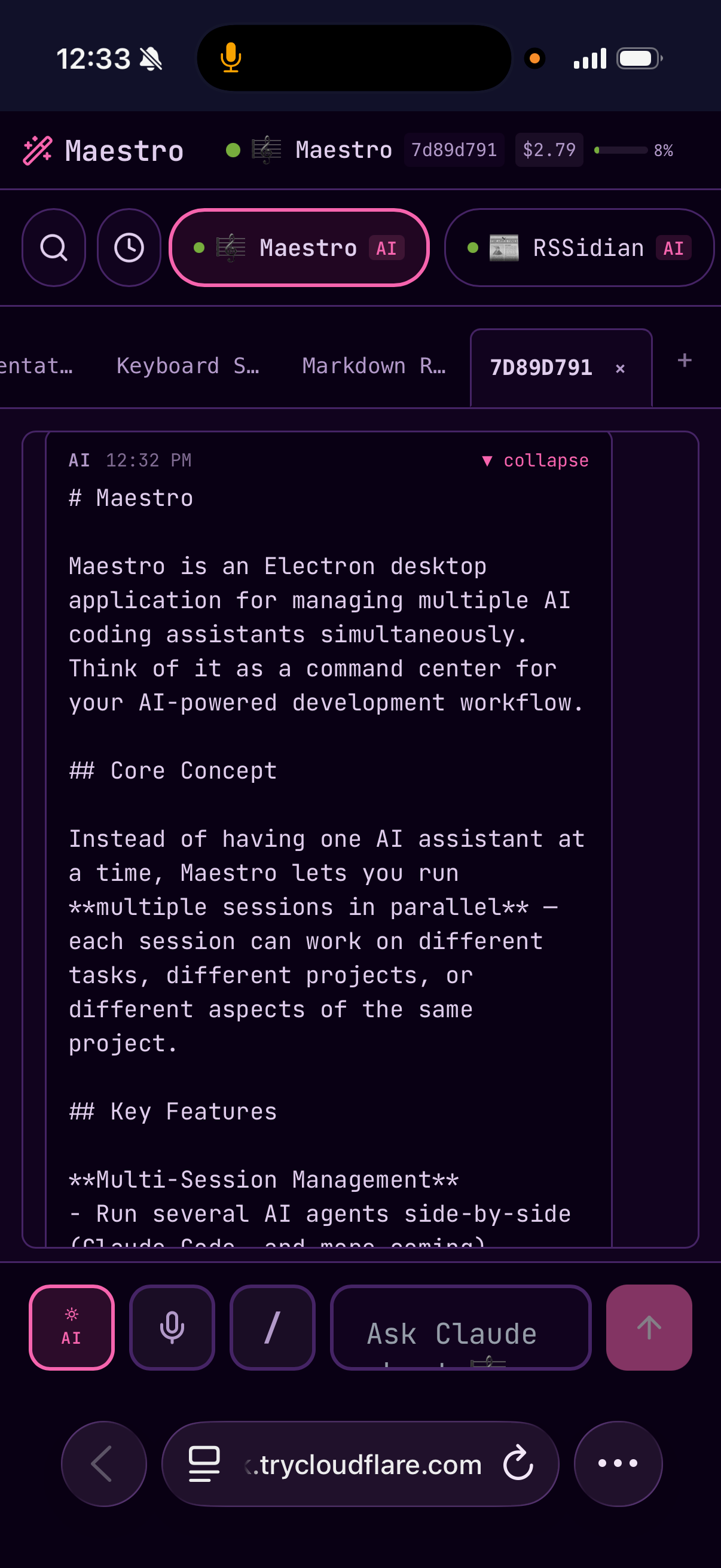
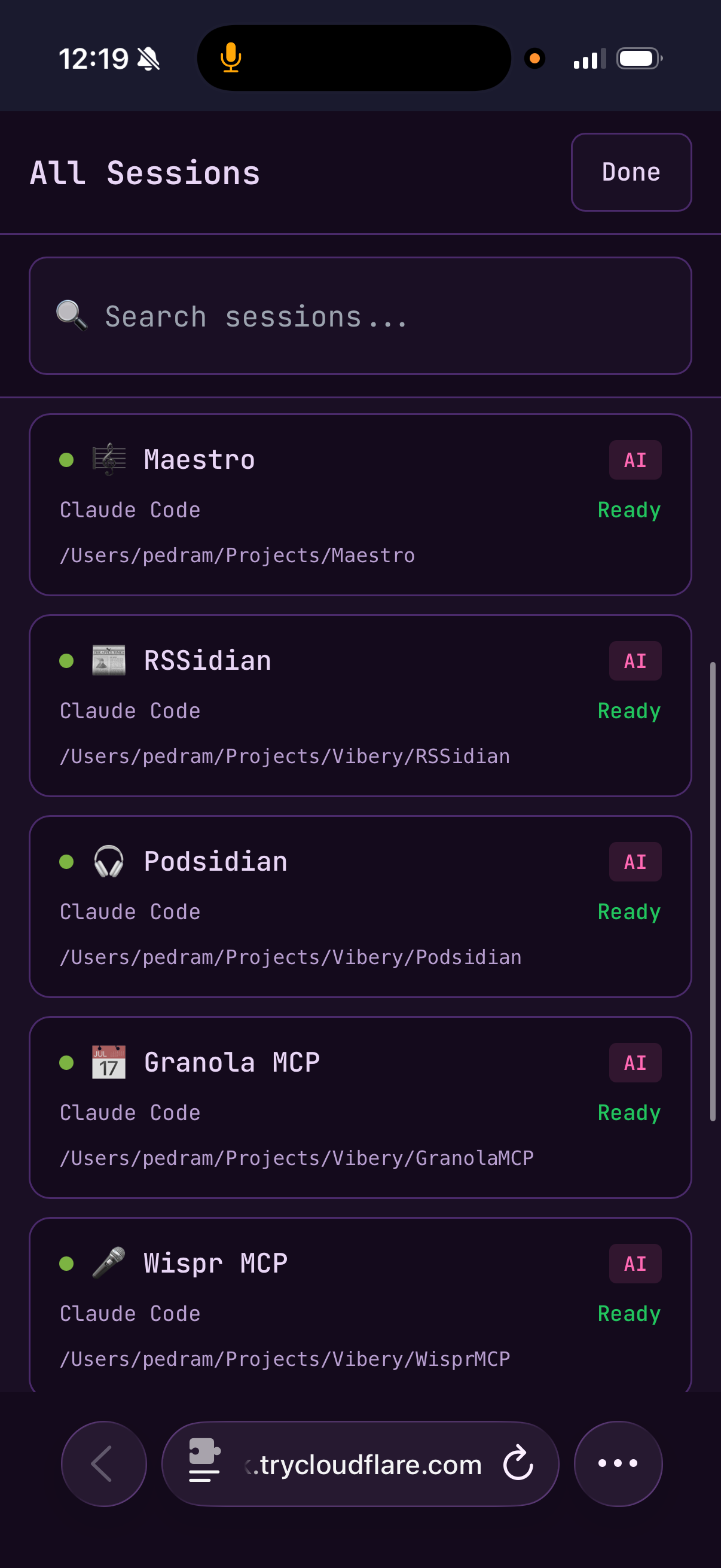
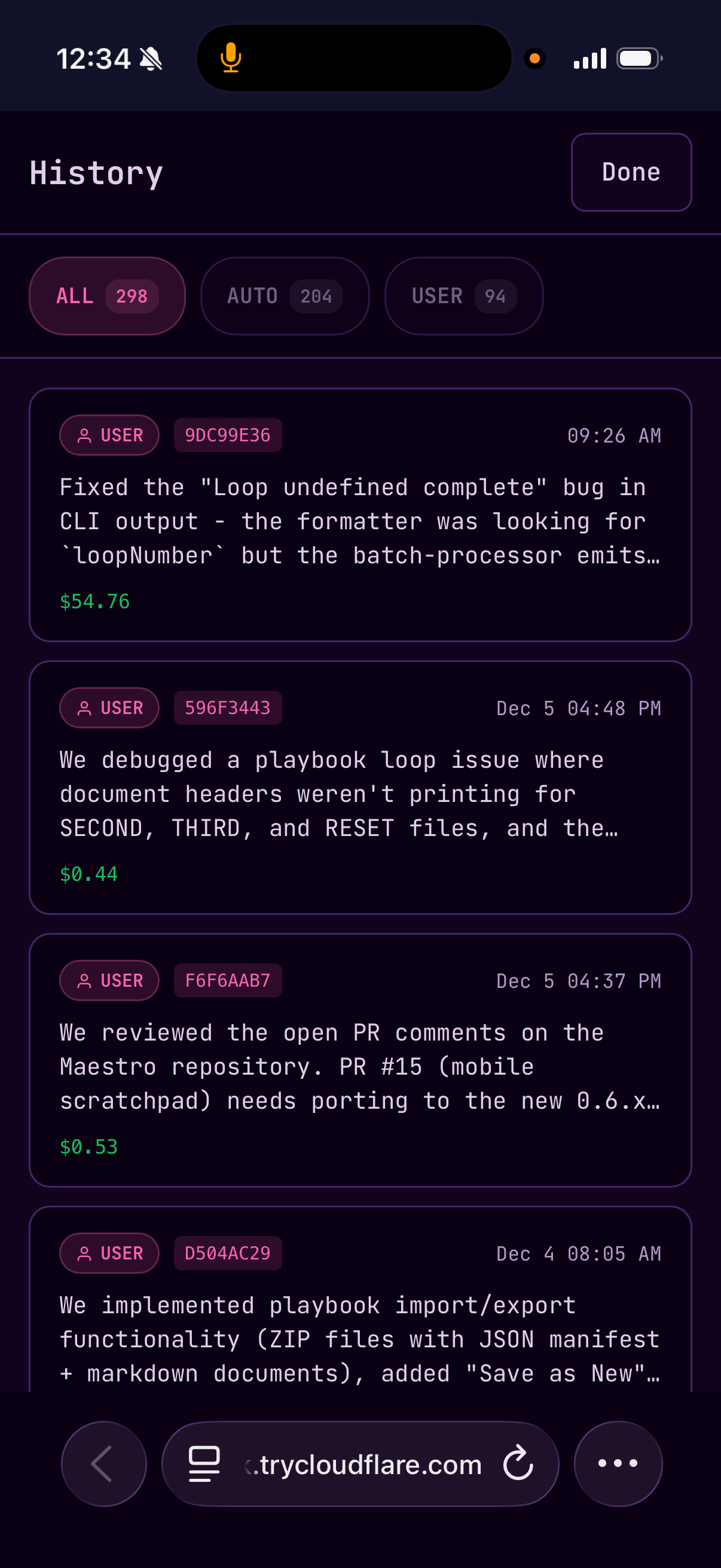
Related
- Configuration - General settings including web interface options
- SSH Remote Execution - Running Maestro on remote servers