
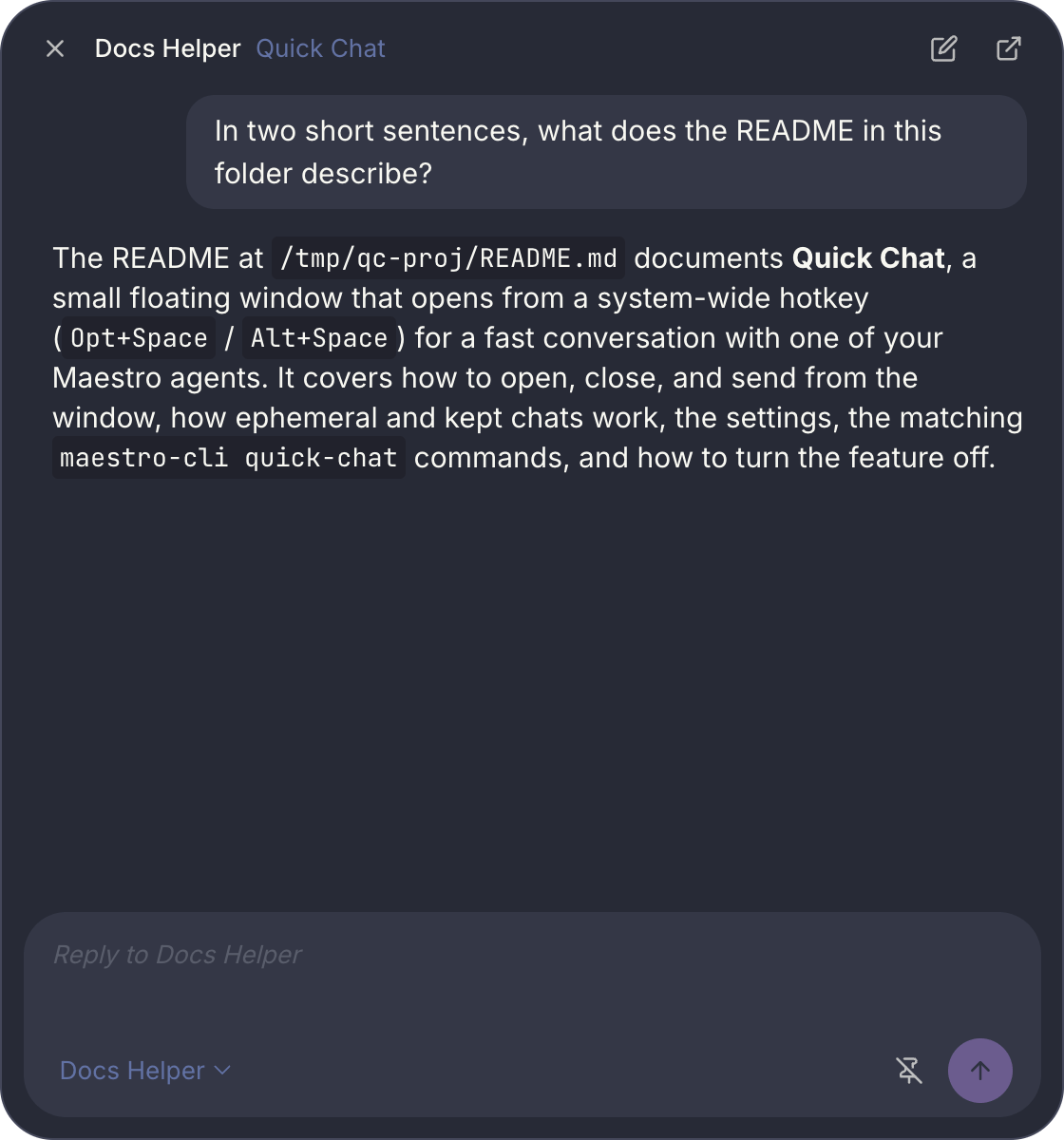
Opening and closing it
The hotkey toggles: when the window is closed it opens; when it is open but behind another window it comes to the front; when it is in front it closes. Closing the window keeps the conversation, so the next press brings you back where you were.
The window floats above other apps and on every desktop, including over full-screen apps. Drag it by its header to move it, and drag an edge or corner to resize it. Maestro remembers the size and the spot across restarts. Until you move the window yourself, it opens centered on the screen under your pointer.
Before your first message the window is just the composer, so only its width changes. Once a conversation is showing, you can make it taller or shorter too, and that height is kept for the next conversation. If the screen the window was on is no longer connected, it opens on your main screen instead.
Where the conversation lives
Every Quick Chat is a real AI tab on the agent you choose. It uses that agent’s provider, model, working directory, SSH remote, and permissions, exactly like a tab you open yourself. The agent can be busy in another tab: your quick chat does not wait for it. A chat has one of two modes, and you can flip between them at any time with the pin in the window:
A reply never raises a completion toast in the main window: you are reading it in Quick Chat. The audio or spoken notification you configured still plays.
Settings
Open Settings -> Plugins, select Quick Chat, and open its Settings tab.- Hotkey. Click the button and press a new combo. Leave it blank to turn the hotkey off. If another app or Maestro hotkey already holds the combo, Maestro shows a warning and the hotkey stays off until you pick another one.
- Agent. The agent every new chat talks to. “The agent active in the main window” follows whatever agent you last selected. You can also switch agents from the window itself: click the agent name at the bottom left (or press
Cmd+K/Ctrl+K), type a few letters of the agent’s name, group, or provider, and pressEnter. Switching starts a new chat on that agent and saves the choice; picking the agent you are already on keeps the chat. A chat in progress stays on its agent even if you change this setting. - Keep new chats as tabs. The default mode for a new chat.
- Record ephemeral chats in History. On by default, so an ephemeral chat still leaves a History entry after its tab is gone. Kept chats follow your normal history setting.
On Windows,
Alt+Space normally opens a window’s system menu. While Quick Chat holds the combo, it opens Quick Chat instead. Pick a different hotkey if you rely on that menu.From the command line
Every button in the window has amaestro-cli quick-chat verb that takes the same path:
bounds takes any of the four flags (--x and --y together). --height is the conversation height, so before the first message it is remembered rather than applied. quick-chat status reports the current size and spot.
The settings live in quickChatSettings (hotkey, agentId, persistent, ephemeralHistory), readable and writable with maestro-cli settings get / settings set. Turn the feature off or on with maestro-cli encore disable quickChat / encore enable quickChat.