
Maestro Cue is an Encore Feature and is on by default. Turn it off in Settings > Plugins to hide the shortcut and modal and stop the automation engine.
The Settings tab is called Plugins in v0.18.x and later. On v0.17.4 and earlier it is called Encore Features.
What Can Cue Do?
A few examples of what you can automate with Cue:- Run linting whenever TypeScript files change - watch
src/**/*.tsand prompt an agent to lint on every save - Generate a morning standup - schedule at 9:00 AM on weekdays to scan recent git activity and draft a report
- Chain agents together - when your build agent finishes, automatically trigger a test agent, then a deploy agent
- Triage new GitHub PRs - poll for new pull requests and prompt an agent to review the diff
- Track TODO progress - scan markdown files for unchecked tasks and prompt an agent to work on the next one
- Fan out deployments - when a build completes, trigger multiple deploy agents simultaneously
- Trigger from the CLI - run
maestro-cli cue triggerto fire a subscription on demand from scripts, CI/CD, or other agents
Turning Cue On and Off
Cue is on out of the box. Maestro automatically scans all your active agents for.maestro/cue.yaml files in their project roots, and the Cue engine starts as soon as it finds one - no restart required. An agent with no .maestro/cue.yaml runs nothing.
To turn Cue off entirely:
- Open Settings (
Cmd+,/Ctrl+,) - Navigate to the Plugins tab
- Toggle Maestro Cue off
Quick Start
Create a file called.maestro/cue.yaml in your project (inside the .maestro/ directory at the project root):
.ts file in src/ changes, Cue sends that prompt to the agent with the file path filled in automatically.
The Cue Modal
Open the Cue modal to monitor and manage all automation activity. Keyboard shortcut:- macOS:
Option+Q - Windows/Linux:
Alt+Q
- Press
Cmd+K/Ctrl+Kand search for “Maestro Cue”
maestro-cli open cue, optionally on a tab (maestro-cli open cue --tab scheduled). See Opening a surface from the CLI.
Dashboard
The Dashboard tab summarizes engine state at the top (Pipelines, Total Executions, Active Runs, Agents) and lists every agent that has a Cue configuration: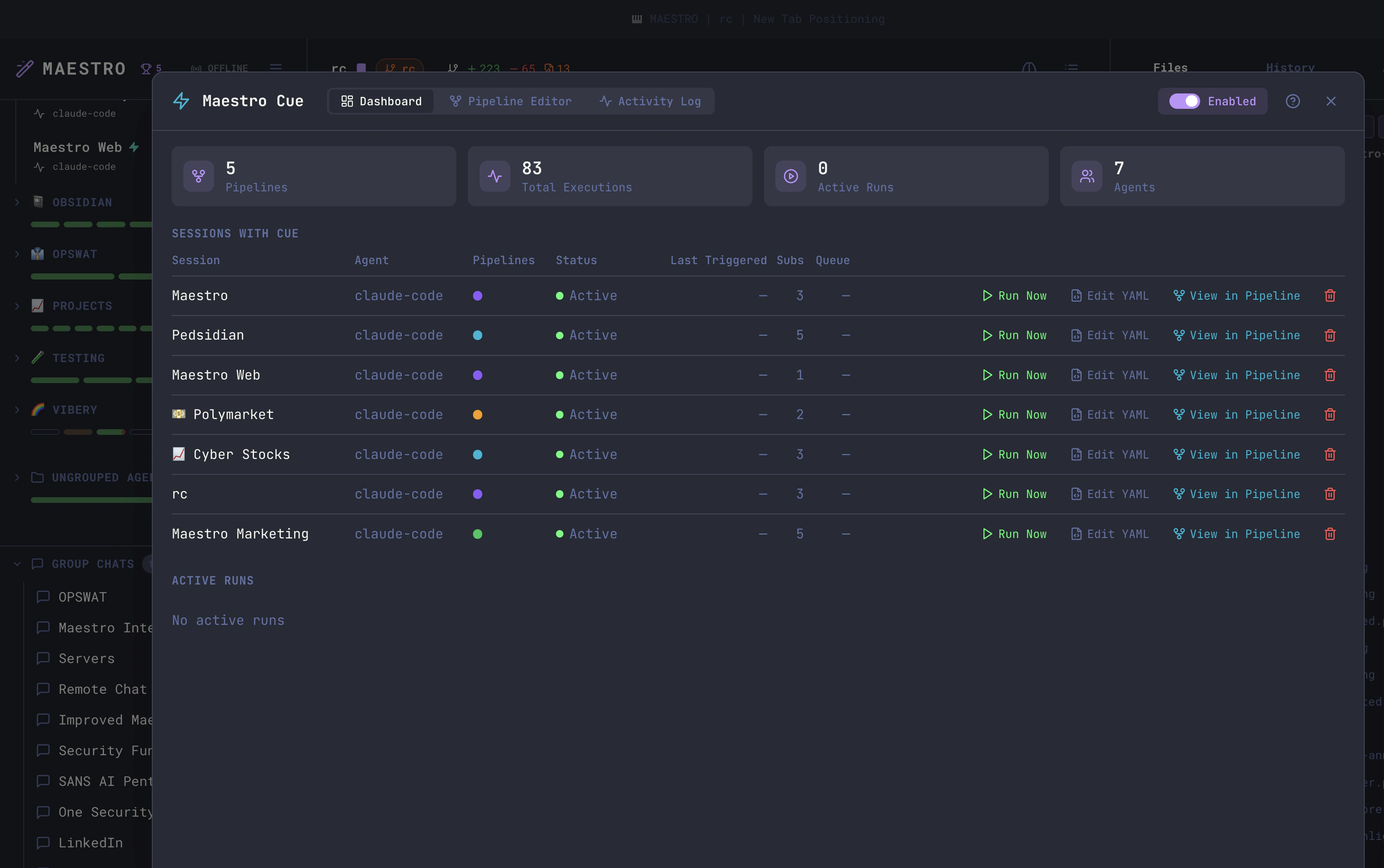
Each row has three action buttons:
- Run Now - Manually trigger a subscription on demand, bypassing its normal event conditions. Useful for testing new subscriptions or re-running a failed automation without waiting for the next event.
- Edit YAML - Open the inline YAML editor for that agent.
- View in Graph - Jump to the Pipeline Graph tab, scoped to that agent.
- It appears in the pipeline, as an agent node bound to it or as a command node that runs in its project root.
- The pipeline is declared in that agent’s own
cue.yaml, even when nothing in the pipeline points back at the agent. A fan-out that only dispatches to other agents is the usual case, as is anaction: commandpipeline that is nothing but a trigger and a shell step.
Click the
x on the chip, or pick any pipeline from the selector, to widen back
out to every pipeline. The scope only changes what the canvas draws - it never
edits a pipeline, and the All Pipelines view stays read-only either way.
Below the sessions table, the Active Runs section lists subscriptions that are currently executing, with a Stop button for each.
Scheduled Tasks
The Scheduled Tasks tab is the clock-driven slice of Cue in one list: every task that fires at a time rather than in response to a file change, a PR, or another agent. Three kinds live here:
Each row shows the task label, the subscription name and its pipeline, the agent that runs it, its schedule, and a countdown to the next fire. The pipeline is omitted when it just repeats the agent name. A paused task is dimmed and marked
paused.
Sorting. Click any column header to sort by it; click the active header again to reverse it. Switching columns starts that column in its own natural order rather than inheriting the previous one. The default is Next, soonest first. Tasks with no projected next fire (a repeating interval, whose phase lives in engine run state rather than in the YAML) always sort last, in both directions. Schedule groups by recurrence first (one-offs, then set times, then intervals) and orders within each group by when it actually fires.
Filtering. Two filters, and they stack:
- The text box narrows the list as you type. The task label, subscription name, and agent are matched fuzzily, so
wsprfinds “Wispr Sync”. The pipeline, schedule text, and action are matched as plain substrings, so18:00orcommandpull up exactly what you would expect. - The All / Once / At set times / Interval buttons narrow by recurrence, which is the fast way to separate one-off reminders from standing jobs.
Esc clears the text filter before it closes the modal.
Reading the schedule. Day sets are written as compactly as they can be read: all seven days is Every day, Monday through Friday is Weekdays, Saturday and Sunday is Weekends, and anything else uses one- or two-letter days (M, T, W, Th, F, Sa, Su) with runs of three or more collapsed into a range. So 06:05 · Every day, 15:30 · Weekdays, 08:00 · Su, 09:00 · M-W, Sa. A one-off shows its fire time in your own timezone rather than the UTC timestamp stored in the YAML. The icon at the left of the cell is the recurrence, matching the filter buttons above.
Three buttons per row:
- Pause / Resume - Flips
enabledin the YAML. The task stays on disk, it just stops firing. Use this instead of deleting a task you will want back. - Edit - Change when the task fires, its prompt, its notification, or its label. The agent and the recurrence kind are fixed once a task exists: both are identity on disk, so switching either means cancelling and creating a new task.
- Cancel - Deletes the task from the agent’s
cue.yaml. This asks for confirmation and cannot be undone.
15m / 1h / 4h / 1d quick picks), and give it a prompt, a toast notification, or both. A notification can be made sticky so it waits for you to dismiss it.
Tasks created here and tasks created with maestro-cli cue schedule are the same objects in the same file - both surfaces read and write through one module, so the list is always the whole truth. That also means an agent can schedule work for you and you can see, re-time, or cancel it here:
Pipeline Graph
The Pipeline Graph tab visualizes your Cue subscriptions as a node graph - triggers on the left, agents on the right, with edges showing how events flow through your automation.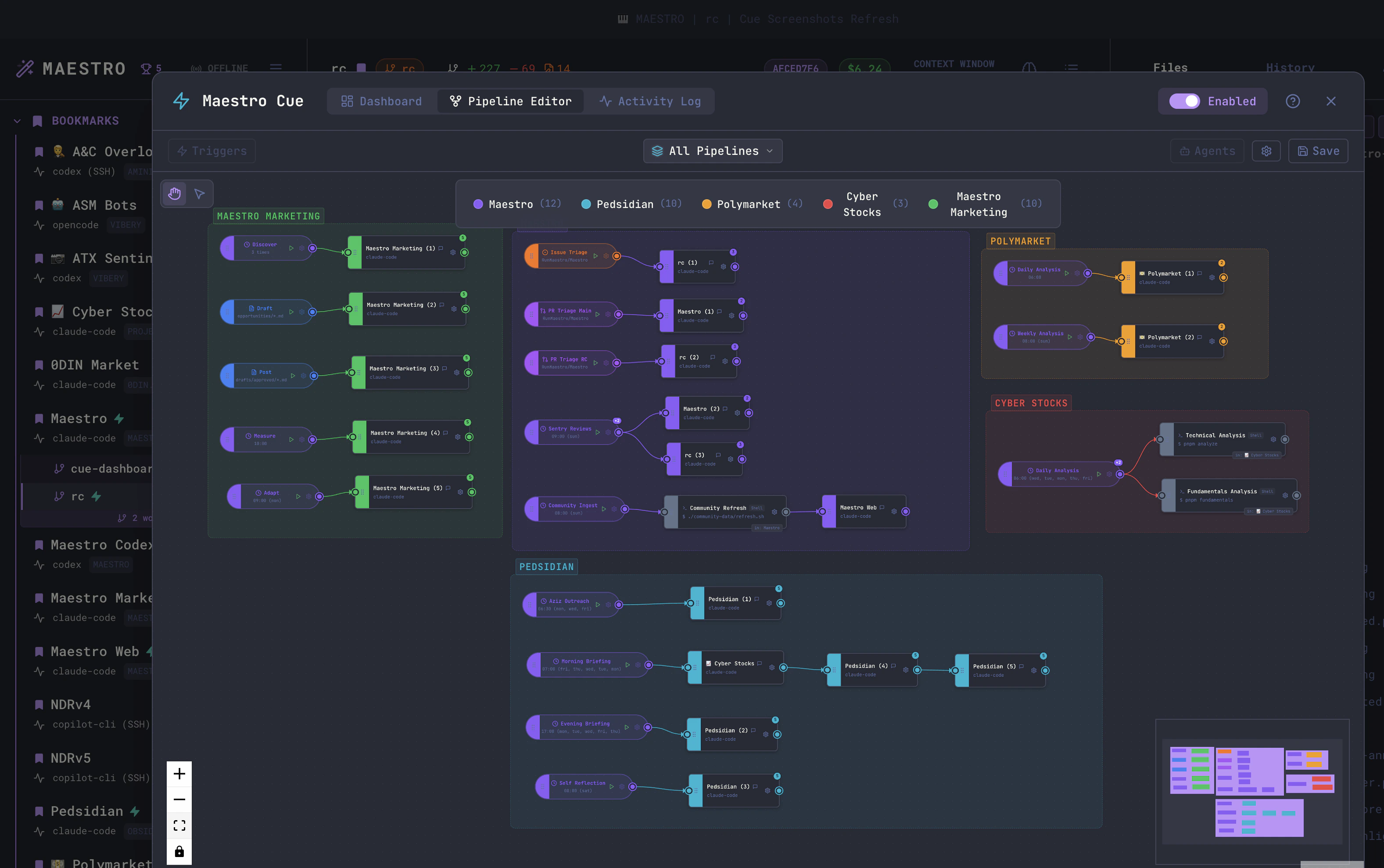
# Pipeline: comment and -chain-N naming convention in your YAML to group subscriptions. See Pipelines in the Configuration Reference for details.
Inspecting a Pipeline
Pick a pipeline from the All Pipelines dropdown in the top bar, or click any node, to drill into a single pipeline. The Triggers drawer (left) and Agents drawer (right) toggle from the toolbar and show full configuration details. Selecting a node reveals its details inline at the bottom - including the prompt text for an agent node.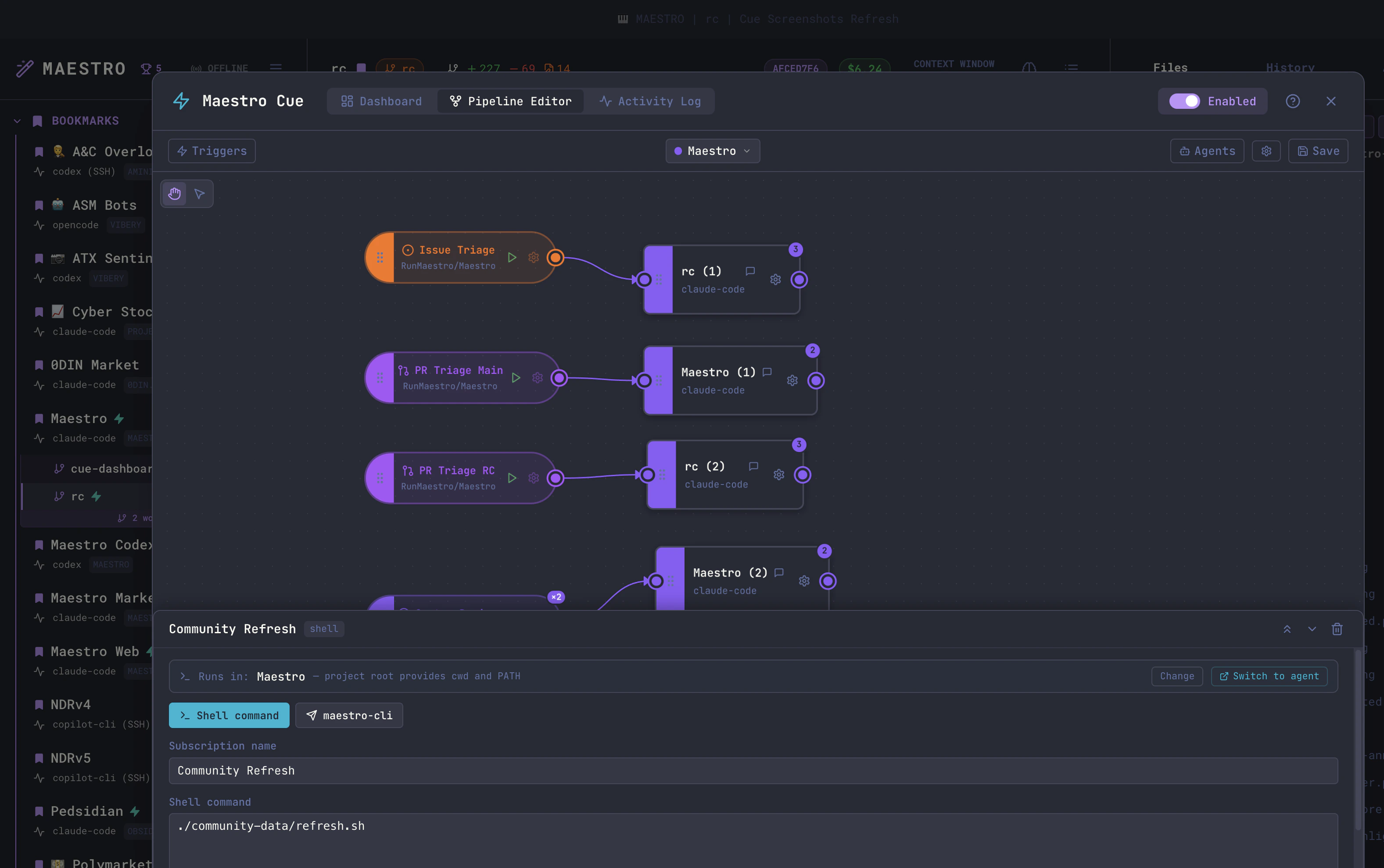
- Tidy keeps each column’s current top-to-bottom order, so it only aligns what you already have and leaves any crossing edges as-is.
- Arrange additionally reorders nodes within each column to untangle crossing edges. Reach for it after importing a pipeline or whenever the wiring looks tangled.
Pipeline List
The Pipeline List tab is the same pipelines read as text rather than drawn as a graph. Once you have more than a handful, a canvas is good at showing how one pipeline is wired and bad at answering “what do all of these do, and is anything broken?” That is what this tab is for. Each row collapses to a one-line overview:- What it does - a small pipeline shows its literal flow:
Scheduled (09:00) → rc → Maestro, following the edges rather than the order nodes happen to sit in the file. A pipeline with many triggers or steps shows counts instead:39 triggers (Scheduled, File Change) → 39 agents. That is not just brevity - a pipeline like that is usually 39 independent chains grouped under one name, so chaining their names with arrows would describe a sequence that does not exist. - How it is doing - a health badge, the outcome and age of the last run, how many recent runs there were and how many of those failed, and the number of steps.
- What is wrong - any configuration problems, spelled out verbatim (a trigger with no schedule, an agent with no prompt, a node pointing at an agent that no longer exists). These stay visible while collapsed; a broken pipeline should not need a click to admit it.
Enter / Space) to expand it into two columns: every Trigger with its configuration and underlying subscription name, and every Step with its agent name or command body. Several rows can be open at once, which is the point - expanding two pipelines side by side is the usual reason to expand at all.
Prompts. Each step shows the prompt it receives on one clipped line beneath its name, and hovering reveals the full text with its original line breaks. This is usually the only thing that tells two steps apart: a fan-out pipeline renders the same agent name six times, and the prompt is what says which of the six does what. The inline line is clipped by the column width rather than cut to a fixed word count, so a wider window simply shows more of it. A step fed by several different prompts (an agent wired to more than one trigger) carries an ×N badge, and the hover card says how many others there are.
Prompts are searchable, so unusual volume finds the pipeline containing that instruction even when every agent in it shares a name. Prompts written with prompt_file show their resolved file contents, not the filename.
The prompt appears on the step rather than the trigger on purpose: a trigger’s outgoing edge and its target’s incoming edge are the same edge, so showing it in both columns would print everything twice, and a fan-out trigger has one prompt per target rather than one of its own.
Health is derived, not stored. The badge is one of:
“No recent runs” is deliberately not “never run” - the activity log is a bounded window, so a pipeline that ran successfully a long time ago lands here too.
Searching, filtering, and sorting
The toolbar narrows the list three ways. All three combine. Search matches the pipeline name, the trigger labels and their configuration, every agent and command name, and the health label - so09:00, rc, and failing are all valid queries.
Filter by health:
Sort by:
Health is the default so anything needing a human sits at the top rather than being buried under a couple dozen working pipelines.
Row actions
Run now fires the pipeline on demand. It appears only when the pipeline has exactly one trigger subscription. With several triggers the button would be ambiguous (which event is being simulated? each trigger carries its own prompt) and dangerous - a 39-trigger pipeline would dispatch 39 agent runs on one click. Multi-trigger pipelines instead get a Run button next to each trigger in the expanded detail, so you fire exactly the one you meant. Graph jumps to the Pipeline Graph tab with that pipeline selected. Rename is the pencil beside the pipeline name. Click it (or the name’s pencil on hover), type, and pressEnter to commit or Escape to cancel; clicking away also commits, since clicking away from text you just typed reads as “keep it”. While a rename is open, Escape cancels it rather than closing the Cue modal - a second Escape closes the modal as usual. A blank name, or one another pipeline already uses, is refused in the field rather than after a round-trip, so your text stays put and you can fix it. Changing only the capitalization of the current name is allowed.
A rename rewrites pipeline_name on every subscription in the pipeline, across every cue.yaml it spans - a cross-agent pipeline is physically several files and all of them are updated together. What it deliberately does not touch:
- Subscription names stay exactly as they were. They are stable identities: saved node positions and
source_subchain references point at them, and renaming them would strand both. This means a pipeline renamed fromOldtoNewkeeps subscriptions calledOld,Old-chain-2, and so on. That is correct, not a bug -pipeline_nameis what determines pipeline membership. - Prompt files under
.maestro/prompts/are keyed by subscription name, so their paths stay valid.
Activity Log
The Activity Log tab is a chronological record of every completed, failed, timed-out, or stopped run. The header offers a search box and an Expand all / Collapse all toggle.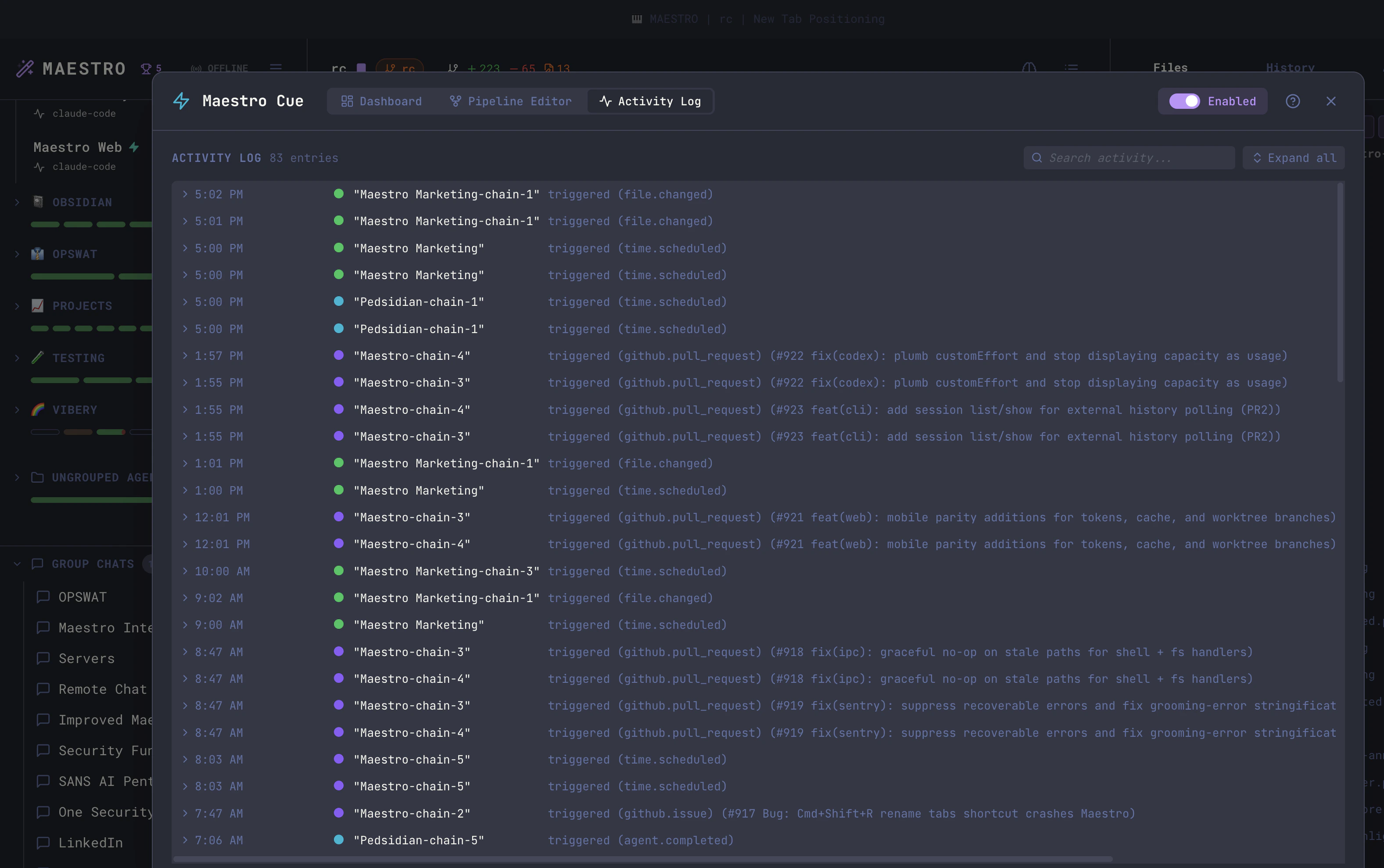
- Timestamp (just the time for today’s runs, full date for older)
- Pipeline color dot and subscription name
- Trigger type (e.g.
(file.changed),(github.pull_request)) - Status (completed in N seconds, failed, timeout, stopped) with a duration
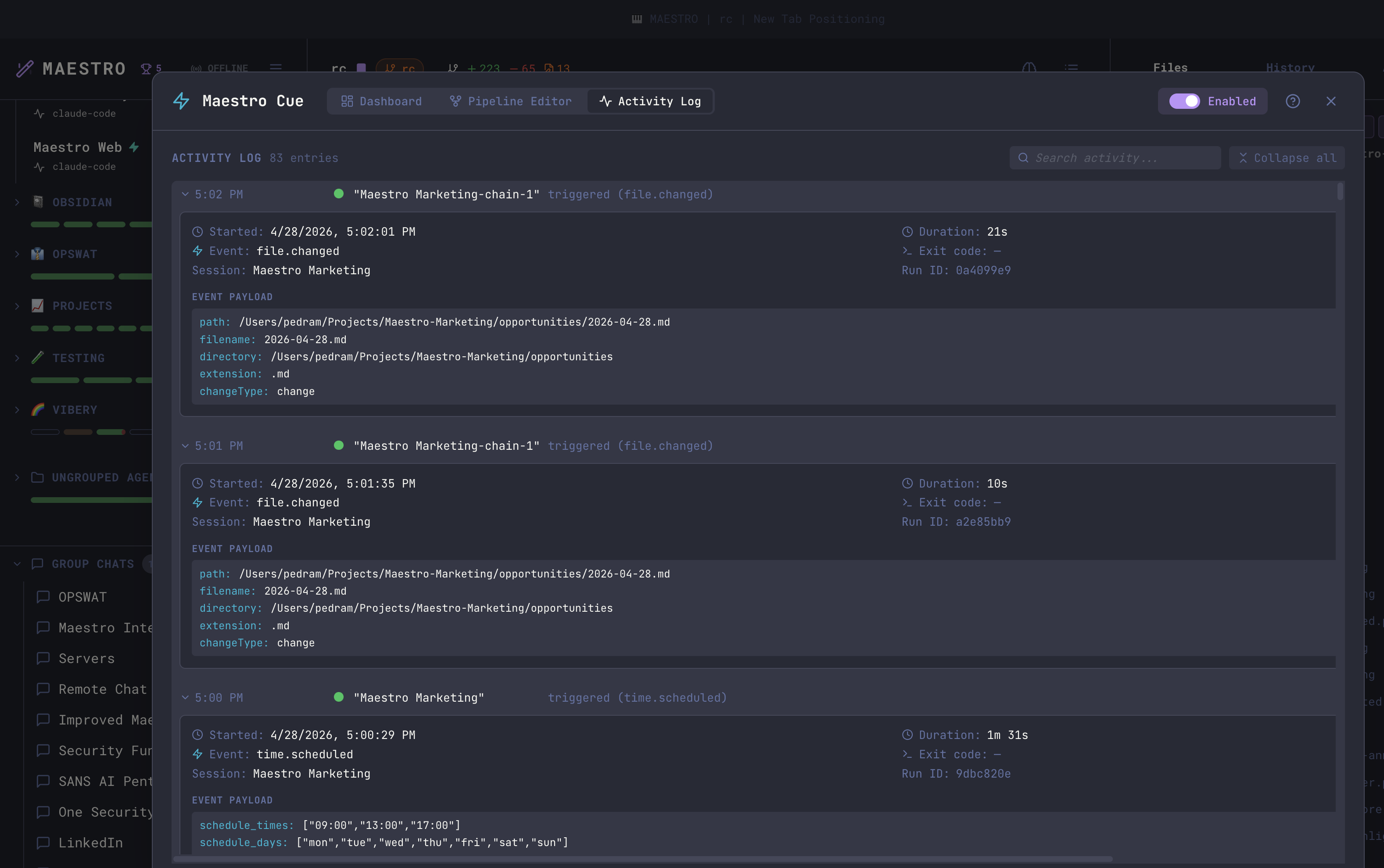
file.changed events the payload includes the path, filename, directory, extension, and change type. For GitHub triggers it includes the PR/issue number, title, author, URL, and body.
YAML Editor
Click Edit YAML on any Dashboard row to open the inline editor. The left column offers pattern templates (Startup, Heartbeat, Scheduled, Reactive, Sequential Chain, PR Review, Issue Triage, Task Queue, and more) - click one to insert a pre-configured subscription block. An AI Assist panel below lets you describe what you want in plain English and have the agent edit the config for you.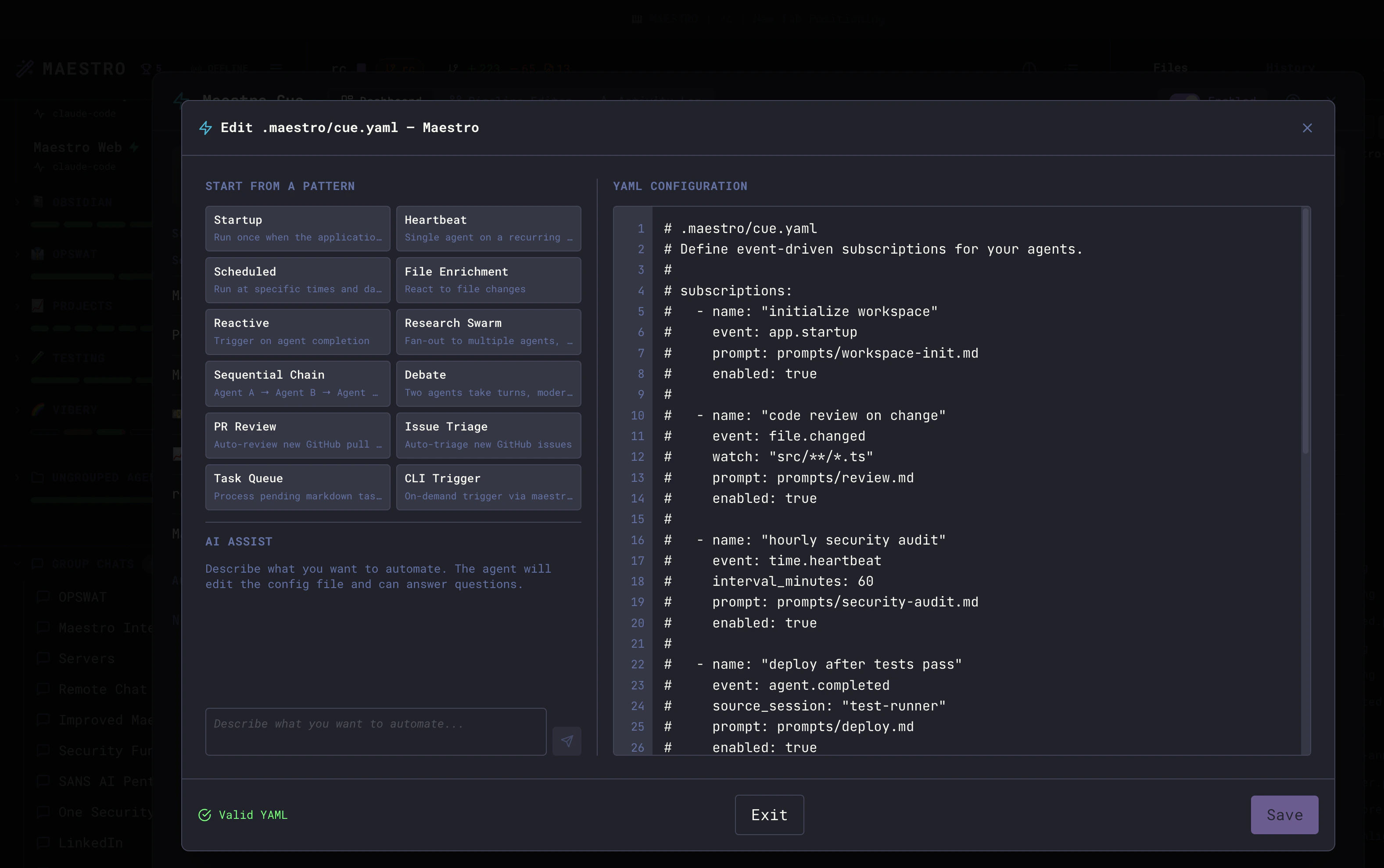
AI Assist
Type a plain-English description of the subscription you want to add or change, and the agent edits the YAML for you. Useful for quickly scaffolding a new trigger without remembering field names.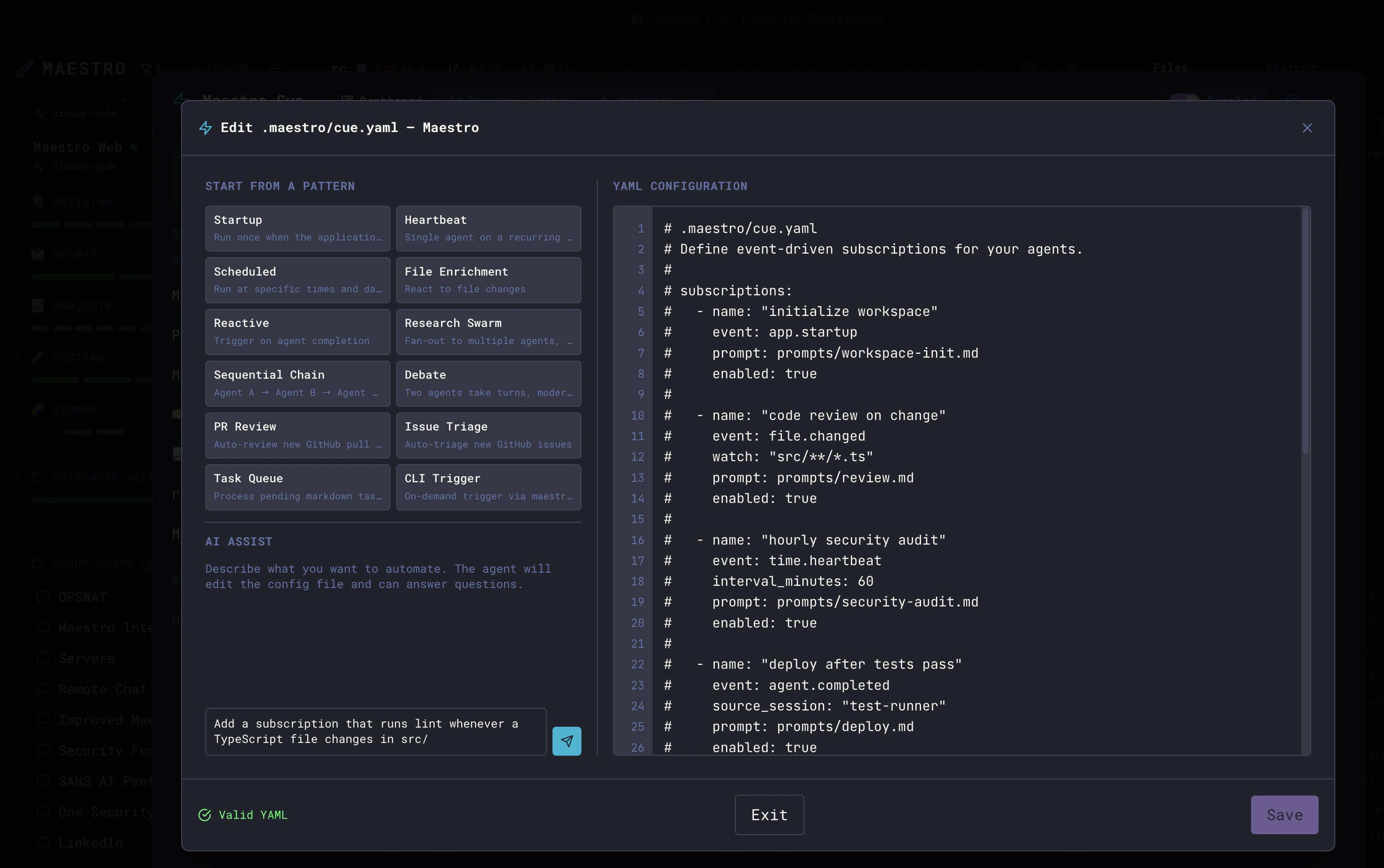
Help
The header ? button opens a built-in quick-reference guide covering Cue’s purpose, getting started, the full event type list, template variables, and advanced patterns. Use it as an in-app cheat sheet; for the full schema and examples, see Configuration Reference, Event Types, and Advanced Patterns.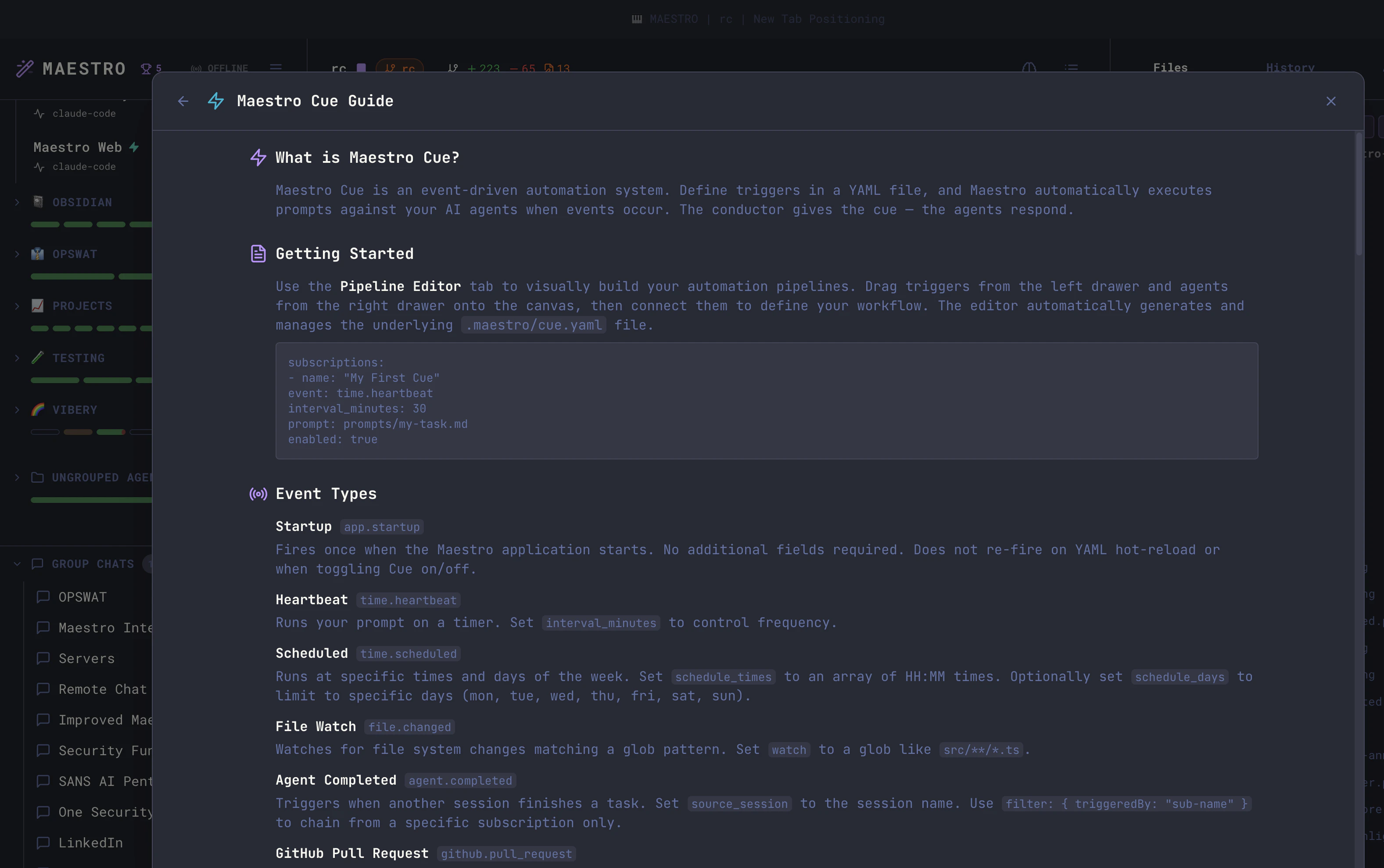
Configuration File
Cue is configured via a.maestro/cue.yaml file placed inside the .maestro/ directory at your project root. Each agent has its own cue.yaml under its own project root - the engine reads only that file (no parent-directory walk, no shared workspace file). For pipelines that span agents at different roots, see Multi-root pipelines in the Configuration Reference. See the Configuration Reference for the complete YAML schema.
Event Types
Cue supports eleven event types that trigger subscriptions:
See Event Types for detailed documentation and examples for each type.
Template Variables
Prompts support{{VARIABLE}} syntax for injecting event data. When Cue fires a subscription, it replaces template variables with the actual event payload before sending the prompt to the agent.
Advanced Features
Cue supports sophisticated automation patterns beyond simple trigger-prompt pairings:- Fan-out - One trigger fires against multiple target agents simultaneously
- Fan-in - Wait for multiple agents to complete before triggering
- Payload filtering - Conditionally trigger based on event data (glob matching, comparisons, negation)
- Agent chaining - Build multi-step pipelines where each agent’s output feeds the next
- Concurrency control - Limit simultaneous runs and queue overflow events
Keyboard Shortcuts
History Integration
Cue-triggered runs appear in the History panel with a teal CUE badge. Each entry records:- The subscription name that triggered it
- The event type
- The source session (for agent completion chains)
Requirements
- GitHub CLI (
gh) - Required only forgithub.pull_requestandgithub.issueevents. Must be installed and authenticated (gh auth login). - File watching -
file.changedandtask.pendingevents use filesystem watchers. No additional dependencies required. - CLI triggers -
cli.triggerevents requiremaestro-clito be installed. See the CLI documentation for setup.
Tips
- Start simple - Begin with a single
file.changedortime.heartbeatsubscription before building complex chains - Use the YAML editor - The inline editor validates your config in real-time, catching errors before they reach the engine
- Check the Activity Log - If a subscription isn’t firing, the activity log shows failures with error details
- Prompt files vs inline - For complex prompts, point the
promptfield at a.mdfile instead of inlining YAML - Hot reload - The engine watches
.maestro/cue.yamlfor changes and reloads automatically - no need to restart Maestro - Template variables - Use
{{CUE_TRIGGER_NAME}}in prompts so the agent knows which automation triggered it