
http://localhost:5173), so the agent sees exactly the element you mean instead of a description of it.
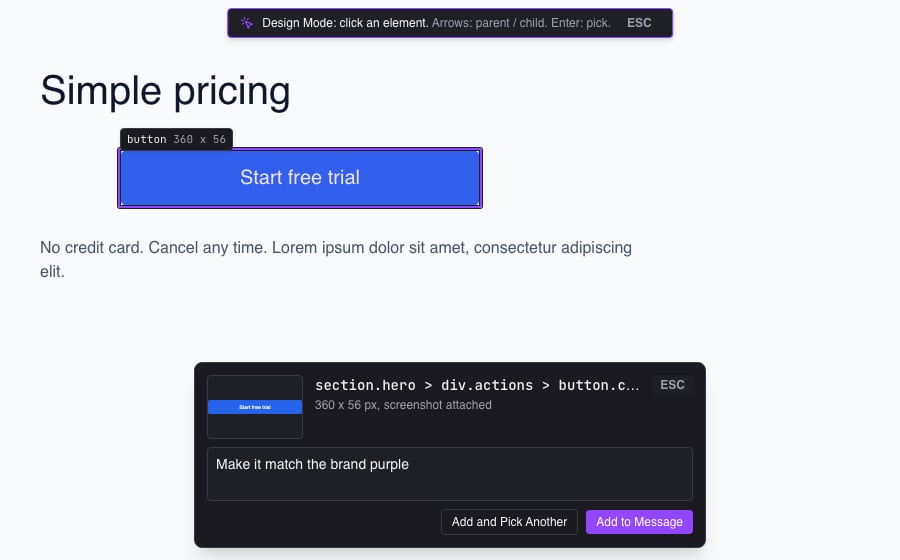
Pick an element
- Open the page in a browser tab (
Cmd+B/Ctrl+B, then type the URL). - Turn on Design Mode with the pointer button in the address bar,
Cmd+Shift+C/Ctrl+Shift+C, or Design Mode: Pick an Element in the command palette (Cmd+K/Ctrl+K). - Move the mouse over the page. The element under the pointer gets an outline and a label with its tag, id, classes, and size.
- Click the element (or press
Enter). A card opens with the screenshot, the selector, and a note field. - Type a note if you want one, then press
Enteror Add to Message.
Cmd+Enter / Ctrl+Enter (or Add and Pick Another) instead. The element goes into the message and you stay in Design Mode to pick the next one.
While Design Mode is on, the page does not receive your clicks, so picking a button does not press it. You can still scroll with the mouse wheel or trackpad. The page’s own hover effects do not show while you pick.
Keys
You can do it all without a mouse: when Design Mode turns on, the element at the center of the page is outlined, and the arrow keys walk up and down from there. Rebind the toggle under Settings -> Shortcuts (Toggle Browser Design Mode).
What the agent receives
The element goes in as a block of Markdown, followed by your note:- Selector. The shortest CSS selector that matched only this element, checked against the element itself, when you picked it. Siblings that share an id are told apart by position. A page that re-renders afterwards can change what it matches. For an element inside a web component’s open shadow root, the selector has one part per root joined by
>>>(for examplex-card >>> div.wrap > button). That is Maestro’s boundary marker, the same one Puppeteer’s deep combinator uses;browser-pickaccepts it, whiledocument.querySelectorand the Coworking tools do not. Playwright locators pierce open shadow roots on their own, so for Playwright replace each>>>with a space. Inside an iframe the pick stops at the iframe element. - Computed styles. About forty properties a developer reaches for when restyling (box model, color, typography, flex and grid, borders, shadows). Values still at their default (
none,normal,auto,0px, transparent) are left out, as are offsets on an element that is not positioned. - HTML. The element’s
outerHTML, cut at 6,000 characters and marked when cut. It is labeled as page content so the agent treats it as data. - Screenshot. Cropped to the element at your display’s resolution. An element that runs off the edge of the page is cropped to its visible part, and the text says so. Maestro’s own outline, banner, and card never appear in it.
- Browser tab. When Coworking is on and the tab is visible to agents, the block names the tab by its Coworking id. An agent with the Coworking tools can then re-read the element (
read_browserwith the selector) or take a fresh screenshot after it changes the code, using the same id.
From the command line
An agent or a script can make the same pick by selector withmaestro-cli browser-pick. It runs the same code as a click and adds the same block to the agent’s message:
--background stages the element without switching the visible tab. --json returns the text that was added, the AI tab it went to, the tab’s Coworking id, and whether a screenshot was attached. A tab hidden from agents (the eye button in the address bar) cannot be picked this way. See the CLI reference for every flag.
Privacy and safety
- Design Mode only reads the element you pick. It does not send anything until you press Add to Message, and nothing reaches the agent until you send the message yourself.
- The page cannot start a pick or put text into your message. Picks come only from your own clicks and key presses on Maestro’s overlay, never from anything the page does.
- Design Mode is not available in the web interface, where browser tabs open in your own browser.